


Introduction
Financial modeling in Excel often slows down at the exact moment speed matters most. Analysts spend hours cleaning assumptions, checking formulas, updating drivers, and rewriting commentary when the real goal is to turn numbers into decisions. That is where Claude for financial modeling in Excel becomes useful. It does not replace modeling discipline, but it can shorten the time spent on repetitive analysis, formula drafting, and narrative cleanup.
In practice, the biggest gain is not flashy automation. It is the reduction of friction between raw data and usable output. Claude can help a finance professional structure assumptions, explain a variance, compare forecast scenarios, or spot where a model needs more clarity. This article explains how Claude can help finance professionals build, review, and explain Excel models faster without losing control over accuracy. For teams working on valuation, budgeting, or operating forecasts, that matters because speed only helps when the logic stays intact. A well-run model still depends on clean inputs, sound formulas, and a clear audit trail. Claude can support that process by making the first draft faster and the review cycle sharper.
Where Claude Helps
Claude is most useful when the modeling work involves language-heavy tasks around the spreadsheet rather than pure cell mechanics. That includes writing formula logic, summarizing operating trends, turning assumptions into commentary, and explaining why a metric moved. It is especially helpful when a model contains many tabs, long notes, or multiple business drivers that need to be translated into a concise finance story.
For example, an analyst building a 3 statement model can use Claude to draft a margin bridge explanation after updating revenue, cost of goods sold, and headcount assumptions. The analyst still has to verify the math, but the time saved on narrative work is real. In a finance team, that can mean faster review cycles and fewer delays before a management meeting. The tool works best when the user gives it a clear task, a defined assumption set, and a target output such as a formula, memo, or variance summary.
Step-by-Step Use of Claude in Financial Modeling
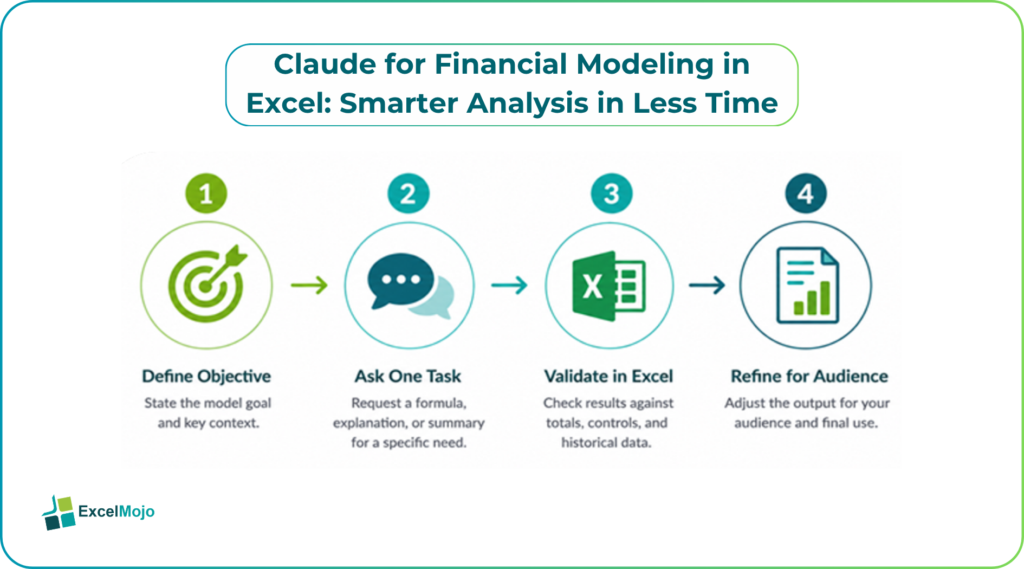
A practical workflow keeps Claude inside a controlled modeling process. The goal is to use it for acceleration, not blind delegation. The best results come when the analyst feeds it structured inputs and checks every critical output against the workbook.
- Start with the model objective.
State whether the sheet is for valuation, budgeting, scenario testing, or operating forecasts. Claude performs better when the task is specific. - Give the model context.
Share the key drivers, periods, assumptions, and output format. If the workbook uses revenue growth, gross margin, and working capital assumptions, define them clearly. - Ask for one task at a time.
Request a formula, a short explanation, or a scenario summary rather than a vague “analyze this model” prompt. - Validate the result in Excel.
Compare the AI-generated logic with known totals, control checks, and historical numbers before using it in presentation material. - Rewrite the output for the audience.
A board deck needs tighter language than a working model. Claude can help draft both, but the analyst should still shape the final version.
This workflow fits the way finance teams already work. It respects the spreadsheet as the source of truth while using Claude as a fast drafting and interpretation layer.
Practical Use Cases for Finance Teams
Claude is strongest in modeling tasks that combine computation with explanation. One common use case is forecasting. A finance analyst can ask Claude to help frame a revenue forecast based on unit volume, price, and churn assumptions, then compare the output against the model’s actual formulas. Another common use case is valuation, where the tool can help draft sensitivity commentary for discount rate or terminal value changes.
It also helps in variance analysis. If EBITDA misses plan by 7 percent, Claude can help structure the story around pricing, volume, operating leverage, or expense timing. That story still needs the analyst’s judgment, but the first pass is faster. A similar benefit appears in monthly close reporting, where teams often need to turn a dense set of workbook outputs into plain English for leadership.
The real value shows up when the analyst uses Claude to reduce manual rewriting. Instead of rebuilding narrative from scratch each month, the team can focus on what changed and why it matters. That is a strong fit for finance professionals who care about both accuracy and turnaround time.
Mistakes to Avoid When Using Claude in Excel Models
- Vague Prompts Create Weak Outputs: If the instruction is too broad, the response will usually be too generic. Finance work needs a clear task, a defined time period, and a specific output.
- Formula Logic Still Needs Review: Claude can draft formulas, but the analyst still has to test references, signs, and range logic in Excel. This is where many users make avoidable mistakes.
- Narrative Can Sound Polished but Still Miss the Point: AI-written commentary often reads well on the surface. The problem is that it may simplify the business issue too much or miss the actual driver behind the variance.
- Overreliance Slows Judgment: If the team starts accepting outputs without checking them, model quality drops fast. The best use of Claude is as a drafting partner, not a replacement for analytical review.
- Sensitive Models Need Extra Care: In banking, FP&A, and valuation work, even a small assumption error can affect decisions. This is why final review should always stay with the analyst, not the AI.
Claude vs Manual Work
Manual modeling still has an advantage in control, especially for highly sensitive work. A senior analyst can see every formula, trace every assumption, and understand the model structure at a glance. That remains important for final review and sign-off. Claude does not replace that discipline.
Where Claude wins is speed on repetitive tasks. It can draft formula logic, summarize outputs, and help create cleaner commentary much faster than a person typing everything from scratch. In a simple comparison, manual work is often more precise at the final stage, while Claude is more efficient in the early and middle stages. The best teams combine both.
| Task | Manual Excel Work | Claude-Assisted Workflow |
|---|---|---|
| Building formulas | Slower but fully controlled | Faster drafting, then human review |
| Scenario explanation | Time-consuming | Quick first draft |
| Variance commentary | Requires more rewriting | Faster narrative generation |
| Final sign-off | Strong | Still requires human validation |
This balance is why Claude works best as an analyst assistant, not an analyst replacement. Finance teams that understand that distinction usually get the most value.
How Skilled Analysts Can Get More from Claude
Advanced users can get more out of Claude by pairing it with clean model design. That means keeping inputs separate from calculations, using consistent naming, and avoiding hardcoded values inside formulas. When the spreadsheet is organized, Claude can reason over the business logic more effectively.
It also helps to use short, explicit prompts. For example, instead of asking for a full model review, ask for “a three bullet explanation of why operating margin fell in Q2 based on these drivers.” That produces more useful output and reduces cleanup time. Analysts can then fold that draft into board materials, lender presentations, or management reporting.
Conclusion
Claude for financial modeling in Excel is most valuable when the work needs both speed and structure. It helps analysts draft formulas, explain variances, and summarize model outputs without removing the need for review. For finance teams, that means less time on repetitive writing and more time on judgment, assumptions, and decision support.
The smartest workflow is simple: build the model in Excel, use Claude to accelerate the analysis layer, and verify every important output before sharing it. That approach gives finance professionals a practical way to move faster while keeping control. In a field where accuracy matters as much as speed, that combination is hard to beat.
Frequently Asked Questions (FAQs)
Can Claude build a full financial model in Excel?
Claude can help draft sections of a financial model, explain formulas, and organize assumptions, but it should not replace human review. A full model still needs Excel validation, control checks, and a careful look at links, signs, and timing.
Is Claude useful for valuation models?
Yes. It can support DCF commentary, sensitivity analysis notes, and summary language for valuation outputs. It is most useful when the model has many inputs, scenarios, or supporting tabs that need a clear explanation.
How does Claude help with forecasting?
Claude can speed up forecast work by summarizing assumptions, comparing scenarios, and drafting commentary around key drivers. That saves time when the analyst already has the numbers and just needs a clearer story for management or clients.
Should finance teams trust AI-generated formulas?
They should review them carefully. AI can generate a solid starting point, but the analyst still needs to test logic, references, and output consistency in Excel. In finance, even a small formula error can affect the whole model.