


Introductiom
Excel formulas are the engine behind most financial models, dashboards, and management reports. Yet even experienced analysts occasionally spend more time debugging formulas than analyzing results. A missing parenthesis, an incorrect lookup range, or an unexpected #N/A can disrupt an entire reporting workflow.
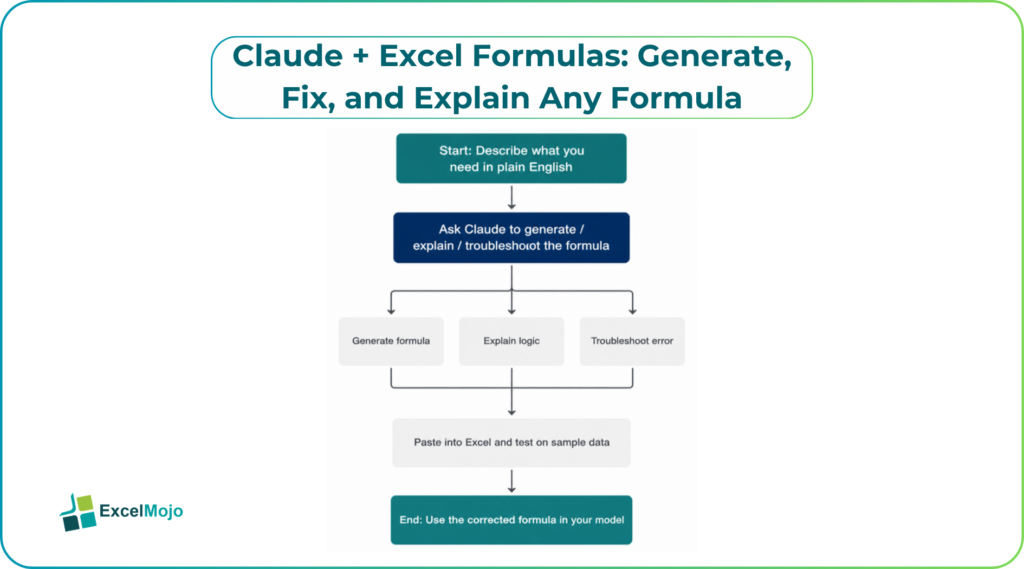
This is where Claude Excel formulas become genuinely useful. Instead of searching forums or rebuilding formulas from scratch, analysts can describe what they need in plain English and ask Claude to generate the formula, explain the logic, or troubleshoot an error. Whether the task involves XLOOKUP, SUMIFS, INDEX MATCH, or modern dynamic array functions, Claude can provide a reliable starting point.
This article shows how to use Claude to generate formulas, fix broken logic, and understand complex calculations faster. It also includes practical prompts and best practices that financial
Why Claude Is Effective for Excel Formulas
Spreadsheet formulas follow structured logic, which makes them well suited for AI assistance. When users provide the business objective and relevant columns, Claude translates that requirement into a working formula.
For example, an analyst might ask:
Write a formula to return the customer name from Sheet2 based on the ID in A2, and return “Not Found” if there is no match.
Claude typically responds with:
=IFERROR(XLOOKUP(A2,Sheet2!A:A,Sheet2!B:B),”Not Found”)
This ability to convert business requirements into formulas is what makes Claude AI formulas particularly useful for finance and accounting professionals.
How to Generate Excel Formulas with Claude
- Describe the Business Logic: The best prompts focus on the required outcome rather than the formula itself. For example, “sum revenue for the region in B2 and month in C2” is clearer than “write a SUMIFS formula.”
- Include Cell References: Providing exact ranges helps Claude generate formulas that fit the workbook structure. This reduces the need for manual adjustments.
- Request Error Handling: Analysts can ask Claude to wrap formulas in IFERROR so outputs remain cleaner and easier to interpret.
- Ask for an Explanation: Claude can explain each function and describe why the formula works, which is useful when reviewing complex logic.
Practical Claude Prompts for Excel Formulas
#1 – Generate a Multi-Criteria SUMIFS
Prompt: Write a SUMIFS formula to sum revenue in column G where Region equals B2, Product equals C2, and Month equals D2.
Use: Creates a flexible aggregation formula.
#2 – Build an XLOOKUP with Error Handling
Prompt: Write an XLOOKUP formula that returns the employee name from Sheet2 based on the ID in A2, and return “Not Found” if no match exists.
Use: Combines lookup logic with error handling.
#3 – Explain a Formula
Prompt: Explain this formula in plain English: =IFERROR(XLOOKUP(A2,Table1[ID],Table1[Revenue]),0).
Use: Converts formula logic into business language.
#4 – Fix a Broken Formula
Prompt: This formula returns #VALUE!. Explain the likely causes and rewrite it correctly.
Use: Troubleshoots formula errors.
#5 – Rewrite Using LET
Prompt: Rewrite this formula using LET so it is easier to read and maintain.
Use: Improves readability for long formulas.
#6 – Return Unique Values
Prompt: Write a formula that returns a unique list of customer names from column A.
Use: Generates de-duplicated lists.
#7 – Filter Data Dynamically
Prompt: Write a FILTER formula to return all rows where Region equals H2.
Use: Produces spill-based filtered tables.
#8 – Compare Two Lists
Prompt: Write a formula to identify items in column A that do not appear in column B.
Use: Supports reconciliations.
Real-World Example: Repairing a Broken Revenue Formula
A financial analyst receives a workbook where the monthly revenue formula returns #N/A. The formula uses XLOOKUP to pull pricing from a separate assumptions table.
Instead of tracing references manually, the analyst pastes the formula into Claude and asks for the likely cause. Claude identifies that the lookup values contain extra spaces and recommends wrapping the lookup value with TRIM. The revised formula works immediately, saving the analyst time and highlighting a common data quality issue.
Best Practices for Using Claude with Excel Formulas
- Provide Sample Data: Two or three representative rows help Claude understand the data structure. This is particularly important when working with dates, text values, or lookup keys.
- Specify the Excel Version: Mentioning Excel 365 allows Claude to use functions such as XLOOKUP, FILTER, and LET. Otherwise, it may default to older alternatives.
- Request a One-Line Explanation: A short explanation helps users verify that the formula aligns with the intended business logic.
- Validate the Output: AI-generated formulas should always be tested against known results before being used in reports or models.
Common Pitfalls to Avoid
- Writing Vague Prompts: A prompt like “fix this formula” gives Claude very little context. Describing the expected result produces more accurate formulas and explanations.
- Omitting Sample Values: Without example data, Claude may misinterpret date formats, text patterns, or range structures. A few sample rows often improve results significantly.
- Copying Formulas Without Testing: Even well-constructed formulas should be checked against actual workbook data. Minor issues in source data can affect the final output.
- Ignoring Function Availability: Some functions are available only in Excel 365. Analysts should confirm compatibility if the workbook is shared with users on older versions.
Claude vs Traditional Formula Research
| Task | Traditional Approach | Using Claude |
|---|---|---|
| Build formulas | Search documentation and forums | Describe the logic |
| Explain formulas | Break down each function manually | Receive plain-English explanations |
| Fix errors | Trial and error | Guided troubleshooting |
| Improve readability | Rewrite manually | Request LET-based versions |
| Document logic | Write notes manually | Generate concise explanations |
For many analysts, this is why Generate Excel formulas with Claude has become a practical productivity technique.
Conclusion
Claude is an effective assistant for generating, fixing, and explaining Excel formulas. Instead of spending time searching documentation or debugging syntax, analysts can focus on defining the business logic and validating the results.
For finance professionals who work with formulas every day, Claude offers a faster and more intuitive way to build reliable spreadsheet logic.
Frequently Asked Questions (FAQs)
Can Claude generate advanced Excel formulas?
Yes. Claude can create formulas using XLOOKUP, SUMIFS, FILTER, LET, and other modern functions. It is especially effective when the prompt includes clear business rules and cell references.
Can Claude fix broken formulas?
Yes. Claude can diagnose errors such as #N/A, #VALUE!, and #REF! and suggest revised formulas. It often explains the underlying issue as well.
Can Claude explain formulas in plain English?
Absolutely. Users can paste any formula and ask Claude to explain what it does step by step. This is useful when reviewing unfamiliar workbooks.
Are Claude-generated formulas reliable?
They are often highly accurate, but they should always be tested with real data. Analysts should treat the output as a strong first draft rather than a final answer.