


Introduction
Large datasets rarely arrive in the perfect format. A finance analyst might export monthly sales data with figures spread across dozens of columns. A reporting team may receive survey results arranged in wide tables that need to be stacked into a single list before analysis. In situations like these, manually copying and pasting values into one column is slow and error-prone.
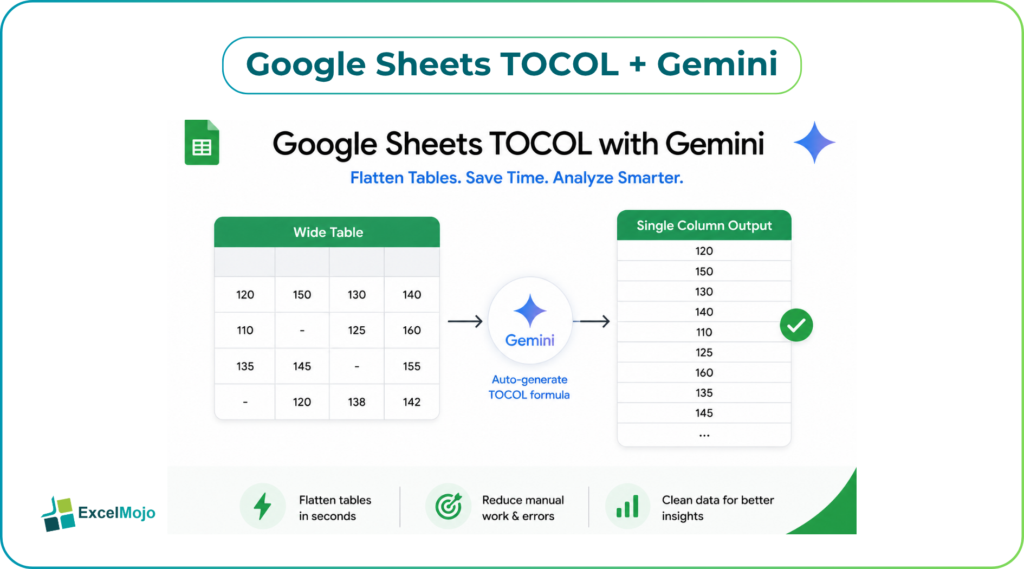
That is where Google Sheets TOCOL with Gemini becomes especially useful.
The Google Sheets TOCOL function converts any two-dimensional range into a single vertical column. When paired with Google Gemini for Google Sheets, users can generate the formula automatically, understand optional arguments, and adapt it to real-world data structures in seconds.
For analysts who work with budgets, transaction records, or operational dashboards, this combination removes a repetitive task that often consumes far more time than it should.
What the Google Sheets TOCOL Function Does
The TOCOL function transforms a table into a single column by reading values row by row or column by column.
The basic syntax is:
=TOCOL(array, [ignore], [scan_by_column])
- array: The source range.
- ignore: Controls whether blanks or errors are skipped.
- scan_by_column: Determines whether values are read by row or by column.
For example:
=TOCOL(A2:D5)
If the range contains quarterly revenue figures, TOCOL stacks every value into one clean list.
This capability is invaluable when preparing data for:
- Pivot tables
- Data validation dropdowns
- Unique lists
- Dashboard inputs
- Statistical calculations
Google documents the function in its official Sheets reference, noting that it can ignore blanks and errors as needed.
Why Gemini Makes TOCOL Easier to Use
Many users understand what they want to do but are unsure how to write the formula.
A typical prompt to Gemini might be:
“Convert this table into one column and ignore blank cells.”
Gemini can instantly return:
=TOCOL(A2:F20,1)
The 1 tells Sheets to ignore blanks.
For analysts working under deadline pressure, this is a practical advantage. Instead of searching syntax online, they describe the goal in plain English and receive a working formula.
A financial planning manager consolidating assumptions from multiple departments can use Gemini to create TOCOL formulas without memorizing optional parameters.
How to Flatten Data in Google Sheets Using TOCOL and Gemini
Step 1: Organize the Source Table
Suppose cells B2:E6 contain product sales across regions.
Step 2: Ask Gemini
Prompt:
“Create a formula to flatten B2:E6 into a single column and skip empty cells.”
Step 3: Insert the Formula
Gemini returns:
=TOCOL(B2:E6,1)
Step 4: Review the Output
The formula spills all values vertically into one column.
Step 5: Extend the Formula
If the list will feed a dropdown without duplicates:
=UNIQUE(TOCOL(B2:E6,1))
This produces a clean, distinct list of values.
Understanding TOCOL Arguments in Real-World Scenarios
#1 – Ignore Blank Cells
=TOCOL(A2:D10,1)
This skips empty cells, which is useful when different departments submit partially completed templates.
#2 – Ignore Errors
=TOCOL(A2:D10,2)
This excludes cells containing errors such as #N/A.
#3 – Ignore Blanks and Errors
=TOCOL(A2:D10,3)
This is often the best choice for imported operational data.
#4 – Scan by Column
=TOCOL(A2:D10,1,TRUE)
Instead of reading rows left to right, Sheets processes each column from top to bottom.
This option matters when the original table is structured by time periods or categories.
Practical Finance and Analytics Use Cases
#1 – Consolidating Budget Assumptions
FP&A teams frequently collect assumptions in wide templates. TOCOL converts those matrices into a single list for variance analysis or sensitivity testing.
#2 – Preparing Data for Power BI
Although Power BI includes unpivot tools, flattening data in Google Sheets before export can simplify upstream processing.
#3 – Creating Dynamic Dropdown Lists
Operations teams can combine TOCOL with UNIQUE and SORT:
=SORT(UNIQUE(TOCOL(A2:F50,1)))
This formula builds an automatically updating dropdown source.
#4 – Cleaning Survey Responses
When hundreds of responses are spread across columns, TOCOL creates one standardized list for text analysis.
TOCOL vs FLATTEN in Google Sheets
Before TOCOL, many users relied on the FLATTEN function. While still available in some contexts, TOCOL offers more control.
| Feature | TOCOL | FLATTEN |
|---|---|---|
| Ignore blanks | Yes | No |
| Ignore errors | Yes | No |
| Scan by column | Yes | No |
| Official documentation support | Yes | Limited |
| Works well with Gemini | Yes | Yes |
For most modern workflows, TOCOL is the stronger option.
Common Mistakes to Avoid
- Forgetting to Ignore Blank Cells: If the second argument is omitted, TOCOL includes every blank cell in the output. This often results in a long list with empty rows that can interfere with charts, dropdown lists, and downstream formulas.
- Using Fixed Ranges: Hard-coded ranges such as A2:F50 work only until new rows are added. If the dataset grows regularly, use an open-ended range like =TOCOL(A2:F,1) so the formula automatically captures new data.
- Confusing Row and Column Order: By default, TOCOL reads data row by row from left to right. If the output sequence looks different from what is expected, set the third argument to TRUE to scan each column from top to bottom.
- Overwriting Spill Results: TOCOL is a dynamic array function, which means it fills multiple cells automatically. If any cell in the spill range contains data, Google Sheets returns an error instead of displaying the full result.
Combining TOCOL with Other Functions
The real power of TOCOL emerges when combined with dynamic array functions.
To create a sorted unique list:
=SORT(UNIQUE(TOCOL(A2:F100,1)))
To filter positive values only:
=FILTER(TOCOL(A2:F100,1), TOCOL(A2:F100,1)>0)
These combinations are particularly useful for financial models and operational dashboards.
Conclusion
Google Sheets TOCOL with Gemini turns a tedious data-cleaning task into a quick, repeatable step. TOCOL converts any table into a single column, while Gemini writes the formula based on a plain-English prompt.
For finance professionals, analysts, and spreadsheet power users, this means less time spent rearranging data and more time interpreting results. Whether building dropdowns, preparing imports, or cleaning wide datasets, TOCOL is one of the most practical functions available in modern Google Sheets.
Frequently Asked Questions (FAQs)
What does the Google Sheets TOCOL function do?
The Google Sheets TOCOL function converts a two-dimensional range into a single vertical column. It is especially useful when analysts need to reshape wide tables into a format suitable for pivot tables, filters, and dashboards.
How do you flatten data in Google Sheets?
To flatten data in Google Sheets, use =TOCOL(range,1). The second argument tells Sheets to ignore blank cells, which keeps the resulting list clean and ready for analysis.
Can Gemini generate TOCOL formulas automatically?
Yes. With Google Gemini for Google Sheets, users can describe what they want in plain English, such as “convert this table to a single column and skip blanks,” and Gemini will generate the appropriate TOCOL formula.
What is the difference between TOCOL and FLATTEN?
TOCOL offers more control than FLATTEN because it can ignore blanks, remove errors, and scan data by row or by column. For most modern Google Sheets workflows, TOCOL is the more flexible and reliable option.