


Introduction
Trying to write clean ARRAYFORMULA wrappers, nested FILTER, or cascading MAP/LAMBDA chains in Google Sheets can feel like a coding exercise instead of analysis. Many analysts still build formulas one cell at a time, then copy them down, dealing with broken ranges, circular references, and slow sheet performance. Top AI tools for Google Sheets array formulas change that by letting users describe the desired logic in plain language. This includes prompts like “show the running total by month in a single array formula” or “apply the same logic to all rows without dragging.” The AI assistant returns a full ARRAYFORMULA expression that can be pasted and tested.
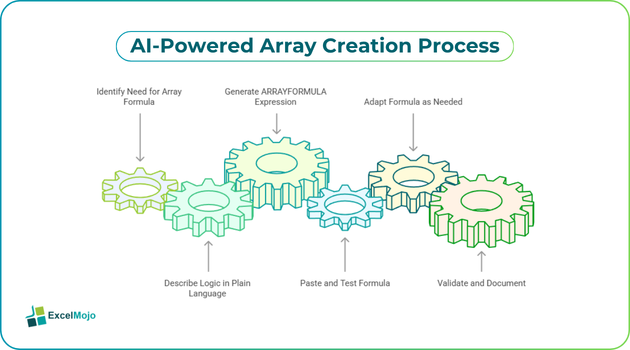
This article walks through leading AI‑enabled tools that integrate with Google Sheets, shows how to generate and adapt array formulas via prompts, and explains how to validate and document them so the output is production‑ready for finance and operations. Readers will find a concrete example, common pitfalls, and a short comparison of strengths and limitations across tools.
How AI Tools Interpret Array‑Formula Logic
AI tools for Google Sheets array formulas work by converting natural‑language rules into correct ARRAYFORMULA or LAMBDA‑based expressions.
A typical prompt, such as “For each row, flag if Revenue is greater than budget and tag those rows,” will trigger the assistant to propose something like:
=ARRAYFORMULA(IF(A2:A1000>B2:B1000, “Over Budget”, “On Budget”))
This pattern reuses ARRAYFORMULA to apply the logic across the full range in one cell, eliminating the need to copy formulas down.
More advanced tools can also suggest FILTER, MAP, and REDUCE variants when the user asks for “return only rows where X meets Y” or “apply a transformation to every item in the column.”
Analysts must still validate the proposed range references (for example, $A$2:$A vs A2:A1000) and ensure the formula does not clash with existing data or filters. The AI serves as a productivity booster, not a replacement for understanding the underlying logic or testing edge cases such as blank rows or merged cells.
Leading AI Tools and What they Can Do
A few AI integrations dominate the space for Google Sheets array formulas, each with slightly different strengths.
Several AI tools for Google Sheets embed directly into Sheets and let users highlight a range, then ask for an ARRAYFORMULA that computes running totals, categorizations, or conditional aggregations. These tools typically return a single formula that can be pasted into the sheet and edited further.
Other tools operate as standalone web‑based AI agents that read a sample formula or table structure and propose generalized ARRAYFORMULA or LAMBDA‑based patterns. For example, the user can upload a CSV‑style snippet, describe the desired transformation, and receive a formula that handles arrays natively. These tools are especially useful for cross‑sheet logic or when the user wants to apply the same pattern across multiple workbooks.
Practical Example: Simplifying a Running‑Total Array
A common challenge is translating a manual running‑total pattern into a single ARRAYFORMULA. Suppose the user has:
- Column A: Date
- Column B: Daily Revenue
- Column C: Running Total
Before AI, the analyst might write =SUM(B$2:B2) in C2 and drag down. With AI‑assisted logic, the same behavior can be captured in one expression.
Step‑by‑step transformation:
- Ask the AI: “Convert this running total into an ARRAYFORMULA that works for the whole range without dragging.”
- The AI might return a formula such as:
=ARRAYFORMULA(IF(LEN(A2:A1000), MMULT(TRANSPOSE(N(B2:B1000 <= TRANSPOSE(B2:B1000))), B2:B1000), “”))
This expression is mathematically efficient but somewhat opaque. For many use cases, a clearer pattern is:
=ARRAYFORMULA(SUMIF(ROW(B2:B1000), “<=”&ROW(B2:B1000), B2:B1000))
- The analyst tests the formula on a small subset, confirms that the values match the manual drag‑down version, and then locks the range or replaces the hard‑coded 1000 with a dynamic range such as B2:B.
This example shows how top AI tools for Google Sheets array formulas can compress a manual, copy‑down routine into a compact, maintainable array expression, at the cost of a bit more complexity in the formula itself.
Pitfalls when using AI for Array Formulas
Using AI tools for Google Sheets to generate ARRAYFORMULA logic introduces several subtle risks that can affect performance and maintainability.
- Over‑complex expressions are the most common pitfall. Some AI tools will return clever but hard‑to‑read formulas (for example, complex MMULT‑based running totals) that are correct but hard to audit or modify. Best practice is to favor readable patterns such as SUMIF‑based running totals or FILTER‑based slices, and only adopt more complex expressions when performance is critical and the logic is well‑documented.
- Static range references can break the pattern. If an AI‑suggested formula uses A2:A1000 and the dataset grows beyond 1000 rows, the array will stop at row 1000. Analysts should replace fixed ranges with open‑ended ones such as A2:A or structured references when possible, and test that the formula adapts as data is appended.
- Performance and recalculation can suffer if the generated arrays are too broad. For example, applying an ARRAYFORMULA over an entire column in a large sheet can slow down recalculation. The best practice is to keep array ranges as narrow as possible, avoid duplicate heavy calculations, and use helper columns or indexed tables when the logic becomes intensive.
- Understanding the logic is still essential. Even if AI proposes a formula that works, the analyst must be able to explain what it does, especially during audits or reviews. Keeping a short comment in the sheet or a hidden “Logic Notes” page helps others follow the array formula’s intent, which is crucial for governance‑heavy environments.
How to Validate and Document AI‑Generated Formulas
Validation ensures that AI‑suggested formulas are both correct and safe to use in production.
- Spot‑check against a manual baseline: for running totals, flagged rows, or categorizations, compare the AI‑generated array result with a known‑good version built with traditional drag‑down formulas. Differences should be investigated and explained.
- Test with edge cases: add blank rows, typos, or null values to the source range and confirm that the formula behaves as expected rather than returning errors or misleading values.
- Document the prompt and logic: keep the original AI prompt, the formula, and a brief explanation of what it does in a hidden sheet or comment so that future users can understand and maintain it.
- Separate logic from layout: keep the ARRAYFORMULA logic in a dedicated column or sheet, and use separate formatting or presentation layers so that the core logic is easy to isolate and test.
A structured validation process protects against silent errors and keeps the AI‑assisted workflow transparent and reproducible.
Conclusion
Top AI tools for Google Sheets array formulas accelerate the move from manual, copy‑down patterns to compact, maintainable ARRAYFORMULA and LAMBDA‑based logic. By describing the desired behavior in plain language and then validating the output, analysts can reduce repetitive work while preserving control over the underlying formulas. For finance and operations teams, this combination of AI‑assisted generation and disciplined validation supports faster, cleaner dashboards and model maintenance.
Frequently Asked Questions (FAQs)
AI-Powered Array Creation Process
AI tools for Google Sheets array formulas analyze the user’s description of the desired logic and map it into correct ARRAYFORMULA, FILTER, MAP, or LAMBDA expressions. The assistant returns a ready‑to‑use formula that can be pasted, tested, and refined. Analysts still need to validate range references, edge cases, and performance before using the output in a production sheet.
Are AI‑generated array formulas production‑safe?
AI‑suggested formulas can be production‑ready, provided they are validated on representative data, tested for edge cases, and documented. Complex expressions should be simplified or annotated so that future reviewers can understand the logic. Governance‑sensitive environments may require a formal review step before locking AI‑generated formulas into core models.
Can these tools work across large datasets without drag‑downs?
Yes. AI‑generated ARRAYFORMULA expressions can handle large datasets by applying the logic across full ranges in a single formula, bypassing manual copy‑downs. However, performance depends on the complexity of the formula and the size of the data, so analysts should test with realistic volumes and optimize or refactor when necessary.
How do you choose the best AI tool for arrays in Sheets?
Evaluate tools based on integration depth (in‑app vs web‑based), ability to import sample data, clarity of explanations, and ease of editing proposed formulas. For finance use, prioritization‑wise, choose tools that support structured tables, clear comments, and reusable patterns over purely black‑box formula generators.