


Introduction
Analysts increasingly need to generate structured grids of values on the fly, such as heatmaps, scenario matrices, or lookup tables, without writing long chains of INDEX or array formulas. Google Sheets MAKEARRAY Gemini custom array logic lets users build custom‑shaped arrays by defining the logic for each cell via a Lambda function, while Gemini can propose the exact MAKEARRAY and Lambda syntax from plain‑language prompts. This approach reduces the need to hand‑craft complex array formulas and lets teams embed business logic into reusable array templates for dashboards and model libraries.
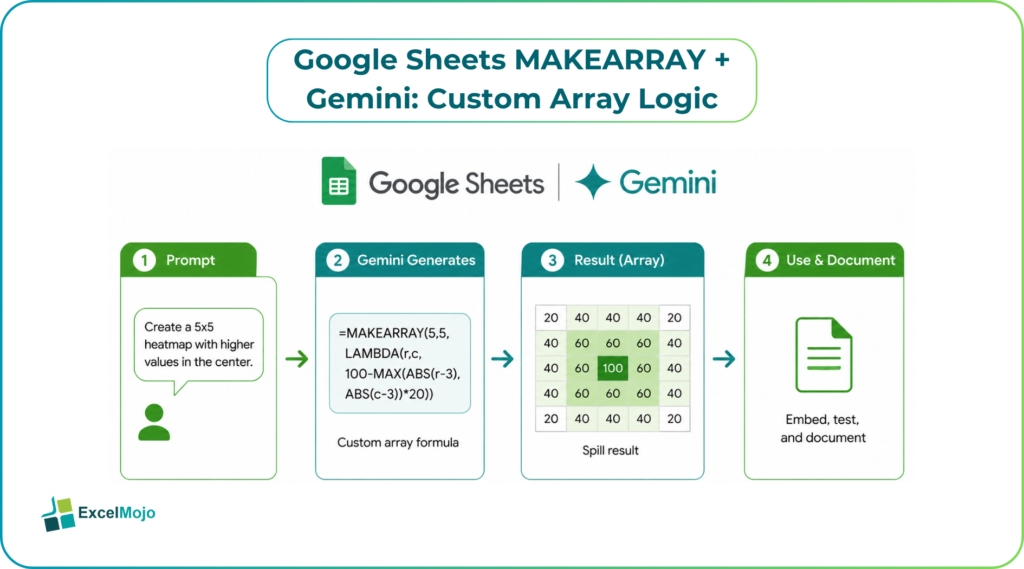
This article explains how MAKEARRAY and LAMBDA work together, how to use Gemini to generate and explain custom array logic and how to test and document those arrays so they are production‑ready for finance and operations workflows.
What MAKEARRAY and Lambda do in Sheets
Google Sheets MAKEARRAY returns a two‑dimensional array of a specified size, where each element is computed by a user‑defined Lambda function. The syntax is:
=MAKEARRAY(rows, columns, LAMBDA(row, col, some_logic))
Here, row and col are the current row and column indices, and some_logic is the expression applied to each cell. For example:
=MAKEARRAY(5, 5, LAMBDA(r, c, r * c))
generates a 5×5 grid where each cell equals its row index times its column index. MAKEARRAY is similar to Excel’s SEQUENCE but lets you embed custom logic per cell, making it useful for generating patterned tables, conditional grids, or scenario‑based matrices. Gemini‑style assistants can speed up the creation of these expressions by translating plain‑language descriptions into correct MAKEARRAY and Lambda code, which analysts can then paste and test.
How to use Gemini to Generate Google Sheets MAKEARRAY Formulas
A practical workflow keeps the array logic traceable and testable.
- Define the target shape and logic: decide the number of rows and columns and the rule that should apply to each cell (for example, “row index times column index plus 10” or “maximum of row and column”).
- Ask Gemini for a Google Sheets MAKEARRAY formula:
- “Use MAKEARRAY to create a 5×5 table where each cell is Row × Column.”
- “Create a 10×3 array where the first column is the row number, the second is the row number squared, and the third is the row number cubed.”
- Gemini returns a formula such as
=MAKEARRAY(5, 5, LAMBDA(r, c, r * c))
or
=MAKEARRAY(10, 3, LAMBDA(r, c, {r, r^2, r^3}[c]))
that can be pasted directly into Sheets. - Test the output: confirm the array size and values, and adjust the Lambda logic if needed.
- Document the formula and the business meaning of each column in a hidden sheet for audit and reuse.
This pattern mirrors how AI‑assisted coding works elsewhere: the AI drafts the logic, and the analyst validates and deploys it in the host environment.
Example: Building a Custom Scenario Matrix
A practical example shows how AI‑assisted formulas can simplify complex array generation.
- Data: an analyst needs a 6×4 scenario matrix where:
- Column 1: base growth rate from 3% to 8%.
- Columns 2–4: derived values based on the base rate (for example, 1.5×, 2×, 3×).
You can prompt Gemini as follows: “Use MAKEARRAY to create a 6×4 table where the first column is growth rates from 3% to 8%, and the next three columns are 1.5×, 2×, 3× that rate.”
Formula pattern suggested by Gemini:
=MAKEARRAY(6, 4, LAMBDA(r, c,
IF(c = 1, 0.02 + 0.01 * r,
IF(c = 2, 1.5 * (0.02 + 0.01 * r),
IF(c = 3, 2 * (0.02 + 0.01 * r),
3 * (0.02 + 0.01 * r)))))
This formula creates a 6×4 grid with the desired growth‑rate progression and derived multipliers. The analyst can then use this matrix as a source for scenario‑based forecasts or dashboards.
To test it, confirm the values in each column match the expected pattern, and document the logic in a hidden sheet.
Pitfalls and Best‑Practice Tips
MAKEARRAY and Lambda are powerful but can create subtle issues if not handled carefully.
- Avoid overly complex Lambdas: keep the logic inside the Lambda readable and testable; if the logic is too long, break it into helper columns or use a separate table.
- Watch for performance: large arrays (for example, 1000×10) can slow the workbook if recalculated frequently. Use indexes or summarization to reduce the size when possible.
- Keep formulas transparent: comment the Lambda logic and document the array dimensions and business meaning so others can understand and reuse it.
- Test with small arrays first: start with a 3×3 or 5×5 grid, then scale up to confirm the performance and behavior.
These practices keep MAKEARRAY logic scalable and maintainable, reducing the risk of performance issues or hard‑to‑debug errors.
Conclusion
Google Sheets MAKEARRAY Gemini custom array logic lets analysts generate structured grids on the fly without writing complex array formulas manually. With Gemini‑suggested MAKEARRAY and Lambda patterns, teams can build reusable, auditable array templates for dashboards and scenario matrices. This combination of AI‑assisted formulas and clear documentation keeps custom logic scalable, transparent, and production‑ready for finance and operations workflows.
Frequently Asked Questions (FAQs)
How does Gemini help with MAKEARRAY formulas?
Gemini can generate MAKEARRAY and Lambda patterns from plain‑language descriptions, such as “create a 5×5 table where each cell is Row × Column.” Analysts test and validate the formulas before deployment.
Can AI replace manual formula writing?
No. AI‑based formulas are a template that must be tested, validated, and documented. The analyst retains ownership of the final logic and the array structure.
How do you handle large arrays efficiently?
Use indexes or summarization to reduce the size, ensure the array is not recalculated unnecessarily, and test with a small dataset before scaling up. Performance‑intensive arrays can be moved to a separate sheet or summarized before use.
What are common pitfalls with MAKEARRAY?
Overly complex Lambdas, large arrays that slow the workbook, and unclear documentation are the most common issues. Analysts should keep formulas readable, test performance, and document assumptions.