


Introduction
Broken formulas are one of the fastest ways to slow down an Excel workflow. A single misplaced reference, mismatched bracket, or inconsistent range can interrupt reporting, delay analysis, and create confusion that takes longer to resolve than the original task. That is why Claude helps you debug broken Excel formulas in a way that feels practical rather than theoretical. It can explain what a formula is doing, identify where logic may have gone wrong, and suggest cleaner alternatives when the structure becomes hard to follow.
For analysts, accountants, and finance teams, the value is not just speed. It is clarity. Claude can help break down nested formulas, spot likely errors in long calculation chains, and translate technical spreadsheet logic into plain language. That makes it especially useful when a workbook has grown over time and no one wants to trace every cell manually. The best results come when Claude is used as a debugging assistant, not a replacement for Excel checks. It can narrow the problem quickly, but the user still needs to confirm the fix inside the sheet. This article explains how Claude can help diagnose broken Excel formulas faster by spotting logic issues, explaining errors, and suggesting cleaner fixes.
How Claude Assists
Claude is useful in formula debugging because it can read patterns in logic and explain them in a more accessible way than a typical error message. When Excel shows #VALUE!, #REF!, or #N/A, the problem is often not just the visible error. The deeper issue may involve the data type, the lookup range, or a broken dependency somewhere else in the model. Claude can help interpret those symptoms and suggest where to look first.
It is also useful when formulas become too long to review manually. A nested IF, INDEX-MATCH, XLOOKUP, or SUMIFS setup can work well in theory but become difficult to audit after several edits. Claude can rewrite the formula in a cleaner format, explain each part, and highlight sections that are most likely causing trouble. That saves time in models where the same formulas are copied across many rows or linked across multiple tabs.
The Most Common Excel Formula Problems
Most broken Excel formulas fall into a few predictable categories.
- Reference errors: A cell, column, or row has been deleted or moved.
- Data type mismatches: Text and numbers are mixed, which can cause calculation errors that are not obvious at first glance.
- Logic errors: The formula runs, but the conditions are structured incorrectly, so it returns the wrong answer.
Claude can help identify these patterns faster than manual trial and error. For example, if a formula uses VLOOKUP but the lookup column is not the first column in the range, Claude can point out the structural problem. If a SUMIFS formula returns zero unexpectedly, Claude can suggest checking range alignment, criteria spelling, or inconsistent formatting. In financial models, even a small issue like a hardcoded value inside a copied formula can distort the output across an entire section.
How to Debug Broken Excel Formulas Step by Step
The most effective debugging process starts with a clean explanation of the problem. Instead of pasting only the broken formula, the user should include the expected result, the current error, and a short description of the data structure. That gives Claude enough context to reason through the likely cause rather than guessing.
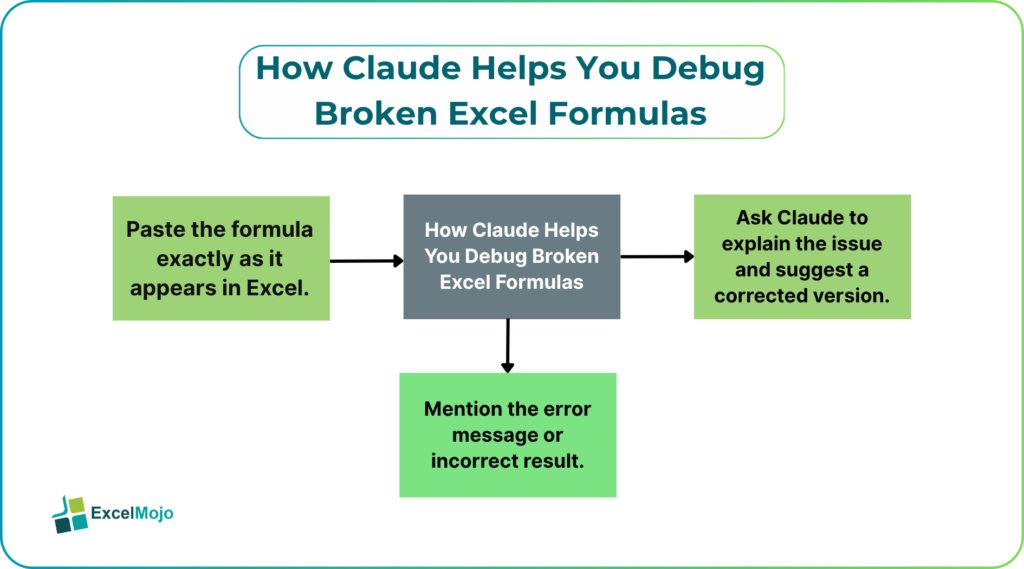
A simple workflow looks like this:
- Paste the formula exactly as it appears in Excel.
- Describe what the formula should return.
- Mention the error message or incorrect result.
- Share the relevant range structure, such as columns, tabs, or named ranges.
- Ask Claude to explain the issue and suggest a corrected version.
This approach works especially well in finance and reporting work because formulas are rarely isolated. They usually sit inside a larger model with dependent cells, summary tabs, and linked outputs. Claude can help isolate the likely fault line, but the user should still test the revised formula against known values before trusting it.
Where Claude Saves Time
The biggest time savings come from repetitive troubleshooting. If a workbook contains dozens of similar formulas, Claude can help identify the pattern behind the error instead of fixing each one independently. That matters in month-end reporting, budget templates, and forecasting models where speed affects deadlines.
It also helps with formula rewriting. A messy formula is often harder to debug than a simple one, so Claude can translate a dense calculation into smaller parts. That gives the analyst a clearer path to test each section. For example, a long nested formula can often be separated into input checks, condition checks, and output checks. Once the logic is broken into pieces, the error becomes easier to isolate and fix.
In many cases, the tool also helps with communication. Instead of saying a formula “does not work,” Claude can help explain why it does not work and what the corrected version should do. That is useful for analysts who need to document changes for a manager, reviewer, or client.
Spreadsheet Habits That Make Debugging Easier
Claude works best when paired with good spreadsheet habits. The most important habit is to keep formulas consistent. When adjacent rows use different logic without a clear reason, debugging becomes much harder. Clear naming, structured ranges, and separate input cells make AI assistance far more effective.
Another strong habit is to test formulas in smaller steps. If a large formula fails, break it into sections and confirm each part individually. Claude can help with that decomposition, but the analyst still needs to verify that each step matches the business logic. In finance models, this is especially important because a correct-looking formula can still produce the wrong result if the assumptions are off.
It also helps to keep an eye on reference types. Relative and absolute references are a common source of hidden errors, especially in copied formulas. A formula may work in one row and fail in another simply because a reference shifts unexpectedly. Claude can flag this kind of issue, but it is still worth checking the Excel formula bar directly.
Limitations To Know
Claude is helpful, but it does not replace spreadsheet judgment. It can suggest where a formula is broken, but it cannot always see the broader workbook context unless that context is provided clearly. If the user leaves out key details, the answer may be directionally right but incomplete.
It is also not a substitute for Excel’s built-in auditing tools. Trace precedents, trace dependents, and error checking still matter. Claude is strongest as a fast reasoning layer that helps the analyst understand the issue before using Excel to confirm it. That combination is what makes debugging faster without reducing confidence.
Conclusion
Claude can make broken Excel formulas much easier to diagnose by explaining logic, spotting likely error sources, and rewriting messy calculations into clearer parts. For analysts who deal with complex sheets, that can save real time and reduce frustration. It is especially useful when formulas are nested, copied across rows, or tied to finance models where accuracy matters.
Still, the final check belongs in Excel. Claude should help narrow the issue, not replace validation. The best workflow is simple: use Claude to interpret the formula, test the corrected version in the workbook, and confirm the output against known values. That keeps troubleshooting fast, practical, and reliable.
Frequently Asked Questions (FAQs)
Can Claude fix Excel formulas directly?
Claude can suggest corrected formulas and explain what may be broken, but the user still needs to paste and test the fix inside Excel. It works best as a debugging assistant rather than an automatic repair tool.
What types of formula errors can Claude help with?
Claude can help with reference errors, lookup issues, logic mistakes, range mismatches, and formulas that return unexpected results. It is especially useful when the error is hidden inside a long or nested formula.
Is Claude better than Excel’s built-in error checking?
Claude is better at explanation and reasoning, while Excel is better at direct workbook auditing. The strongest workflow uses both together.
Should finance teams rely on Claude for model formulas?
They can use it to speed up troubleshooting, but every important formula should still be reviewed in Excel. That matters most in forecasting, valuation, and reporting models.