


Google Sheets Automation with Claude in Real Workflows
Manual spreadsheet work still eats into time that finance, operations, and analytics teams could spend on higher-value work. Repeating formulas, cleaning rows, fixing labels, and rebuilding summaries slows down reporting cycles and adds avoidable friction. That is why Google Sheets automation with Claude matters. It gives users a practical way to move from prompt to output without starting every sheet from scratch.
The value is not limited to speed. It also improves consistency. Google Sheets Automation with Claude can help draft spreadsheet structures, suggest formulas, and organize recurring tasks in a way that is easier to reuse. For analysts, that means less time building basic layouts and more time checking the numbers, reviewing logic, and interpreting results. This article shows how Claude fits into the Google Sheets workflow, where it saves the most time, and how to keep the final output accurate.
Building Better Prompts for Google Sheets
Claude works best when the prompt is specific. A vague request such as “help me with this sheet” usually leads to a vague answer. A better prompt explains the business goal, the data structure, and the expected output. In spreadsheet work, that difference matters because the model can only be as useful as the instructions it receives.
A strong prompt might ask Claude to create a monthly revenue tracker with columns for date, client, region, product, amount, and summary formulas. That gives the model enough context to produce something practical. If the user needs a formula, the prompt should also define the logic, such as whether the result should be a total, average, count, or conditional output. The more precise the instruction, the less cleanup is needed later.
This is especially useful for finance teams, where spreadsheet tasks repeat every month. A good prompt can reduce the time spent recreating the same structure and make the output more reliable from one cycle to the next. In that sense, prompt quality becomes part of spreadsheet quality.
From Prompt to Output in Google Sheets Automation
The most effective workflow treats Claude as a planning partner first and an execution guide second. It can help define the sheet structure, draft formula logic, and organize the order of tasks before the workbook is built. The user then applies that logic in Google Sheets and checks the output against real data.
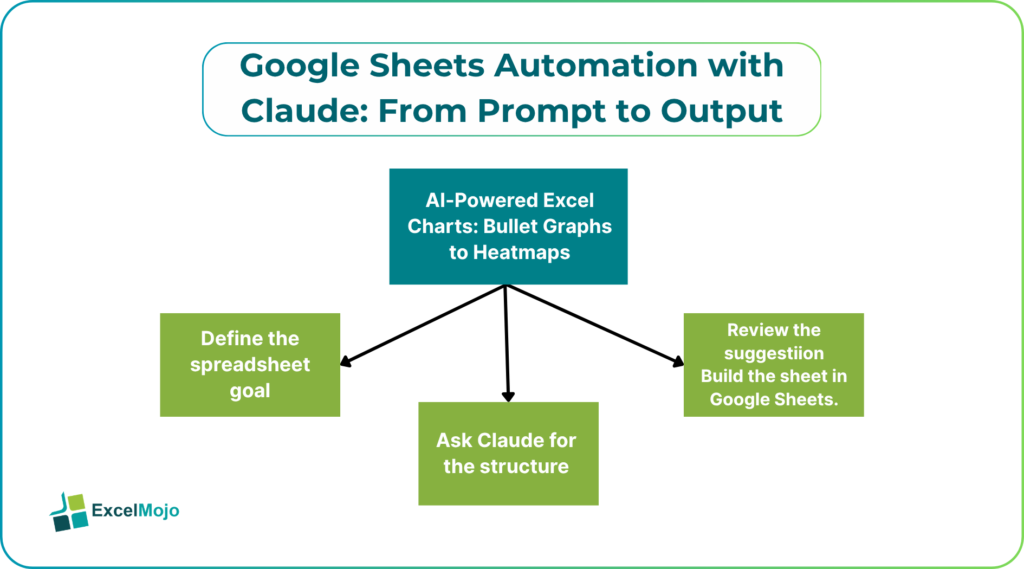
A practical workflow looks like this:
- Define the spreadsheet goal.
Decide whether the sheet is for tracking, reporting, forecasting, reconciliation, or analysis. - Ask Claude for the structure.
Request the column layout, summary fields, formula logic, and any validation rules. - Review the suggestion.
Check whether the output fits the actual business process. - Build the sheet in Google Sheets.
Apply the structure and formulas manually or with the help of automation. - Test the result.
Validate formulas, totals, and key outputs with sample rows before using the file in reporting.
That process keeps the human in control while still reducing repetitive setup work. It works especially well when a team rebuilds the same type of sheet every week or month. Claude speeds up the thinking, but the spreadsheet still needs review before it is trusted.
High-Value Use Cases in Google Sheets
Google Sheets Automation with Claude is most useful when the spreadsheet task combines structure with repetition. One strong use case is data cleanup. If a sheet contains inconsistent labels, blank cells, or repeated formats, Claude can help suggest a cleaner layout. Another is formula drafting. It can help write SUMIF, COUNTIF, IF, and lookup formulas when the user knows the goal but not the exact syntax.
It is also useful for reporting templates. Finance teams often need recurring sheets for budgets, variance tracking, KPI dashboards, and reconciliations. Claude can help create the first version of the sheet faster and reduce the time needed to rebuild the same logic every cycle. That makes it a practical tool for analysts who need both speed and consistency.
A useful way to think about it is this: Claude is strongest when the task is already understood, but the execution is repetitive. It is less valuable for one-off tasks that are faster to do manually. For recurring spreadsheet workflows, though, the time savings can add up quickly.
Common Google Sheets Automation Pitfalls
The biggest mistake is expecting Claude to replace spreadsheet review. It can generate useful output, but the user still needs to check the formulas in Google Sheets. Column order, data types, and range references can all change the final result. A formula that looks correct in a prompt response may still fail once it meets real data.
Another mistake is using AI for tasks that are too small to justify the setup time. Not every sheet needs automation. If the task is simple and one-time, a direct formula or manual table may be faster. Claude becomes most useful when the same logic repeats often or when the sheet needs structure before it can be built efficiently.
A third issue is trusting the first version too quickly. The best results usually come after a small round of review and correction. That is normal in spreadsheet work. The goal is not to avoid editing entirely. The goal is to reduce the amount of repetitive work before the review begins.
Why This Workflow Matters for Analysts
For analysts, the biggest advantage of Claude is not just speed, it is its consistency. When the same logic is reused across reports, teams spend less time fixing errors and more time reviewing what the numbers mean. That matters in finance and operations, where the spreadsheet often feeds reporting, commentary, and decisions.
Claude also helps turn spreadsheet work into something easier to explain. A good sheet is not only accurate, it is also understandable. By helping organize the structure earlier, Claude can make the final output cleaner and easier to review. That is useful for anyone who has to hand off a sheet to a manager, client, or another team member.
In practice, the workflow works best when Claude handles the draft and the analyst handles the validation. That division of labor keeps the spreadsheet efficient without weakening the final output.
Conclusion
Google Sheets automation with Claude works best when the process is intentional. A clear prompt leads to a better structure, faster setup, and fewer spreadsheet mistakes. The user still needs to validate formulas and confirm the result in Google Sheets, but Claude can shorten the path from idea to output in a useful way. For analysts and finance professionals, the strongest approach is to use Claude as a planning and drafting partner. It can help organize the sheet, define the logic, and reduce repetitive work without replacing human judgment. That balance is what makes the workflow practical. Used well, it improves both speed and spreadsheet quality, which is exactly what recurring reporting work needs.
Frequently Asked Questions (FAQs)
Can Claude create a full Google Sheet automatically?
Claude can help plan the sheet structure, formulas, and workflow, but the final build still needs to happen in Google Sheets. It is best used as a guide for setup and automation ideas rather than a full replacement for spreadsheet work. It can create a sheet, but the final outcome should be checked by a human.
What makes a good Claude prompt for Sheets?
A good prompt is very specific. It should explain the goal, the data columns, the formula needs, and the expected output format. Clear prompts usually produce much more useful spreadsheet results.
Is Claude useful for finance reporting sheets?
Yes. It can help with budget trackers, variance templates, KPI dashboards, and recurring reporting files. The biggest benefit is reducing repetitive setup work while keeping the logic easier to follow.
Should users trust Claude-generated formulas?
Users should review the formulas carefully. Claude can generate useful draft formulas, but the output should always be tested against sample data in Google Sheets before it is used in reporting.