


What is MAKEARRAY in Google Sheets?
The MAKEARRAY function in Google Sheets is a powerful tool that allows you create an array with specified dimensions and values. These are defined by a custom lambda function. Essentially, one can fill a range of cells with calculated values automatically, just like one can generate a matrix using a function and specific parameters.
This is very useful in scenarios where you need to fill a sheet with a series of numbers, or custom-calculated results. Manually performing such a task can be time-consuming and prone to errors. MAKEARRAY in Google Sheets helps you automate this process, thereby saving your time. The function’s key feature is the way it can populate this array using a custom LAMBDA function. For example, one can create a 3*3 array where each cell contains the sum of its row and column index. We use the following formula.
=MAKEARRAY(3, 3, LAMBDA(row, col, row + col))

Use this MAKEARRAY in Google Sheets Template to follow along with the examples in this article.
Download Excel TemplateKey Takeaways
- MAKEARRAY in Google Sheets generates a custom array of values by applying a formula across a specified number of rows and columns.
- It uses a LAMBDA function to define how each value is calculated, based on its row and column position.
- The syntax for the MAKEARRAY function is:
=MAKEARRAY(rows, columns, LAMBDA(row, column, expression)) - It is especially useful for creating dynamic tables, or calculated grids without manual entry.
- MAKEARRAY can be combined with other functions like IF, SQRT, or MAX to produce interactive or logic-driven arrays efficiently.
Syntax
Let us look at the MAKEARRAY in Google Sheets formula.
=MAKEARRAY(rows, columns, LAMBDA)
Arguments:
- rows: The desired number of rows in the generated array.
- columns: The desired number of columns in the generated array.
- LAMBDA: A custom LAMBDA function that determines the value for each cell within the generated array. The LAMBDA function has two arguments:
- The first argument represents the row index, which is, position within the array, starting from 1.
- The second argument represents the column index, which is, the position within the array, starting from 1.
To understand this clearly, we can write a 3×3 array where each cell contains the sum of its row and column numbers. Here, row and column numbers begin with (1,1). So the value in the first row second column of the element will be 1+2 = 3. Use the following formula:
=MAKEARRAY(3, 3, LAMBDA(r, c, r + c))
Press Enter; the formula gives a 3×3 range with values calculated as the sum of each cell’s row and column indices.
How to Use MAKEARRAY Function in Google Sheets?
The MAKEARRAY function generates an array based on the number of rows and columns specified in the function and applies a custom formula to each cell. It’s useful for creating sample data and dynamically filling data into cells. Once can use MAKEARRAY in two main ways:
- Enter MAKEARRAY manually
- Use the function from the Google Sheets menu
Getting started with MAKEARRAY is not as difficult as one thinks. Let us look at how to use it.
Enter MAKEARRAY Manually
To calculate values using MAKEARRAY manually, follow these steps:
Step 1: Choose an empty cell where we want to enter this formula. Here, we want an array where each cell contains the product of its row and column number.
Step 2: Type the formula as shown below:
Now, type =MAKEARRAY into the cell.
=MAKEARRAY(

Step 3: Enter the arguments as shown below, as separated by commas.
=MAKEARRAY(3, 3, LAMBDA(r, c, r * c))
This will create a 3×3 grid where each cell contains the product of its row and column number.
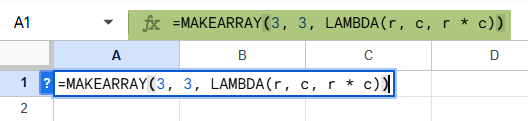
Step 4: Press Enter.
Google Sheets will populate a 3-row, 3-column array with the result of the formula in LAMBDA in each cell. Here, it creates a multiplication table.

Using MAKEARRAY Through the Menu
- Go to the Insert tab and choose Function → All.
- Scroll for MAKEARRAY in the list.
- Click on it to insert the formula into a selected cell.
- Manually enter the required arguments in the parentheses and press Enter.
The LAMBDA(r, c, expression) inside MAKEARRAY is used to define how each cell should be calculated using the row (r) and column (c) numbers.
Examples
MAKEARRAY iterates through each cell position within the specified rows and columns. For each position, it executes the provided LAMBDA function, passing the current row and column indices as arguments. Let us look at some examples to understand the same.
Example #1
In this example, let us use a 4*4 checkerboard. Here, we wish to have 0 and 1 in alternate cells in where 0s and 2s exist in alternate cells, for this we use the MAKEARRAY in Google Sheets. Let us look at the same.
Step 1: Go to the cell from where you want to have this array.
Step 2: Let us enter the following formula:
=MAKEARRAY(4, 4, LAMBDA(r, c, MOD(r + c, 2)))

Step 3: Press Enter and see the result. Here, the LAMBDA function takes the row and column numbers, sums them up, and checks if the result is even or odd using the MOD function. The result is a pattern resembling a checkerboard.

These patterns can be useful in conditional formatting, creating templates, or even just making your data visually appealing.
Step 4: We can add conditional formatting to the cells containing 1, go to Format -> Conditional Formatting. In the Conditional format rules, select the range and choose Format cells if => Equal to 1. Choose a color and click Done.

Check the result.

Example #2 – Using MAKEARRAY with FV Function
Using MAKEARRAY in Google Sheets and combining its strengths with other functions helps us to perform complex operations. Let us look at an example where you want to generate a 5×5 grid where each cell shows the square root of the product of its row and column number.
Step 1: Set up the sheet as shown below. We use the following formula in an empty cell. Here, we use E1.
=MAKEARRAY(5, 5, LAMBDA(r, c, SQRT(r * c)))
Here,
r and c represent the row and column positions.
r * c gives the product at that position.
SQRT(r * c) takes the square root of that product.

Step 2: Press Enter. You get an a 5*5 array with the square root of the product of row and column index.

This simple example shows how MAKEARRAY can be combined with functions like SQRT to dynamically generate calculated tables, making it a powerful tool for creating custom data grids in Google Sheets.
Example #3 – Using MAKEARRAY With MAX Function
In this example, we can combine the power of MAKEARRAY and MAX to generate an array of values and then determine the maximum value among them. This combination is very useful to quickly identify the highest result in a dynamically generated table. Can be used for scores, computations, or simulation outputs.
We want to generate a 6×6 multiplication table and then find the maximum value in it.
Let us look at the steps to do the same.
Step 1: Use MAKEARRAY to generate the 6×6 multiplication table:
For this, we use the following formula:
=MAKEARRAY(6, 6, LAMBDA(r, c, r * c))
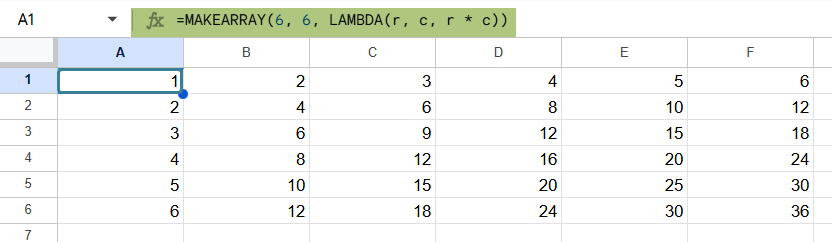
Step 2: We then wrap it with the MAX function to get the highest value:
=MAX(MAKEARRAY(5, 5, LAMBDA(r, c, r * c)))
For the values of the array, the function multiplies the row number by the column number.
Press Enter.
This returns 36, which is the highest value in the 6×6 multiplication grid.

Important Things to Note
- One can combine the IF statement with MAKEARRAY for more complex formulas with conditional logic.
- We can generate an array of random numbers using MAKEARRAY in Google Sheets with the following formula: =MAKEARRAY(3, 3, LAMBDA(r, c, RANDBETWEEN(1, 10))).
- One of the most recurrent issues when using MAKEARRAY is with an improperly defined lambda function. If your LAMBDA function doesn’t return the expected results, double-check your logic
- You can use MAKEARRAY to create a dynamic calendar layout.
- The LAMBDA function should accept exactly two name arguments; else we get an #N/A error is returned. These arguments correspond to row_index and column_index, in order.
Frequently Asked Questions (FAQs)
Some of the errors we get include:
We get an error if the LAMBDA doesn’t have exactly two-name arguments. For example: =MAKEARRAY(3, 3, LAMBDA(current_value, current_value+1)). Here, LAMBDA has only one name argument.
We also get an error when the last parameter of MAKEARRAY isn’t a LAMBDA or if the last parameter of MAKEARRAY isn’t a LAMBDA.
We can use both MAKEARRAY and SEQUENCE generate arrays. However, there is a difference. While SEQUENCE creates linear numeric arrays, like 1, 2, 3… MAKEARRAY, lets you create custom arrays based on logic or operations, using LAMBDA. Hence, MAKEARRAY is more flexible. Therefore, we use SEQUENCE for basic numeric ranges and MAKEARRAY for logic-based grids.
MAKEARRAY has some delightful uses:
1. It can be used to create a multiplication table.
2. It can be used for generating a calendar grid.
3. One can use MAKEARRAY for checkmark grids like attendance sheets.
4. Use for gird aggregation such as finding the highest score.
Use this MAKEARRAY in Google Sheets Template to follow along with the examples in this article.
Download Excel TemplateRecommended Articles
Continue with these related resources when you want the next practical step in this topic.
- ARRAYFORMULA in Google Sheets
- Google Sheets ArrayFormula + AI: Bulk Operations
- LAMBDA in Google Sheets
- VSTACK in Google Sheets
- CHOOSECOLS in Google Sheets
Explore the full Google Sheets Dynamic Arrays and Advanced Functions guide or browse Google Sheets Resources.