


Introduction
Data analysts and finance professionals often treat Google Sheets as a lightweight reporting tool, but AI add‑ons now let them automate data cleaning, formulas, and dashboards directly inside the sheet. By using Google Sheets AI add‑ons for automation, one can speed up data cleaning, analysis, and dashboard creation. It is noted that AI‑driven Sheets add‑ons can reduce time spent on data preparation significantly when combined with existing workflows. For data‑driven teams, that gain means more time for analysis and decisionmaking instead of manual cleanup.
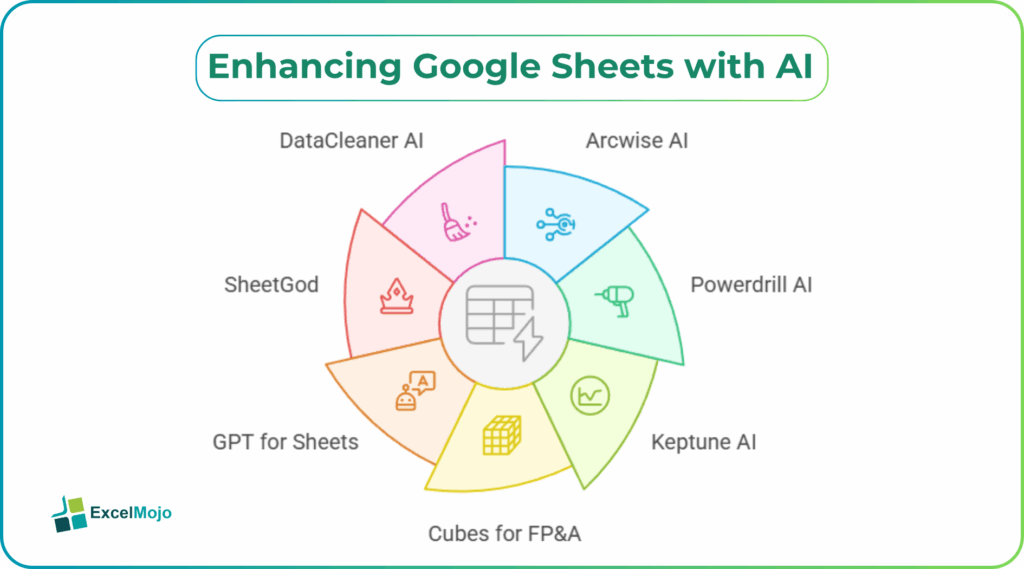
The Top 7 Google Sheets AI add‑ons covered here focus on practical, repeatable workflows for finance and analytics, helping teams cut manual effort and reduce errors in recurring reports.
Top 7 Google Sheets AI add‑ons for automation
Below is a concise overview of the best AI add‑ons for Google Sheets and its main advantages for finance or analytics teams.
#1 – Arcwise AI
Arcwise connects to Google Sheets and turns raw data into interactive dashboards and charts using natural‑language queries. It auto‑generates visualizations such as bar charts, line graphs, and summary tables from multi‑tab workbooks.
Advantage: Reduces manual charting and layout time for monthly KPI dashboards.
#2 – Powerdrill AI
Powerdrill AI is a sidebar‑based assistant that lets users ask questions about their Sheets data and get formulas, pivot‑style summaries, and charts in return. The tool works directly inside the sheet, so there is no need to export data externally.
Advantage: Accelerates exploratory analysis and variance reporting without switching tools.
#3 – Keptune AI
Keptune AI converts uploaded CSV or Sheets data into AI‑generated charts and code, including outputs for Python or Plotly. The user describes the desired chart type and the tool returns the underlying code rather than a static image.
Advantage: Bridges Google Sheets with more advanced analytics stacks through reusable code.
#4 – Cubes for FP&A
Cubes offers an AI‑powered add-on tailored for financial planning and analysis, automating data visualization and standardizing FP&A reports. It pulls data from Sheets‑based budgets and forecasts and generates consistent layouts and KPIs.
Advantage: Enforces uniform formatting and logic across recurring monthly or quarterly reports.
#5 – GPT for Sheets
GPT for Sheets embeds an AI‑powered scripting assistant that writes ARRAYFORMULA, QUERY, or lookup logic from plain‑English prompts. The generated formulas paste directly into cells for review and editing.
Advantage: Reduces formula‑writing overhead and speeds up categorization and transformation tasks.
#6 – SheetGod
SheetGod simplifies common Sheets tasks such as formula creation, data cleaning, and transformation using natural‑language prompts. It can generate VLOOKUP, INDEX, REGEX, or similar logic and insert it into the sheet.
Advantage: Lowers the barrier to complex formulas while keeping logic transparent and easy to audit.
#7 – DataCleaner AI
DataCleaner AI focuses on data‑quality automation, standardizing text, filling missing values, and detecting outliers with one‑click commands. It works on selected tables and can enforce consistent product names, regions, or account codes.
Advantage: Minimizes manual cleanup and misclassification errors before charts and models are built.
Comparison of Top 7 Google Sheets AI add‑ons
| Add‑on | Use / Key Advantage |
|---|---|
| Arcwise AI | Turns Sheets data into dashboards and charts; speeds up K‑PI reporting. |
| Powerdrill AI | Sidebar assistant for formulas, summaries, and charts; keeps analysis inside Sheets. |
| Keptune AI | Builds charts and code from Sheets data; links to advanced analytics stacks. |
| Cubes for FP&A | Automates FP&A visuals and reports; keeps layouts consistent month‑on‑month. |
| GPT for Sheets | Writes ARRAYFORMULA and lookup logic from prompts; cuts formula‑writing time. |
| SheetGod | Creates formulas and cleans data with prompts; makes logic easy to review. |
| DataCleaner AI | Fixes data quality in one‑click; reduces manual cleanup and errors. |
Practical Tutorial: Using AI Add‑Ons for Automation
To see how Google Sheets AI add‑ons for automation work, start with a simple workflow: cleaning and analyzing a sales export.
- From the Google Workspace Marketplace, install one of the add‑ons above (for example, Powerdrill AI or GPT for Sheets) into a sample spreadsheet. The add‑on appears in the “Add‑ons” menu and usually opens as a sidebar.
- Select the raw data range (including headers), then ask the add‑on to standardize product names, fill missing dates, and convert text‑based numbers into real numbers.
- The tool applies the changes directly in the sheet.
- Review the output for edge cases, then ask the same add‑on to “Create a bar chart by product and a line chart by month.” The Google Sheets AI automation tools generate charts and summaries in seconds, which can be reused as templates in future reports.
Example: AI‑Driven Budgeting Workflow
A finance team tracking a budgeting sheet with “Department,” “Account,” “Budget,” and “Actuals” columns can use an AI add‑on for FP&A or Powerdrill AI to automate variance analysis. The team can prompt the tool to calculate variance as Actuals minus Budget for each row, summarize totals by department, and generate a bar chart comparing Budget vs Actuals with a variance line.
This workflow reduces manual formula entry and formatting, while ensuring the same logic applies each month. Over time, the team can standardize the prompts and chart layouts as a template, turning the sheet into a semi‑automated reporting engine.
Pitfalls and How to Avoid Them
AI‑driven add‑ons introduce several common pitfalls that analysts must manage. Over‑reliance on automation can lead to unvalidated logic, especially when formulas are generated without understanding the underlying assumptions. External add‑ons may transmit data to third‑party servers, creating potential exposure for sensitive financial or personally identifiable information.
To mitigate these risks, analysts should treat AI‑generated outputs as first drafts. Every formula or chart should undergo a manual check, and teams should store key logic in reusable templates or helper columns. This approach keeps instant automation Google Sheets AI add‑ons aligned with audit‑ready, transparent workflows.
Conclusion
The Top 7 Google Sheets AI add‑ons for Instant Automation make it easier than ever to automate data cleaning, analysis, and dashboards without leaving Google Sheets. By using these add-ons, finance and analytics teams can reduce manual effort, improve accuracy, and focus more on interpretation than on formatting.
Users can start by installing one add‑on that matches their current workflow and then standardize their prompts and templates over time. For those ready to go further, revisiting this list and experimenting with a second tool each month will steadily raise their automation capability.
Frequently Asked Questions (FAQs)
Yes, beginners can use the top Google Sheets AI add‑ons without coding by relying on natural‑language prompts and sidebar tools. They still need to understand basic spreadsheet logic such as columns, formulas, and charts, but they do not need to write scripts themselves.
Some Google Sheets AI automation tools can export data or charts to Power BI or Excel via connectors or APIs. For example, Arcwise or Powerdrill AI may push cleaned Sheets data into a dashboard tool, but this requires configuration and compatible connectors.
Finance teams can standardize workflows by documenting prompts, creating reusable templates, and sharing a library of approved add‑ons. Regular training sessions reinforce consistent, auditable use of best AI add‑ons for Google Sheets.
Recommended Articles
Continue with these related resources when you want the next practical step in this topic.
- ARRAYFORMULA in Google Sheets
- Google Sheets ArrayFormula + AI: Bulk Operations
- LAMBDA in Google Sheets
- VSTACK in Google Sheets
- CHOOSECOLS in Google Sheets
Explore the full Google Sheets Dynamic Arrays and Advanced Functions guide or browse Google Sheets Resources.