


What is LAMBDA in Google Sheets?
LAMBDA in Google Sheets is a function that allows you to create and return custom functions with well-defined parameters and a formula expression. What we do with LAMBDA is to encapsulate a formula into a reusable function. It makes complex formulas more manageable and easier to use throughout your spreadsheet. In simple terms, LAMBDA is a function that allows you to create custom, reusable formulas in Google Sheets. It allows you to write a formula once and use it in the spreadsheet without having to re-type it. It is like a template that one can use for calculations.
Suppose you often calculate the square of a number. Instead of writing the formula every time, you can define a LAMBDA which is customized as follows:
=LAMBDA(x, x*x)(A1)
Here, x is the parameter, and x*x is the operation. We input a value 2 in cell A1, and the formula returns 4.

Use this LAMBDA in Google Sheets Template to follow along with the examples in this article.
Download Excel TemplateKey Takeaways
- The LAMBDA function allows you to create custom, reusable formulas directly in Google Sheets without writing code in Apps Script. It helps you organize and simplify complex logic within spreadsheets.
- The LAMBDA in Google Sheets formula of the function is as follows:
=LAMBDA(parameter1, parameter2, …, calculation)(input1, input2, …)
a. parameter(s): Name(s) for the input values the function will use.
b. calculation: The formula or expression that uses the parameters.
c. input(s): The actual values passed to the LAMBDA when called. - LAMBDA can be used directly in a cell with input values, or wrapped inside other functions like MAP.
- If the number of inputs doesn’t match the number of defined parameters, LAMBDA returns a #N/A error.
Syntax
The syntax of the LAMBDA function is as follows:
=LAMBDA([name, …],formula_expression)(function_call, …)
Arguments:
- name – An optional argument to pass values to the function. Use commas to separate multiple names.
- formula_expression – The formula that you want to calculate
- function_call – Herel we input the actual values. Just use () if there is no name.
- formula_expression – The formula that you want to calculate/execute. This argument is required.
Points to be noted when using name argument:
- The names used should be valid names and not cell references.
- No special characters except . and _
- The name should not start with numbers.
How to Use LAMBDA Function in Google Sheets?
Using the LAMBDA function might seem a bit complex at first glance. But once you go on a deep dive
Its easy to understand.
There are two ways to enter the function in Google sheets.
- Enter the function manually
- Through the Google toolbar
Enter the Function Manually
Step 1: Consider the following dataset in your Google Sheet. Let us try to use a formula AND for the two values.
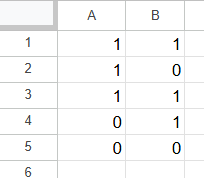
Step 2: Here, we two columns of numbers in column A. Let us try to customize the AND using the LAMBDA function.
In cell C1, let us display the result. For this, you can enter the following Lambda function:
=LAMBDA(a, b, AND(a, b))(A1,B1)
LAMBDA(a, b, AND(a, b)): It takes two parameters A and B and returns the AND output of both.
(A1,B1): This gives the values of a, b. It references the cells A1 and B1, meaning that the Lambda function will operate on the values in A1 and B1.
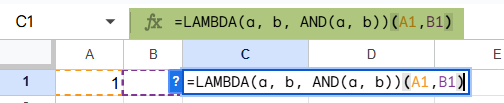
Step 3: After you enter the LAMBDA function in cell C1, press Ente. Cell C1 will display the result, which is TRUE.

Step 4: To apply this function to multiple cells, you can simply drag it down. Let us look at the result.
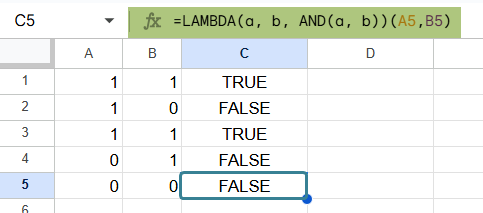
Examples
In simple terms, LAMBDA is used to create reusable formulas in Google Sheets. The LAMBDA in Google Sheets examples given below will help us understand how useful they are. We can unleash the real potential of the LAMBDA function in Google Sheets when it is used together with other functions. We will learn that later in my upcoming tutorials.
Example #1
In this example, we will use a formula to find the cube of some numbers. Let us use LAMBDA for the same.
Step 1: We have entered all the details in a table below.

Step 2: Here, we three columns of numbers in column A. Let us try to customize the multiplication using the LAMBDA function.
In cell D1, let us display the result. For this, you can enter the following Lambda function:
=LAMBDA(a, b, c, (a*b*c)(A1,B1,C1)
=LAMBDA(a,b,c, (a*b*c)(A1,B1,C1): It takes three parameters A, B, and C returns the product of all three.
(A1,B1,C1): This gives the values of a, b, c. It references the cells A1, B1, and C1. It means the Lambda function will give the product of the three functions.
After you enter the LAMBDA function in cell C1, press Ente. Cell C1 will display the result, which is TRUE.

To apply this function to multiple cells, you can simply drag it down. Let us look at the result.
Example #2 – Calculate the final price after applying a discount to a product
Let us consider a small business and calculate the total cost of items bought. It also includes a sales tax of 6%. Instead of calculating this manually for each item, let us create a LAMBDA function.
Step 1: Go to a new spreadsheet. Here, we enter the price of the item and the quantity.
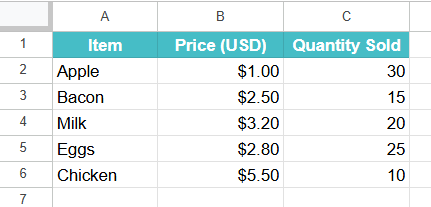
Step 2: Type the following formula into cell D1 for the total cost:
=LAMBDA(price, quantity, (price * quantity) + (price * quantity * 0.06))(B2,C2)
This formula takes two parameters, price and quantity, and calculates the total cost including a 6% tax.
Here, B2 and C2 are cells containing the price and quantity of the item. The function will calculate the total cost for you.
Step 3: Press Enter and drag the value down.

Example #3 – Calculate Monthly Loan Payments
For financial calculations, LAMBDA in Google Sheets is very useful to create a template where we must work on multiple calculations. such as loan payments, you can create a LAMBDA function to calculate monthly payments.
Suppose you want to calculate the monthly loan payment for different loans using the PMT formula.
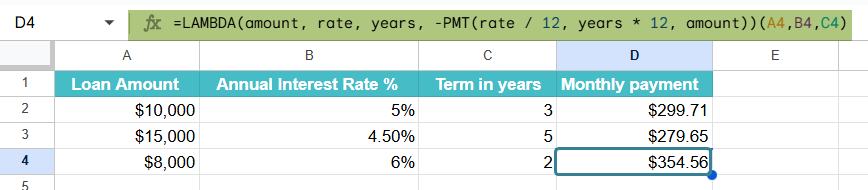
Step 1: Let us enter the details in a sheet. Here, Column A contains the loan amount, Column B contains the annual interest rate, and Column C contains the loan term.

Step 2: Use the following formula with LAMBDA in Google sheets
=LAMBDA(amount, rate, years, -PMT(rate / 12, years * 12, amount))(A2,B2,C2)
- amount = the principal
- rate / 12 = converts annual rate to monthly rate
- years * 12 = total number of monthly payments
- The result is wrapped in -PMT(…) to return a positive payment amount

Step 3: Press Enter. Drag the formula for all the rows.
Important Things To Note
- Every LAMBDA must include the correct number of input arguments; if you leave out an argument or mismatch the number of parameters, the formula will return a #N/A or #ERROR!.
- The last part of a LAMBDA is always the return expression, which is the actual formula or calculation to be performed using the inputs you’ve defined.
- LAMBDA is useful for reusing logic and reducing formula repetition across sheets.
Frequently Asked Questions (FAQs)
Some of the advantages of using LAMBDA in Google Sheets includes:
1. LAMBDA lets you define custom functions directly in a cell without using Google Apps Script.
2. It helps simplify and reuse complex formulas by turning them into user-defined functions.
3. It makes your formulas cleaner and easier to manage by reducing repetition.
4. Improves readability by letting you give meaningful names to function inputs.
The name argument in LAMBDA is used to define input variables. For example, to calculate the square of a number directly in a cell:
=LAMBDA(x, x * x)(4)
Here, x is the named input, and x * x is the return expression.
The function returns 16 when you pass in the number 4.
• #N/A error: This appears when the number of arguments passed does not match the number of inputs defined in the LAMBDA.
• #ERROR! or blank cell: If your return expression refers to invalid variables or logic (e.g., using undefined names), the formula will break or return nothing.
Use this LAMBDA in Google Sheets Template to follow along with the examples in this article.
Download Excel TemplateRecommended Articles
Continue with these related resources when you want the next practical step in this topic.
- ARRAYFORMULA in Google Sheets
- Google Sheets ArrayFormula + AI: Bulk Operations
- VSTACK in Google Sheets
- CHOOSECOLS in Google Sheets
- HSTACK in Google Sheets
Explore the full Google Sheets Dynamic Arrays and Advanced Functions guide or browse Google Sheets Resources.