


Introduction
Finance teams often need formal, multi‑page PDFs that match printed‑document standards: headers, page numbers, and strict layout. Power BI’s interactive reports are excellent for dashboards but are not fixed‑format or print‑ready. Power BI Paginated Reports Copilot PDF automation bridges this gap by letting users generate paginated reports and export them as clean PDFs, often with AI‑assisted guidance. These AI powered Power BI Paginated PDFs can be used for regulatory submissions, stakeholder packs, and month‑end reviews, while still drawing from the same semantic model as the main Power BI reports.
This article shows how to combine Power BI Paginated Reports with Copilot to simplify report design and then automate PDF exports. It is noted that paginated reports can be exported to PDF, Word, and other formats directly from both Report Builder and the Power BI service.The introduction of Copilot into the Power BI experience has made it easier to generate report structure and narrative text from natural‑language prompts. For analysts, that means spending less time manually formatting tables and more time ensuring data quality.
How Power BI Paginated Reports Work
Power BI Paginated Reports with Copilot are built on SQL Server Reporting Services (SSRS) and sit in the same Power BI environment as interactive reports. They are optimized for high‑fidelity, page‑by‑page documents with:
- Fixed layout: Each page respects printer margins, headers, and footers, unlike the responsive layout of standard Power BI visuals.
- Detailed grids: Long tables and item‑level details, such as transaction listings or line‑item budgets, fit naturally across pages.
- Export support: Reports can be exported to PDF, Word, PowerPoint, and accessible‑PDF formats, making them suitable for external distribution.
For finance teams, these reports are ideal for:
- Month‑end journal listings.
- Detailed GL and trial‑balance appendices.
- Regulatory or auditor‑ready schedules that require page‑numbered footers.
Paginated reports can be exported through the Power BI service or via an API for embedded scenarios, and that they require a Power BI Premium or Fabric capacity when used at scale.
How to Integrate Copilot with Paginated Reports
Copilot in Power BI is an AI‑powered assistant that helps create and refine report content using natural‑language prompts. While it is most visible in interactive reports, several patterns apply to Power BI Paginated Reports with Copilot.
Generating Report Structure and Text
A typical workflow for Copilot Power BI instant PDF reports is:
- Prepare a semantic model connected to the paginated report dataset.
- Use an interactive Power BI report to prototype the main K‑PIs and filters.
- In Power BI Desktop, open the Copilot pane and ask it to:
- Suggest a layout for a paginated‑style document (for example, “Create a three‑page report with summary K‑PIs, a table of top contributors, and a notes section”).
- Draft narrative text for each section (for example, “Write a two‑sentence summary of revenue by region”).
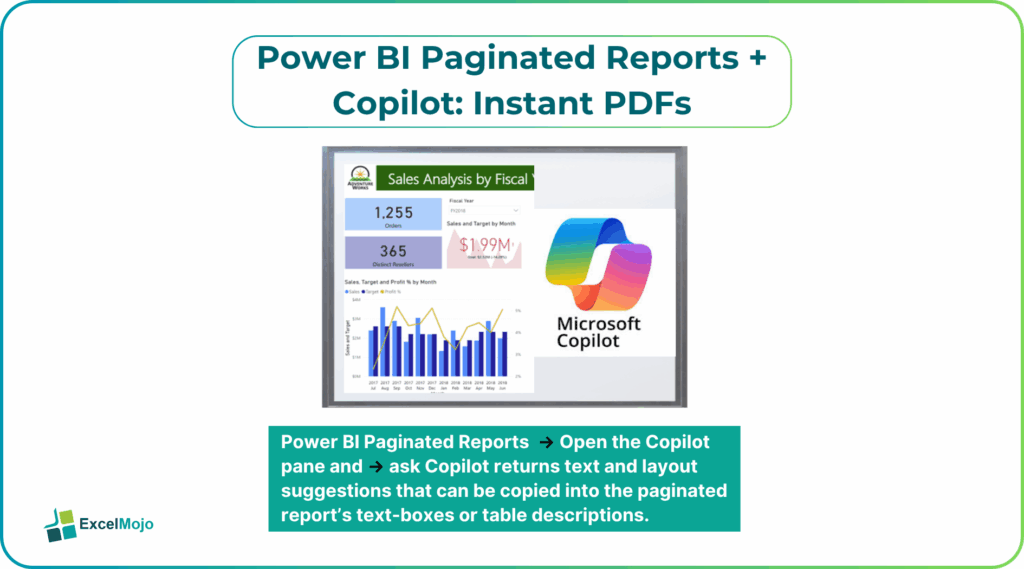
Copilot returns text and layout suggestions that can be copied into the paginated report’s text‑boxes or table descriptions. This approach is part of AI powered Power BI Paginated PDFs, where AI handles the narrative scaffolding while the analyst controls the data and formatting.
Automating PDF Exports
Once a Power BI Paginated Reports with Copilot report is ready, the next step is Power BI Copilot paginated report export to PDF. Power BI provides several paths:
- Manual export in Power BI:
In the Power BI service, open the report, click the Export dropdown, and choose PDF. The platform renders the report and downloads a PDF file that matches the page layout set in Report Builder. - Automated export via API:
For recurring PDFs, developers can call the ExportToFile API for paginated reports, specifying FileFormat.PDF and optional page‑range settings in the PaginatedReportExportConfiguration. This method is useful for scheduled email attachments or integration into custom portals.
By combining Copilot‑driven content with these export options, teams can build Power BI Paginated Reports that minimize manual effort.
Practical Example: A Month‑End PDF Pack
Power BI Paginated Reports with Copilot – Suppose a finance team wants a monthly PDF pack that includes:
- A cover page with K‑PIs.
- A detailed GL‑level transaction listing.
- A summary page with commentary.
Using the Copilot workflow above, the team can:
- Build a semantic model that includes summary measures and line‑item tables.
- Use Copilot to generate summary text such as “Revenue increased by 12% year‑on‑year, driven by Region X.”
- In Power BI Report Builder, create a paginated report with a header, a detail table, and a footer that includes page numbers and the report date.
- Export the report to PDF either manually or through automation, ensuring the layout matches the signed‑off template.
This example shows how Power BI Paginated Reports with Copilot can turn a static, time‑consuming manual process into a repeatable, semi‑automated workflow.
Pitfalls and Best Practices
Bringing AI powered Power BI Paginated PDFs into production raises a few key issues.
One common problem is layout fragility: long‑running tables or complex expressions can break page breaks or cause blank pages. Analysts should test the layout with realistic data volumes and adjust the page size and table settings in Report Builder accordingly.
Another risk is automation licensing: full automation of paginated‑report PDF exports often requires a Power BI Premium or Fabric capacity, and the ExportToFile API is designed for embedded or app‑hosted scenarios rather than casual Pro‑licensed exports. Teams should validate license requirements before building scheduled workflows.
A third issue is narrative quality: AI‑generated commentary may sound plausible but lack precision. For regulated or high‑stakes reports, analysts should treat Copilot outputs as a first draft and then tighten the language to match the organization’s style and disclosure standards.
Frequently Asked Questions (FAQs)
Copilot cannot generate full paginated reports directly in Report Builder, but it can suggest layout ideas and text content that can be copied into the paginated report. Users must still build the report in Power BI Report Builder and connect it to the correct dataset.
Interactive reports export as single‑page PDFs that match the visual layout, while paginated reports export as multi‑page, printer‑ready documents. The paginated‑report PDFs are better suited for detailed, table‑heavy schedules and formal deliverables.
AI powered Power BI Paginated PDFs can be safe if the underlying data and logic are validated, the layout is tested, and the narrative text is reviewed. Teams should keep version‑controlled templates and document the Copilot‑assisted content as part of their audit trail.
Power BI Paginated Reports Copilot PDF automation can be scheduled using the ExportToFile paginated‑report API combined with a scheduler such as Power Automate or Azure Functions. The Copilot‑assisted content itself is not automated, but the export and delivery chain can be scheduled.
Recommended Articles
Continue with these related resources when you want the next practical step in this topic.
Explore the full Power BI Service Sharing and Administration guide or browse Power BI Resources.