


Introduction
Finance professionals rely on Excel macros that ask for inputs through VBA UserForms, but the default experience is basic and static. A simple entry box with labels and buttons does not check logic, guide the user, or adapt to context. UserForms in VBA using AI smart dialog boxes change this by letting AI generate and refine the form layout, validation rules, and control‑level interactions while analysts focus on the business logic. These AI enhanced Excel UserForms can pre‑fill fields, validate inputs on the fly, and even suggest corrections or next steps, turning a clunky dialog into a guided workflow.
Here, we show you how to combine VBA UserForms with AI to build smart dialog boxes VBA AI that respond to user behavior without leaving Excel. Readers will see how Excel VBA UserForms with AI automation can reduce manual data‑entry errors, enforce business rules, and make templates easier to use for non‑technical teams. Well‑structured prompts can generate most of a UserForm and its underlying code, leaving only refinement and testing to the analyst.
How VBA UserForms work with AI
A VBA UserForm is a customizable dialog box that sits on top of the workbook and can contain controls such as textboxes, combo boxes, checkboxes, and command buttons. The standard workflow is:
- Insert a UserForm in the VBA Editor.
- Add controls and set their Name, Caption, and Value properties.
- Write event‑driven code like CommandButton1_Click, TextBox1_Change, etc. to handle user actions.
VBA UserForms with AI lets analysts skip much of the boilerplate by describing the desired behavior in plain language and having an AI assistant generate the control layout and code. For example, a user can ask:
“Create a VBA UserForm named BudgetEntryForm with a textbox for ‘Amount’, a dropdown for ‘Region’ (options: North, South, East, West), and a button to save the data to Sheet1. Add basic validation so that the Amount field accepts only positive numbers and Region is not blank.”
AI typically returns a complete UserForm design and VBA code, including UserForm_Initialize, ComboBox1_Change, and CommandButton1_Click handlers, plus simple validation logic.
This approach is the core of Excel VBA UserForms AI automation: AI handles the scaffolding, and the analyst tightens the logic, links it to the correct sheet structure, and adds error‑handling.
How to Build AI‑Generated Smart Dialog Boxes
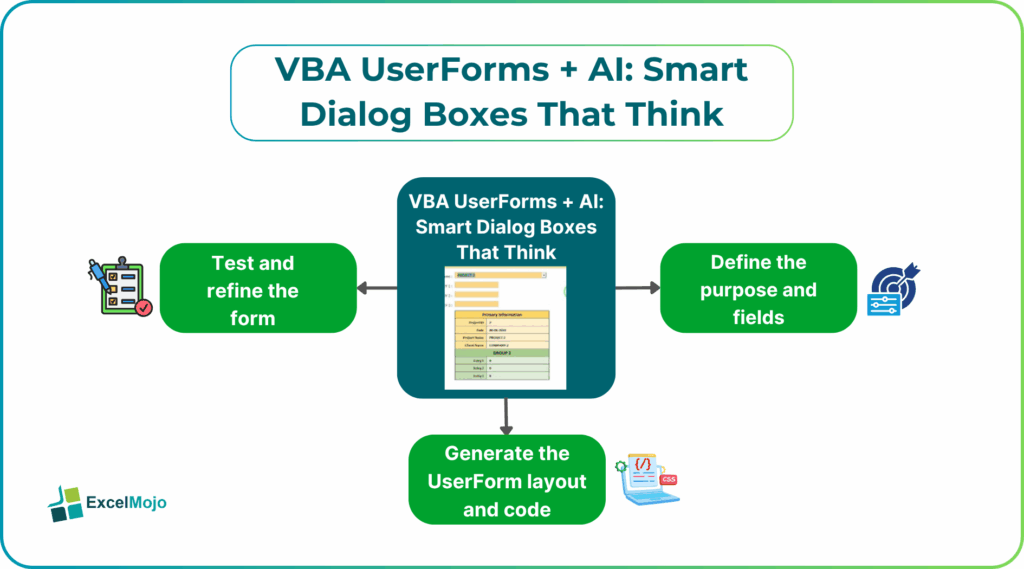
Creating VBA UserForms AI smart dialog boxes follows a simple workflow: design the logic, generate the form and code, then connect it to the workbook.
Step 1: Define the Purpose and Fields
Before opening the VBA Editor, write down the form’s goal and the fields it needs. For example:
- A data‑entry form for monthly budgets with fields for Division, Month, Forecast, and Notes.
- A validation form that checks whether a given cost code already exists and asks the user to confirm or correct it.
These requirements form the basis of a prompt for AI.
Step 2: Generate the UserForm Layout and Code
A good prompt for AI enhanced Excel UserForms includes:
- The form name and main controls.
- The target worksheet or table.
- Any validation rules (e.g., positive numbers, selected dropdown, required fields).
Example:
“Generate a VBA UserForm named MonthlyBudgetForm with:
- A textbox for Amount (only numeric, positive).
- A combo box for Region with options ‘North’, ‘South’, ‘East’, ‘West’.
- A command button labeled ‘Save to Sheet1’.
- Validation so that the form does not close if the Amount is not numeric or Region is blank.”
AI typically returns:
- The control layout (which can be mirrored in the UserForm designer).
- A VBA code‑behind template with Initialize, Change, and Click events.
- Simple validation such as:
Private Sub CommandButton1_Click()
Dim ws As Worksheet
Set ws = ThisWorkbook.Sheets(“Sheet1”)
If Not IsNumeric(TextBox1.Value) Or Val(TextBox1.Value) <= 0 Then
MsgBox “Amount must be a positive number.”, vbExclamation
Exit Sub
ElseIf ComboBox1.Value = “” Then
MsgBox “Please select a Region.”, vbExclamation
Exit Sub
Else
‘ Append data
Dim NextRow As Long
NextRow = ws.Cells(ws.Rows.Count, “A”).End(xlUp).Row + 1
ws.Cells(NextRow, 1).Value = ComboBox1.Value
ws.Cells(NextRow, 2).Value = Val(TextBox1.Value)
Unload Me
End If
End Sub
This is a concrete example of smart dialog boxes with VBA AI and shows how AI can automate much of the repetitive event‑driven code.
Step 3: Test and Refine the Form
Open the UserForm in the VBA Editor, paste the AI‑generated code into the right module, and run it with UserForm1.Show. Test with valid and invalid inputs, and refine the logic if needed, such as adding date defaults or lookup‑based dropdowns.
Practical Example: A Guided Budget‑Entry UserForm
Suppose a finance team wants a VBA UserForms AI smart dialog box for monthly budget submissions. The requirements are:
- A dropdown for Division populated from a named range.
- A numeric textbox for Forecast with a minimum of 0.
- A notes field that defaults to today’s date.
- A “Save and Close” button that appends the entry to a table.
Using an AI‑assisted workflow, the analyst can:
- Ask an AI assistant for a UserForm that matches this logic.
- Wire the ComboBox to a named range using Range(…).Value in the Initialize event.
- Use UserForm_Initialize to set the notes field to Now().
This pattern qualifies as Excel VBA UserForms AI automation where AI accelerates the build and testing of a form that enforces business rules at the point of entry.
Pitfalls and Best Practices
Even AI enhanced Excel UserForms introduce common pitfalls.
One common issue faced is validation depth. AI‑generated forms may only check for basic types (blank or numeric) but miss business‑specific constraints such as maximums, currency formats, or cross‑field rules. Analysts should add deeper checks, such as comparing proposed values against approved limits stored in a separate sheet.
Another risk is usability drift. AI‑generated layouts may place controls in awkward positions or use inconsistent labels. Users should tune the form’s Left and Top properties, and keep labels and captions aligned with the team’s standard terminology.
A third issue is maintainability. AI‑generated code may lack comments or structure. Analysts should add clear remarks, split complex event handlers into smaller helper subs, and keep the workbook’s data model separate from the form logic. This approach keeps VBA UserForms AI smart dialog boxes robust and easy to update.
Frequently Asked Questions (FAQs)
Yes, beginners can use VBA UserForms AI smart dialog boxes by describing the desired behavior in plain language and letting an AI assistant generate the UserForm layout and basic code. They still need to understand basic Excel concepts and how to run macros, but they do not have to write all the VBA manually.
AI enhanced Excel UserForms can be safe if the generated code is tested thoroughly, connected only to the intended ranges, and documented. Users should avoid blindly accepting AI‑generated code that interacts with external systems or sensitive data without review.
Smart dialog boxes VBA AI add validation, context‑aware guidance, and richer controls compared with standard Excel forms, while keeping the logic inside the workbook. They are ideal for interactive data‑entry and approval workflows, whereas standard grid‑based entry is better for bulk, low‑intervention input.
No, Excel VBA UserForms AI automation should not replace Power Query or database‑driven forms. It is best suited for lightweight, workbook‑centric workflows, while ETL and complex data models still belong in Power Query or dedicated databases.
Recommended Articles
Continue with these related resources when you want the next practical step in this topic.
Explore the full VBA Range & Cells guide or browse VBA Resources.