


Introduction
In a hybrid environment where finance teams work, Excel is often used as the front‑end for quick edits and Power BI the back‑end for dashboards and governance. Changes in Excel rarely flow automatically into Power BI, and updates in it may not propagate back to planning worksheets, creating manual reconciliation and version‑control friction. Power BI Excel live connection AI sync changes this by using Power BI’s Live Connection plus AI‑driven workflows to keep both tools aligned. With AI powered Power BI Excel sync, analysts can detect when a workbook diverges from the model, propose reconciliations, and trigger small Excel‑level automations from the Power BI layer.
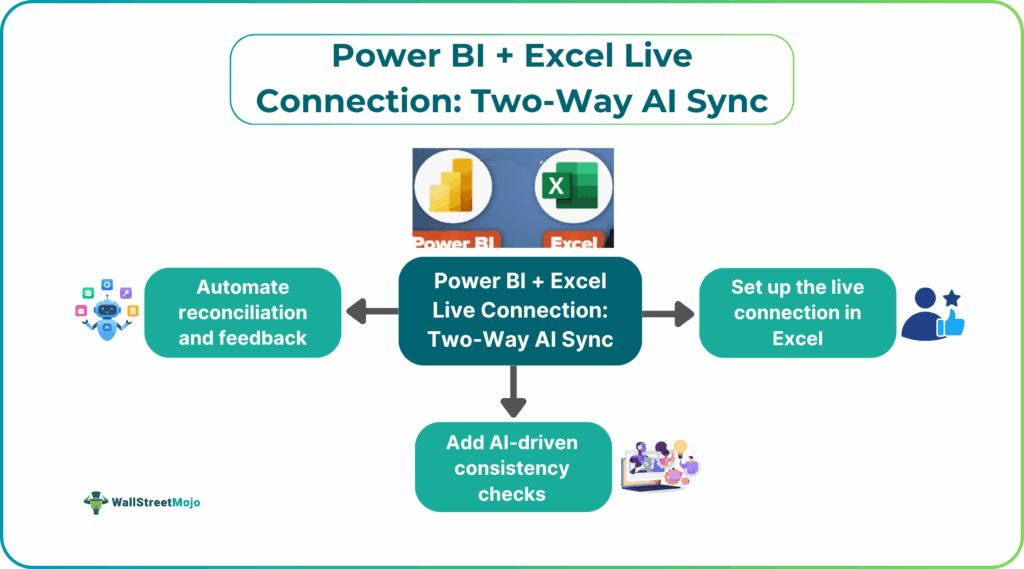
Here, we show you how to design Power BI Excel live connection with AI so that edits in Excel feed into Power BI in near‑real time and AI‑assisted checks highlight inconsistencies. You can see how Excel Power BI live connection automation can reduce manual data‑capture steps and keep budgets, forecasts, and plans synchronized without a full migration to enterprise data‑warehousing. It is known that live connections are most effective when paired with clean, well‑governed data models and lightweight automation such as Power Automate or small Python scripts feeding back into Excel.
How Power BI Excel Live Connection Works
Power BI supports several connectivity patterns to Excel: importing data, DirectQuery, and Live Connection to the existing Power BI model. In the Excel Power BI live connection pattern, Excel connects to the Power BI service or dataset and reads the latest model data without copying a static snapshot. This means:
- When the underlying data model refreshes, Excel queries against the updated semantic model.
- Changes made in Excel that sit on top of the model (such as added formulas or commentary) do not alter the model directly, preserving governance.
For finance teams, this is useful for:
- “Last‑mile” planning spreadsheets that read K‑PIs from the Power BI model but keep local assumptions and notes.
- Reconciliation checks where Excel compares exported Power BI measures with manual inputs.
Recent Power BI documentation on model‑driven connectivity notes that live connections are ideal when Excel should always reflect the current model state, while import‑based workflows are better when Excel itself is the source of truth.
How to Enable Power BI Excel Two‑Way AI Sync
Power BI Excel two‑way AI sync is not a single button; it is a design pattern that combines live‑connection data, AI‑assisted checks, and lightweight automation. Below is a practical, analyst‑friendly workflow.
Step 1: Set up the Live Connection in Excel
In Excel:
- Go to Data -> Get Data -> From Other Sources -> From Power BI.
- Sign in to the Power BI service and select the desired dataset or model.
- Load the tables or measures into Excel and build formulas that consume them (for example, = [Power BI Revenue] * 1.05 for a local uplift).
Now Excel stays in sync with the Power BI model whenever it refreshes or the workbook reconnects.
Step 2: Add AI‑Driven Consistency Checks
In Excel, use an AI‑assisted pattern to detect when manual entries drift from the model. For example:
- Create a small table that compares Power BI‑derived values against locally entered values for key line items.
- Use an AI‑enhanced formula or VBA‑based checker (fed by ChatGPT‑style prompts) that flags rows where the variance exceeds a business‑defined threshold and labels them as “Check” or “Override.”
This step embodies AI powered Power BI Excel sync. Here, AI helps define the logic and flag exceptions, while the analyst keeps ownership of the business rules.
Step 3: Automate Reconciliation and Feedback
For advanced workflows, the Power BI Excel live connection AI sync pattern can extend into automation such as:
- Power Automate flows that export Power BI data at scheduled intervals, compare it with curated Excel sheets, and send email alerts for material changes.
- Small scripts that write reconciled values back into Excel when AI‑validated edits are confirmed, keeping the workbook aligned with the model.
These workflows turn Excel Power BI live connection automation into a controlled, two‑way loop where Excel can feed approved edits back into the model through a controlled gateway rather than direct, unsupervised writes.
Practical Example: A Synchronized Forecast Workbook
Suppose a finance team maintains a monthly forecast where:
- The base forecast is in the Power BI model, updated from the ERP.
- Excel holds analyst‑driven adjustments, such as customer‑specific overrides or scenario bumps.
Using the Power BI Excel live connection with AI pattern, the team can:
- Connect Excel to the forecast dataset via Live Connection.
- Build a “Delta” column that compares the model‑based forecast with the local Excel forecast.
- Use an AI‑assisted helper whichis formula‑based or VBA, that highlights rows where the delta is greater than 10% and generates a short explanation such as “Adjustment driven by new customer deal.”
This structure shows how Power BI Excel two‑way AI sync keeps the base model consistent while allowing controlled, well‑documented overrides in Excel.
Pitfalls and Best Practices
Even AI powered Power BI Excel sync comes with common pitfalls.
One issue is misaligned sources of truth, I+f Excel and Power BI both try to act as the primary source, the model and workbook will diverge. Teams should clearly define that the Power BI model is the governed source, and Excel is for analysis, scenario‑testing, and controlled overrides.
Another risk is security and governance. AI‑driven scripts that read or write between Excel and Power BI may expose sensitive data routes. Analysts should avoid sharing raw datasets through AI tools, use role‑based data access in Power BI, and keep AI‑enhanced logic as a thin validation layer rather than a data‑transformation engine.
A third pitfall is performance,Live‑connected Excel workbooks may slow down if they pull large tables or complex measures. Users should limit data‑set size, use summaries or aggregations where possible, and test refresh behavior under realistic load.
Frequently Asked Questions (FAQs)
Power BI Excel live connection is primarily one‑way (model‑to‑Excel), but it can form part of a two‑way AI‑assisted workflow where Excel‑driven edits are validated and then pushed back into the model through controlled processes.
AI powered Power BI Excel sync workflows can be safe if the AI component is used for validation and flagging, and all final edits are reviewed and documented. The Power BI model should remain the governed source, and Excel changes should follow a clear audit trail.
Live‑connection automation keeps Excel synchronized with the current model state, whereas importing creates static snapshots that must be refreshed manually. For real‑time analysis and scenario planning, live connections are more responsive, but for archival or offline work, imports may be more practical.
No, Power BI Excel two‑way AI sync should not replace ETL tools. It is best suited for analyst‑driven reconciliation and last‑mile assumptions, while formal data pipelines and transformations should still live in Power Query, pipelines, or dedicated ETL platforms.
Recommended Articles
Continue with these related resources when you want the next practical step in this topic.
- Power BI Connections
- Power BI Query
- Power BI Live Connection
- Query Folding in Power Query
- Power BI Parameters
Explore the full Power BI Data Connections and Power Query guide or browse Power BI Resources.