


Introduction to VBA Workbook Automation
Many Excel users want certain actions to happen automatically whenever they open, change, or save any workbook, such as logging edits, running basic validations, or showing a warning when cells go out of bounds. Traditionally, this logic is placed inside each individual workbook. This means the same code has to be copied into every file and maintained separately. VBA Application events workbook level automation offers a cleaner way; by using Application‑level events, one piece of code can respond to actions across all open workbooks from a single add‑in or personal macro file. When combined with AI enhanced VBA Application events Excel, mid‑level VBA users can describe what they want in plain language. Then, AI drafts the core event‑handling logic, and they can tweak it without needing to be experts in class‑module design.
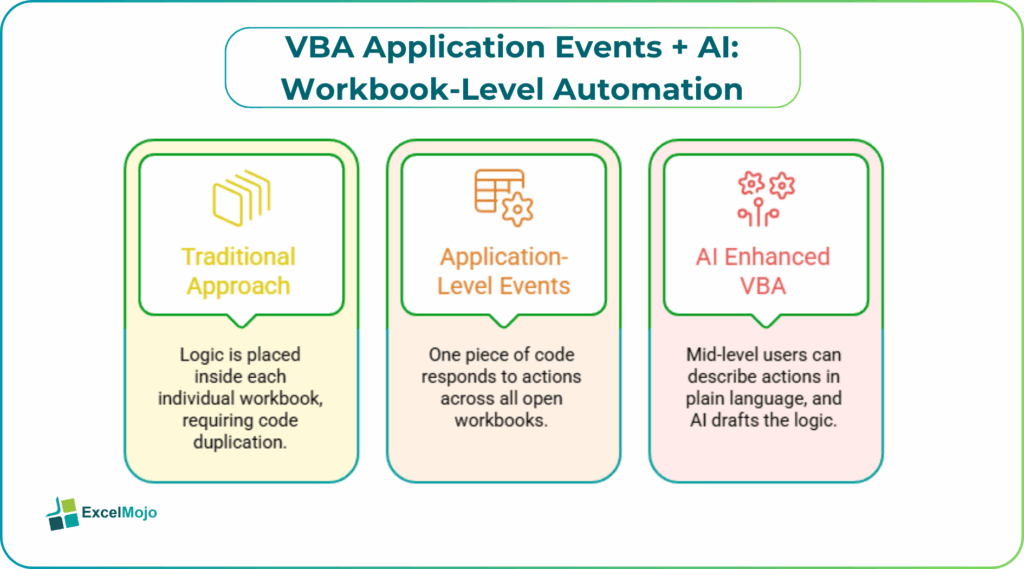
This article explains how to use automated workbooks with VBA Application events AI to build simple, cross‑workbook behaviors, such as audit‑style logging or validation checks. You get straightforward code that does not require advanced object‑oriented patterns. Application‑level handling is possible through a class module that “listens” to the Excel Application object, but the pattern can be kept very simple for common use cases like logging or notifications. For finance and FP&A analysts, this means less copy‑pasting of macros across templates and more predictable, centrally maintained automation.
What Application Events Can Do
Application‑level events in Excel VBA let code respond to actions that affect the whole Excel process, rather than a single workbook or sheet. Common examples include:
- Application.SheetChange – runs when any cell is edited in any open workbook.
- Application.SheetCalculate – runs when any sheet recalculates.
- Application.WorkbookOpen – runs when any workbook opens.
- Application.WorkbookAfterSave – runs after any workbook is saved.
These events are useful for global behaviors such as:
- When a user edits a cell anywhere, log the change to a hidden sheet in that workbook.
- When Excel opens, automatically connect the event handler so it works for all files.
- When a workbook is saved, check if certain cells are out of range and warn the user.
This kind of logic fits well with workbook level event handling VBA AI, where the AI drafts the structure and the user customizes the exact messages or checks.
A simple Application‑Level SheetChange Example
For a mid‑level audience, the code can be kept straightforward and easy to read. The pattern is similar to standard VBA‑event tutorials but avoids complex abstractions.
Step 1: Create a Class Module for the Handler
- In Excel, press Alt + F11 to open the VBA Editor.
- In the project, right‑click and choose Insert > Class Module.
- Rename the class to something like AppEvents.
In that class, add this code:
Private WithEvents App As Application
Private Sub App_SheetChange(ByVal Sh As Object, ByVal Target As Range)
Dim wsLog As Worksheet
On Error GoTo LogError
Set wsLog = Sh.Parent.Worksheets(“AuditLog”)
NextRow:
Dim NextRow As Long
NextRow = wsLog.Cells(wsLog.Rows.Count, 1).End(xlUp).Row + 1
wsLog.Cells(NextRow, 1).Value = Sh.Parent.Name
wsLog.Cells(NextRow, 2).Value = Sh.Name
wsLog.Cells(NextRow, 3).Value = Target.Address
wsLog.Cells(NextRow, 4).Value = Target.Value
Exit Sub
LogError:
If Err.Number = 9 Then
‘ Worksheet not found
Set wsLog = Sh.Parent.Worksheets.Add
wsLog.Name = “AuditLog”
wsLog.Visible = xlSheetVeryHidden
wsLog.Range(“A1:D1”).Value = Array(“Workbook”, “Sheet”, “Address”, “Value”)
Resume NextRow
End If
End Sub
This simple handler:
- Uses App_SheetChange to react whenever a cell is edited in any workbook.
- Look for a hidden sheet called AuditLog in the same workbook.
- If the sheet does not exist, it creates one and writes a header row.
- Then it logs the workbook name, sheet name, cell address, and new value.
This is a practical example of VBA Application events workbook level automation that remains readable and easy to adapt.
Step 2: Connect the Handler When Excel Starts
In a standard module (for example, in the Personal Macro Workbook), add a short routine to “turn on” the event‑handler:
Public evt As New AppEvents
Sub ConnectEvents()
Set evt.App = Application
End Sub
To make this run automatically when Excel opens, add a Workbook_Open procedure in the Personal VBA Macro Workbook (or an add‑in):
Private Sub Workbook_Open()
ConnectEvents
End Sub
This pattern is the core of automate workbooks with VBA Application events AI and keeps the structure minimal while still giving global behavior.
How to let AI Draft the Event‑Handling Logic
AI enhanced VBA Application events Excel can help mid‑level users avoid writing event‑driven code from scratch.
Step 1: Describe the Behavior in Plain Language
Before asking AI, write a short, clear description such as:
- “Write a simple VBA Application‑level SheetChange handler that logs edits to a hidden sheet called ‘AuditLog’ in the same workbook.”
- “Create a basic Application‑level handler that runs when any workbook opens and checks if a cell in a specific sheet is out of range.”
Step 2: Ask AI for a Clear, Step‑by‑Step Routine
A good prompt for a mid‑level audience is:
“In VBA, I want a simple Application‑level SheetChange handler that runs whenever any cell changes in any workbook.
- Create a class module named AppEvents.
- Implement the App_SheetChange event.
- For each change, log the workbook name, sheet name, cell address, and new value to a hidden worksheet named ‘AuditLog’ in the same workbook.
- Add a standard module that runs ConnectEvents when Excel opens.
Write the full code in a way that is easy to understand and modify, without using advanced classes or complex patterns.”
AI typically returns code that closely follows the simple pattern above, which the user can then adapt (for example, changing the column layout in AuditLog or adding a warning message).
Practical Example: Cross‑Workbook Change Logging
A common but simple use case is a log that tracks the last edits made in multiple financial models without placing the same macro in every file. Using the pattern above, the workflow becomes:
- Place the AppEvents class module and ConnectEvents routine into the Personal Macro Workbook or a small add‑in.
- When Excel opens, the Workbook_Open routine runs ConnectEvents, which links the class to the Application object.
- Any time a user edits a cell in any workbook, the App_SheetChange handler creates or updates an AuditLog sheet in that workbook, recording the edit.
This is a practical example of AI enhanced VBA Application events Excel and shows how automate workbooks with VBA Application events AI can replace manual macro‑copying with a simple, central automation layer.
Pitfalls and Best Practices at Mid‑Level
VBA Application events workbook level automation is powerful but can cause issues if not handled carefully.
One common issue is errors blocking other events. If the event‑handler code fails and does not have basic error handling, Excel may stop firing events, which feels like the automation has stopped working. A simple On Error GoTo section and a clear message or comment help avoid this.
Another risk is performance impact. Running complex operations on every SheetChange can slow down Excel. For mid‑level tools, it is safer to keep handlers lightweight and move heavier logic into separate macros that users run on demand.
A third pitfall is too many handlers at once. If multiple add‑ins or templates each try to wire their own Application‑level responders, behavior can become unpredictable. Teams should centralize such logic in one small add‑in or the Personal Macro Workbook and test it with typical user workflows.
Frequently Asked Questions (FAQs)
It is best used to add cross‑workbook logic, not replace normal workbook macros. Sheet‑ or workbook‑level code is still useful for model‑specific rules, while Application‑level handlers are ideal for global logging, guarding, or status checks.
AI enhanced VBA Application events Excel let users describe the behavior in plain language and get a working code template back, which they can then tweak. For many common use cases, the AI‑generated code is already simple enough to use without being an expert in VBA classes.
They can be safe if the code is reviewed, tested with typical workbooks, and kept simple. Users should avoid very complex logic inside the handler and keep the add‑in or personal macro file version‑controlled and backed up.
Yes, workbook level event handling VBA AI can work with WorkbookOpen and WorkbookAfterSave events to run checks, backups, or logging whenever any file opens or saves. The pattern is the same as for SheetChange: create a simple handler in the class module and connect it when Excel starts.
Recommended Articles
Continue with these related resources when you want the next practical step in this topic.
Explore the full VBA Worksheets & Workbooks guide or browse VBA Resources.