


Introduction
Many Excel financial models have key outputs such as Earnings Before Tax (EBT), Net Present Value (NPV), or scenario‑based covenants that sit in a central dashboard. When users change assumptions, dependencies recalculate, and the analyst sometimes needs to react immediately, such as logging changed values, firing alerts, or updating external dashboards. The classic approach of manually triggering macros or using Worksheet_Change covers only explicit edits, not the broader recalc trigger of the entire sheet. VBA Worksheet_Calculate events’ triggers address this gap by letting developers listen to every full recalc of the worksheet and respond with automation that behaves like a real‑time signal processor for Excel. When combined with AI‑assisted pattern generation, analysts can describe the desired behavior in plain language and have AI draft the event‑handling logic. They then refine it into tight, reusable routines.
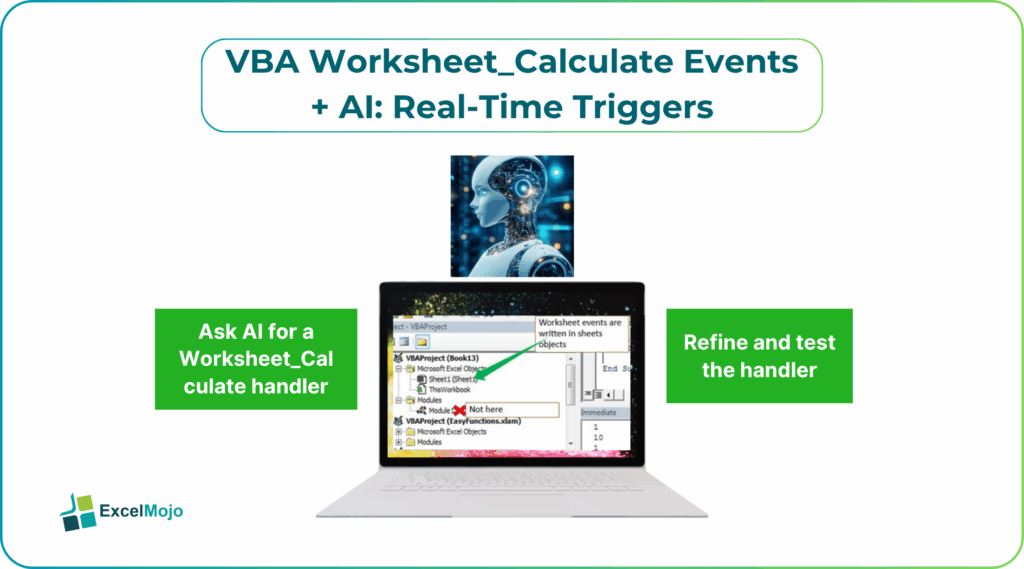
This article explains how to use VBA Worksheet_Calculate Events AI Real‑Time Triggers to create AI real‑time worksheet triggers in Excel that run when the sheet recalculates, We also learn how to connect them to common finance workflows, and how to avoid common design pitfalls. The pattern sits at the intersection of Excel VBA Worksheet_Calculate automation and AI driven VBA real‑time triggers, letting highly structured models behave more like lightweight, rules‑driven applications.
How Worksheet_Calculate Events Work
Worksheet_Calculate is a VBA event tied to individual worksheet objects that fires whenever Excel recalculates formulas on that sheet. Unlike Worksheet_Change, which runs only when a user directly edits a cell, the Calculate event runs after any formula dependency updates, including changes to named ranges, linked workbooks, or external data connections.
A minimal implementation in the Sheet1 code module looks like this:
Private Sub Worksheet_Calculate()
Debug.Print “Sheet recalculated at: ” & Now
End Sub
This simple handler logs a timestamp to the Immediate Window every time Sheet1 recalculates. For analysts, that means the event can be used to:
- Track when a model’s bottom line moves.
- Trigger conditional checks against KPIs such as EBT, leverage ratios, or liquidity thresholds.
- Populate audit‑style logs or send signals to external tools.
The Calculate event is global within the sheet’s scope, so it cannot be attached to a single cell, but it can inspect ranges, named ranges, or worksheet‑level defined names to react to specific recalc‑driven outcomes.
How to use AI to Draft VBA Calculate‑Trigger Logic
AI tools can help design VBA Worksheet_Calculate events with AI by generating the core logic and then letting the user adapt it to the workbook’s structure.
Step 1: Describe the Trigger Condition
Before writing any code, spell out the business rule in plain language, such as:
- “When EBT in cell D10 drops below 10,000 after a recalc, pop up a warning message.”
- “Whenever the NPV in cell F15 changes by more than 5% from the previous value, log the difference and timestamp.”
These statements are the basis for AI‑assisted prompts.
Step 2: Ask AI for a Worksheet_Calculate Handler
A strong prompt for AI driven VBA real‑time triggers includes:
- The worksheet name or code‑name.
- The monitored cell or range.
- The action to take when the condition is met.
Example:
“In VBA, I want to add a Worksheet_Calculate event handler for Sheet1 that:
- Checks the value in cell D10 named ‘EBT’ after each recalc.
- If EBT is less than 10,000, show a message box warning the user.
- Otherwise, do nothing.
Write only the VBA code that goes inside the event handler, and include comments where useful.”
AI typically replies with something like:
Private Sub Worksheet_Calculate()
Dim EBT As Double
EBT = Me.Range(“D10”).Value
If EBT < 10000 Then
MsgBox “Warning: EBT has dropped below 10,000.”, vbExclamation
End If
End Sub
This is the core of AI real‑time worksheet triggers Excel and shows how AI can generate the conditional logic that will run after every recalc.
Step 3: Refine and Test the Handler
Place the generated code in the correct worksheet module, then test the workbook by changing upstream inputs until the monitored cell crosses the threshold. For heavy‑use reports, consider adding:
- Application.EnableEvents = False guards to avoid reentrancy.
- On Error blocks to prevent the macro from freezing the model.
Practical Example: A Covenant‑Breach Alert
Suppose a finance team builds a covenant‑tracking model where a leverage ratio must stay below 4.0. Using VBA Worksheet_Calculate events AI real‑time triggers, the team can:
- Ask an AI assistant to generate a handler that checks the leverage‑ratio cell after each recalc and fires a warning when it exceeds 4.0.
- Adapt the generated code to use a named range instead of a hardcoded cell address.
- Extend the handler to write a date‑stamped message into a small audit log table on a separate sheet.
That pattern is a practical example of Excel VBA Worksheet_Calculate automation and demonstrates how AI driven VBA real‑time triggers can turn Excel into a lightweight, condition‑driven application around a single recalc event.
Pitfalls and Best Practices
VBA Worksheet_Calculate events AI real‑time triggers can be powerful but also introduce subtle risks.
One common issue is performance overhead: complex logic inside Worksheet_Calculate runs after every recalc, so heavy loops or file operations can make the model feel sluggish. Analysts should keep checks lean, cache key values if needed, and avoid reading large ranges repeatedly.
Another risk is side‑effect recursion: code that changes cells on the same sheet can trigger additional recalcs, which may in turn fire Worksheet_Calculate again if the logic is not carefully guarded. Using Application.EnableEvents = False and On Error blocks is essential when the handler modifies the sheet.
A third pitfall is fragile cell references: hardcoding Range(“D10”) or similar references makes the macro brittle if the layout changes. Best practice is to use named ranges or defined names so that the AI‑generated logic ties to business‑meaningful labels such as “LeverageRatio” or “EBT”, which remain stable even as the sheet’s structure evolves.
Frequently Asked Questions (FAQs)
No, AI real‑time worksheet triggers Excel are best suited for in‑workbook rules, alerts, and lightweight automation. They should not replace enterprise‑grade BI tools or real‑time data pipelines, which are designed for broader concurrency, governance, and scale.
VBA Worksheet_Calculate events with AI can be safe if the handlers are tested on representative data, kept simple, and well‑commented. Users should avoid complex logic that touches many ranges or external systems, and instead use the event for targeted checks and signals.
Using Worksheet_Calculate automation in shared workbooks can be error‑prone due to recalc conflicts and event‑ordering issues. Analysts should test thoroughly in a shared environment, and consider using shared‑workbook‑compatible patterns or moving complex logic into a separate, unshared control workbook.
Recommended Articles
Continue with these related resources when you want the next practical step in this topic.
Explore the full VBA Worksheets & Workbooks guide or browse VBA Resources.