


Introduction
Excel users in finance often build macros that grow into sprawling, intertwined procedures. A single “button” macro ends up doing data loading, validation, reporting, and error‑handling all in one sub, making it hard to maintain and reuse. VBA Class Modules AI object‑oriented Excel apps offer a way out by letting analysts structure their logic into reusable objects that mimic real‑world entities such as transactions, entities, or scenarios. When paired with AI tools that can generate or refine class‑level code, these AI enhanced VBA Class Modules Excel components can be developed faster and kept cleaner than with manual coding alone.
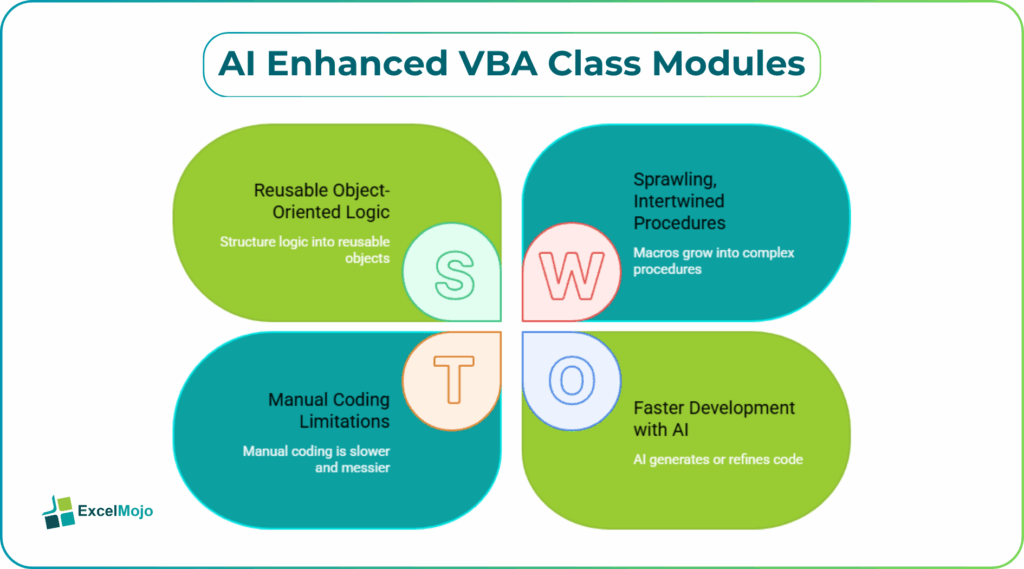
This guide explains how to combine VBA Class Modules with AI to build object‑oriented Excel apps with VBA that are easy to test, extend, and document. We show how AI powered VBA class‑based Excel automation can turn a monolithic workbook‑level macro into a small, object‑oriented layer that encapsulates data and behavior. It helps analysts spend more time on business logic and less on plumbing.
How Class Modules Enable Object‑Oriented Apps
In VBA, a Class Module is a container for properties and methods that model a specific concept. For example, a clsBudgetEntry class might expose:
- Properties such as Amount, Region, and Comment.
- Methods such as Validate and SaveToSheet.
Once a class is defined, modules can create instances of it such as:
Dim Entry As clsBudgetEntry
Set Entry = New clsBudgetEntry
Entry.Amount = 100000
Entry.Region = “North”
If Entry.Validate Then
Entry.SaveToSheet “Sheet1”
End If
This approach is the core of object‑oriented Excel apps with VBA: the logic is encapsulated inside objects, and the main macro only orchestrates them.
When AI powered VBA class‑based Excel automation is used, an analyst can describe a class in natural language and have AI generate most of the boilerplate. For example, a prompt such as “Create a VBA Class Module named clsBudgetEntry with properties Amount, Region, and Comment, and a method Validate that checks Amount is positive and Region is not blank” typically yields a skeleton class with private fields, public property wrappers, and a simple validation routine.
This pattern fits well with VBA‑object‑oriented best practices that stress encapsulation, separation of concerns, and single‑responsibility design.
How to Design AI‑Assisted Class Modules
Building VBA Class Modules AI object‑oriented Excel apps follows a clear workflow: define the business concept, generate the class shell, then tie it to the workbook.
Step 1: Model the Business Concept
Before writing code, write a short description of the object. For example, a budget‑entry object might need:
- A numeric Amount with a minimum value.
- A Region drawn from a known list.
- A Comment for notes.
- A SaveToSheet method that writes these fields to a specific table.
These requirements form the basis of an AI prompt.
Step 2: Generate the Class Code with AI
A strong prompt for VBA Class Modules with AI includes:
- The class name and business role.
- The intended properties and their types.
- The methods to include and their purpose.
Example:
“Create a VBA Class Module named clsBudgetEntry that represents a budget line item. It should have:
- Public properties: Amount (Double), Region (String), Comment (String).
- A method Validate that returns a Boolean, checking that Amount is greater than zero, Region is not blank, and Region is one of North, South, East, West.
- A method SaveToSheet that takes a worksheet name and appends the data to the next available row.”
AI typically returns a class such as:
‘ clsBudgetEntry
Private pAmount As Double
Private pRegion As String
Private pComment As String
Public Property Get Amount() As Double
Amount = pAmount
End Property
Public Property Let Amount(Value As Double)
pAmount = Value
End Property
Public Property Get Region() As String
Region = pRegion
End Property
Public Property Let Region(Value As String)
pRegion = Value
End Property
Public Property Get Comment() As String
Comment = pComment
End Property
Public Property Let Comment(Value As String)
pComment = Value
End Property
Public Function Validate() As Boolean
Dim ValidRegions As Variant
ValidRegions = Array(“North”, “South”, “East”, “West”)
Validate = False
If pAmount <= 0 Then Exit Function
If pRegion = “” Then Exit Function
Dim i As Long
For i = 0 To UBound(ValidRegions)
If pRegion = ValidRegions(i) Then
Validate = True
Exit Function
End If
Next i
End Function
Public Sub SaveToSheet(wsName As String)
Dim ws As Worksheet
On Error Resume Next
Set ws = ThisWorkbook.Sheets(wsName)
On Error GoTo 0
If ws Is Nothing Then
MsgBox “Sheet ‘” & wsName & “‘ does not exist.”, vbExclamation
Exit Sub
End If
Dim NextRow As Long
NextRow = ws.Cells(ws.Rows.Count, “A”).End(xlUp).Row + 1
ws.Cells(NextRow, 1).Value = pRegion
ws.Cells(NextRow, 2).Value = pAmount
ws.Cells(NextRow, 3).Value = pComment
End Sub
This is a concrete example of AI enhanced VBA Class Modules Excel and shows how AI can generate a full‑fledged class with encapsulation and validation.
Step 3: Use the Class in a Client Module
A standard module can then create and use clsBudgetEntry instances:
Sub SaveBudgetEntry()
Dim Entry As clsBudgetEntry
Set Entry = New clsBudgetEntry
Entry.Amount = 150000
Entry.Region = “North”
Entry.Comment = “Q3 budget increase”
If Entry.Validate Then
Entry.SaveToSheet “Budgets”
Else
MsgBox “Entry failed validation.”, vbExclamation
End If
End Sub
This workflow embodies object‑oriented Excel apps with VBA, where the main macro is short and focused, and the complex logic lives in the class.
Practical Example: A Transaction‑Processing App
Suppose a finance team wants a simple VBA Class Modules AI object‑oriented Excel app for transaction processing. The requirements are:
- A clsTransaction class with properties such as ID, Date, Amount, Currency.
- A validation method that checks whether Amount is positive and Date is not in the future.
- A Save method that writes the transaction to a table named “Transactions.”
Using an AI‑assisted workflow, the analyst can:
- Ask an AI assistant to generate the clsTransaction class as described.
- Add any missing logic, such as date‑formatting or currency‑standardization.
- Call the class from a short macro, possibly triggered by a worksheet event or a button.
This pattern shows how AI powered VBA class‑based Excel automation can turn a potentially messy set of macros into a clean, object‑oriented layer that is easy to test and extend.
Pitfalls and Best Practices
Even AI enhanced VBA Class Modules Excel introduce common pitfalls.
One common issue is over‑engineering classes. When we have a full class hierarchy for a simple one‑off task, it adds unnecessary complexity. Analysts should start with a single class that encapsulates one clear responsibility (transaction, entry, entity, scenario) and only add more classes if reuse or separation clearly benefits the design.
Another risk is tight coupling to the workbook. Classes that hard‑code sheet names or ranges will break if the workbook structure changes. The AI powered VBA class‑based Excel automation approach is most robust when classes accept parameters such as worksheet names or ranges rather than embedding them directly.
A third challenge is maintainability of AI‑generated code. AI‑produced classes may lack comments or conventional naming. Analysts should add brief remarks, choose consistent naming such as pAmount for private fields, and keep the interface (Public members) small and focused.
Frequently Asked Questions (FAQs)
Yes, beginners can use VBA Class Modules AI object‑oriented Excel apps by describing the object’s properties and methods in plain language and letting AI generate the skeleton. They still need to understand basic VBA concepts such as objects, instances, and references, but they do not need a full object‑oriented programming background.
AI‑generated VBA Class Modules can be safe for production if tested thoroughly, connected only to the intended sheets, and documented. Users should avoid blindly accepting AI‑generated code that interacts with external systems or handles sensitive data without careful review.
Object‑oriented Excel apps with VBA move data and related behavior into classes, making logic easier to reuse and test, while procedural macros mix everything in subroutines. Classes are ideal for consistent, multi‑usage patterns; procedures remain useful for simple, one‑off tasks.
No, AI powered VBA class‑based Excel automation should not replace database‑driven solutions. It is best suited for workbook‑centric, Excel‑based tools, while robust data‑storage, concurrency, and security should still live in dedicated databases or ETL tools.
Recommended Articles
Continue with these related resources when you want the next practical step in this topic.
Explore the full VBA Variables Data Types and Operators guide or browse VBA Resources.