


Introduction
Google Sheets workbooks used in finance contain a mix of macros, scripts, and validation logic, but the user experience is fragmented. Users must remember shortcuts, hunt for macro names, or open the script editor, which slows adoption and increases errors. Google Sheets custom menus Gemini AI UI solve this by letting analysts add in‑sheet menus that surface frequently used scripts, validations, and exports directly from the menu bar. When paired with Gemini, these Gemini AI user interfaces in Google Sheets can even suggest which actions belong in the menu based on how the workbook is used, turning a passive grid into an interactive, menu‑driven tool.
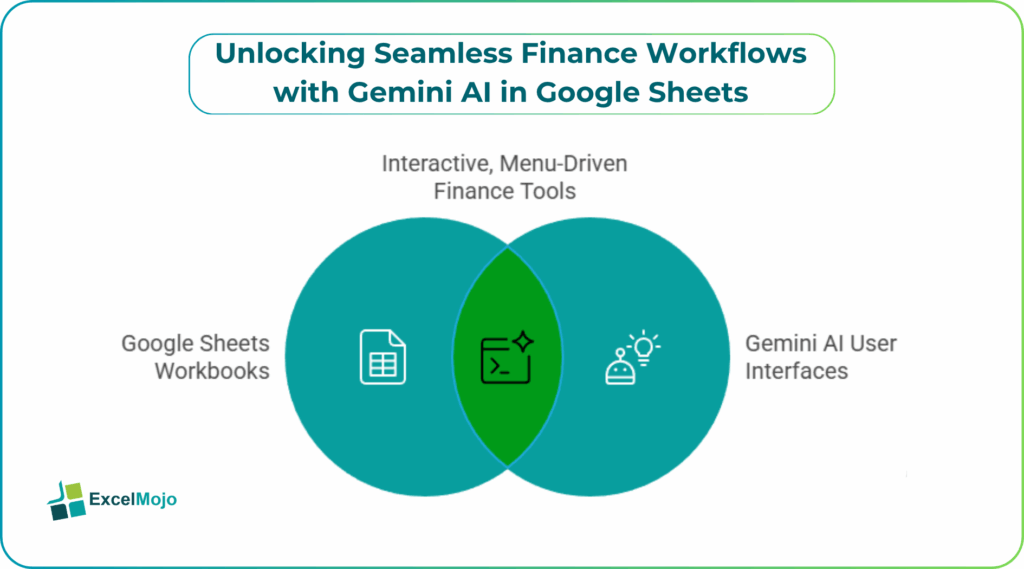
In this article, we use Google Sheets custom menus with Gemini to design AI powered custom menus Google Sheets that feel like a mini‑application inside the sheet. We explain how Google Sheets Apps Script custom menus UI can be generated with natural‑language prompts and then tied to small Apps Scripts that run on demand. Custom menus can be created with SpreadsheetApp.getUi().createMenu() and that they persist in the UI as long as the script is bound to the file . That means fewer ad‑hoc macros and a more consistent, guided workflow for analysts.
How Apps Script Custom Menus Work
Google Sheets allows users to extend the builtin menu bar with custom menus created in Apps Script. The typical pattern is:
- Open the Apps Script project bound to the Sheet.
- Add a function such as onOpen that runs when the spreadsheet opens.
- Use SpreadsheetApp.getUi() to create a menu and add items that call defined functions.
For example:
function onOpen() {
var ui = SpreadsheetApp.getUi();
ui.createMenu(‘Finance Tools’)
.addItem(‘Validate Data’, ‘validateData’)
.addItem(‘Reset Sheet’, ‘resetSheet’)
.addItem(‘Export to CSV’, ‘exportToCSV’)
.addToUi();
}
Once saved and the sheet is reopened, a Finance Tools menu appears in the menu bar.
This is the core of Google Sheets Apps Script custom menus UI and shows how even simple scripts can create a structured command surface. Gemini’s role is to help refine the menu structure and generate the underlying function logic from plain‑language descriptions, effectively turning business requirements into a small Gemini AI user interfaces in Google Sheets layer.
How to Design AI‑Driven Custom Menus
Creating Google Sheets custom menus Gemini AI UI follows a practical workflow: define the menu actions, generate or refine the Apps Script with AI, then test the behavior in the sheet.
Step 1: List the Key Actions
Begin by writing down the main actions users need, such as:
- Validation of a specific table.
- Resetting a planning sheet to default values.
- Exporting a range to CSV or another file type.
- Refreshing lookup tables from an external source.
These actions map naturally to menu items under a custom menu such as Data Tools or Finance Tools.
Step 2: Use Gemini to Generate the Apps Script Skeleton
A strong prompt for Google Sheets custom menus with Gemini might be:
“Create an Apps Script for a Google Sheet that adds a custom menu named ‘Finance Tools’ with three items:
- ‘Validate Data’ that runs a function validateData that checks whether all values in the range ‘A2:C100’ are numeric and shows an alert if any cell fails.
- ‘Reset Sheet’ that runs resetSheet and clears the range ‘A2:C100’ and ‘G2:G100’.
- ‘Export to CSV’ that runs exportToCSV and exports the range ‘A1:C100’ to a Blob with mimetype ‘text/csv’ and prompts the user to download it. Include an onOpen function that creates the menu.”
Gemini typically returns a script like:
function onOpen() {
var ui = SpreadsheetApp.getUi();
ui.createMenu(‘Finance Tools’)
.addItem(‘Validate Data’, ‘validateData’)
.addItem(‘Reset Sheet’, ‘resetSheet’)
.addItem(‘Export to CSV’, ‘exportToCSV’)
.addToUi();
}
function validateData() {
var sheet = SpreadsheetApp.getActiveSheet();
var range = sheet.getRange(‘A2:C100’);
var values = range.getValues();
var isValid = true;
var invalidCells = [];
for (var i = 0; i < values.length; i++) {
for (var j = 0; j < values[i].length; j++) {
if (typeof values[i][j] !== ‘number’) {
isValid = false;
invalidCells.push(`Row ${i + 2}, Col ${String.fromCharCode(65 + j)}`);
}
}
}
if (!isValid) {
SpreadsheetApp.getUi().alert(
‘Validation failed in these cells:\n’ + invalidCells.join(‘\n’)
);
} else {
SpreadsheetApp.getUi().alert(‘All cells validated successfully.’);
}
}
function resetSheet() {
var sheet = SpreadsheetApp.getActiveSheet();
sheet.getRange(‘A2:C100’).clearContent();
sheet.getRange(‘G2:G100’).clearContent();
}
function exportToCSV() {
var sheet = SpreadsheetApp.getActiveSheet();
var data = sheet.getRange(‘A1:C100’).getValues();
var csv = data.map(function(row) {
return row.join(‘,’);
}).join(‘\n’);
var blob = Utilities.newBlob(csv, ‘text/csv’, ‘export.csv’);
SpreadsheetApp.getUi().showModalDialog(
HtmlService.createHtmlOutput(
‘<p>Download the file <a href=”‘ +
blob.getAs(‘text/csv’).getDataAsString() + ‘”>here</a>.’ +
‘</p>’
),
‘Export Complete’
);
}
This is a working example of AI powered custom menus Google Sheets, where Gemini generates the structure, validation logic, and export routine while the analyst focuses on integrating it with the real sheet layout.
Step 3: Test and Refine the UI
After pasting the script into Apps Script and saving, reload the sheet and open the custom menu. Test each item with valid and invalid data and adjust the ranges, error messages, or export logic as needed.
Practical Example: A Budget‑Entry Workbook with a Custom Menu
Suppose a finance team uses a budget workbook where analysts enter monthly figures into a table and must periodically validate, back up, and reset the sheet. Using Google Sheets custom menus Gemini AI UI, the team can:
- Ask Gemini to generate a custom menu and functions for Validate, Backup, and Reset.
- Wire the validateData function to check budget‑input columns and flag cells that exceed predefined caps.
- Add a backupSheet function that copies the current budget table to a named backup sheet.
This workflow shows how Gemini AI user interfaces in Google Sheets can turn a simple grid into a guided, menu‑driven budget‑entry tool.
Pitfalls and Best Practices
Google Sheets Apps Script custom menus UI can improve usability but also introduce pitfalls.
One common issue is over‑loaded menus. If you add too many items under a single menu can make the interface confusing. Analysts should group related actions (e.g., Data and Reports) and keep the top‑level list concise.
Another risk is fragile range references. Scripts that hard‑code ranges such as A2:C100 may break if the sheet layout changes. The AI powered custom menus Google Sheets pattern is more robust when ranges are captured once in a configuration cell or named range and referenced by name rather than fixed addresses.
A third challenge is error handling and user feedback. Ssilent failures or vague alerts frustrate users. Teams should wrap actions in try…catch blocks, provide clear messages, and avoid destructive operations such as unlimited clear‑range calls unless explicitly confirmed.
Frequently Asked Questions (FAQs)
Yes, beginners can use Google Sheets custom menus Gemini AI UI by describing the desired menu actions in plain language and letting Gemini generate the Apps Script code. They still need to understand basic Sheet‑level concepts and where to paste the script, but they do not need to write the full logic from scratch.
AI powered custom menus Google Sheets can be safe if tested thoroughly, connected only to the intended ranges, and documented. Users should avoid letting AI‑generated scripts delete or overwrite large sections of production data without explicit confirmation.
Custom menus are lightweight, file‑bound command surfaces that sit in the menu bar and call small scripts, while add‑ons are more complex, installable apps that can span multiple files and services. Menus are ideal for workbooks‑specific tools; add‑ons suit organization‑wide utilities.
No, Gemini AI user interfaces in Google Sheets should not replace manual scripting entirely. They accelerate the creation of menu structures and common functions, but analysts must still validate logic, secure data access, and maintain the underlying model.
Recommended Articles
Continue with these related resources when you want the next practical step in this topic.
- ARRAYFORMULA in Google Sheets
- Google Sheets ArrayFormula + AI: Bulk Operations
- LAMBDA in Google Sheets
- VSTACK in Google Sheets
- CHOOSECOLS in Google Sheets
Explore the full Google Sheets Dynamic Arrays and Advanced Functions guide or browse Google Sheets Resources.