


Introduction
Finance teams often import large blocks of transactional data into Google Sheets and then need to apply the same logic row‑by‑row, such as adding a status column, calculating a margin, or flagging exceptions. A typical approach is to copy‑paste a formula down hundreds or thousands of rows, which is slow and error‑prone when the dataset grows between reports. Google Sheets ArrayFormula AI Bulk Operations offers a more efficient pattern: using a single ArrayFormula in the top cell that automatically fills the entire column, and using AI‑driven suggestions to write the underlying formula so the analyst does not have to memorize the syntax. When combined with Google Sheets ArrayFormula with AI automation, the result is a robust, scalable setup that recalculates cleanly whenever new rows appear.
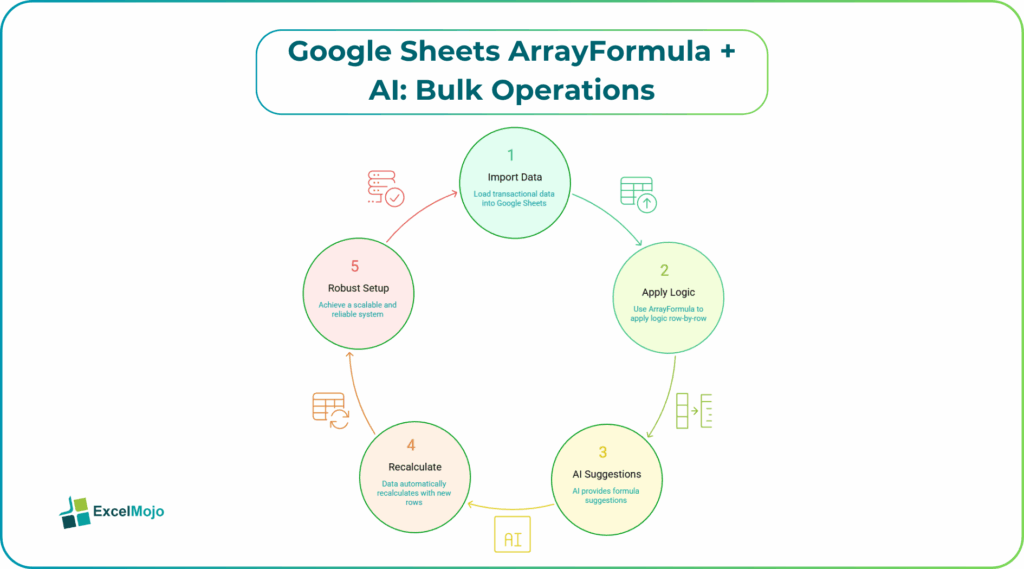
Here, we show you how to use AI bulk operations in Google Sheets ArrayFormula to apply logic across large datasets, how to phrase prompts that generate clean ARRAYFORMULA patterns, and how to avoid common errors such as circular references or slow‑running blocks. Google’s own help on ARRAYFORMULA describes it as a function that applies the contained formula to the entire range without manual dragging. This is the core idea behind using ARRAYFORMULA to handle large datasets efficiently and to automate bulk calculations across thousands of rows in Google Sheets.
For mid‑level users, that means less time adjusting ranges and more time focusing on the logic and the story behind the numbers.
How ArrayFormula Works for Bulk Operations
In Google Sheets, ArrayFormula essentially wraps a normal formula so that it behaves like a vectorized calculation. Instead of writing =A2*B2 in cell C2 and copying it down, an ArrayFormula in C2 can look like:
=ARRAYFORMULA(IF(A2:A=””,,A2:A*B2:B))
This single formula fills the whole column at once and updates automatically when new rows are added. The pattern is the same as described in Google’s documentation on ARRAYFORMULA, which notes that it can process ranges and return arrays of results, making it ideal for Google Sheets ArrayFormula for large datasets AI use cases .
Common patterns include:
- Boolean flags: =ARRAYFORMULA(IF(A2:A<20,”Low”,”OK”)) to tag rows where a value is below a threshold.
- Conditional logic: =ARRAYFORMULA(IF(B2:B=”Yes”,A2:A,0)) to sum only certain rows.
- Text formatting: =ARRAYFORMULA(UPPER(C2:C)) to standardize text across the column.
These single‑line, row‑wise operations are where AI bulk operations in Google Sheets ArrayFormula become most useful: the analyst can describe the logic in plain language and let AI draft the ARRAYFORMULA version.
How to Use AI to Draft ArrayFormula Expressions
Google Sheets ArrayFormula AI bulk operations works best when the user clearly describes the calculation and lets AI convert it into an ARRAYFORMULA block.
Step 1: Define the Logic in Plain Language
Before asking AI, write a short, clear description such as:
- “Create a Google Sheets ArrayFormula that calculates margin as (Price – Cost) / Price for each row in column A to Z.”
- “Write an ArrayFormula that flags rows as ‘High Priority’ if the value in column G is greater than 1000 and ‘Normal’ otherwise.”
These statements form the core of the prompt.
Step 2: Ask AI for the ArrayFormula Version
A strong prompt for Google Sheets ArrayFormula with AI automation includes:
- The column(s) involved (e.g., “columns A to Z”).
- The logic (e.g., “margin = (Price – Cost) / Price”).
- Any edge‑case handling (e.g., “leave blank if Price is zero”).
Example:
“In Google Sheets, I have a table where
- Column A is Price
- Column B is Cost
- Column C is Margin (empty, need to fill).
Write an ARRAYFORMULA that goes into cell C2 and automatically fills the whole column with the formula (Price – Cost) / Price, but leaves the cell blank if Price is zero.”
AI typically returns something like:
=ARRAYFORMULA(
IF(A2:A=””,,
IF(A2:A=0,””,(A2:A-B2:B)/A2:A)
)
)
This is the core of automated bulk calculations Google Sheets ArrayFormula AI and shows how AI can generate a clean, range‑based formula that scales to the entire dataset.
How to Place and Test the ArrayFormula
Once the expression is ready, placing it is straightforward.
- In Google Sheets, scroll to the first data row of the target column (for example, C2).
- Paste or type the ARRAYFORMULA(…) expression into that cell and press Enter.
- The results should appear for all rows, and dragging the cell no longer has any effect because the ArrayFormula already owns the column.
Practical Example: Margin and Status Flags
A common use case is a P&L‑style model where each row represents a transaction with a Price, Cost, Region, and Salesperson, and the team wants to:
- Calculate Margin for every row.
- Add a Status column that flags low‑margin rows.
Using Google Sheets ArrayFormula AI bulk operations, the pattern becomes:
- Ask AI for an ArrayFormula that calculates margin:
=ARRAYFORMULA(
IF(A2:A=””,,
IF(A2:A=0,””,(A2:A-B2:B)/A2:A)
)
)
- Place this in the first Margin cell (e.g., D2).
- Ask AI for a second ArrayFormula that flags low‑margin rows:
=ARRAYFORMULA(
IF(D2:D=””,,
IF(D2:D<0.2,”Low Margin”,”OK”)
)
)
Place this in the first Status cell (e.g., E2).
That workflow is a practical example of AI bulk operations in Google Sheets ArrayFormula and demonstrates how Google Sheets ArrayFormula for large datasets AI can replace manual formula‑copying with a single, maintainable pattern.
Pitfalls and Best Practices
Google Sheets ArrayFormula AI bulk operations can speed up calculations but also introduce subtle issues.
One common problem is over‑sizing ranges. Using A2:A when the data only goes to row 10,000 can make the formula slower and harder to read. Where possible, narrow the range to the expected data size (e.g., A2:A10000) or freeze the formula when the dataset reaches a stable size.
Another risk is circular references. If the ArrayFormula refers to its own column or to a cell that indirectly depends on it, Google Sheets may show a circular reference warning. Best practice is to keep the target column separate and use clear helper columns for intermediate steps.
A third pitfall is unintended N/A or errors. AI‑generated formulas sometimes forget to handle blanks or zeros, which can clutter the column with error values. Analysts should add simple guards, such as IF(A2:A=””,, …) or IF(ISBLANK(A2:A),, …), so the column looks clean even when the data is not fully populated.
Frequently Asked Questions (FAQs)
Yes, Google Sheets ArrayFormula AI bulk operations can replace most copy‑paste workflows, especially for row‑wise logic such as margin, status flags, or simple aggregations. The ArrayFormula behaves like a single formula that fills the whole column, so new rows automatically inherit the logic.
Google Sheets ArrayFormula with AI automation and manual formulas both use the same underlying ARRAYFORMULA function, but the AI‑assisted route saves time by drafting the exact syntax from a plain‑language description. The analyst still needs to understand the logic and test the formula on a sample of rows before applying it at scale.
AI bulk operations in Google Sheets ArrayFormula can be safe for large datasets if the formula is kept simple and does not repeat complex calculations in every cell. For very large or complex models, splitting the logic into a few helper columns and using INDEX‑style patterns often improves performance.
Google Sheets ArrayFormula for large datasets AI can handle dynamic ranges because ARRAYFORMULA works over a range such as A2:A. When new rows are added, the formula automatically covers them. However, users should still test edge cases, such as blank cells or sudden jumps in data size, to ensure the formula remains responsive.
Recommended Articles
Continue with these related resources when you want the next practical step in this topic.
- ARRAYFORMULA in Google Sheets
- LAMBDA in Google Sheets
- VSTACK in Google Sheets
- CHOOSECOLS in Google Sheets
- HSTACK in Google Sheets
Explore the full Google Sheets Dynamic Arrays and Advanced Functions guide or browse Google Sheets Resources.