


Introduction
Finance teams use Power Pivot or the Excel Data Model to join tables such as transactions, product masters, and customer lists. The traditional workflow involves manually dragging columns between tables or using the Create Relationship dialog. This can be tedious, especially when the model contains dozens of tables with many shared keys. Excel Data Model relationships AI auto‑detection helps reduce this overhead by using AI‑driven suggestions to propose likely joins between tables based on column names, data types, and usage patterns. When paired with AI powered Excel Data Model relationships, analysts can describe the intended link and let AI draft the join logic, then confirm or refine the recommendation before committing it to the model.
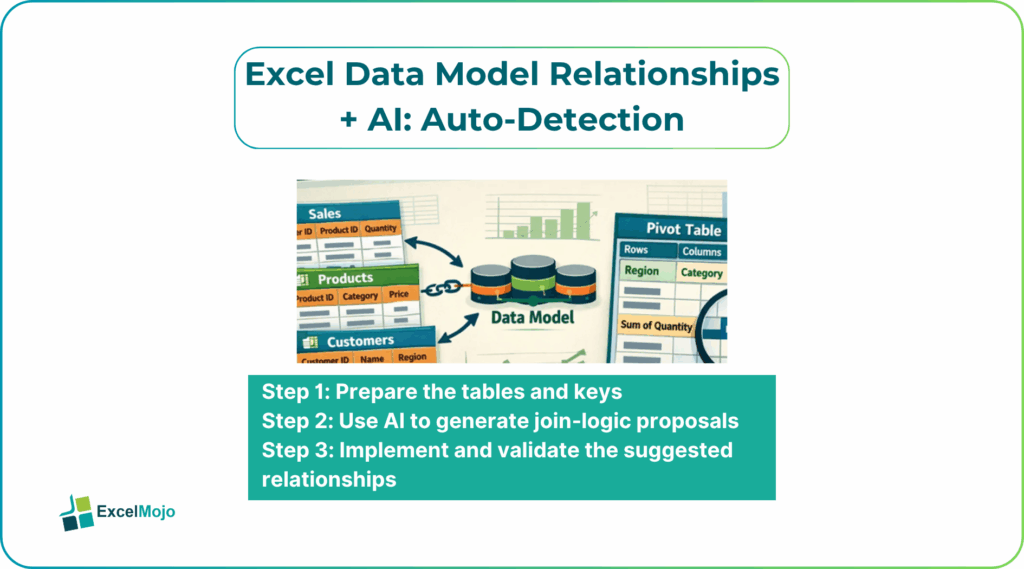
Here, we show you how to use automatic relationship detection Excel Data Model AI to generate plausible Excel Data Model AI relationship suggestions between tables. We also learn how to validate the proposed joins, and how to avoid common mistakes such as creating circular relationships or ambiguous keys. Relationships are based on matching columns with compatible data types and careful key design is essential for query performance and correctness . For data‑focused users, that means AI‑assisted relationship proposals are most valuable when they sit on top of a well‑structured, key‑aware model rather than replacing thoughtful design.
How Relationships Work in the Excel Data Model
In the Excel Data Model, a relationship links two tables through matching columns, typically a key in the dimension table and a foreign key in the fact table. For example, a ProductID in a Transactions table might point to the same ProductID in a Products dimension table. Power Pivot enforces referential integrity and allows measures to aggregate data across these tables using DAX expressions such as CALCULATE and RELATED .
Key properties of relationships for Excel Data Model Relationships AI Auto‑Detection include:
- Cardinality: usually One to Many from dimension to fact.
- Direction: which table can be used as a filter context based on the relationship.
- Active vs inactive: only one relationship between a pair of tables can be active at a time, though multiple can exist.
These patterns underpin AI assisted table relationships in Excel Data Model, where AI tools can scan column names and types to propose likely key‑foreign‑key pairs.
How AI can Suggest Relationships Automatically
AI powered Excel Data Model relationships become most useful when the model has many tables, each with clearly named keys such as ProductID, CustomerID, or RegionCode.
Step 1: Prepare the Tables and Keys
Before any AI‑assisted suggestion, analysts should:
- Ensure that each table has a clear key column (For example, ProductID, CustomerID).
- Verify that the data types of potential keys are consistent (for example, both Number or both Text).
- Remove duplicates in the dimension tables to avoid ambiguous joins.
These steps are the same as the foundational best practices described in Power Pivot documentation .
Step 2: Use AI to Generate Join‑Logic Proposals
A strong prompt for automatic relationship detection Excel Data Model AI might look like below:
“In the Excel Data Model, I have these tables:
- Transactions with columns: OrderID, ProductID, CustomerID, Amount.
- Products with columns: ProductID, ProductName, Category.
- Customers with columns: CustomerID, CustomerName, Region.
Suggest which columns in which tables should be joined to build a star‑schema‑style model. For each suggested relationship, state the cardinality and which direction makes sense.”
AI typically replies with the following:
- Join Transactions[ProductID] to Products[ProductID] with cardinality One to Many and direction from Products to Transactions.
- Join Transactions[CustomerID] to Customers[CustomerID] with the same One‑to‑Many pattern.
Step 3: Implement and Validate the SuggestedRelationships
This is the core of Excel Data Model AI relationship suggestions and shows how AI can propose the join logic that the analyst can then create in Power Pivot.
Practical Example: Rebuilding a Multi‑Table Sales Model
A common use case is a multi‑table sales model that started as a flat file and was later split into fact and dimension tables. Using Excel Data Model relationships AI auto‑detection, the workflow becomes:
- Import the fact and dimension tables into Power Pivot, ensuring each has a clean key column.
- Ask an AI assistant to examine the imported tables and propose relationships based on column names and data types.
- Use the AI‑generated list to create the joins in Power Pivot, then validate them with simple DAX measures that pull RELATED fields across the relationships.
This pattern is a practical example of AI assisted table relationships in Excel Data Model and demonstrates how AI can compress what would otherwise be a manual, error‑prone relationship‑mapping exercise into a guided, text‑based review.
Pitfalls and Best Practices
Excel Data Model relationships AI auto‑detection can speed up model design but also introduces subtle issues.
One common problem is ambiguous keys. AI‑based tools may propose joins on columns that look similar but are not true business keys, such as Name or Code fields that are not unique. Best practice is to validate each proposed relationship by checking uniqueness in the dimension table and ensuring the join does not introduce unexpected duplicates.
Another risk is over‑joining. Creating too many relationships between tables can lead to performance issues or ambiguous filter contexts. Analysts should keep the model as close as possible to a star schema and use M‑code or DAX to clean and normalize data before letting AI suggest relationships.
A third pitfall is circularity or bidirectional ambiguity. AI may not always detect that a proposed relationship, when combined with others, creates a circular reference or ambiguous path between tables. Teams should periodically review the model diagram and, when possible, use tools that flag or prevent these structures.
Frequently Asked Questions (FAQs)
Excel Data Model relationships AI auto‑detection is best used to propose joins and reduce manual effort, not to replace the analyst’s understanding of the business schema. Users should review each suggested relationship for business logic, data type compatibility, and uniqueness before committing it to the model.
AI powered Excel Data Model relationships and Power BI Desktop’s auto‑detect features both look for matching column names and types, but the Excel pattern relies more on AI‑driven prompts while Power BI offers a dedicated UI option. For many use cases, the two approaches are complementary, with Excel serving spreadsheet‑centric models and Power BI handling larger, model‑only databases.
Automatic relationship detection Excel Data Model AI suggestions can be safe for production models if the AI‑proposed relationships are tested against sample data, validated for referential integrity, and aligned with known business‑key definitions. Users should avoid blindly accepting joins that involve non‑unique or text‑based keys without additional checks.
Yes, Excel Data Model AI relationship suggestions can help identify joins between fact tables and date‑dimension tables when the latter expose columns such as DateKey, Year, Month, or Quarter. The AI can propose standard One‑to‑Many relationships from the date table to the fact table, which aligns with typical time‑intelligence patterns in Power Pivot.
Recommended Articles
Continue with these related resources when you want the next practical step in this topic.
Explore the full Excel Tables and Data Tools guide or browse Excel Resources.