


Introduction
Google Sheets is often used to build formulas that get reused across multiple tabs or workbooks, such as weighted averages, custom tax logic, or scenario‑based calculations. Manually pasting and tweaking these formulas is error‑prone and hard to maintain. Google Sheets custom functions AI LAMBDA addresses this by letting users describe the calculation in plain language and have AI tools generate the underlying logic. It is then exposed as a named function that behaves like WEIGHTED_AVERAGE or SCENARIO_IMPLIED_MARGIN in the sheet. When combined with Sheets’ LAMBDA‑style constructs and named functions, this approach effectively delivers LAMBDA without code Google Sheets AI for many common modeling tasks.
This article shows how Google Sheets custom functions with AI can turn verbose, repetitive formulas into compact, reusable functions without writing Apps Script. We also show how AI LAMBDA functions Google Sheets patterns can help them define arguments, operators, and return logic through natural‑language prompts, and how to plug those into Named functions or helper constructs such as MAP or BYROW. Google Sheets supports both built‑in formulas and Apps Script–based custom functions. However, the newer modeling‑oriented patterns let analysts encapsulate logic without touching JavaScript in most cases. For data‑focused users, that means simpler, more maintainable templates backed by AI‑assisted design.
How Custom Functions and LAMBDA‑style Logic Work
Google Sheets offers two main routes to custom functions for Google Sheets Custom Functions AI LAMBDA:
- Named functions (menu: Data > Named functions):
These let users wrap a formula into a name and define input arguments that can be reused across the sheet, similar to LAMBDA. A named function could look like:
- =SCENARIO_MARGIN(Revenue, Cost, CapEx)
where the underlying formula is defined once and reused many times.
- LAMBDA and helper functions (such as MAP, BYROW, BYCOL):
These allow compact, reusable expressions that operate on ranges. For example, MAP with a LAMBDA can apply a condition or transformation to each element of an array without writing a full Apps Script custom function.
Together, these patterns form the backbone of AI generated Google Sheets custom functions. When an AI tool writes a LAMBDA‑style expression or a named‑function definition, the user only needs to paste it into the correct dialog rather than coding a full Apps Script function.
How to Generate AI‑Assisted Named Functions
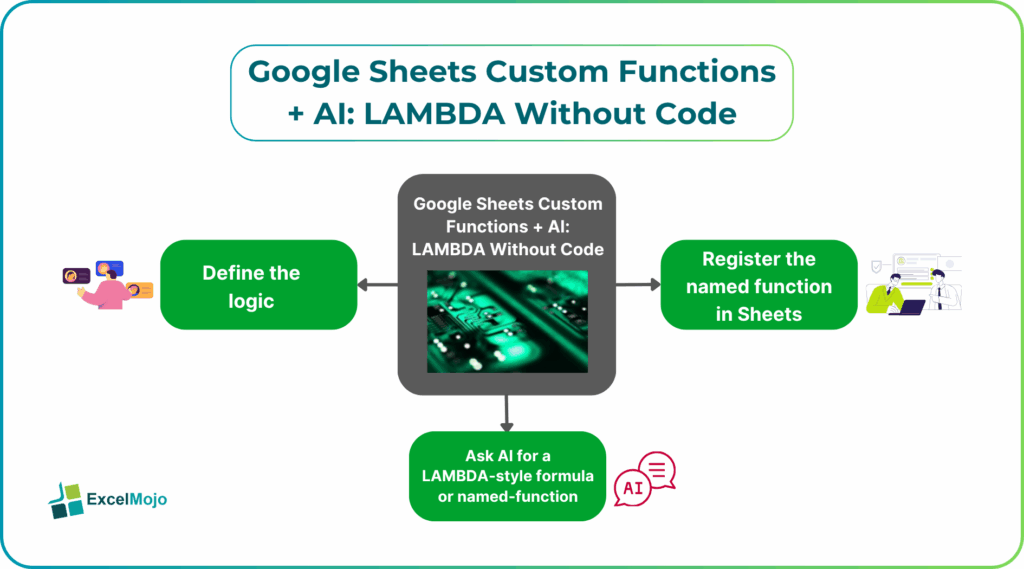
Creating Google Sheets custom functions with AI follows a simple workflow: describe the rule, get AI to generate the formula or LAMBDA, then register it as a named function.
Step 1: Define the Logic in Plain Language
Before writing anything in Sheets, sketch the behavior in a short description such as:
“A function that returns weighted average given a range of values and a range of weights.”
“A function that returns a tiered margin given revenue, where the margin is 10% up to 100,000 and 8% above that.”
These sentences serve as the AI prompt’s foundation.
Step 2: Ask AI for a LAMBDA‑Style Formula or Named‑Function Definition
A strong prompt for AI LAMBDA functions Google Sheets includes:
- The desired function name.
- The input arguments.
- The formula logic or a small example.
Example:
“In Google Sheets, create a LAMBDA‑style formula that computes a weighted average of two ranges: values and weights. The formula should be reusable as a Named Function called WEIGHTED_AVERAGE with arguments values and weights.”
AI typically replies with the following for Google Sheets Custom Functions AI LAMBDA:
=SUMPRODUCT(values, weights) / SUM(weights)
or, if framed as a LAMBDA‑style expression:
=LAMBDA(values, weights, SUMPRODUCT(values, weights) / SUM(weights))
This is the core of Google Sheets Custom Functions AI LAMBDA and shows how AI can generate the logic that will be encapsulated in a named function.
Step 3: Register the Named Function in Sheets
- In Google Sheets, go to Data -> Named functions.
- Enter the function name (e.g., WEIGHTED_AVERAGE).
- In the Formula box, paste the AI‑generated expression (either the plain formula or the LAMBDA‑wrapped one, depending on the intent and version behavior).
- In the Arguments box, define values and weights as the parameter names.
- Click Done.
After this step, the user can type =WEIGHTED_AVERAGE(A2:A10, B2:B10) in any cell, and the sheet will compute the result using the encapsulated logic.
Practical Example: A Scenario‑Based Margin Function
There is a finance team that uses a scenario workbook where the margin depends on revenue bands. Using Google Sheets custom functions AI LAMBDA, the team can:
- Ask an AI assistant to generate a tiered margin formula such as:
=IF(Revenue <= 100000, Revenue * 0.1, 100000 * 0.1 + (Revenue – 100000) * 0.08)
- Convert that into a Named Function called SCENARIO_MARGIN with Revenue as the sole argument.
- Use =SCENARIO_MARGIN(A2) in the margin column, allowing quick recalibration if the bands or percentages change.
This workflow is a practical example of LAMBDA without code Google Sheets AI and shows how AI can generate the core formula while the named‑function layer provides the clean, reusable interface.
Pitfalls and Best Practices
Google Sheets custom functions AI LAMBDA introduces several subtle risks.
One common issue is over‑complex LAMBDA expressions. AI can generate deeply nested formulas that are hard to debug or modify. Analysts should keep named functions short, favor clarity over one‑liner conciseness, and break complex logic into helper cells or secondary functions.
Another risk is argument naming confusion. Mismatched argument names between the AI‑generated formula and the Named Function dialog can break the function. Users should ensure that the parameter names defined in the dialog match the variable names expected in the formula.
A third pitfall is misuse for performance‑intensive workloads. Even though AI LAMBDA functions Google Sheets can simplify many modeling tasks, they are not a substitute for well‑built data‑engineering pipelines. Heavy computations or frequent external calls are still better handled by Apps Script or external tools, with Sheets serving as the presentation layer.
Frequently Asked Questions (FAQs)
Yes, beginners can use Google Sheets custom functions with AI by describing the calculation logic in plain language and letting AI generate the formula or LAMBDA‑style expression. They can then register it as a Named Function without touching Apps Script.
AI generated Google Sheets custom functions can be safe if tested on sample data, anchored to clearly defined arguments, and documented. Users should avoid blindly accepting complex formulas that reference undefined ranges or external calls. Instead and instead validate the logic before deploying to regulated models.
LAMBDA without code Google Sheets AI patterns are best suited for formula‑based logic that operates on cells and ranges, while Apps Script custom functions are better for heavier computations, external API calls, or operations that require true programming constructs. Many analysts use named functions and LAMBDA‑style logic for in‑sheet logic and reserve Apps Script for more advanced extensions.
No, AI LAMBDA functions Google Sheets are designed for in‑spreadsheet logic and should not replace full‑blown BI or data‑warehousing tools. They are ideal for analyst‑level models, quick validations, and scenario planning, whereas enterprise‑grade reporting and governance still belong in dedicated BI platforms.
Recommended Articles
Continue with these related resources when you want the next practical step in this topic.
- ARRAYFORMULA in Google Sheets
- Google Sheets ArrayFormula + AI: Bulk Operations
- LAMBDA in Google Sheets
- VSTACK in Google Sheets
- CHOOSECOLS in Google Sheets
Explore the full Google Sheets Dynamic Arrays and Advanced Functions guide or browse Google Sheets Resources.