


Introduction
Finance professionals and data analysts often rewrite the same logic across multiple sheets: conditional rules, scaling factors, or aggregation patterns that should be reusable rather than duplicated. Google Sheets LAMBDA AI custom functions solve this by letting users wrap complex logic into named, reusable functions that behave like built‑in formulas. When paired with AI tools such as ChatGPT or Google’s own AI‑driven assistants, analysts can generate instant custom functions Google Sheets AI from natural‑language prompts and reuse them across reports, dashboards, and models.
IN this article, we combine Google Sheets LAMBDA with AI to build clean, self‑contained logic that stays in the sheet yet is easy to maintain. We present concrete examples where AI powered custom functions Google Sheets reduce manual formula work and enforce consistency. The workflow fits well alongside other Google Sheets automation patterns, such as Apps Script or QUERY‑based reporting, and can be applied to budgets, forecasts, and K‑PI dashboards.
Why Google Sheets LAMBDA AI Custom Functions Matter
Google Sheets LAMBDA lets users define custom functions without writing Apps Script, by wrapping formulas such as IF, SUMIFS, or REGEX into named functions that accept parameters. For example, a user can create a function called ApplyMarkup that takes a base amount and a rate and returns base * (1 + rate) every time it is called. This keeps logic in one place and reduces the risk of inconsistent formulas across sheets.
When paired with AI tools, Google Sheets LAMBDA with AI lets users describe a rule in plain language and receive a LAMBDA‑style definition. AI‑generated logic can then be pasted into the Google Sheets function editor and tested immediately. The main benefit for finance teams is not just speed but clarity. Each custom function becomes a self‑documented piece of logic that can be reused in budgets, forecasts, or dashboards. This approach aligns with best practices for AI‑augmented spreadsheets, which emphasize transparency and repeatability.
How to Build Google Sheets LAMBDA AI Functions
Creating Google Sheets LAMBDA AI functions follows a simple pattern: define the logic, turn it into a LAMBDA, and then reuse it. Below is a practical walkthrough.
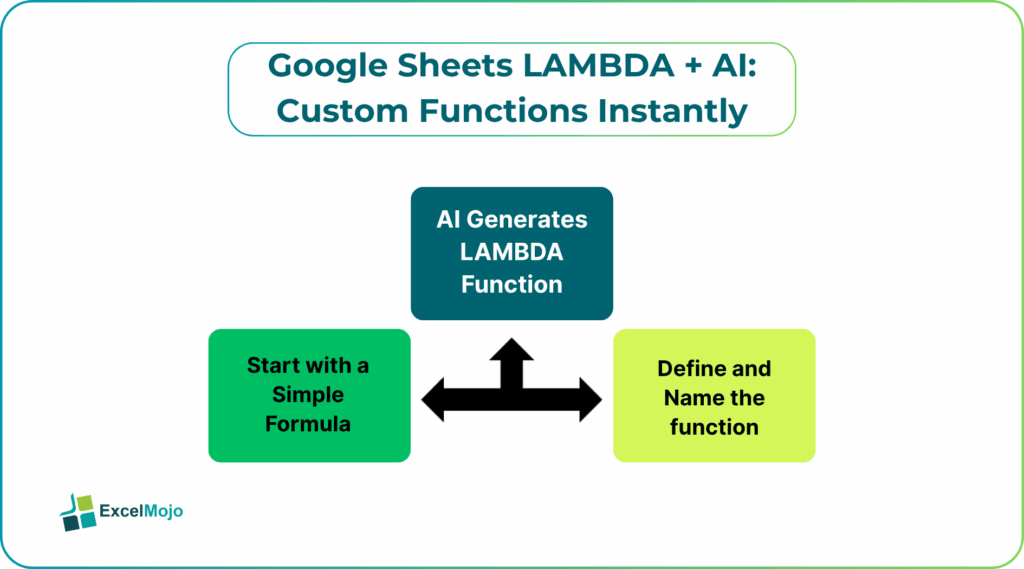
Step 1: Start with a Simple Formula
Identify a formula that appears multiple times in a workbook. For example, in a sales table with “Revenue” in column B and “Region” in column C, an analyst might want to apply a 10% growth factor only to rows where the region is “North.” The formula in a helper column could be:
text
=IF(C2=”North”, B2*1.1, B2)
This is a good candidate for conversion into a LAMBDA function.
Step 2: Ask AI to Generate a LAMBDA Definition
A clear prompt for Google Sheets LAMBDA with AI could be:
“Create a Google Sheets LAMBDA function that takes two parameters, revenue and region, and returns the revenue multiplied by 1.1 if the region is North, otherwise returns the original revenue.”
AI typically returns a structure such as:
=LAMBDA(revenue, region,
IF(region = “North”, revenue * 1.1, revenue)
)
This is the core LAMBDA logic, ready to be named and stored.
Step 3: Define and Name the Function
In Google Sheets, go to the “Named functions” menu (Data > Named functions), enter a name such as ApplyNorthMarkup, set the parameters (revenue and region), and paste the LAMBDA body into the definition field. The function then becomes available in the sheet as:
=ApplyNorthMarkup(B2, C2)
This workflow is a practical example of Google Sheets LAMBDA AI functions and shows how AI accelerates the creation of AI powered custom functions Google Sheets.
Practical Example: Custom Forecast Function
Suppose a finance team uses a simple growth‑based forecast formula in separate cells:
=BaseAmount * (1 + GrowthRate)
In column D, the formula is =B2*(1+C2).
To turn this into a Google Sheets LAMBDA AI custom function, the user can:
- Ask an AI assistant to generate a LAMBDA that takes base and growth as parameters and returns base * (1 + growth).
- Define the LAMBDA in the Named functions menu with a name such as ForecastAmount.
- Use =ForecastAmount(B2, C2) across the table.
This keeps the core mathematics in one place and lets the analyst adjust the logic centrally if the company changes its growth‑calculation rule.
Pitfalls and Best Practices
Building instant custom functions Google Sheets AI is powerful, but it introduces pitfalls. One common issue is overcomplicating LAMBDA functions with too many nested conditions or external references. A deeply nested LAMBDA becomes hard to read and test, defeating the purpose of reusable logic.
Another risk is inconsistency in naming and parameter order. For example, defining =ApplyMarkup in one sheet and =Markup in another with slightly different behavior can confuse users and break models. Teams should standardize naming conventions, keep functions short, and document the logic in a small comment or sheet description.
Finally, AI‑generated LAMBDAs may not always match the exact business rule. Analysts should always test the function on a few known rows, compare outputs to manually calculated values, and enclose edge cases such as blank or text inputs in safeguards like IFERROR or IF(ISNUMBER(…)). This approach keeps Google Sheets LAMBDA AI custom functions robust and audit‑ready.
Conclusion
Google Sheets LAMBDA AI custom functions let finance and data teams encapsulate repeated logic into reusable, formula‑based functions without leaving the sheet. By pairing LAMBDA with AI‑generated definitions, users can build AI powered custom functions Google Sheets that are fast, consistent, and easier to maintain. One should start with a simple rule, define a named function, test it on a small dataset, and then scale the pattern across recurring reports. For those who want to go further, documenting common prompts and standard LAMBDA patterns will steadily build a library of instant custom functions Google Sheets AI that fit their workflows.
Frequently Asked Questions (FAQs)
Yes, beginners can create Google Sheets LAMBDA AI custom functions by describing the logic in plain language and using an AI assistant to generate the LAMBDA definition. They must understand basic formula concepts such as parameters and named functions, but they do not need to write Apps Script.
LAMBDA functions with AI are generally safe for financial models if the generated logic is reviewed and tested against known inputs. Analysts should verify parameter order, handle edge cases, and keep the function simple and readable.
LAMBDA‑based AI functions are formula‑based and do not require deployment or complex coding, making them faster to build and easier to maintain for simple logic. Apps Script is better suited for more complex workflows that require external data, looping, or advanced automation.
Named LAMBDA functions are stored at the workbook level, so they are not automatically shared across workbooks. However, once defined, the logic can be copied and reused in other workbooks by duplicating the Named function definition.
Recommended Articles
Continue with these related resources when you want the next practical step in this topic.
- ARRAYFORMULA in Google Sheets
- Google Sheets ArrayFormula + AI: Bulk Operations
- LAMBDA in Google Sheets
- VSTACK in Google Sheets
- CHOOSECOLS in Google Sheets
Explore the full Google Sheets Dynamic Arrays and Advanced Functions guide or browse Google Sheets Resources.