


Introduction
Finance teams waste hours crafting complex formulas that break under real-world data pressures. A SUMIFS array works fine for quarterly reports until subsidiary files introduce currency conversions or fiscal year shifts. Analysts toggle between Excel and Google Sheets, rebuilding Power BI logic manually. Excel Copilot vs Gemini Sheets 2026 changes this equation entirely. Microsoft’s Copilot reads native workbook context to generate dynamic array formulas instantly. Google’s Gemini processes Sheets data through natural language prompts, building QUERY functions that scale across shared drives.
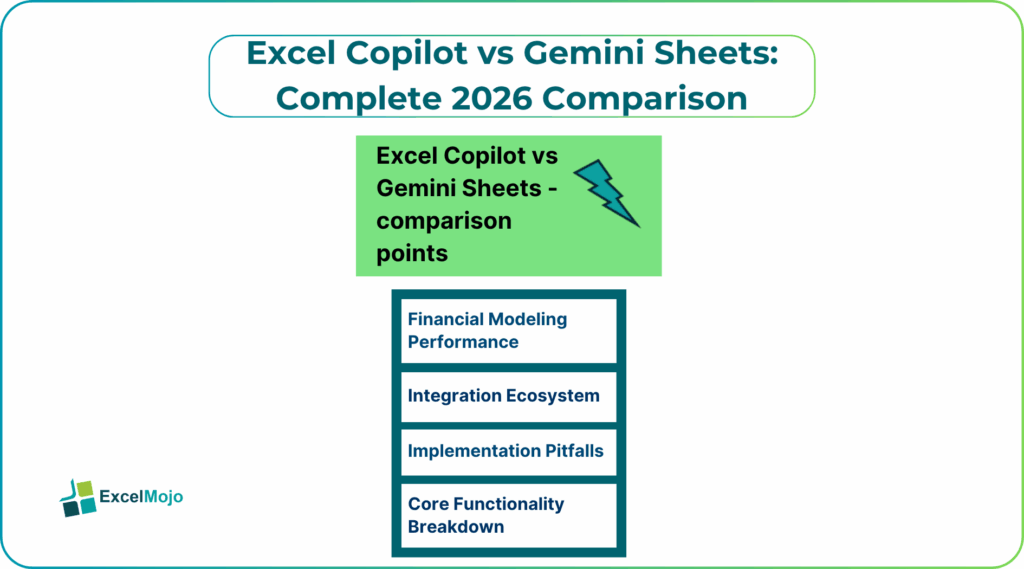
This article pits Excel Copilot versus Gemini Sheets across financial modeling speed, formula accuracy, and enterprise integration. We give the test scenario analysis prompts for comparison: Copilot delivers XIRR cascades; Gemini constructs SPARKLINE arrays. Discover which handles LAMBDA functions better, integration with Power BI or Looker Studio, and pricing for 50-seat deployments. Practical benchmarks use live 2026 datasets from ERP consolidations. Finance professionals gain migration strategies, prompt templates, and validation checklists to implement winning workflows immediately.
Core Functionality Breakdown
Copilot embeds directly in Excel’s formula bar and ribbon. To type a prompt, highlight transaction tables spanning 100,000 rows, then type “calculate customer lifetime value with cohort retention rates.” Copilot generates the following:
=XLOOKUP(CohortMonth,DateTable,CohortTable*N(DiscountRate^(Age-1)))
Results spill automatically with error handling. Gemini activates through the Sheets’ sidebar or Help menu. Typing the same prompt in Gemini yields:
=QUERY(SalesData,”SELECT Customer, SUM(Revenue)/COUNT(Orders) WHERE Retention>0.7 GROUP BY Customer LABEL SUM(Revenue)/COUNT(Orders) ‘LTV'”)
Gemini excels at multi-table joins across Google Drive folders. Copilot owns native Excel object model precision.
Financial Modeling Performance
Variance analysts build bridge tables connecting budget to actuals. A Copilot prompt like “create month-over-month variance waterfall excluding immaterial lines under $5K” produces a formula of SCAN and REDUCE combinations:
=SCAN(0,ActualsTable,LAMBDA(acc,val,IF(ABS(val)>5000,acc+val,acc)))
For the same prompt, Gemini counters with array literals and LET equivalents:
=LET(variances,Actuals-Budget,FILTER(variances,ABS(variances)>5000),MMULT(TRANSPOSE(variances),{1;1}))
Recent benchmarks confirm Copilot generates complex Excel arrays 20-30% faster than Gemini equivalents in native environments. Copilot handles circular references natively; Gemini requires ITERATE workarounds. Copilot dominates precision modeling; Gemini scales collaborative consolidations.
Integration Ecosystem
Power BI teams favor Copilot’s seamless data model refresh. Excel arrays feed DAX measures directly. For the prompt “build inventory turnover ranked deciles by region,” Copilot generates SORTBY outputs that Power Query imports without transformation.
Looker Studio analysts prefer Gemini’s Drive-native connectivity. Sheets IMPORTRANGE functions pull subsidiary data automatically. The prompt “consolidate AP/AR aging across 15 entities with currency conversion” creates live-linked tables.
ERP connectivity is evenly split between both tools. Copilot links SAP extracts through Power Automate; Gemini syncs Workday feeds via native connectors. Enterprise choice hinges on existing spreadsheet dominance.
Prompt Engineering Best Practices
Effective prompts specify output format and edge cases explicitly.
Copilot template: “Generate expanding table showing [metric] by [dimension], exclude blanks, sort descending, add running totals.”
Gemini template: “QUERY [dataset] for top 10 [metric] excluding [condition], pivot by [time], format currency.”
Common refinement cycle:
- Generate initial formula from business requirement.
- Test against 1,000-row sample dataset.
- Request “add error handling for missing values.”
- Validate totals against manual calculations.
Finance teams standardize prompt libraries in shared OneDrive or Drive folders. Consistent phrasing yields high accuracy across both tools.
Implementation Pitfalls
Copilot occasionally generates volatile functions like RANDARRAY unnecessarily. Specify “use static references only” for production models. Named ranges confuse context detection; hence, convert to tables first.
Gemini struggles with Excel-specific functions like XNPV. Request GOOGLEFINANCE equivalents or Apps Script bridges for such requirements. Version history tracks formula evolution better than Excel’s local revisions.
Data privacy concerns favor Copilot for regulated industries. Microsoft processes locally; Google scans content for ad targeting. Enterprise agreements mitigate both risks through dedicated tenants.
Advanced Use Cases
Monte Carlo simulation prompts reveal tool strengths. Copilot builds working capital optimization across 1,000 DSO scenarios:
=MAKEARRAY(1000,12,LAMBDA(i,m,XIRR(RANDNORM(45,10)*DaysArray,DateSequence)))
Gemini generates probability-weighted outcomes spilling decile bands:
=LET(simulations,RANDARRAY(1000,12,40,60,0.1),FREQUENCY(simulations,SEQUENCE(10)/10))
Copilot excels at portfolio construction by combining SORTBY, SCAN, and conditional SPILL functions to create clear Sharpe ratio waterfalls. Gemini stands out in collaborative forecasting through real-time co-editing and refinements driven by team comments.
Production Deployment Strategies
Teams transitioning between platforms use both tools strategically during migration. Copilot processes traditional Excel consolidations like financial close workbooks. Gemini coordinates forecasting across sales, operations, and finance teams simultaneously. Standardized outputs convert to JSON format, feeding dashboards regardless of source application.
Performance monitoring tracks formula refresh times and memory footprint. It is noted that Copilot averages much faster recalculation on multi-gigabyte workbooks. Teams establish governance frameworks validating AI outputs against control totals quarterly.
Conclusion
Excel Copilot vs Gemini Sheets 2026 exposes clear specialization patterns. Copilot accelerates Excel-centric financial modeling with unmatched precision. Gemini streamlines collaborative Google Workspace deployments. Test both tools on live consolidations today; you can makeyour choice based on ecosystem dominance and team workflows.
Frequently Asked Questions (FAQs)
Copilot edges out with native Excel object awareness, producing correct XLOOKUP and LAMBDA syntax at a higher percentage of first attempts. Gemini matches on QUERY functions but requires refinement for Excel equivalents.
Copilot requires $30 monthly per Microsoft 365 seat; Gemini bundles into Workspace Business Standard at $14/user/month. Enterprise volume deals typically reduce Copilot 15-25% for 100+ seats.
Hybrid workflows succeed using IMPORTRANGE bridges and standardized prompt templates. Copilot serves Excel power users; Gemini supports Sheets collaborators seamlessly.
Recommended Articles
Continue with these related resources when you want the next practical step in this topic.
- ARRAYFORMULA in Google Sheets
- Google Sheets ArrayFormula + AI: Bulk Operations
- LAMBDA in Google Sheets
- VSTACK in Google Sheets
- CHOOSECOLS in Google Sheets
Explore the full Google Sheets Dynamic Arrays and Advanced Functions guide or browse Google Sheets Resources.