


Introduction to Data Cleaning in Excel with ChatGPT
Businesses deal with huge volume, velocity, and variety of data nowadays. This calls for repeated data cleaning. When you clean this data manually, it is a very time-consuming process. Data cleansing is the removal of duplicate data and also validating data for uniqueness, consistency, and correctness. All these steps increase the quality of the data. Thus, improved data contributes to allow businesses to make wise decisions and improve their ROI. Data cleansing activities are done through a series of steps. It starts with gathering the data and ending with integrating, producing, and normalizing it.
Most corporate organizations perform several key tasks as part of data cleansing during data analysis. These include removing duplicate values, filling nulls with default values, correcting inconsistent entries, standardizing date formats, and unifying names and addresses. Other steps involve fixing area codes in phone numbers, flattening nested data, removing incomplete records, and identifying data conflicts in the database.
ChatGPT’s capabilities make it easy to handle these time-consuming and tedious advanced Excel data cleaning AI tasks. To show this, consider a banking industry employee dataset. It has columns such as Employee ID, Employee Name, Department Name, and Joining Date. During review, there were multiple data quality issues that must be resolved before this data can be reliably used for analytics.
This can be easily done with the help of ChatGPT. How do we go about it? Read on to find out everything from integrating ChatGPT in Excel to executing data cleaning.
Setup: ChatGPT Excel Integration
Let us look at how we can benefit from ChatGPT’s AI capabilities within Excel. For this, one must first install the Chat GPT Excel extension. This add-in is used for a seamless ChatGPT integration into Excel.
- As a first step, go to the GPT for Excel Word extension installation page.
- Here, choose the “Open in Excel” option to launch the process of integration. Permissions are needed and grant them to proceed with installing the Excel GPT extension.
- Choose and install GPT for Excel Word extension in Excel.
- Now, you have to open the side bar. For this, click GPT for Excel Word in the Home tab.
- Another route is Home > Add-ins > My add-ins > GPT for Excel Word.
- Now, open GPT for Excel Word sidebar in Excel
Chat GPT is now integrated with Microsoft Excel. Now, it can be directly used in your spreadsheet. Some of the available models include GPT-5, GPT-4.1, GPT-4o, Claude 4.5 Sonnet, etc.
To automate data cleaning in Excel, use formulas to standardize dates, fix currency, capitalize text, and handle missing values.
Top 12 ChatGPT Data Cleaning in Excel Prompts
Here are some of the top prompts for leveraging ChatGPT in various data cleaning ChatGPT Excel tasks.
#1 – Duplicates & Missing Values
Use these prompts to help you identify and handle duplicate entries and missing data effectively:
To remove duplicates in a column, we use the following
“Generate an Excel formula to count the number of duplicate entries in column B, based on exact matches.”
Another prompt you can use to understand the topic is
“Provide a step-by-step guide for using ‘Remove Duplicates’ feature in Excel, and explain how to apply it only to a specific range (e.g., A2:C1000).”
To find missing cells
“Write an IF function in Excel that checks if a cell in column C is empty, and if so, returns ‘Missing’, otherwise keeps the original value.”
Another way to explain and use a feature
“Explain how to use the ‘Go To Special’ feature in Excel to quickly select all blank cells in a dataset and replace them with the value ‘N/A’.”
#2 – Text Standardization
These prompts assist in ensuring consistency in your text data, which is vital for analysis:
“How can I combine the PROPER, TRIM, and CLEAN functions in a single formula to standardize the text in column D?”
“Provide a formula to extract only the first name from a full name listed in column A, assuming the names are separated by a space.”
“Explain how to use ‘Text to Columns’ in Excel to separate a single column of addresses into separate ‘Street’, ‘City’, ‘State’, and ‘ZIP’ columns using a comma as the delimiter.”
#3 – Outliers & Anomalies
Leverage these prompts to help spot data points that deviate significantly from the rest of your dataset:
“What is a common Excel formula to highlight cells in column F that are more than three standard deviations away from the mean value?”
“Provide a conditional formatting rule to flag any value in a price list (column G) that is below $5 or above $500, marking them with a red fill.”
#4 – Complex Transformations
For more advanced data restructuring and manipulation, use these prompts:
“Write a VLOOKUP or XLOOKUP formula to cross-reference data from ‘Sheet1’ into ‘Sheet2’ using a common ID column, and explain the arguments.”
“Explain how to use the PIVOT TABLE wizard to summarize sales data by region and product category, showing total revenue for each combination.”
Real Examples + Before/After Results
Let us look at some real examples of how to use ChatGPT in Excel for data cleaning. If you are manually cleaning and reformatting your text, you can ask ChatGPT to structure it into a table that will make sense in Excel.
Data Cleaning ChatGPT Excel
You have a list of client orders. They are present in a message you receive.
Roger Banner – 2 Laptops, $1,400
Jane Milley – 1 Airpod, $500
Carlos Manny – 3 iPhones, $2,500
This isn’t useful in its current state. So, you can get the help of ChatGPT. Ask the following question.
“Can you reformat this data into a table with columns for Name, Product, Quantity, and Price?”
We may get a table as shown below.
| Name | Product | Quantity | Price |
|---|---|---|---|
| Roger Banner | Laptops | 2 | $1,400 |
| Jane Milley | Airpod | 1 | $500 |
| Carlos Manny | iPhones | 3 | $2,500 |
Here, instead of spending time manually extracting information, you can copy and paste this structured data into Excel in seconds.
As another example let us look as customer data cleaning ChatGPT Excel.
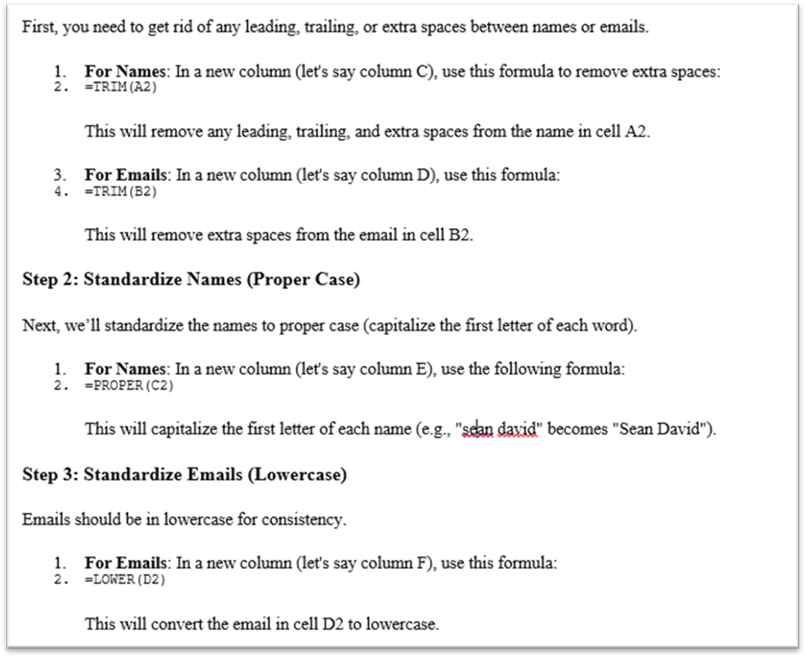
This dataset contains duplicate customers caused by extra spaces and inconsistent capitalization. ChatGPT helps identify the need to standardize names and emails before removing duplicates. Excel functions like TRIM, PROPER, and LOWER are used to clean the text. After cleaning, duplicates can be accurately removed and the data becomes reliable.
Before
| Name | |
|---|---|
| Sean David | Sean.David@gmail.com |
| LIAH MAE | LIAH.MAE@YAHOO.COM |
| Roger Powell | roger.powell@example.com |
Here’s the best ChatGPT prompt to use for this:
I have messy Excel data with names and emails. I want to:
- Remove extra spaces,
- Standardize names (proper case),
- Standardize emails (lowercase),
- Identify and remove duplicates.
Please give me step‑by‑step instructions and the exact Excel formulas I should use.
Then, once you enter this prompt, you get the following result.
After
| Name | |
| Sean David | sean.david@gmail.com |
| Liah Mae | liah.mae@yahoo.com |
| Roger Powell | roger.powell@example.com |
You get a clean, duplicate-free list. The list of functions it suggests and explains include:
Another example is for Sales Data Cleaning
The sales data has mixed date formats, text values, and currency symbols that prevent proper analysis. ChatGPT explains how to convert all values into numbers and standard date formats Excel can recognize. Simple formulas clean the data and fix inconsistencies. The cleaned data is then ready for totals, charts, and reports.
Before
| Date | Sales | Region |
|---|---|---|
| 01-02-25 | 1200 | East |
| Feb 4 25 | 0 | West |
| 5-2-25 | 1000 | East |
Now, you must standardize the dates, fix text/currency values, clean regions. Use the following precise prompt.
I need to:
- Standardize the dates to MM-DD-YY format.
- Fix the sales data by:
- Removing the dollar sign and converting it to numeric values.
- Changing any text-based numbers (e.g., ‘one thousand’) to actual numbers (e.g., 1000).
- Clean the region names by:
- Capitalizing them to proper case
- Handling any missing or empty regions
Please give me step-by-step instructions with the exact formulas I should use for each part.”
The following formulas were used.
=TEXT(DATEVALUE(A2), “MM-DD-YY”)
=VALUE(SUBSTITUTE(B2, “$”, “”))
=PROPER(C2)
After
| Date | Sales | Region |
|---|---|---|
| 01-02-25 | 1200 | East |
| 02-04-25 | 0 | West |
| 05-02-25 | 1000 | East |
Frequently Asked Questions (FAQs)
The best prompts clearly describe the ChatGPT Excel cleaning task, such as removing duplicates or fixing dates. ChatGPT can then suggest suitable Excel formulas or steps. Clear prompts lead to better and more accurate results.
ChatGPT cannot directly clean very large Excel datasets. It can guide users with formulas and Power Query methods that work efficiently. Excel handles the data processing, not ChatGPT.
ChatGPT is mainly used for guidance and explanations. Power Query is designed for large and repeatable ChatGPT Excel cleaning tasks. Using both together provides the best outcome.
Recommended Articles
Continue with these related resources when you want the next practical step in this topic.
- How To Use AI With Excel
- How AI Is Transforming Data Analysis In Excel (2026 Complete Guide)
- Excel AI And Machine Learning: Beginner’s Guide For 2026
- The Most Useful AI Features in Excel: Unlock Smarter Spreadsheets in 2026
- Top Skills for AI-Enabled Excel in 2026 (Must-Master List)
Explore the full Excel AI Automation and Analysis guide or browse Excel Resources.