


Introduction to Excel AI and Machine Learning
Excel AI And Machine Learning are no longer just buzzwords. They’ve become part of everyday tools like Microsoft Excel. Nowadays, Excel includes artificial intelligence features such as the Copilot assistant, natural language formula generation, and automated insights. Etc. without requiring advanced coding knowledge. With AI in Excel, users can spend less time typing manual formulas and more time interpreting their data.
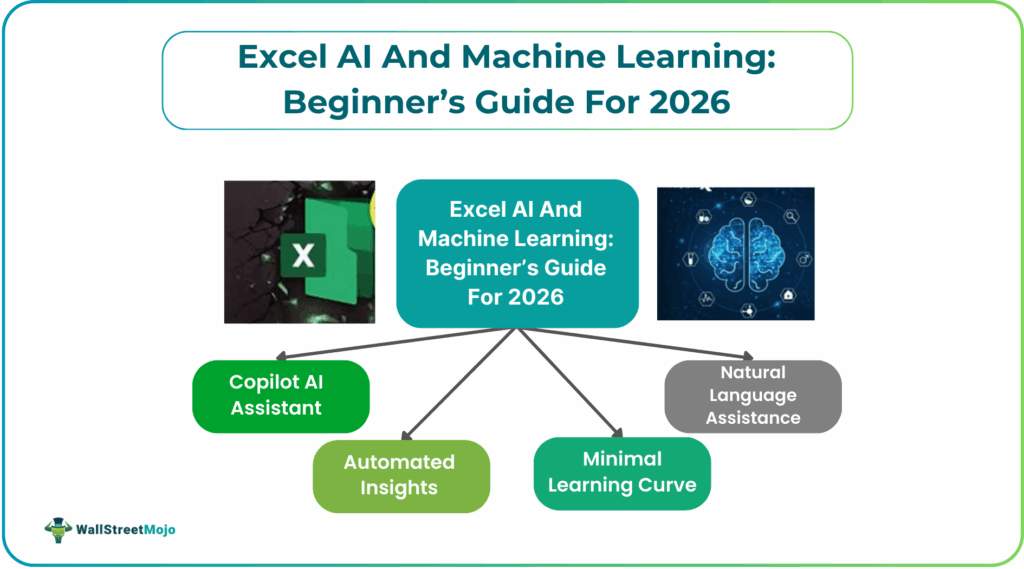
In 2026, Excel’s machine learning capabilities are expanded to include predictive analytics, trend detection, and pattern recognition. These features help users find meaningful results in large datasets in no time. Be it a student, business user, or data analyst, Excel’s AI and ML enhancements make advanced analytical tasks simpler than ever before. Here we present to you an Excel ML beginner guide to understand what the fuss of integrating AI in Excel is all about.
Why Excel is Perfect for ML Beginners in 2026
Excel AI And Machine Learning: Excel is one of the most widely used tools for data work because of its familiarity, flexibility, and accessibility even without coding experience. Its allows beginners to jump straight into data analysis without learning programming languages like Python or R. Also, AI features now let users interact with data using natural language. You can ask Excel questions in plain English and get results instantly.
Some reasons Excel is ideal for beginners include:
- Natural language assistance: Ask questions like “Show sales trends for last quarter in the North region” and Excel suggests formulas and gives insights.
- Automated insights: Excel can spot patterns and trends for you, turning complex data into understandable summaries.
- Minimal learning curve: Most users already know basics of Excel; so AI tools become extensions of familiar skills.
Because Excel combines traditional spreadsheet skills with AI, it’s a great starting point for anyone interested in learning machine learning without any need for advanced training.
Core Excel AI Features for Machine Learning
Excel now includes a range of built-in AI functions. These features help in making data analysis smarter and faster. Some key features include:
- Copilot AI Assistant: Excel’s Copilot is a smart assistant. It can interpret natural language prompts and generate formulas, summaries, or visuals for your data. For example, if you type “Show me top 10 customers by revenue,” it will generate the right table or chart automatically.
- Automated Data Cleaning: AI helps find errors, remove duplicates, fix formatting issues, and a lot more. Instead of manually scanning thousands of data rows, Copilot suggests corrections and streamlines workflow cleaning.
- Pattern Recognition and Predictive Analytics: Excel can automatically detect trends and patterns in your data. It also uses these patterns to predict future values, such as forecasting sales.
- Formula Generation using Plain Language: You no longer need plenty of formula knowledge to build complex calculations. AI suggests and constructs formulas with describe in simple English.
- Visualizations: Excel’s AI suggests the best charts to represent your data. This leaves you time from guessing which visuals are needed to represent your data more clearly.
These core AI tools make it easier to explore, analyze, and present data whether you are a beginner or a pro.
Key Machine Learning Concepts in Excel
Even though not an Excel AI machine learning development platform like Python, it includes elements that overlap with Machine Learning in Excelconcepts. These include:
- Pattern Recognition:
AI scans your data to find relationships and similarities. It is similar to how machine learning models learn from data patterns. - Predictive Forecasting:
Excel’s forecast tools use past data to project future outcomes. It is similar to the supervised learning in machine learning. - Data cleaning:
Data cleaning is very essential for any workflow. Excel’s cleaning and transformation tools handle it, as a part of any machine learning task. - Build models:
Advanced users can integrate Python through Copilot to build actual Excel AI machine learning models, turning Excel into a hybrid analytics platform that goes beyond simple spreadsheets.
Excel’s approach to machine learning focuses more on understanding the data and getting it ready for insights. Besides, it allows beginners to interact with ML-like features without advanced technical knowledge.
Advanced Excel ML Techniques
Once you get comfortable with the basics, you can move into more advanced ways Excel connects with machine learning. One of the most useful features is its AI-driven forecasting tools. Excel’s Forecast Sheet and trendline functions use past data to predict future outcomes, making them great for planning budgets, estimating sales, or running different “what-if” scenarios. These tools help beginners understand how prediction works without needing to build a model from scratch.
Excel has also expanded into true ML territory through Python integration with Copilot. This allows users to write and run Python scripts inside Excel to perform tasks like regression analysis, classification, and data modeling. It’s a powerful step forward because you can build deeper ML workflows without leaving the familiar spreadsheet environment. Power Query adds even more support by suggesting data transformations and automating extraction, helping you clean and prepare your data before applying machine learning. Together, these tools make Excel feel less like a simple spreadsheet and more like a lightweight Excel AI machine learning platform that grows with your skills.
Common Challenges and Solutions
Even though Excel’s AI and machine learning tools are powerful, users often face a few common issues:
#1 – Challenge: AI Misunderstands Prompts
Sometimes Copilot may misinterpret what you want. The solution is to be specific with your language and give clear context.
#2 – Challenge: Accuracy Limitations
AI may not always provide precise results, especially with complex formulas. Always cross-check AI-generated formulas and results before applying them to important reports.
#3 – Challenge: Large Data causes Slow Performance
Very large spreadsheets might run slower when using AI features. Hence, break the data into smaller chunks or use Power Query to handle preprocessing.
#4 – Challenge: Limited AI Access in Some Versions
Not all Excel versions include Copilot or advanced AI tools. To get these, you must have a Microsoft 365 subscription with AI features enabled.
By understanding these common challenges and their solutions, you can make the most out of Excel’s AI and machine learning features.
Future of AI and ML in Excel (2026 and Beyond)
The future of AI in Excel looks bright with improved capabilities by Microsoft. Natural language processing is expected to become more easier without writing detailed prompts. It will allow users to perform tasks using regular written language or voice commands. Machine learning will move beyond simple forecasting toward more advanced predictive analytics within the Excel interface. It is also looking towards integrating with cloud-based models and real-time data feeds. As AI is increasingly getting smarter, Excel could be a hub for a sophisticated workflow. All in the comfort of the spreadsheet environment. To know more on this, you can check out any AI Excel tutorial 2026 available online.
Frequently Asked Questions (FAQs)
Beginners can start by using Excel’s AI tools such as Copilot, predictive forecasting, and automated insights to explore trends. Excel’s natural language interface lets users ask questions in plain English. They get meaningful results without writing code.
Key features include the Copilot assistant for natural language prompts, automated data cleaning, pattern recognition, predictive forecasting tools, and Python integration for deeper model building.
It is not required for basic tasks. Many machine learning features work through natural language and built-in tools. However, learning programming like Python enhances your ability to build more advanced models.
Recommended Articles
Continue with these related resources when you want the next practical step in this topic.
- How To Use AI With Excel
- How AI Is Transforming Data Analysis In Excel (2026 Complete Guide)
- The Most Useful AI Features in Excel: Unlock Smarter Spreadsheets in 2026
- Top Skills for AI-Enabled Excel in 2026 (Must-Master List)
- 10 Excel AI Skills to Automate Work and Get Hired
Explore the full Excel AI Automation and Analysis guide or browse Excel Resources.