


Introduction
Teams that build ETL pipelines must adapt to changing business rules, such as different date ranges, ledger codes, or scenario flags. Without parameters, those changes require manual edits to source queries, filters, or URL strings, which is error‑prone and hard to version‑control. Power Query parameter tables AI dynamic ETL solves this by letting analysts store configuration values in a small, table‑driven parameter layer and then use those values to control everything from file paths and API calls. When augmented with AI‑driven prompt guidance, users can describe the desired behavior in plain language. AI drafts the underlying M‑code or parameter‑binding logic, turning parameter driven Power Query AI workflows into reusable pipelines.
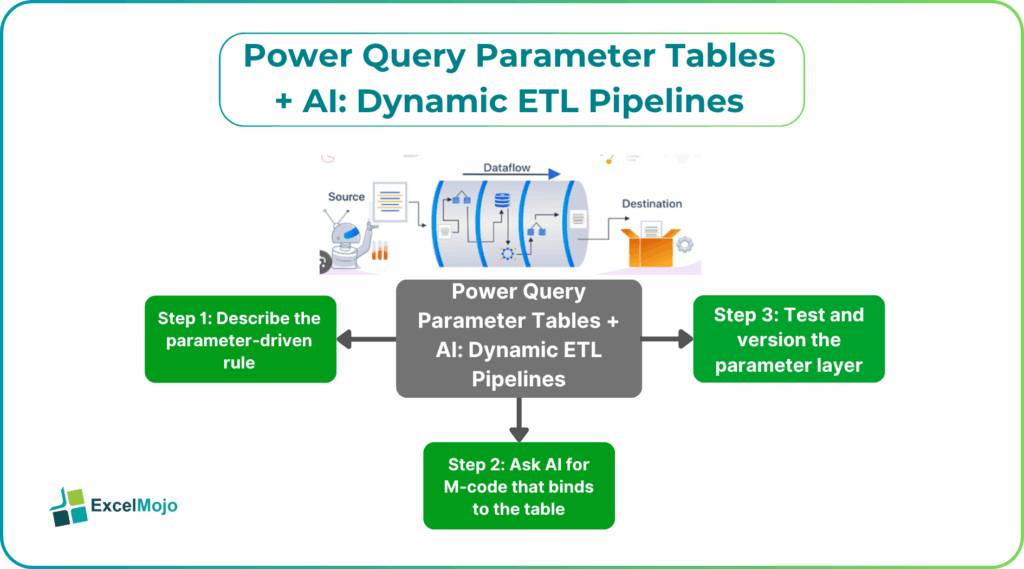
This article explains how to use Power Query parameter tables with AI to build AI dynamic ETL pipelines Power Query. These respond to configuration changes instead of hard‑coded logic, how to structure the parameter layer, and how to avoid common implementation issues. The pattern follows Power BI’s guidance on both Power Query parameters and dynamic M query parameters. For data analysts, that means more agile, environment‑aware data models with less tribal knowledge embedded in manual steps.
What Parameter Tables are in Power Query
Power Query supports named parameters via the Manage Parameters dialog, but those are static or list‑driven by default. A parameter table is a workaround that stores multiple parameter values in a normal table. It then exposes them as query‑level or transformation‑level inputs. Common use cases include:
- Storing allowed date windows (StartDate, EndDate) for daily refreshes.
- Holding LEDGER‑CODE lists or scenario flags that partition or route data.
- Defining file paths, API endpoints, or server names that change across environments.
Behind the scenes, a parameter table often feeds into a series of M‑code steps that extract scalar values or lists from the table and bind them to steps such as:
- Source = Web.Contents(“https://api.example.com/data?from=” & MyStartDate & “&to=” & MyEndDate, …)
- Filter = Table.SelectRows(Data, each [GLCode] = ParameterTable[GLCode])
This is the backbone of AI dynamic ETL pipelines Power Query. It shows how a small configuration table can drive large‑scale transformations. Queries can bind to external value sources, including table‑derived values, which is the conceptual basis for parameter‑table‑driven pipelines.
How to Structure a Parameter‑Driven ETL Layer
A clean Power Query parameter tables AI dynamic ETL pattern typically follows a layered approach similar to classic ETL design.
Layer 1: Raw and Parameter Inputs
Two initial queries sit at the top of the model:
- A RawSource query that imports data from the original system, API, or file.
- A ParameterTable query that reads a small configuration table (often from Excel, SQL, or a Fabric item) containing key‑value pairs for environment or business rules.
From ParameterTable, additional M‑steps extract scalars such as SelectedStartDate, SelectedRegion, or ActiveScenario. Those scalars then flow into downstream steps as injected values.
Layer 2: Staging and Business Logic
In the Staging layer, transformations such as renaming, cleaning, and type‑casting are applied to the raw data. The business layer then applies the parameter‑driven logic, such as:
- Filtering on a scenario flag from the parameter table.
- Routing different row sets to different destinations based on ledger codes.
- Applying thresholds or multipliers that change per environment.
This structure mirrors guidance on efficient ETL pipelines in Power Query, where explicit layers help isolate logic and improve performance and maintainability.
Layer 3: Output and Validation
The final Output query feeds the report model and is strictly consumer‑oriented: no environment‑specific logic, only ready‑to‑use fields. A small Validation query can also compare key metrics against the current parameter set to flag unexpected volumes or shifts.
How to use AI to Generate Parameter‑Table Logic
AI enhanced Power Query parameter tables can reduce the time spent on writing or debugging M‑code for parameter binding for Power Query Parameter Tables AI Dynamic ETL.
Step 1: Describe the Parameter‑Driven Rule
Spell out the business behavior in plain language, such as:
- “A parameter table contains columns ParameterName and ParameterValue. For ParameterName = ‘StartDate’, use that value as the start date in an API call URL.”
- “A parameter table has a column IncludeScenarios with a list of scenario codes. Filter the main data table to keep only rows where ScenarioCode is in that list.”
These statements become the basis for AI‑assisted prompts.
Step 2: Ask AI for M‑cCode that Binds to the Table
A strong prompt for Power Query Parameter Tables AI Dynamic ETLI includes:
- The name of the parameter table query.
- The column names and data types.
- The target step (source, filter, column transformation).
Example:
“In Power Query M‑code, I have a table named ParameterTable with columns ParameterName and ParameterValue. I need:
- A step that extracts the ParameterValue where ParameterName is ‘StartDate’ and converts it to a date.
- That date should then be used in a Web.Contents call as a query parameter in the URL string.
Write the M‑code for these steps, assuming the base URL is ‘https://api.example.com/data’.”
AI typically returns something like:
let
Source_StartDate = ParameterTable{[ParameterName=”StartDate”]}[ParameterValue],
StartDateAsDate = DateTime.Date(DateTime.FromText(Source_StartDate)),
RequestUrl = “https://api.example.com/data?from=” & Date.ToText(StartDateAsDate)
in
RequestUrl
This is the core of AI dynamic ETL pipelines Power Query and shows how AI can draft the parameter‑to‑source binding logic that analysts then plug into the parameter table pattern.
Step 3: Test and Version the Parameter Layer
After integrating the generated code, test the pipeline with different parameter values and compare output volumes. Store the parameter table itself in a versioned location (for example, dedicated Excel file, SQL table, or Fabric item) so that environment‑specific configurations are auditable and reproducible.
Pitfalls and Best Practices
Power Query parameter tables AI dynamic ETL introduces several subtle risks.
One common issue with Power Query Parameter Tables AI Dynamic ETL is circular dependencies. Parameter tables that reference other queries that depend on them can cause refresh failures or ambiguous values. Best practice is to keep the parameter layer as close as possible to the top of the dependency graph and avoid referencing business‑layer outputs.
Another risk is hard‑coded assumptions. AI‑generated M‑code often assumes precise column names or types, which can break if the parameter table schema changes. Analysts should add type checks, error handling, and clear comments around parameter‑driven steps.
A third pitfall is environment leakage. Using the same parameter table across development, test, and production without proper isolation can overwrite staging data with production‑level filters. Teams should maintain separate parameter tables per environment or use a parameter‑table‑versioning pattern that clearly tags the environment.
Frequently Asked Questions (FAQs)
AI enhanced Power Query parameter tables are best suited for in‑model configuration and should not replace centralized configuration systems such as enterprise‑level parameter stores or CI/CD‑driven deployment frameworks. They excel at analyst‑level flexibility within Power BI but are not designed for broad system‑wide governance.
VBA Power Query parameter tables with AI typically sit outside Power Query itself, using Excel‑based parameter tables that are read into Power Query via the Excel connector. Excel‑based VBA macros can help populate or validate those tables, but the core dynamic‑ETL logic remains in Power Query’s M‑code, not in VBA.
AI dynamic ETL pipelines Power Query can be safe if the generated M‑code is reviewed, tested against sample data, and tied to a stable parameter table schema. Teams should avoid complex AI‑generated transformations that touch too many unrelated tables and instead keep the parameter‑driven logic focused and modular.
Yes, a single parameter table can drive several source queries, each pulling different values or slices of configuration. For example, one source can read ParameterTable[StartDate] and ParameterTable[EndDate], while another reads ParameterTable[RegionFilter]. This pattern is useful for multi‑source or multi‑tenant ETLs, but the parameter table should remain small and well‑structured to avoid confusion.
Recommended Articles
Continue with these related resources when you want the next practical step in this topic.
- Power BI Connections
- Power BI Query
- Power BI Live Connection
- Query Folding in Power Query
- Power BI Parameters
Explore the full Power BI Data Connections and Power Query guide or browse Power BI Resources.