


Introduction
Finance teams construct Excel models with tables that use structured references such as Table1[Revenue] or Table2[@Cost]. These references are powerful because they stay anchored to the table structure, but they can be opaque and hard to write correctly for complex conditions. AI Excel table formulas change this by letting AI tools generate or refine structured‑reference formulas from plain‑language prompts, turning error‑prone manual typing into a guided, logic‑driven workflow. With Excel AI table formulas structured references, analysts can describe the desired calculation and receive a correctly scoped XLOOKUP, SUMIFS, or FILTER formula that targets the right table and columns.
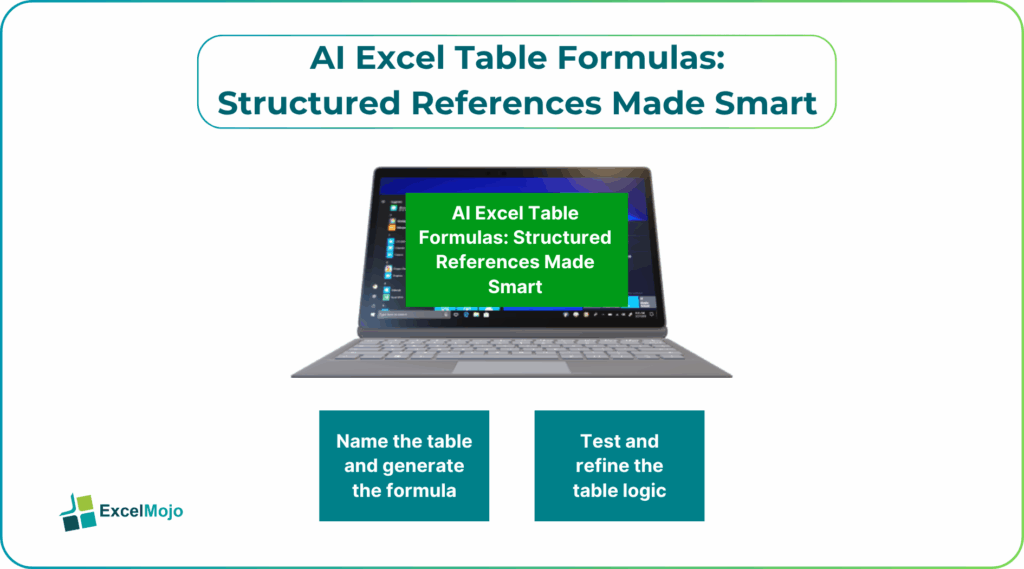
This guide explains how to combine AI enhanced Excel table references with standard Excel functions so that AI Excel smart table formulas become part of the modeling toolkit. Readers will see how to build self‑updating, table‑based formulas that automatically adapt to new rows, support cross‑table filters, and integrate with AI‑assisted prompt engineering. Structured references are tied to table names and column headers, which makes them more resilient than pure‑range references when the table grows or is reorganized. For data‑focused professionals, that resilience is exactly where AI‑assisted formula generation adds the most value for AI Excel Table Formulas.
How Structured References Work in Excel Tables
An Excel Table converts a range into a named, column‑based container with automatic resizing and formula anchoring. Inside a table, a formula such as:
=Table1[Revenue]
refers to the entire Revenue column, while:
=Table1[@Revenue]
pulls the value in the current row of that column. This is the core of Excel AI table formulas structured references: the table name and column header combine to form a robust, self‑documenting reference that persists even as rows are added.
Analysts also use constructs like:
- [@] for the current row,
- [#Headers] for the header row,
- [#All] for the full column including headers,
to build formulas that behave differently depending on context. For example, =Table1[@Revenue] * Table1[@Margin] in a calculated column multiplies the current row’s Revenue and Margin and fills the formula down automatically.
When paired with AI for AI Excel Table Formulas, these patterns become easier to describe and less error‑prone to write, which is the essence of AI enhanced Excel table references.
How to Generate AI‑Assisted Table Formulas
Writing AI Excel smart table formulas effectively follows a simple pattern: describe the logic, let AI generate the structured‑reference syntax, then test and refine.
Step 1: Name the Table and Define the Question
First, ensure the table has a clear name (for example., Budget, Transactions, Sales) and that the column headers match the business meaning (for example, Revenue, Cost, Region). Then write a short description of the calculation:
- “For each row in the Budget table, show the variance from the Actuals table for the same product.”
- “In the Sales table, sum revenue by region, but only for rows where forecast is above 100,000.”
These plain‑language statements will become the prompt foundation.
Step 2: Ask AI to Generate the Formula
A strong prompt for AI Excel table formulas includes:
- The table name and column names.
- The operation (sum, filter, lookup, difference).
- The scope (by row, by group, filtered by a condition).
Example:
“In Excel, I have a table named ‘Budget’ with columns ‘Product’, ‘BudgetRevenue’, and ‘BudgetCost’, and another table named ‘Actuals’ with the same product key.
Write a formula for a new table ‘Variance’ that:
- Has the same products as Budget.
- Contains a column VarianceRevenue that is Budget[@BudgetRevenue] minus the matching Actuals[@ActualRevenue] for each product.
Use structured references so the formula works row‑by‑row.”
AI will return:
= [@BudgetRevenue] – XLOOKUP([@[Product]], Actuals[Product], Actuals[ActualRevenue])
This is a practical example of AI Excel smart table formulas and shows how AI can handle the [@] row reference and the XLOOKUP pairing across tables.
Step 3: Test and Refine the Table Logic
Paste the formula into the target table and test it with:
- New rows added to the source tables.
- Changed product keys or missing matches.
Adjust the logic, such as wrapping the XLOOKUP in IFERROR or adding criteria columns, and use AI if needed to refine the expression.
Practical Example: A Rolling‑Forecast Table
Suppose a finance team uses a rolling‑forecast workbook where each period is added as a new row in a table named RollingForecast. The goal is to:
- Include a column YoYChange that compares the current period’s revenue to the same period a year ago.
- Include a column ForecastAccuracy that compares forecast to actuals using another table, ActualResults.
Using Excel AI table formulas structured references, the team can:
- Ask an AI assistant to generate a FILTER‑based formula that looks back 12‑months in the RollingForecast table for the same product and region.
- Generate a second formula that links RollingForecast to ActualResults using XLOOKUP on product and period.
- Place these formulas in calculated columns so they update automatically as new rows are added.
This workflow illustrates how AI enhanced Excel table references make structured references easier to adopt and maintain in complex, multi‑table models.
Pitfalls and Best Practices
AI Excel table formulas can improve productivity but also introduce subtle issues.
One common issue is over‑complex formulas: AI‑assisted logic can grow into deeply nested XLOOKUP or FILTER‑based expressions that are hard to read and debug. Analysts should break complex formulas into helper columns, use named calculations, and favor clarity over one‑liner conciseness.
Another risk is misaligned table names or headers: if the table is renamed or a column header is changed, every structured‑reference formula that uses it will break. The best practice is to keep table and column names stable and use AI Excel smart table formulas primarily to generate, not to rename, the underlying structure.
A third pitfall is scope confusion: mixing [@] with [Column] in the wrong context can cause errors or unexpected behavior. Teams should keep a small set of standard patterns and reuse them across models, relying on AI to reproduce those patterns consistently rather than inventing new syntax each time.
Frequently Asked Questions (FAQs)
Yes, beginners can use AI Excel table formulas by describing the calculation in plain language and letting AI generate the structured‑reference syntax. They still need to understand basic table concepts such as column headers and row‑level logic, but they do not have to memorize the [@] or [#Headers] conventions by heart.
AI enhanced Excel table references can be safe if tested thoroughly, tied only to the intended tables and columns, and documented. Users should avoid blindly accepting formulas that reference undefined tables or ranges, and instead validate the logic against sample data.
AI Excel smart table formulas use structured references that stay anchored to the table, while manual VLOOKUP‑style ranges can break when rows are added or moved. Structured‑reference‑based formulas are more robust for table‑centric models, especially when paired with functions like XLOOKUP and FILTER.
No, Excel AI structured references made easy patterns should not replace full‑stack BI tools. They are best suited for analyst‑level, table‑driven models inside Excel, while enterprise‑grade reporting, governance, and concurrency still belong in dedicated BI or data‑warehousing platforms.
Recommended Articles
Continue with these related resources when you want the next practical step in this topic.
- How To Use AI With Excel
- How AI Is Transforming Data Analysis In Excel (2026 Complete Guide)
- Excel AI And Machine Learning: Beginner’s Guide For 2026
- The Most Useful AI Features in Excel: Unlock Smarter Spreadsheets in 2026
- Top Skills for AI-Enabled Excel in 2026 (Must-Master List)
Explore the full Excel AI Automation and Analysis guide or browse Excel Resources.