


Introduction
Many financial experts use VBA macros and face the same problem: a script that runs perfectly on a test file suddenly crashes on a production workbook because of an unexpected file format, missing sheet, or invalid data type. Without proper safeguards, these errors can halt the entire workflow and force manual intervention. VBA error handling AI bulletproof code changes this by integrating structured On Error routines. It uses AI‑assisted prompt engineering to help generate, review, and refine the error‑handling logic. Using VBA error handling with AI, analysts can turn fragile macros into bulletproof VBA code generation AI patterns that anticipate common failure modes and respond predictably.
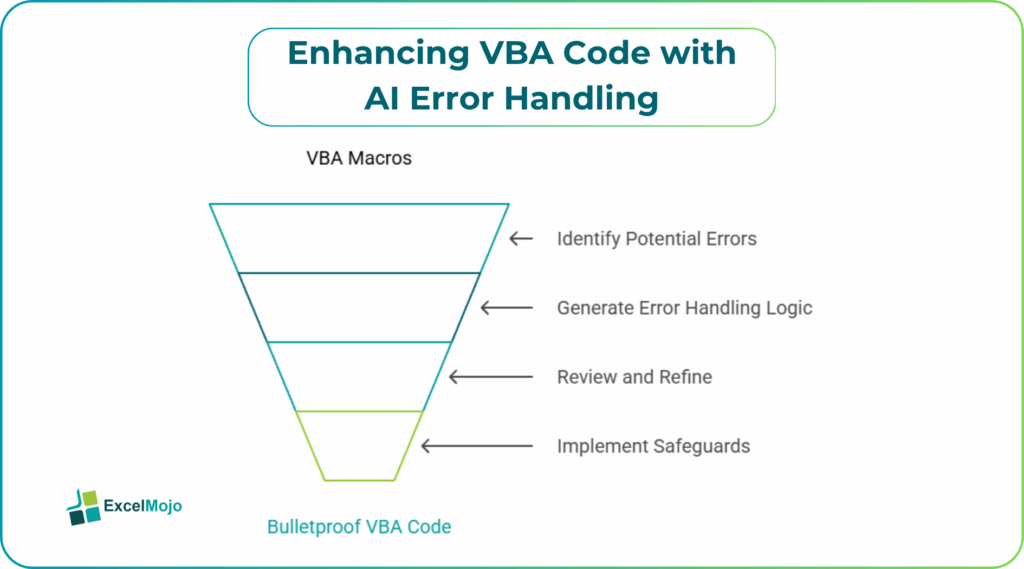
Here, we design AI generated VBA error handling that catches typical VBA errors such as Subscript out of range, Object required, or type‑mismatch issues, and learn how to structure routines that log, alert, or resume in a controlled way. You can observe how AI assisted VBA error detection can speed up the creation of defensive code for common tasks like data‑loading, sheet‑level operations, and user‑input validation. Recent VBA documentation stresses that robust On Error patterns and clear error messaging are essential for maintainable macros, and that structured exception handling reduces unplanned support time significantly for heavily used templates. For analysts, that means more stable models and fewer escalation calls.
How VBA Error Handling Patterns Work
VBA exposes several basic error‑handling constructs:
- On Error GoTo 0 (disable error handling).
- On Error Resume Next (continue after the error).
- On Error GoTo label (jump to a custom error handler).
The most common pattern for VBA error handling with AI is:
Sub SomeMacro()
On Error GoTo ErrorHandler
‘ Your main code
Dim ws As Worksheet
Set ws = ThisWorkbook.Sheets(“Budget”)
ws.Range(“A1”).Value = “Updated”
Exit Sub
ErrorHandler:
MsgBox “An error occurred: ” & Err.Description, vbCritical
Err.Clear
End Sub
Here, the On Error GoTo ErrorHandler directive tells VBA to jump to the ErrorHandler label whenever a runtime error occurs. This is the core of AI generated VBA error handling and shows how a simple label‑based handler can trap exceptions and present a clear message.
For more robust workflows, analysts add checks such as verifying that a worksheet exists, that a range is not Nothing, and that numeric values fall within expected bounds before performing operations.
How to Generate AI‑Assisted Error‑Handling Code
Building bulletproof VBA code generation AI routines starts with describing the macro’s purpose and the failure modes to protect against.
Step 1: Define the Macro and its Risks
Write a short description of the macro, for example:
- A macro that copies data from one sheet to another.
- A macro that reads user input from a cell, validates it, and updates a model.
Then list the typical failure modes: missing sheet, invalid range, non‑numeric input, disconnected external data source, and so on.
Step 2: Ask AI for a Structured Error‑Handling Routine
A strong prompt for VBA error handling with AI includes:
- The macro’s goal and target sheet or range.
- The error types to handle (e.g., sheet‑not‑found, range‑not‑found, type‑mismatch).
- The desired behavior on error (message, log, resume, or exit).
Example:
“Write a VBA macro named CopyBudgetData that copies the range A1:E100 from a worksheet named ‘Input’ to a worksheet named ‘Processed’ in the same workbook.
- Add an error handler that checks whether the ‘Input’ and ‘Processed’ sheets exist.
- If a sheet is missing, show a message that says which sheet is missing and exit the macro.
- If the range is empty or the data type is invalid, show a brief explanation and exit.
- Use On Error GoTo ErrorHandler and include a clear Exit Sub to avoid falling into the error block.”
AI typically returns a macro such as:
Sub CopyBudgetData()
On Error GoTo ErrorHandler
Dim wsInput As Worksheet
Dim wsProcessed As Worksheet
Set wsInput = ThisWorkbook.Sheets(“Input”)
Set wsProcessed = ThisWorkbook.Sheets(“Processed”)
Dim SourceRange As Range
Set SourceRange = wsInput.Range(“A1:E100”)
If Application.WorksheetFunction.CountA(SourceRange) = 0 Then
MsgBox “Source range is empty. Nothing to copy.”, vbExclamation
Exit Sub
End If
wsProcessed.Range(“A1”).Resize(SourceRange.Rows.Count, _
SourceRange.Columns.Count).Value = SourceRange.Value
Exit Sub
ErrorHandler:
If Err.Number = 9 Then
MsgBox “Sheet ‘” & Err.Source & “‘ does not exist. Please check sheet names.”, vbCritical
Else
MsgBox “An error occurred: ” & Err.Description, vbCritical
End If
Err.Clear
End Sub
This is a practical example of AI assisted VBA error detection and shows how AI can generate a full‑fledged macro complete with validation and error handling.
Step 3: Test and Refine the Handling Logic
Run the macro on normal and abnormal data: rename a sheet, clear the source range, or point to a non‑existent workbook path. Adjust the error messages, add logging to a cell or a separate “ErrorLog” sheet, and refine the handler labels to match the macro’s scope.
Practical Example: A Financial‑Statement Loader with Bulletproof Handling
Suppose a finance team uses a macro that loads trial‑balance data from a separate workbook into a model sheet. Using VBA error handling AI bulletproof code, the team can:
- Describe the loader’s behavior and required file‑path, sheet‑name, and range constraints.
- Use AI to generate a version that checks whether the source workbook is already open, whether the relevant sheet exists, and whether the range contains valid numeric data.
- Add a small logging routine that writes the date, error number, and description to a hidden “ErrorLog” sheet when an exception occurs.
This workflow illustrates how bulletproof VBA code generation AI turns a fragile, one‑off macro into a reusable, audit‑ready loader that can be trusted in month‑end workflows.
Pitfalls and Best Practices
Even VBA error handling with AI introduces common pitfalls.
One common issue is over‑using On Error Resume Next: this directive can mask errors and make debugging harder. Oneshould reserve it for known, safe exceptions (for example, trying to delete a temporary sheet that may not exist) and otherwise prefer structured On Error GoTo label blocks.
Another risk is silent failures: handlers that clear the error but do not notify the user or log the event can leave the workbook in an inconsistent state. Teams should ensure each major macro either alerts the user or records the failure in a log.
A third pitfall is lack of granularity in error handling: using a single catch‑all ErrorHandler for very different operations can make it hard to trace the root cause. Where possible, analysts should split long macros into smaller subs, each with its own error‑handling block, and consider using Err.Raise to generate custom error numbers for business‑logic violations.
Frequently Asked Questions (FAQs)
Yes, beginners can use VBA error handling AI bulletproof code by describing the macro’s behavior and expected failure modes in plain language and letting AI generate the On Error structure and handler logic. They still need to understand basic concepts such as subroutines, worksheets, and ranges, but they do not need to write low‑level error‑handling code from scratch.
AI generated VBA error handling routines can be safe when tested thoroughly, connected only to the intended workbook structure, and documented. Users should review the AI‑generated code for unintended Resume Next usage, repeated Exit Sub labels, and proper scope, and avoid applying it to sensitive systems without validation.
Bulletproof VBA code generation AI patterns accelerate the creation of consistent On Error constructs and validation checks, while manual error handling allows full control over every decision point. For complex, reusable macros, AI‑assisted routines serve as a strong starting point that analysts can tighten and extend.
No, AI assisted VBA error detection should not replace proper testing and validation. It is best used to generate defensive code for common runtime exceptions, while broader data‑quality checks, scenario testing, and version control should still live in formal QA and model‑review processes.
Recommended Articles
Continue with these related resources when you want the next practical step in this topic.
Explore the full VBA Errors and Debugging guide or browse VBA Resources.