


Introduction to Power BI Row‑Level Security
Many teams use Power BI to share sales dashboards, HR reports, or finance statements with different groups of users who should not all see the same data. One person might be allowed to see only their own region, while another needs to see everything. The usual way to handle this is Row‑Level Security, which hides certain rows in the model so each user sees only the slices they are allowed to view. Writing those rules in DAX can be tricky for beginners, especially when the model has several tables. Power BI Row‑Level Security Copilot auto‑rules helps by letting users describe the access logic in plain language and having Copilot generate the starting filter, which they can then plug into the model and test.
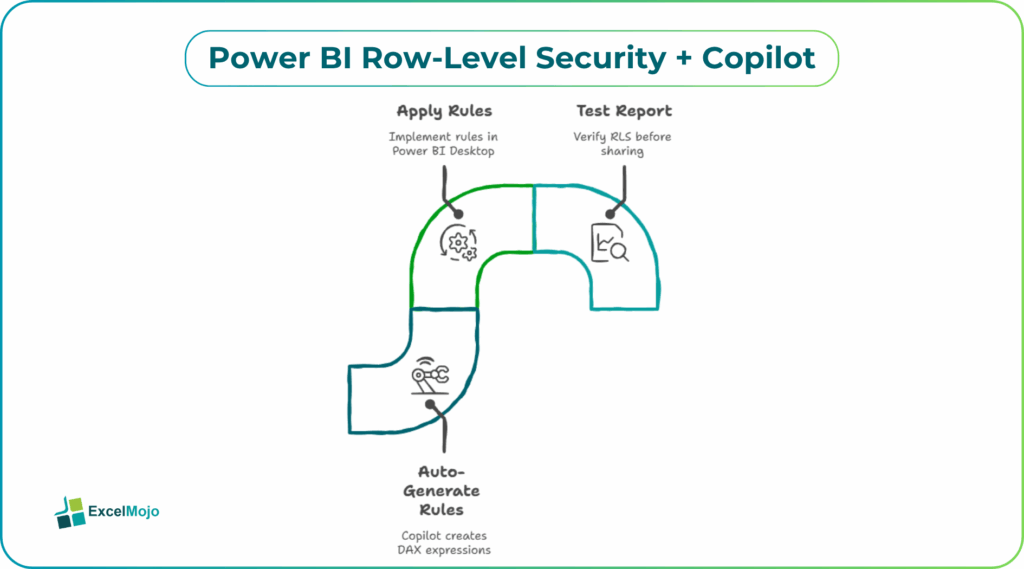
This article explains how to use Copilot to create Power BI RLS with Copilot auto‑generated rules, how to apply those rules in Power BI Desktop, and what to test before sharing the report. Microsoft’s guidance on Row‑Level Security explains that these filters are written as DAX expressions that limit which rows a user can see, and that roles are central to organizing those rules.This means you can focus on stating the business rule clearly while Copilot helps with the technical expression.
How Row‑Level Security Works in Power BI
In Power BI, Row‑Level Security runs at the data model level, not in the report visuals. When a user opens a report, the model evaluates the RLS rules attached to their role and automatically hides rows that do not match the condition.
A simple example uses a Users table with columns for UserEmail and Region, and a FactSales table with columns for SalesAmount, Region, Date, and Salesperson. An RLS rule links the user’s email to their region and then filters the fact table accordingly. The rule is written as a DAX expression that returns true or false for each row. If the result is false, that row is not included in the user’s view. This is the core idea behind auto‑generated security rules Power BI Copilot and why it is important to design the model with clear keys and consistent column names.
How to Draft RLS Rules with Copilot
Copilot powered Row‑Level Security Power BI works best when the security rule is described clearly.
Step 1: Write the Power BI Row‑Level Security Copilot Auto‑Rules rule in plain language
Before asking Copilot, describe the rule as if you were explaining it to a colleague. For example:
- Each user should see only sales for their own region, stored in a Users table with UserEmail and Region.
- Sales managers should see their own region, and a super‑manager role should see all regions.
These sentences give Copilot the business logic it needs to build the DAX filter.
Step 2: Ask Copilot for the DAX filter
A good prompt for AI assisted Power BI Row‑Level Security rules is:
In Power BI, I have these tables:
- FactSales with columns: SalesAmount, Region, Date, Salesperson.
- DimUser with columns: UserEmail, Region, Role.
I want to create an RLS filter for the Salesperson role that lets each user see only rows where the Region matches their Region in DimUser. The user’s email is stored in DimUser[UserEmail] and can be read with USERPRINCIPALNAME().
Write a DAX filter expression that can be used as a Row‑Level Security rule for the FactSales table.
Copilot may return a simple DAX expression such as:
[Region] = LOOKUPVALUE(DimUser[Region], DimUser[UserEmail], USERPRINCIPALNAME())
This is the core of Power BI RLS with Copilot auto‑generated rules and shows how a plain‑language description can turn into a working security rule.
How to add the Power BI Row‑Level Security Copilot Auto‑Rules
Once the DAX filter is ready, it can be added through the model interface.
- In Power BI Desktop, open the Model view for Power BI Row‑Level Security Copilot Auto‑Rules.
- Select the table that needs row‑level filtering, such as FactSales.
- In the ribbon, go to Table tools > Manage roles.
- Create a new role, for example Salesperson, and in the Table filter DAX expression box, paste the filter Copilot provided.
- Use Test As role to simulate different users by entering sample emails and checking whether the correct rows appear.
This pattern is the practical side of Power BI Row‑Level Security Copilot auto‑rules and shows how a simple rule drafted with Copilot can be turned into an enforceable security layer on the model.
Simple Example: Region‑Based Access for a Sales Report
A common scenario is a sales dashboard where each rep should see only their own region, and a manager should see multiple regions. Using Copilot powered Row‑Level Security Power BI, the steps are:
- Add a DimUser table with columns for UserEmail, Region, and Role so the model knows which user belongs to which region.
- Ask Copilot for an RLS rule that limits salespersons to their own region.
- Create a second role for Manager that either filters to a broader set of regions or does not apply a filter if the business allows it.
- Test both roles with Test As role and sample emails to confirm that the visual shows the right data.
This workflow is a practical example of AI assisted Power BI Row‑Level Security rules and shows how Copilot can reduce the manual work of writing and testing multiple DAX filters.
Common Mistakes and Simple Best Practices
Using RLS with Copilot is helpful, but beginners can easily misconfigure the rules.
One common mistake is filtering too broadly or too narrowly. A simple rule that only checks one column may accidentally show data that should be hidden or hide data that should be visible. The best practice is to test each role with a few example users and edge cases, such as missing or blank regions.
Another issue is confusing the model design. If the DimUser table is not linked correctly to the fact table, the RLS rule may not behave as expected. Keeping the relationships clean and using consistent keys, like Region or UserEmail, helps avoid this.
A third problem is too many roles: adding a separate role for every small change can make the setup hard to manage. It is better to group similar access patterns into a few clear roles and keep the logic as simple as possible.
Frequently Asked Questions (FAQs)
Copilot can draft the DAX filter based on your description, but the user should still test the rule thoroughly and understand what it does. It is a helper, not a full replacement for checking access behavior.
Row‑Level Security in Power BI controls what users see in the report, while database‑level security controls what data is exposed at the source. Many teams use both, with the database layer handling broad access and Power BI RLS handling finer report‑level rules.
Yes, as long as the rules are tested carefully using Test As role, reviewed against the organization’s access policy, and documented. Blindly copying rules without testing increases the risk of either exposing data or blocking it when it should be visible.
Yes, the user can describe rules that use multiple columns. Copilot can generate a DAX expression that combines conditions, such as Region and Product, as long as the model records those relationships clearly.
Recommended Articles
Continue with these related resources when you want the next practical step in this topic.
Explore the full Power BI Service Sharing and Administration guide or browse Power BI Resources.