


Introduction
Many data analysts still write the same transformation steps over and over across queries, renaming columns, standardizing codes, or applying a common business rule, because they do not know how to encapsulate that logic into a reusable function. The usual workaround is to copy‑paste entire queries, which makes maintenance harder and increases the risk of introducing small differences between identical‑looking transformations. Power Query custom functions AI code generation changes that by letting analysts describe the required logic in plain language and then have an AI assistant generate a small M‑language function that can be reused across multiple queries.
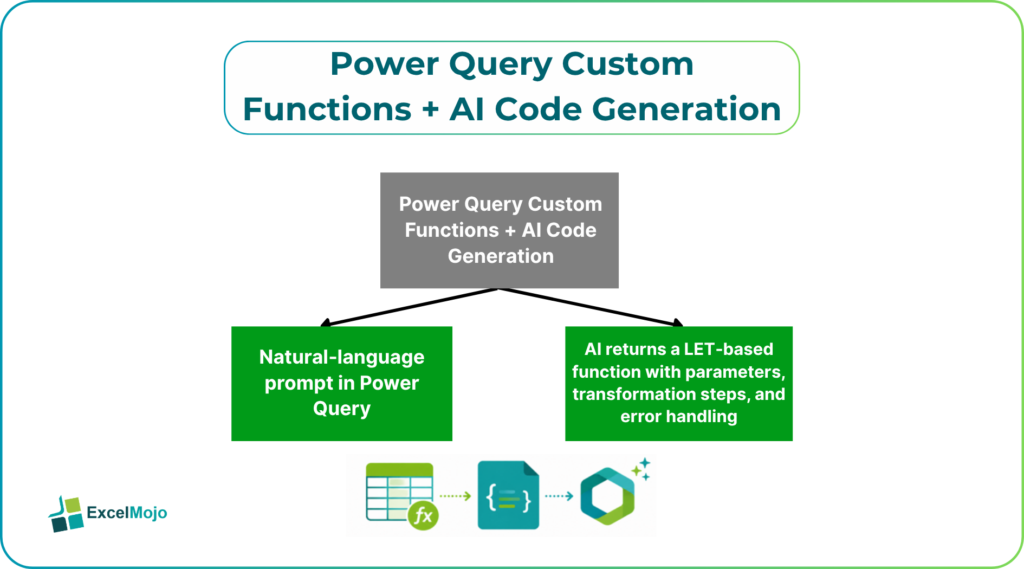
This workflow fits under Power Query custom functions with AI, where the analyst defines a parameterized operation and then uses AI‑assisted code generation to turn that description into a valid M function. Microsoft documentation states that custom functions can be invoked on multiple tables or values, which centralizes logic and makes it easier to update rules in one place. For AI generated Power Query custom functions, the AI handles the M‑language syntax; the analyst owns the business logic and the input‑parameter definitions.
How Custom Functions Work in Power Query
A custom function in Power Query is a small piece of M language code that accepts parameters (for example, a column or a value) and returns a transformed result.
A typical starter‑level function looks like this:
let
ConvertToStandardCode = (InputCode as text) =>
let
Trimmed = Text.Trim(InputCode),
Cleaned = Text.Replace(Trimmed, ” “, “”),
Standard = Text.PadStart(Cleaned, 4, “0”)
in
try
Standard
otherwise
“INVALID”
in
ConvertToStandardCode
This function can then be called from another query as:
= Table.TransformColumns(Source, {{“AccountCode”, ConvertToStandardCode}}) This pattern shows how to create a blank query, turn it into a function, and then invoke it from tables or other queries. For Power Query M functions, the AI can generate a similar structure once the analyst describes the required transformation in plain language, and the user can then plug it into the advanced editor and test it against real data.
How to Generate a Function with AI
Power Query custom functions with AI become most useful when the user describes the business rule once and lets an AI assistant write the M code.
A practical workflow:
- In Power Query, open the Advanced Editor for a blank query or an existing transformation.
- Write a natural‑language prompt such as:
- “Create a Power Query M function that takes a text column, trims spaces, converts to uppercase, and returns ‘N/A’ if the result is blank.”
- Or: “Create a function that converts a date‑string in format ‘dd/MM/yyyy’ to a proper date, returning null for invalid entries.”
- The AI returns a let‑based function with parameters, transformation steps, and error handling.
- The user pastes the code into the advanced editor, tests it on a small table, and then invokes it from the main query.
This approach is consistent with AI‑assisted Power Query tutorials, which show how to use AI chatbots to simplify, document, and debug existing queries, and how to generate reusable logic from example‑driven prompts. For AI generated Power Query custom functions, the AI acts as a booster for M‑language productivity rather than as a replacement for the analyst’s domain knowledge.
Practical example: A standardized date‑formatting function
A common use case for creating Power Query custom functions with AI is a standardized date‑formatting routine that is reused across many queries.
Suppose the analyst wants a function that:
- Accepts a text column with various date formats.
- Tries to parse it into a proper date.
- Returns null if the text cannot be parsed.
A prompt like: “Create a Power Query M function that takes a text value and returns a date if it can be parsed, otherwise null” can yield a function such as:
let
TextToDate = (Input as nullable text) =>
let
Cleaned = Text.Replace(Text.Trim(Input), “/”, “-“),
Result = try Date.FromText(Cleaned) otherwise null
in
Result
in
TextToDate
Once defined, this function can be used in a main table as:
= Table.AddColumn(Source, “ParsedDate”, each TextToDate([DateString]), type date)
This example illustrates how AI code generation for Power Query M functions can turn a frequently recurring business rule—standardizing dates—into a single, reusable piece of logic that can be updated in one place. Teams can extend the idea to other patterns, such as currency‑conversion functions, code‑mapping functions, or validation rules that are reused across models.
Pitfalls and Best‑Practice Tips
Power Query custom functions AI code generation can greatly speed up transformation development, but it also introduces a few important constraints.
One common issue is over‑generality. AI‑generated functions may be overly broad or handle too many edge cases, which can make them harder to maintain and test. Best practice is to keep functions focused on a single, well‑defined task (for example, one function for date parsing, another for code cleanup) and to avoid embedding complex error‑handling policies that change over time.
Another risk is performance. Function calls that must be evaluated row‑by‑row against large tables can slow down query execution, especially if the function is not written to leverage query folding. Analysts should test performance on realistic‑sized data and prefer built‑in M functions where possible, keeping custom logic reserved for genuinely unique business rules.
A third pitfall is versioning and reuse. Once several queries depend on the same function, changing its behavior can have unintended side effects. Teams should document the function’s contract (what inputs it expects, what outputs it guarantees), keep the function in a central module or query, and avoid altering the interface without reviewing all dependent queries.
Frequently Asked Questions (FAQs)
Can Power Query custom functions with AI replace manual M‑language coding?
AI‑assisted tools can replace the initial coding effort for many common transformations, but they cannot replace the analyst’s role in understanding business rules and validating outputs. The analyst should still review and test every AI‑generated function against known test cases before deploying it into production.
Do AI generated Power Query custom functions work in both Excel and Power BI?
Yes. The M language used in Power Query is shared between Excel (Power Query in Windows) and Power BI Desktop, so a custom function defined in one environment can usually be reused in the other, as long as the data types and connectors remain compatible.
How accurate are AI suggestions for Power Query M functions?
AI‑generated M code is generally accurate for simple transformations, such as text‑cleaning, date‑parsing, or basic aggregations, but it may not handle advanced scenarios such as nested records, complex List operations, or query‑folding nuances correctly. Analysts should always validate the generated code against a small, representative dataset and adjust the logic if needed.
Can create Power Query custom functions with AI help with error‑handling and documentation?
Yes. AI can generate structured error‑handling blocks (for example, using try/otherwise and descriptive error messages) and can also draft comments that explain the function’s purpose and usage. Analysts can then refine those comments to match their team’s documentation standards and keep the function easier to maintain over time.