


Introduction
Many finance teams treat Excel Copilot as a generic assistant that answers questions about the sheet, but they rarely adjust how it thinks about their specific data, terminology, or reporting style. The usual result is a mix of correct‑but‑generic suggestions that still require manual cleanup or re‑interpretation. Excel Copilot custom instructions train AI for your data changes by letting analysts define their role, preferred tone, and key business terms so Copilot adapts its formulas, summaries, and visualizations to the actual use case rather than defaulting to generic templates.
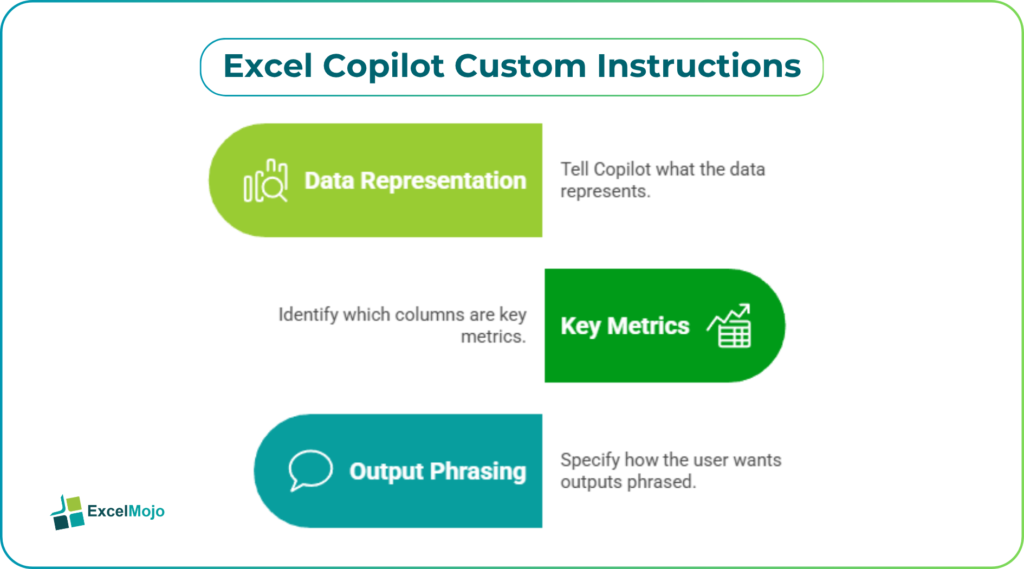
In this article, we learn how the user configures custom instructions once and then reuses them across multiple workbooks. Copilot reads formatted tables and structured ranges to generate formulas, summaries, and charts, and that its behavior can be shaped through prompts and context. To train Excel Copilot with custom instructions, the key is to tell Copilot what the data represents, which columns are key metrics, and how the user wants outputs phrased, so that the AI becomes a more effective co‑author rather than a generic helper.
How Copilot Reads Excel Data Today
Copilot in Excel works by interpreting the structure and content of the workbook, especially when data is formatted as a proper table or supported range.
Typical patterns:
- Copilot detects columns, data types, and relationships when the user selects a range or table and opens the Copilot pane.
- The user can ask questions such as “Show me the top 10 revenue‑generating products” or “Filter this table to show only overdue items,” and Copilot suggests or applies the appropriate filters, sorting, and formatting.
- Copilot can also generate formulas, conditional formatting rules, or charts once the data is structured and the intent is clear.
Well‑structured data improves Copilot’s ability to interpret and act on the sheet. For Excel Copilot custom instructions data‑specific AI, those existing data‑reading capabilities become the foundation on which custom instructions are layered.
How to Train Copilot with Your Own Instructions
Excel Copilot custom instructions train AI for your data becomes most powerful when the user defines a small set of context rules that apply across many analyses.
A practical workflow:
- In the Microsoft 365 Copilot experience, open the Custom Instructions settings (often under a profile or settings menu).
- Define:
- Role and context (for example, “I am an FP&A analyst at a mid‑sized manufacturer”).
- Preferred tone (for example, “Be concise, avoid marketing fluff, and highlight risks and limitations”).
- Key terms and definitions (for example, “EBITDA margin = EBITDA divided by revenue,” “Active customer = customer with spend in the last 90 days”).
- Save the custom instructions so they apply to Copilot in Excel and other 365 apps.
Once configured, Copilot can:
- Use those definitions when interpreting data‑related questions.
- Suggest formulas or summaries that match the user’s role and terminology.
- Avoid generic phrasing and instead align outputs with the team’s reporting style.
This approach show how to improve AI responses by defining role, tone, and domain‑specific terms. For AI for your data Excel Copilot custom instructions, the user is effectively “training” Copilot on the business context, not on the raw data itself.
Practical Example: Setting up Instructions for a Finance Model
A common use case for Excel Copilot custom instructions data‑specific AI is a financial‑planning model where the analyst wants consistent terminology and risk‑aware explanations.
Suppose the user sets custom instructions such as:
- “I work in FP&A for a SaaS company. Use terms like ARR, churn rate, and CAC in their standard definitions.”
- “When explaining variance, start with absolute values, then percentages, and flag outliers above 10% deviation.”
- “Highlight any assumptions that are sensitive to small changes in rates or growth.”
When the user then asks Copilot: “Explain the variance between actuals and forecast for Q1,” Copilot can:
- Use ARR and churn‑rate logic instead of generic revenue‑per‑customer labels.
- Break down the variance in both absolute and percentage terms.
- Flag the line items where a 1‑point change in growth rate has a disproportionate impact.
This example shows how Excel Copilot with custom instructions can turn a generic variance‑explanation request into a focused, finance‑style narrative that matches the team’s working language. Analysts can further refine the instructions over time as new metrics or regulatory constraints emerge.
Pitfalls and Best‑Practice Tips
Copilot custom instructions can greatly improve the quality of AI‑generated outputs, but it also introduces a few practical pitfalls.
One common issue is over‑specifying the context. overly long or internally inconsistent instructions can confuse Copilot or dilute the key signals. Best practice is to keep the custom instructions concise, focused on high‑value terms and behaviors, and aligned with existing team documentation.
Another risk is outdated instructions. The business changes (for example, a new metric or reporting standard) and the user forgets to update the instructions, Copilot may continue using obsolete definitions. Teams should treat the instructions as a living document and review them periodically, especially after major process or system changes.
A third pitfall is tone‑over‑correction. Instructing Copilot to “be very formal” or “never use abbreviations” can make outputs too verbose or unnatural. Analysts should strike a balance between clarity and readability, test the resulting text with colleagues, and adjust the tone rules based on feedback.
Frequently Asked Questions (FAQs)
Can Excel Copilot custom instructions really tailor AI to my specific data?
Yes, but indirectly. Copilot does not train on the raw numeric values of your workbook; instead, the custom instructions shape how Copilot interprets your questions and phrasing. The better the instructions match your business context, the more aligned the responses will be with your data and terminology.
Do custom instructions work across Excel and other 365 apps?
Yes. Custom instructions in Microsoft 365 Copilot typically apply across Word, PowerPoint, Excel, and Outlook, so defining your role, tone, and key terms once can improve AI behavior in many workflows. Analysts should still test the instructions in Excel specifically to confirm that formulas and summaries match expectations.
How often should I update my custom instructions?
Analysts should review and update their custom instructions whenever there are significant changes in business model, metrics, or reporting style. For fast‑moving teams, a quarterly review tied to budget or planning cycles is often sufficient to keep the instructions aligned with current practice.
Can train Excel Copilot with custom instructions help with audit‑ready documentation?
Yes. By defining preferred phrasing, assumptions, and risk‑factor language, the user can guide Copilot to generate more consistent, transparent explanations that are easier to audit and maintain. However, the analyst must still validate the logic behind any AI‑generated text and ensure it matches the underlying model and policies.