


Introduction
Many Excel power users rely on macros for daily tasks such as formatting reports, cleaning data, or refreshing models, but they still have to open the Developer tab, find the right macro, or press a keyboard shortcut. A more intuitive approach is to add those macros to a custom ribbon tab that sits right next to the built‑in tabs, making them easy to click during a workflow. Designing this layout manually, especially the XML structure behind the ribbon, can be confusing for beginners. VBA Custom Ribbon ChatGPT personalized toolbars help by letting users describe the toolbar they want in plain language and then having ChatGPT generate the basic XML structure and the VBA callbacks that tie the buttons to macros. When combined with VBA Custom Ribbon with ChatGPT UI, the result is a tailored, click‑through experience that feels like part of Excel rather than a hidden add‑on.
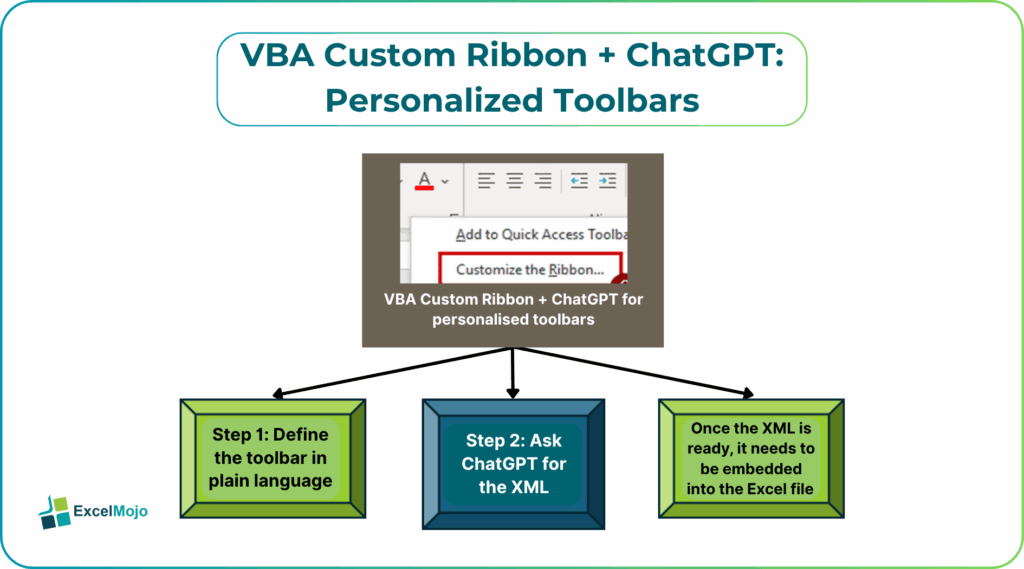
This article explains how to use ChatGPT to generate the XML for a ChatGPT powered VBA custom ribbon menu, how to plug that XML into an Excel file or add‑in, and how to wire simple macros as button actions. While customizing the Office Fluent ribbon explains that the layout is defined in XML, with elements for tabs, groups, and buttons, and that buttons can call callback procedures in the VBA project. For VBA users, that means ChatGPT can handle much of the boilerplate while the user focuses on the logic and layout.
How a Custom Ribbon Works in Excel
In Excel, the standard ribbon (like Home, Insert, Data, and Formulas) is built from XML markup that defines tabs, groups, and individual buttons, and how those buttons connect to macros or built-in commands. A Custom Ribbon follows the same model: a separate XML block describes the layout, and then each button links to a VBA procedure using an onAction callback.
A simple pattern is:
- A custom tab labeled “Data Tools.”
- A group inside it called “Utilities.”
- One or more buttons that call macros such as cleaning data, refreshing a data model, or exporting a sheet.
While customizing the Office Fluent ribbon, these components are defined in an XML string or file with tags for <tab>, <group>, and <button>. These buttons can reference procedures in the VBA project. This is the core idea behind AI generated VBA Custom Ribbon toolbars and why the user can describe the layout in words and then convert it into XML.
How to Draft the Ribbon XML with ChatGPT
ChatGPT powered VBA custom ribbon menus work best when the user clearly describes the intended layout and the macros that buttons should call.
Step 1: Define the Toolbar in Plain Language
Before asking ChatGPT, write a short description such as:
- “Create a custom ribbon tab for Excel called ‘Data Tools’ with a group named ‘Utilities’ and three buttons: ‘Clean Data,’ ‘Refresh Model,’ and ‘Export to PDF.’ Each button should call a macro with the same name in the VBA project.”
- “Design a simple Excel ribbon that adds a tab called ‘Reports’ with a group for running monthly roll‑up macros and another for generating PDF outputs.”
These sentences give ChatGPT the structure and naming it needs.
Step 2: Ask ChatGPT for the XML
A good prompt for VBA Custom Ribbon ChatGPT Personalized Toolbars is:
“In Excel, I want to create a custom ribbon tab using XML.
- The tab label should be ‘Data Tools’.
- Inside the tab, add a group labeled ‘Utilities’.
- Add three buttons in that group with labels ‘Clean Data’, ‘Refresh Model’, and ‘Export to PDF’.
- Each button should call a VBA macro with the same name.
Write the XML code that can be added to an Excel file (.xlsm) to create this custom ribbon.”
ChatGPT typically returns an XML block like:
<customUI xmlns=”http://schemas.microsoft.com/office/2009/07/customui”>
<ribbon>
<tabs>
<tab id=”customTab” label=”Data Tools” insertAfterMso=”TabHome”>
<group id=”utilitiesGroup” label=”Utilities”>
<button id=”btnCleanData” label=”Clean Data” onAction=”CleanData”/>
<button id=”btnRefreshModel” label=”Refresh Model” onAction=”RefreshModel”/>
<button id=”btnExportPDF” label=”Export to PDF” onAction=”ExportToPDF”/>
</group>
</tab>
</tabs>
</ribbon>
</customUI>
This is the core of AI generated VBA Custom Ribbon toolbars and shows how a simple description of a toolbar can turn into valid XML.
How to Plug the Ribbon into Excel
Once the XML is ready, it needs to be embedded into the Excel file and the corresponding macros need to exist in VBA Custom Ribbon ChatGPT Personalized Toolbars.
- In Excel, save the workbook as a macro‑enabled file (.xlsm).
- Use a tool such as the Custom UI Editor or a similar utility to open the file and add a new customUI part, then paste the XML into the editor.
- In the VBA Editor, create simple macros with the same names as the onAction procedures, for example:
Sub CleanData()
MsgBox “This is where the data‑cleaning logic would go.”
End Sub
Sub RefreshModel()
MsgBox “This is where model refresh logic would go.”
End Sub
Sub ExportToPDF()
MsgBox “This is where PDF export logic would go.”
End Sub
- When the file opens, the custom tab appears in the ribbon, and each button runs its macro when clicked.
This pattern is a practical example of personalized Excel toolbars with VBA Custom Ribbon and shows how a plain‑language prompt can lead to a functional, click‑based interface.
Practical Example: A Finance‑Team Ribbon
A common use case is a finance team that runs the same monthly close macros every period, such as preparing a balance sheet, refreshing external data, and exporting reports to PDF. Using VBA Custom Ribbon ChatGPT personalized toolbars, the workflow becomes:
- Ask ChatGPT for XML that defines a “Finance Tools” tab with groups for close‑month macros and reporting macros.
- Embed that XML into the workbook or a shared template.
- Implement simple macros for each button, such as CloseMonth, RefreshExternalData, and ExportReportToPDF.
- Share the file with the team and explain that they can now run the main monthly tasks directly from the ribbon.
This workflow is a concrete example of ChatGPT powered VBA custom ribbon menus and demonstrates how ChatGPT can compress the XML‑design step into a text‑driven conversation in VBA Custom Ribbon ChatGPT Personalized Toolbars.
Pitfalls and Best Practices
VBA Custom Ribbon ChatGPT personalized toolbars can speed up ribbon design but also introduces a few common issues.
One common problem is XML syntax errors. If the XML is missing a closing tag, has an invalid attribute, or uses unsupported namespace declarations, the ribbon may not load. Best practice is to validate the XML in a simple editor, copy it carefully, and test the file in a clean instance of Excel.
Another risk is missing macros. If a button’s onAction references a procedure that does not exist, clicking it will show an error instead of running the intended logic. Developers should create stubs for all referenced macros first and then build the real logic on top.
A third pitfall is unnecessary complexity. Adding many tabs and groups can overwhelm users instead of simplifying their workflow. Teams should keep the custom ribbon compact, group related actions, and periodically review which buttons are actually used.
Frequently Asked Questions (FAQs)
No, the custom ribbon is meant to complement the standard tabs, not replace them. It is most useful for surfacing key macros that are used frequently in a specific workflow, not for duplicating the builtin commands.
Using the built‑in Customize Ribbon dialog lets users add macros to existing tabs and groups without writing code, but it is limited. VBA Custom Ribbon with ChatGPT UI lets users design a fully custom layout, place it in a new tab, and distribute it across workbooks or add‑ins, which is useful for shared, standardized toolbars.
ChatGPT powered VBA custom ribbon menus can be safe if the XML is validated, the macros are tested, and the file is distributed through a trusted channel. Users should avoid deploying ribbon‑layout files that rely on external connections or unsafe code paths.
Yes, AI generated VBA Custom Ribbon toolbars can be implemented in both workbook files and add‑ins. In add‑ins, the custom ribbon XML is stored inside the .xlam file, and the same onAction pattern links buttons to procedures in the add‑in’s VBA project. This makes it easy to roll out a consistent toolbar across many users’ workbooks.
Recommended Articles
Continue with these related resources when you want the next practical step in this topic.
Explore the full VBA Range & Cells guide or browse VBA Resources.