


Introduction
Data analysts build Excel tools that require user input, such as configuration wizards, data‑entry dialogs, or scenario‑selection panels. The classic approach of manually dragging TextBox, ComboBox, and CommandButton controls onto a UserForm can become tedious, especially when the same pattern repeats across multiple tools. AI VBA form controls dynamic user interface generation changes this by letting users describe the desired layout in plain language and having an AI assistant draft the underlying VBA code that creates form controls at runtime. When combined with dynamic user form controls with AI VBA, the result is a flexible, template‑driven layer that can generate guided interfaces on demand, while leaving the logic in reusable procedures rather than static design‑time clicks.
This article explains how to use AI generated VBA form controls interface patterns to build AI powered VBA user interface that instantiates forms, adds labels, text boxes, combo boxes, and so on.Controls can be added dynamically using VBComponents.Add and Designer.Controls.Add, which is the core mechanism behind VBA form controls automatic UI generation. For Excel‑centric analysts, that means faster, more maintainable tooling where the interface can be version‑controlled, extended, and reused across projects.
How Dynamic form Controls Work in VBA
A UserForm in Excel VBA can host both; static controls, which are placed at design time, and dynamic controls, which are added and removed in code using the Controls.Add method. The MSForms object model exposes Label, TextBox, ComboBox, ListBox, and CommandButton types that can be instantiated at runtime and positioned with Top, Left, Width, and Height properties.
A typical dynamic‑control pattern looks like this:
Dim newLabel As MSForms.Label
Dim newTextBox As MSForms.TextBox
Set newLabel = Me.Controls.Add(“Forms.Label.1”, “lblField1”, True)
With newLabel
.Top = 30
.Left = 20
.Width = 100
.Caption = “Field 1:”
End With
Set newTextBox = Me.Controls.Add(“Forms.TextBox.1”, “txtField1”, True)
With newTextBox
.Top = 30
.Left = 130
.Width = 180
End With
This approach is the backbone of dynamic user form controls with AI VBA.+ It shows how a small loop or data‑driven routine can generate many labeled‑field pairs without manual layout.
How to Let AI Draft the Dynamic‑UI Code
AI generated VBA form controls interface becomes most effective when the user describes the layout and behavior and lets AI generate the Controls.Add‑based logic.
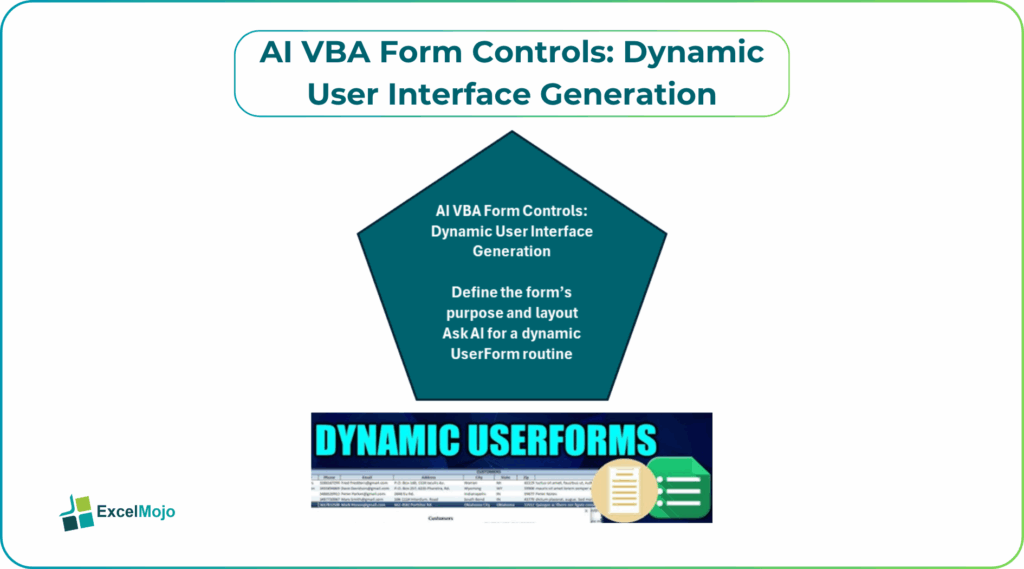
Step 1: Define the form’s Purpose and Layout
Before any code, sketch out the form’s structure in plain language, such as:
- “Create a dialog with five pairs of labeled text boxes stacked vertically, each pair on a new row.”
- “Build a form that shows a combo box for Region, a text box for Threshold, and an OK button that closes the dialog and stores the values in a sheet.”
These statements form the AI prompt’s foundation.
Step 2: Ask AI for a Dynamic UserForm Routine for AI VBA form Controls Dynamic User Interface Generation
A strong prompt for AI powered VBA user interface automation includes:
- The form name or module context.
- The control types and quantity.
- Any positioning patterns (e.g., “stack controls vertically”).
- The desired behavior when the user clicks OK or Cancel.
Example:
“In VBA, I want to add a routine that creates a UserForm named DynamicConfigForm dynamically.
- Add five labels and five text boxes stacked vertically, with labels on the left and text boxes on the right.
- Add an OK button aligned at the bottom right that, when clicked, reads the text‑box values and writes them to column A of a sheet named ‘Config’.
- Do not use the Designer; create all controls in code.
Write the full VBA code for this, including comments for positioning and event handling.”
AI returns the code as follows:
Sub BuildDynamicForm()
Dim frm As Object
Dim comp As Object
Dim i As Long
Dim y As Long, h As Long, gap As Long
y = 20
h = 20
gap = 30
Set comp = ThisWorkbook.VBProject.VBComponents.Add(3) ‘ vbext_ct_MSForm
Set frm = comp.Designer
With frm
.Caption = “Dynamic Configuration”
.Width = 350
.Height = 250
End With
For i = 1 To 5
With frm.Controls.Add(“Forms.Label.1”, “lblField” & i, True)
.Left = 20
.Top = y
.Width = 100
.Caption = “Field ” & i & “:”
End With
With frm.Controls.Add(“Forms.TextBox.1”, “txtField” & i, True)
.Left = 130
.Top = y – 4
.Width = 180
End With
y = y + gap
Next i
With frm.Controls.Add(“Forms.CommandButton.1”, “btnOK”, True)
.Caption = “OK”
.Left = 220
.Top = y + 20
.Width = 60
.Height = 24
.OnAction = “HandleFormOK”
End With
VBA.UserForms.Add (“DynamicConfigForm”)
End Sub
This is the core of VBA form controls automatic UI generation and shows how AI can generate the full routine, including control‑placement logic and event wiring.
Practical Example: A Self‑Generating Scenario Wizard
A common finance use case is a scenario‑configuration dialog that changes the number of input fields based on the active model. Using AI VBA form controls dynamic user interface generation, the pattern becomes:
- Define a small table or array that lists the parameters each model needs (for example, discount rate, growth rate, terminal multiple).
- Ask an AI assistant to generate a dynamic‑controls routine that reads that list and builds a label‑text‑box pair for each entry.
- Wrap the routine in a central module so that the same wizard can adapt to multiple models without rebuilding the UserForm by hand.
That workflow is a practical example of AI VBA form Controls Dynamic User Interface Generation. It demonstrates how AI powered VBA user interface automation can turn a rigid, one‑time form into a reusable, data‑driven wizard.
Pitfalls and Best Practices
Dynamic UI generation with VBA form controls introduces several subtle issues.
One common problem with AI VBA form Controls Dynamic User Interface Generation is unbounded control creation. Repeatedly running the build‑routine without cleaning up previous controls can clutter the form or cause duplicate‑name errors. Best practice is to wrap dynamic‑control creation in a ClearDynamicControls‑style loop that removes all previously created controls before rebuilding the layout.
Another risk is hard‑coded positioning. AI‑generated code may assume fixed Top and Left values that do not adapt when the number of fields changes. Analysts should parameterize gaps and row heights and use variables rather than literal numbers so that the layout remains neat and responsive.
A third pitfall is event‑handling complexity. Dynamically created controls require careful event‑hook design, often using class modules with WithEvents or central handlers that route events by control name. For many use cases, it is safer to keep event logic simple and predictable, using standard naming patterns and a small set of well‑tested handler procedures.
Frequently Asked Questions (FAQs)
AI VBA form controls with dynamic user interface generation can replace much of the manual drag‑and‑drop layout for parameterized forms. However, it does not obviate the need to understand the MSForms object model and basic positioning. Analysts still need to validate the generated layout and adjust spacing or alignment as the business rules evolve.
AI generated VBA form controls interface and static UserForms both serve the same underlying object model, but dynamic‑control‑based forms offer more flexibility and reusability. Static forms are easier to inspect visually, while dynamic forms are better suited for template‑driven tools that must adapt to different configurations or data structures.
AI powered VBA user interface automation can be safe for production if the generated code is reviewed, tested against representative configurations, and wrapped in robust error‑handling routines. Users should avoid blindly accepting complex layouts that create large numbers of controls without cleanup logic or performance‑aware event handling.
Yes, VBA form controls automatic UI generation can adapt to changing data sources by reading field definitions from a table, range, or array and then building the layout accordingly. This pattern is useful for parameter‑driven wizards, but it requires careful scoping and name‑uniqueness checks to avoid runtime errors.
Recommended Articles
Continue with these related resources when you want the next practical step in this topic.
Explore the full VBA Range & Cells guide or browse VBA Resources.