


Introduction
Several Excel models have key tables that grow as new rows of data are added, such as rolling‑forecast lines, actuals, or transactional tables. The traditional approach of hard‑coding ranges like A1:A100 or manually updating ranges in charts and formulas becomes a maintenance bottleneck and a source of subtle errors. Excel dynamic named ranges with AI that is self‑expanding logic addresses this by letting users define ranges that automatically adjust to the current data length. It is done via functions such as OFFSET, INDEX, or newer FILTER‑based constructs. When combined with AI‑assisted formula design for Excel dynamic named ranges AI self‑expanding logic, analysts can describe the desired behavior in plain language. An AI tool will draft the OFFSET or INDEX structure, then refine it into a robust, reusable named range.
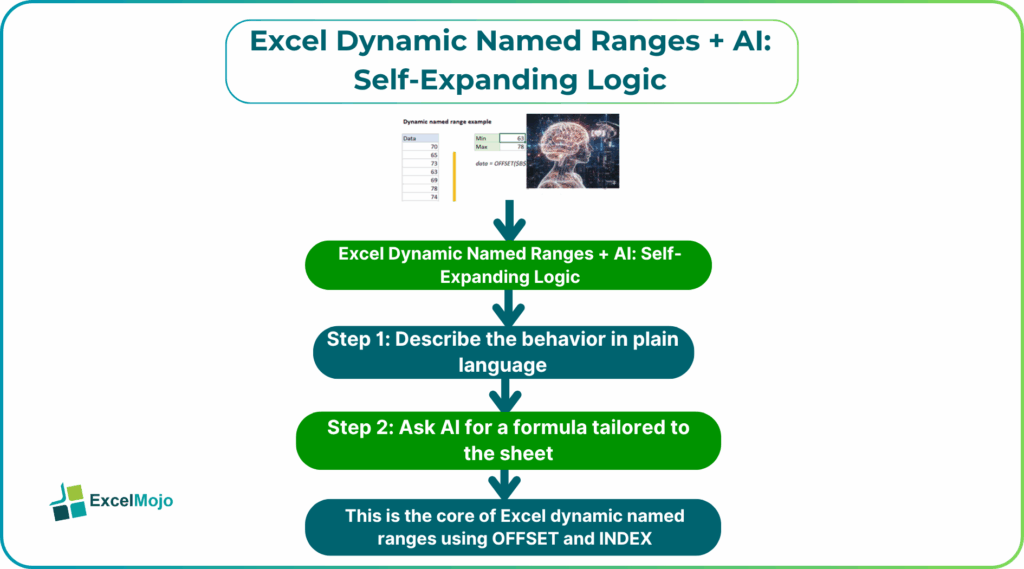
The Excel dynamic named ranges AI self‑expanding logic article explains how to use Excel dynamic named ranges with AI logic to build AI powered self‑expanding Excel named ranges that shrink or grow with the dataset. We also learn how to embed them in charts and formulas, and how to avoid common layout issues. Dynamic ranges are ranges whose size is driven by formulas rather than fixed cell references, which is the core idea behind Excel dynamic named ranges auto‑expanding formulas. For data‑focused Excel users, this means more stable charts, fewer manual updates, and cleaner models that can be extended without changing every formula.
What Dynamic Named Ranges Are
A dynamic named range is a named range whose size is not fixed but computed by a formula each time Excel recalculates. In the Name Manager, such a range points to an expression rather than a static cell address. Typical patterns include:
- =OFFSET(Sheet1!$A$2,0,0,COUNTA(Sheet1!$A:$A)-1,1)
which grows downward as more non‑blank cells appear in column A. - =Sheet1!$A$2:INDEX(Sheet1!$A:$A,COUNTA(Sheet1!$A:$A))
which uses INDEX and COUNTA to define the last used row.
These named ranges can then be plugged into charts, data‑validation lists, or formula parameters. So any new row in the source table is automatically included without manual range updates. This is the core of AI driven named ranges in Excel automation and shows how a small formula can replace many manual edits for Excel dynamic named ranges AI self‑expanding logic.
How to Create a Self‑Expanding Named Range
Building a self‑expanding named range follows a consistent pattern similar to classic Excel‑reference guidance on dynamic ranges.
Step 1: Define the base table range
For Excel dynamic named ranges AI self‑expanding logic, start by deciding which column or columns the range will track, and whether it should ignore empty cells at the start or end. For example, a table that starts in A2 and grows down will typically use A2:A1000 as the candidate range but then slice it dynamically.
Step 2: Choose a formula pattern
Decide whether to use the OFFSET‑based or INDEX‑based approach. For example:
- OFFSET pattern for a single column:
=OFFSET(Sheet1!$A$2,0,0,COUNTA(Sheet1!$A:$A)-1,1) - INDEX pattern for the same:
=Sheet1!$A$2:INDEX(Sheet1!$A:$A,COUNTA(Sheet1!$A:$A))
The COUNTA‑based logic assumes that the header row is empty or excluded from the count, which is how most Excel‑reference resources structure the example.
Step 3: Define the name in Name Manager
- In Excel, go to Formulas -> Name Manager -> New.
- Enter a meaningful name such as Dynamic_Revenue or Rolling_Data.
- In the Refers to box, paste the chosen dynamic formula, ensuring it points to the correct sheet and column.
- Click OK.
After this step, any formula that previously used A2:A100 can instead use the named range, and the range will automatically extend as new rows are added.
How to use AI to Generate the Dynamic‑Range Formula in Excel dynamic named ranges AI self‑expanding logic
Excel dynamic named ranges with AI logic can reduce the time spent on writing or debugging OFFSET or INDEX formulas.
Step 1: Describe the behavior in plain language
Before writing anything in the Name Manager, spell out the behavior in a short statement such as:
- “Create a named range that always includes all non‑blank cells in column A starting from A2.”
- “Define a range that spans columns A to C, starting from A2, and grows down as more rows are added.”
These statements become the basis for AI‑assisted prompts.
Step 2: Ask AI for a formula tailored to the sheet
A strong prompt for AI powered self‑expanding Excel named ranges includes:
- The starting cell.
- The column or columns to track.
- Whether to include or exclude the header row.
Example:
“In Excel, I want to create a dynamic named range that starts at cell A2 and includes all non‑blank cells in column A below it. The formula should be suitable for the Name Manager, using OFFSET or INDEX. Return only the formula, nothing else.”
AI typically replies with:
=OFFSET(Sheet1!$A$2,0,0,COUNTA(Sheet1!$A:$A)-1,1)
or, using INDEX:
=Sheet1!$A$2:INDEX(Sheet1!$A:$A,COUNTA(Sheet1!$A:$A))
This is the core of Excel dynamic named ranges auto‑expanding formulas and shows how AI can generate the exact formula needed for the Refers to box.
Practical Example: A Chart that Grows with the Data
A common use case is a chart that should always reflect the current dataset size without manual range‑editing. Using AI driven named ranges in Excel automation, the pattern becomes:
- Define a dynamic named range for the X‑axis (for example, dates in column A) and another for the Y‑axis (for example, values in column B).
- Use those named ranges in the chart’s Series X values and Series values fields.
- Add new rows to the table; the chart automatically picks up the extended data because the underlying named ranges are self‑expanding.
This workflow is a practical example of Excel dynamic named ranges AI self‑expanding logic. It demonstrates how a small formula layer can make an entire chart behave like a living, model‑driven object.
Pitfalls and Best Practices
Excel dynamic named ranges AI self‑expanding logic introduces several subtle issues.
One common problem is gaps in the data. If the table has blank rows within the used range, COUNTA‑based formulas can stop early or skip segments. Best practice is to keep the table contiguous and use FILTER‑based patterns when available to ignore truly blank rows.
Another risk is incorrect starting points. A misplaced header or offset can cause the range to include unwanted cells. Analysts should anchor the formula to the first real data row and test the named range with =ROWS(Dynamic_Revenue) to confirm the expected row count.
A third pitfall is over‑reliance on OFFSET. OFFSET is a volatile function and can slow down large models because it recalculates every time anything changes. For many use cases, INDEX‑based dynamic ranges or table‑based structured‑references offer better performance and clarity.
Frequently Asked Questions (FAQs)
Yes, Excel dynamic named ranges with AI logic can span multiple columns by extending the OFFSET or INDEX formula to cover the desired width. For example, a three‑column range can be defined as =OFFSET(Sheet1!$A$2,0,0,COUNTA(Sheet1!$A:$A)-1,3) and then used in multi‑column charts or SUMPRODUCT‑style formulas.
AI powered self‑expanding Excel named ranges and Excel tables both provide automatic range growth, but tables come with builtin features such as totals, filters, and structured references. Named ranges are more flexible for complex formulas or charts that sit outside the table, while tables are ideal for in‑place structured analysis.
Excel dynamic named ranges auto‑expanding formulas can be safe if the logic is well tested, the starting point is stable, and the formulas avoid unnecessary volatility. Users should keep the range logic simple, test it with different data lengths, and prefer INDEX‑based patterns over OFFSET in performance‑sensitive models.
AI driven named ranges in Excel automation are best used to generate the logic for dynamic ranges, not to replace all manual named ranges outright. Many models still need static named ranges for key assumptions, constraints, or summary cells, while the dynamic ones are reserved for tables and charts that must grow with the data.
Recommended Articles
Continue with these related resources when you want the next practical step in this topic.
- Cell References in Excel
- Relative References in Excel
- Mixed References In Excel
- 3D Reference in Excel
- Structured References In Excel
Explore the full Excel Reference Functions guide or browse Excel Resources.