


Introduction
Large blocks of unstructured or semi‑structured data into Google Sheets, such as transaction logs, CRM exports, or survey responses, are used regulary in finance. Manually building filters and formulas to extract only the relevant rows can be slow and error‑prone, especially when the criteria change from week to week. Google Sheets FILTER with Gemini smart array extraction helps bridge this gap. It lets users describe the desired filter in natural language, then Gemini generates the underlying FILTER logic and array‑style formulas. When combining smart array filtering Google Sheets with Gemini, the result is a self‑documenting extraction layer that behaves like an AI‑assisted, live‑updating view over the raw data.
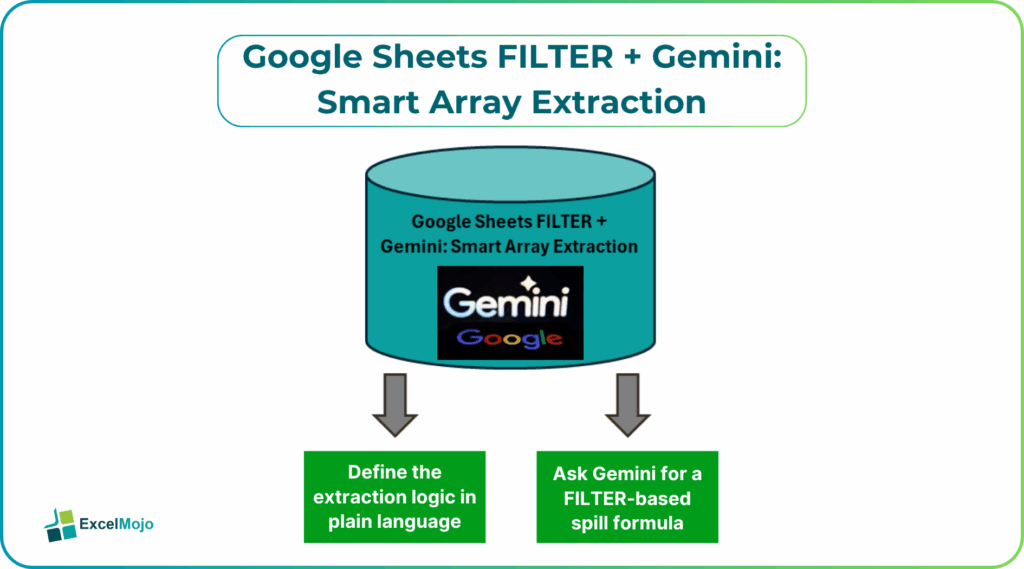
Here, we explain how to use Google Sheets FILTER function AI extraction to turn Gemini‑assisted prompts into precise FILTER expressions. Also in focus is how to apply Gemini powered FILTER array formulas to Google Sheets to build dynamic slices of the data, and how to avoid common pitfalls such as over‑filtering or hard‑coded ranges. Gemini can generate and apply filters, sort rules, and array‑based logic directly in the context of a table, which aligns closely with the goal of AI driven FILTER extraction in Google Sheets. means faster, more repeatable data‑curation workflows that can be reused when the underlying table expands or the business rules shift.
How the FILTER Function Works in Sheets
The FILTER function in Google Sheets takes a dataset and returns only the rows that meet one or more logical conditions. A basic pattern looks like:
=FILTER(A2:C100, A2:A100 > 1000)
This returns all rows from columns A through C where the value in column A exceeds 1000. The function is inherently array‑aware, so it can spill results into multiple rows and columns without manual dragging or copying.
Analysts can extend this pattern with:
- Multiple conditions joined by * (AND logic) or + (OR logic).
- Criteria pulled from cells rather than hard‑coded values, so the thresholds can be adjusted dynamically.
- Additional helper functions such as ISEVEN, ISODD, REGEXMATCH, or custom logic to build more complex filters.
These patterns form the core of smart array filtering Google Sheets with Gemini and are the backbone of any AI‑assisted extraction layer.
How to Let Gemini Generate the FILTER Logic
Google Sheets FILTER function AI extraction becomes most powerful when the user describes the slice of data and lets Gemini draft the FILTER formula.
Step 1: Define the Extraction Logic in Plain Language
Before running Gemini, clearly state what the filtered set should contain, such as:
- “Filter a table with columns ID, Sales, Region, and Date to show only rows where Sales is greater than 1000 and Region is ‘North’.”
- “Create an array formula that returns rows where the date falls in the last 30 days and the status is ‘Active’.”
These sentences become the basis for the Gemini prompt.
Step 2: Ask Gemini for a FILTER‑Based Spill Formula
A strong prompt for Gemini powered FILTER array formulas Google Sheets includes:
- The range of the source table.
- The column names and their positions.
- The exact conditions to apply.
Example:
“In Google Sheets, I have a table from A2:F1000 where:
- A2:A1000 = Sales ID
- B2:B1000 = Customer Name
- C2:C1000 = Sales
- D2:D1000 = Region
- E2:E1000 = Date
- F2:F1000 = Status
Write a FILTER formula that returns all columns for rows where Sales > 1000 and Region = ‘North’ and Status = ‘Active’. The formula should be an array formula that spills automatically.”
Gemini typically replies with a formula like:
text
=FILTER(A2:F1000, (C2:C1000 > 1000) * (D2:D1000=”North”) * (F2:F1000=”Active”))
This is the core of AI driven FILTER extraction in Google Sheets and shows how Gemini can generate the exact FILTER pattern needed for the extraction.
Practical Example: A Live‑Updated Sales Snapshot
A common finance use case is a snapshot view that shows only the current month’s high‑value from active sales. Using Google Sheets FILTER with Gemini smart array extraction, the pattern becomes as follows:
- Ask Gemini to generate a FILTER formula that returns rows where Sales > 1000, Region matches a dynamic cell, and the Date is within the current month.
- Adapt the generated code by replacing hard‑coded thresholds with cell‑based references so that the finance team can adjust the minimum sales value or region filter without touching the formula.
- Place the filtered array on a separate sheet and use it as the source for charts and KPIs, letting the snapshot update automatically as the raw table grows.
This workflow is a clear example of how array‑based filtering in Sheets works with Gemini and shows how an AI‑assisted FILTER can replace manual filters and repeated copying with a single, self‑updating array.
Pitfalls and Best Practices
Google Sheets FILTER with Gemini smart array extraction can speed up data curation but also introduces subtle risks.
One common issue with Google Sheets FILTER with Gemini Smart Array Extraction is over‑specific criteria. AI‑generated conditions may be too rigid, such as hard‑coding exact strings that do not match case variants or spelling differences. Analysts should normalize the data or use LOWER and REGEXMATCH‑style patterns where possible and keep the criteria readable.
Another risk is static ranges in a dynamic table. Fixing the range as A2:F1000 in a model that grows beyond 1000 rows can silently cut off new data. Best practice is to use flexible ranges such as A2:F or define a named range that resizes with the sheet, so that the array‑based extraction continues to capture all rows.
A third pitfall is performance on large datasets. FILTER is powerful, but on very large tables or overly complex conditions, recalculation can slow down. Teams should keep the filtered range to the minimal necessary columns and, when feasible, use native filters or side‑loaded tables for non‑analytical use cases.
Frequently Asked Questions (FAQs)
Google Sheets FILTER with Gemini smart array extraction can complement or replace many manual filter views, especially for views that must be reused or included in dashboards. For ad‑hoc filtering, the built‑in UI filters are still useful, but FILTER‑based arrays are better for stable, model‑level views.
AI driven FILTER extraction in Google Sheets behaves like traditional FILTER formulas but with the logic drafted by Gemini based on a natural‑language description. The result is a formula that is usually cleaner and more maintainable than one built by hand, especially when the conditions involve multiple columns or thresholds.
Gemini powered FILTER array formulas can be safe for production if the generated logic is reviewed, tested against representative data, and anchored to stable ranges or named ranges. Users should avoid blindly accepting complex formulas that reference undefined cells or external sources without safeguards.
Yes, smart array filtering Google Sheets with Gemini can handle date‑based conditions by using date‑functions such as DATE, TODAY, or EDATE within the FILTER criteria.
Recommended Articles
Continue with these related resources when you want the next practical step in this topic.
- ARRAYFORMULA in Google Sheets
- Google Sheets ArrayFormula + AI: Bulk Operations
- LAMBDA in Google Sheets
- VSTACK in Google Sheets
- CHOOSECOLS in Google Sheets
Explore the full Google Sheets Dynamic Arrays and Advanced Functions guide or browse Google Sheets Resources.