


Introduction
WHen we work in finance, we frequently receive source data with inconsistent text: email‑style descriptions, mixed‑format IDs, or log‑style notes that do not fit cleanly into structured columns. Cleaning this by hand is slow and error‑prone. Google Sheets REGEX Gemini pattern matching helps by combining Sheets’ built‑in REGEXMATCH, REGEXEXTRACT, and REGEXREPLACE with prompts from Gemini that generate or refine the patterns. This AI powered REGEX text extraction Sheets workflow lets analysts define complex text‑processing rules in natural language, then test and iterate them directly in the grid.
This article shows the use of Google Sheets REGEX with Gemini to build reusable pattern rules for standardization, categorization, and cleansing. We present concrete examples of Google Sheets REGEX pattern magic such as pulling numeric codes from freetext, validating formats, or normalizing product descriptors. TheREGEX in Google Sheets engine is based on RE2 and supports common constructs like capture groups, lookahead, and quantifiers, making it suitable for many real‑world data‑cleaning patterns . For analysts, that means fewer manual edits and more time spent on analysis.
How REGEX and Gemini Work Together
Google Sheets’ REGEX functions behave like lightweight text‑processing tools:
- REGEXMATCH: Returns TRUE or FALSE if a pattern matches.
- REGEXEXTRACT: Returns the first matching capture group.
- REGEXREPLACE: Replaces a matched pattern with a replacement string.
For example:
=REGEXMATCH(A2, “^\d{5}$”)
checks whether cell A2 is a five‑digit code.
Gemini’s role is to turn business logic into the right regex expression. A user can describe the requirement in plain language, such as “Extract the six‑digit order number that appears after the word ‘Order ID:’ in a text,” and Gemini returns a REGEXEXTRACT formula such as:
=REGEXEXTRACT(A2, “Order ID: (\d{6})”)
This workflow is a core example of Gemini AI for REGEX in Google Sheets and shows how AI can accelerate the creation of AI powered REGEX text extraction Sheets logic.
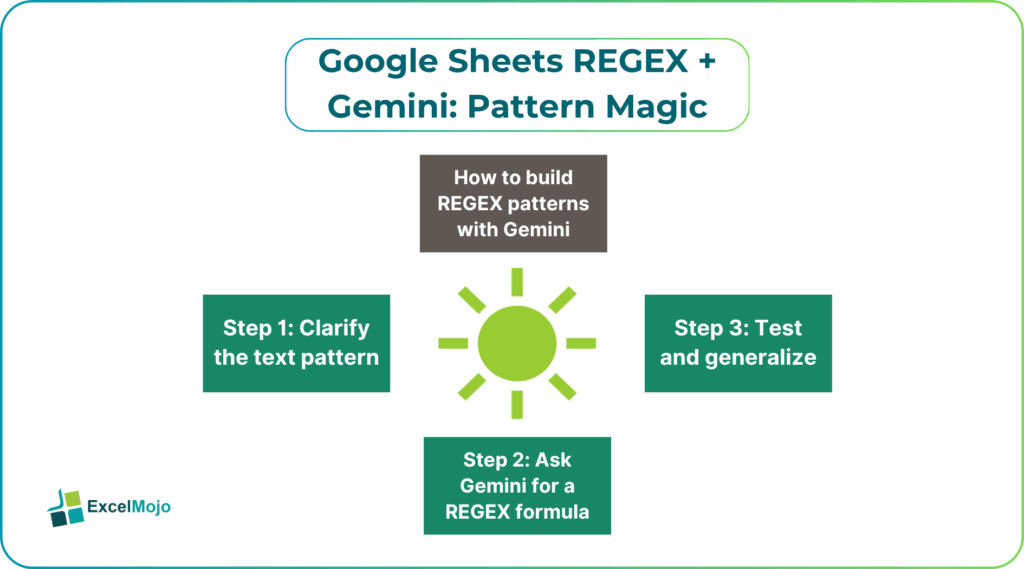
How to Build REGEX Patterns with Gemini
Creating Google Sheets REGEX Gemini pattern matching formulas follows a practical pattern: define the rule, get Gemini’s expression, then test and refine in Sheets.
Step 1: Clarify the Text Pattern
Start by writing a precise description of the pattern. For example, in a transaction log, the analyst may want to:
- Extract a date in YYYY‑MM‑DD format from a free text note.
- Capture a currency‑style numeric value with optional commas and a decimal point.
- Pull a status code such as “STATUS_OK” or “ERR_404” from an error string.
Step 2: Ask Gemini for a REGEX Formula
A strong prompt for Google Sheets REGEX with Gemini includes:
- The column name or example text.
- The target pattern (number, date, code).
- The expected output (extracted number, validation flag).
Example prompt:
“In Google Sheets, I have column B with text such as ‘Order ID: ORD‑12345’ or ‘Order ID: ORD‑67890’. Create a REGEXEXTRACT formula that returns just the five‑digit order number (12345, 67890) from cell B2.”
Gemini typically replies with:
=REGEXEXTRACT(B2, “Order ID: ORD\\-(\d{5})”)
This pattern uses a capture group \d{5} to isolate the numeric part, which is the core of Google Sheets REGEX pattern magic.
Step 3: Test and Generalize
Paste the formula into Sheets and test it on a small sample. Then generalize it by using dollar signs for anchoring, or adding quantifiers and optional‑component handling. For example, a more robust pattern for mixed‑case IDs might be:
=REGEXEXTRACT(B2, “(?i)Order ID: ORD[\\s\\-]*(\d{5})”)
This keeps the extraction stable even if the input text varies slightly.
Practical Example: Cleaning a?Log‑Style Text Column
Suppose a finance team receives a log column with entries such as:
- Transaction failed on 2025‑03‑12 for amount 1250.50 USD
- Payment processed on 2025‑03‑13, amount 2300.00 INR
The goal is to split this into three columns: Date, Amount, and Currency.
Using Gemini AI for REGEX in Google Sheets, the analyst can:
- Ask Gemini for a REGEXEXTRACT formula for the date:
- =REGEXEXTRACT(A2, “on (\d{4}-\d{2}-\d{2})”)
- Ask for a pattern that captures the numeric amount with optional commas and decimals:
- =REGEXEXTRACT(A2, “amount ([\d,]+\.?\d*)”)
- Extract the currency using a simple capture group for the last uppercase word:
- =REGEXEXTRACT(A2, “(\b[A-Z]{3}\b)$”)
This workflow demonstrates how AI powered REGEX text extraction Sheets can turn a messy freetext stream into structured, analyst‑ready columns.
Pitfalls and Best Practices
Google Sheets REGEX Gemini pattern matching is powerful but can introduce subtle issues.
One common problem is over‑specific patterns: REGEX that depend on exact spacing, capitalization, or punctuation will break when the source format changes. Analysts should use optional groups, case‑insensitive modifiers, and flexible whitespace handling where possible.
Another issue is nested capture groups: Overly complex expressions with many parentheses can confuse the analyst and the REGEX engine. Users should keep patterns lean and split complex extractions into multiple helper columns if needed.
A third pitfall is performance on large datasets: REGEXevaluation can be expensive on tens of thousands of rows. Teams should avoid running heavy patterns on raw transactional data and instead pre‑filter or summarize where possible.
Frequently Asked Questions (FAQs)
Yes, beginners can use Google Sheets REGEX Gemini pattern matching by describing the text‑pattern requirement in plain language and letting Gemini generate the REGEXMATCH, REGEXEXTRACT, or REGEXREPLACE formula. They still need to understand basic Sheets concepts but do not have to memorize regex syntax.
Gemini‑generated REGEX patterns can be safe if tested on a representative sample, validated against known edge cases, and documented. Blindly applying AI‑created regex to critical data without testing can miss variations and cause data‑quality issues.
REGEX‑based patterns are more flexible and concise than nested LEFT, RIGHT, FIND, and SUBSTITUTE formulas for complex text rules. They are ideal for consistent pattern‑driven tasks, whereas manual formulas remain useful for ad‑hoc or one‑off clean‑ups.
No, AI powered REGEX text extraction Sheets should not replace Power Query or ETL tools. They are best suited for in‑sheet text‑cleaning and last‑mile transformations, while robust data‑integration and governance should live in dedicated ETL or query tools.
Recommended Articles
Continue with these related resources when you want the next practical step in this topic.
- ARRAYFORMULA in Google Sheets
- Google Sheets ArrayFormula + AI: Bulk Operations
- LAMBDA in Google Sheets
- VSTACK in Google Sheets
- CHOOSECOLS in Google Sheets
Explore the full Google Sheets Dynamic Arrays and Advanced Functions guide or browse Google Sheets Resources.