


Introduction
Google Sheets is used by financial analysts for agile, collaborative data capture while using Power BI for governed dashboards and KPIs. The problem occurs when Sheet‑based inputs drift between Power BI refreshes, creating stale or inconsistent views. Power BI Google Sheets live data federation bridges this gap by combining Power BI’s import and federation patterns with external tools, middleware, or APIs that keep Sheets data flowing into the model. With Google Sheets Power BI integration tied to AI‑assisted workflows, analysts can detect schema changes, suggest reconciliations, and trigger refreshes when Sheets update.
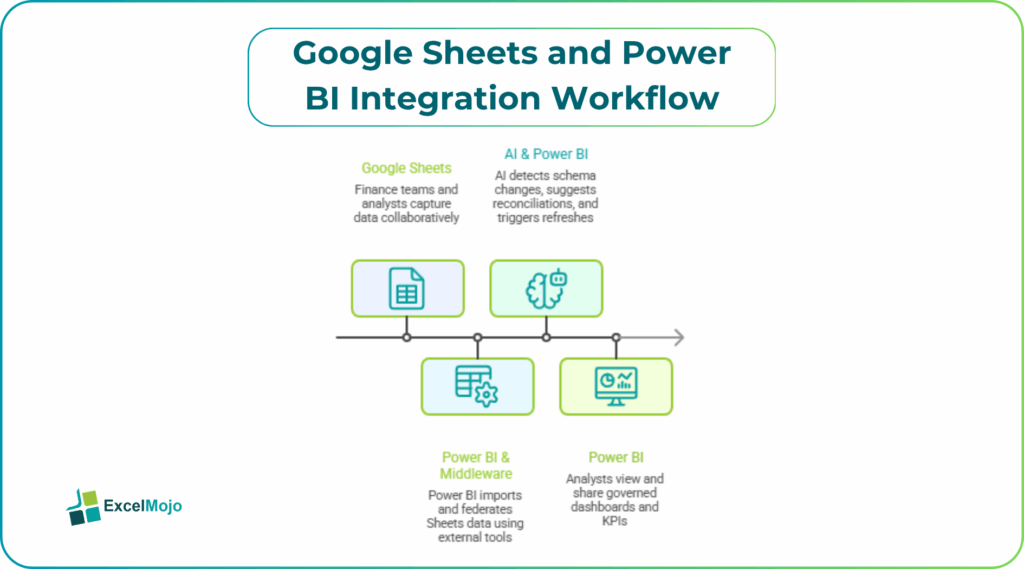
In this article, we show how to design Power BI Google Sheets real‑time data pipelines that approximate near‑live behavior, even though Power BI’s native Google Sheets connector is import‑based with scheduled refresh rather than true live‑connect. Learn how live data federation Power BI Sheets patterns can reduce latency, improve data quality, and make sheet‑driven sources feel like a first‑class data tier. For analysts, that means more options than the default “import once‑a‑day” workflow.
How Google Sheets Connect to Power BI Today
Power BI’s built‑in Google Sheets connector surfaces as a “Get Data” source that uses Power Query to import tabular data from a specified sheet‑URL into a dataset. The typical flow is:
- In Power BI Desktop, choose Get Data > More… > Google Sheets.
- Paste the Google Sheet’s URL and authenticate with a Google account.
- Use the Navigator to select the worksheet and columns, then load or transform them.
Once loaded, the data sits in the Power BI model and refreshes on a schedule set in the Power BI service. The connector does not provide a true live connection in the sense of DirectQuery to a live Sheet; instead, it behaves like an import‑based source with a refresh cadence.
For teams that need tighter alignment, this base pattern becomes the foundation for live data federation Power BI Sheets when combined with automation or push‑based pipelines.
How to Approximate Live‑Style Federation
Power BI Google Sheets live data federation works best when Google Sheets is treated as a source layer that feeds into a more responsive Power BI data pipeline.
Several patterns achieve this.
Pattern 1: Scheduled Refresh with Tighter Cadence
Use the native Google Sheets connector and set the highest permitted refresh frequency in the Power BI service for the given license. For example:
- Pro workspaces often allow up to 8 refreshes per day.
- Premium workspaces may support up to 48 daily refreshes, which can approximate “hourly” or “sub‑hourly” updates.
This is the simplest way to get near‑real‑time behavior between Power BI and Google Sheets within the connector’s built-in limitations. As long as the Sheet remains the single source of truth, this approach still fits well within a broader data‑federation design for Sheets and Power BI.
Pattern 2: ETL to a Database Layer
A more robust pattern pushes Sheet data into a database (for example, Azure SQL, PostgreSQL, or BigQuery) and then connects Power BI to that database. The workflow is:
- Use an ETL tool or script (for example, Python, or a third‑party connector) to read the Sheet periodically or on change.
- Write the data to a relational table, optionally with timestamps and change‑tracking columns.
- Let Power BI connect to the table via DirectQuery or import, depending on latency and query‑pattern requirements.
This approach keeps the Google Sheet as the primary input but moves the “live‑style” latency to the database.
Pattern 3: API‑Driven Federation and Streaming
For very low‑latency needs, teams can:
- Build a small service that polls or listens to Sheet changes via the Google Sheets API.
- Push records into Power BI’s Streaming Dataset or Push Dataset API, which then reflects in near‑real‑time in Power BI dashboards.
This pattern is often used in integration platforms that advertise automatic triggers when rows are added to Sheets and then refresh Power BI datasets accordingly. It pushes Power BI Google Sheets live data federation closer to true near‑live scenarios, though still constrained by API limits and refresh policies.
How AI can Support Google Sheets–Power BI Synchronization
Analysts can layer AI powered Power BI Google Sheets sync on top of the connectivity layer to detect drifts, suggest schema updates, or propose reconciliations.
For example, an AI‑assisted workflow might:
- Compare the current Sheet structure with the last‑imported Power BI model schema and flag added or removed columns.
- Scan new rows for obvious data‑type mismatches or outliers before they reach the dashboard.
- Draft Power Query M‑code or DAX rules to normalize Sheet‑derived columns based on examples provided by the analyst.
While this does not replace the underlying connectivity, it makes live data federation Power BI Sheets more maintainable and less error‑prone over time.
Practical Example: A Sales‑Tracking Pipeline
Suppose a commercial team tracks daily leads in a Google Sheet and wants a Power BI dashboard that reflects those leads with minimal delay. Using a Google Sheets Power BI integration pipeline, the team can:
- Connect the Sheet to Power BI via the native connector and schedule hourly refreshes.
- Add a small Power Automate flow that runs whenever a new row appears in the Sheet and triggers an immediate refresh of the dataset.
- Use an AI‑assisted script or rule set to validate new rows and log issues to a separate tab.
This structure shows how AI‑assisted sync between Power BI and Google Sheets can work alongside near‑real‑time data patterns in a workflow that balances agility with governance.
Pitfalls and Best Practices
Power BI Google Sheets live data federation comes with several practical constraints.
One key limitation is latency. Even with frequent refreshes or API‑push models, there is a gap between changes in the Sheet and the updated dashboard. Teams should clearly communicate expected refresh windows to stakeholders and avoid treating Sheets‑driven dashboards as true live control rooms.
Another issue is governance and access. Shared Sheets may grant broad edit rights while the Power BI model must remain read‑only and auditable. Analysts should enforce strict sheet‑level permissions, validate incoming data, and log any transformations that bridge Sheets and Power BI.
A third pitfall is schema drift. If the Sheet’s structure changes, the import may fail. The live data federation Power BI Sheets pattern is safest when paired with a thin, transformation‑focused Power Query layer that can absorb such changes gracefully.
Frequently Asked Questions (FAQs)
Currently Power BI does not offer a true live (DirectQuery‑style) connection to Google Sheets; the connector is import‑based with scheduled refresh. However, higher‑cadence refresh, ETL to a database, or API‑driven federation can approximate near‑live behavior.
Google Sheets integration uses the Power Query Google Sheets connector and typically supports scheduled refresh. Excel files can be imported directly or stored in OneDrive and refreshed on similar cadence. Sheets integration is more suited to collaborative, web‑based data capture, while Excel imports suit workbook‑centric models.
AI powered Power BI Google Sheets sync workflows can be safe if used for validation, alerting, and suggesting transformations. Teams should keep the Sheet‑to‑Power BI pipeline auditable and log all automated changes.
For financial‑planning dashboards, near‑real‑time via frequent refresh or API‑driven federation works well, but true sub‑second latency is usually unnecessary. The key is aligning the refresh pattern with the business cycle (daily, weekly, or intraday) and clearly communicating the effective data window.
Recommended Articles
Continue with these related resources when you want the next practical step in this topic.
- Power BI Tutorial
- Getting Started with Power BI
- Power BI Features
- Power BI Desktop Installation
- Data Types in Power BI
Explore the full Power BI Basics and Comparisons guide or browse Power BI Resources.