


Introduction
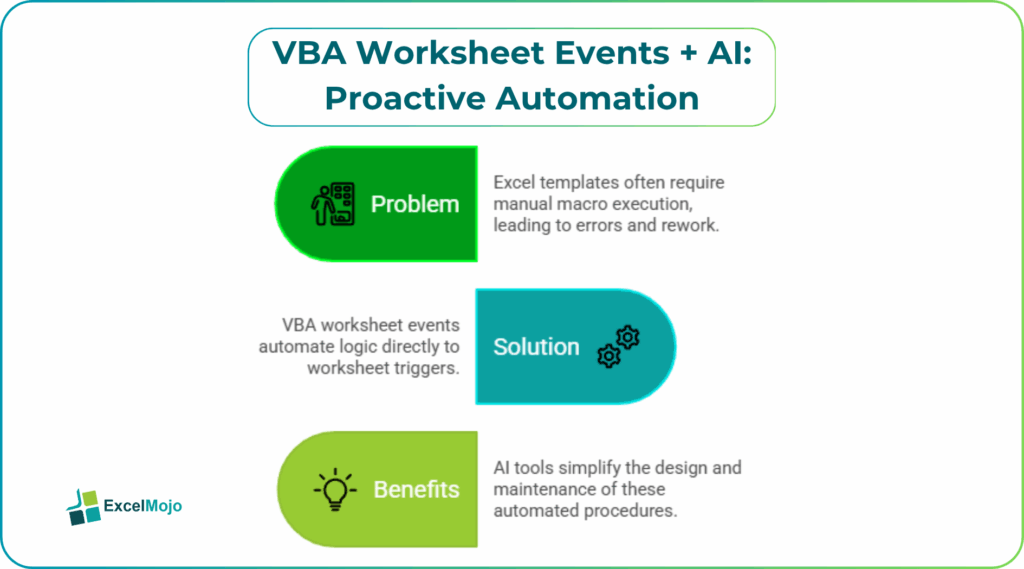
Excel templates that react to user inputs are often built by financial analysts, but the logic is buried in separate macros that must be run manually. Users sometimes forget to run validations, refresh supporting columns, or clear past entries. This introduces errors and rework. VBA worksheet events AI proactive automation addresses this by wiring logic directly to worksheet‑level triggers such as Worksheet_Change, Worksheet_SelectionChange, or Worksheet_BeforeDoubleClick. When paired with AI tools that can generate event‑handling code, these Excel procedures become easier to design and maintain, turning a static workbook into a responsive, rule‑driven tool.
This article shows you how to use VBA worksheet events with AI to build AI driven VBA worksheet automation. These run automatically whenever a cell changes, a user selects a range, or a double‑click occurs. We give you practical examples of Excel VBA worksheet events automation for data validation, formatting, and quick‑fill logic. We also present safeguards against common pitfalls like infinite loops or performance bottlenecks. Worksheet events should be kept lean, well‑scoped, and error‑handled, which is exactly where AI‑assisted prompting can speed up design while preserving robustness. This means fewer manual macros and more embedded, event‑driven logic for analysts.
How Worksheet Events Enable Proactive Automation
VBA exposes several worksheet‑level events that fire when users interact with a sheet:
- Worksheet_Change: Runs every time a cell value changes.
- Worksheet_SelectionChange: Runs every time the user clicks a new range.
- Worksheet_BeforeDoubleClick: Runs before Excel processes a double‑click.
- Worksheet_Calculate: Runs after a calculation.
These events are the backbone of VBA worksheet events AI proactive automation. For example, a Worksheet_Change handler can automatically validate entries in a budget table, format rows that exceed a cap, or clear other cells if a key field is blank.
AI’s role is to turn natural‑language descriptions of this behavior into working event code. A user can ask, “Create a Worksheet_Change event that runs when a cell in column B changes. If the new value is greater than 100, highlight the entire row in yellow. If the value is blank or zero, clear the row,” and AI typically returns a correctly‑scoped Worksheet_Change routine with Application.EnableEvents = False to avoid recursion in VBA Worksheet Events AI Proactive Automation.
How to Denerate AI‑Assisted Worksheet Event Handlers
Creating Excel VBA worksheet events automation that feels AI‑driven is simpler than it looks: define the rule in plain language, have an AI assistant generate the code, and then test it and refine the logic before rolling it out.
Step 1: Define the Event and Rule
Before writing code, write a short description such as:
- “Whenever a cell in the Budget column changes, validate that it is positive and numeric.”
- “When a user selects a transaction row, show a tooltip‑style message with that row’s date and amount.”
These plain‑language rules become the prompt’s foundation.
Step 2: Ask AI for the Event Code
A strong prompt for VBA worksheet events with AI includes:
- The event type (Worksheet_Change or Worksheet_SelectionChange).
- The target range or column.
- The desired behavior (validation, formatting, copying, clearing).
Example:
“Create a Worksheet_Change event for Sheet1 that runs when a cell in column C changes. If the new value is numeric and greater than 1000, format the entire row with a light green background. If the value is less than 0, show a message saying ‘Negative values not allowed’ and undo the change.”
For VBA Worksheet Events AI Proactive Automation, AI typically replies with code such as:
Private Sub Worksheet_Change(ByVal Target As Range)
Dim ws As Worksheet
Set ws = Me
If Not Intersect(Target, ws.Columns(“C”)) Is Nothing Then
Application.EnableEvents = False
On Error GoTo Cleanup
If IsNumeric(Target.Value) Then
If Target.Value > 1000 Then
With ws.Rows(Target.Row).Interior
.Color = RGB(200, 255, 200)
End With
ElseIf Target.Value < 0 Then
MsgBox “Negative values not allowed.”, vbExclamation
Application.Undo
End If
End If
Cleanup:
Application.EnableEvents = True
End If
End Sub This is a concrete example of AI proactive worksheet automation Excel and shows how AI can generate well‑scoped event logic with error‑handling and EnableEvents toggling.
Step 3: Place the Code in the Worksheet Module
Right‑click the Sheet tab, choose View Code, and paste the AI‑generated procedure into the SheetX module. Test it on a small range first, then gradually expand the logic or refine the range check.
Practical Example: A Guided Forecast Sheet
Suppose a finance team uses a forecast workbook where column D tracks assumed growth percentages. The goal is to have the sheet automatically flag values that are too high or too low and provide a brief explanation. Using VBA worksheet events AI proactive automation, the team can:
- Ask an AI assistant to generate a Worksheet_Change handler for column D that:
- Validates that the entry is numeric and between 0 and 25%.
- If the value is outside this range, highlight the cell in red and show a message.
- Place the code in the sheet’s module and test it with a few entries.
- Add a small helper that updates a nearby “Status” column with a short reason (for example, “OK,” “Too aggressive,” “Below threshold”) whenever the change event fires.
This workflow demonstrates how AI driven VBA worksheet automation can turn a hands-on review step into a built‑in, immediate feedback loop for forecast inputs.
Pitfalls and Best Practices
VBA worksheet events with AI introduce a few common issues for VBA Worksheet Events AI Proactive Automation.
One frequent problem is over‑triggering. A handler that runs on every cell change in a large table can slow the workbook. Analysts should restrict the Intersect check to key columns and avoid heavy calculations or external calls inside the event.
Another risk is infinite loops. If the event changes other cells in the same sheet, it can trigger itself again. The Application.EnableEvents = False pattern in the AI‑generated code helps prevent this, but users must ensure that EnableEvents is always restored, even in error paths.
A third issue is opaque logic. AI‑generated handlers may look complex or poorly commented. Teams should add brief remarks, keep each event focused on a single responsibility, and avoid mixing multiple unrelated rules in the same Worksheet_Change block.
Frequently Asked Questions (FAQs)
Yes, beginners can use VBA worksheet events AI proactive automation by describing the desired behavior in plain language and letting AI generate the event‑handling code. They still need to understand basic concepts such as worksheet‑level events and how to access the VBA Editor, but they do not need to write the full logic from scratch.
They can be safe if tested thoroughly, written into the right worksheet module, and connected only to the intended ranges. Users should avoid blindly accepting code that disables events permanently or writes to unrelated sheets without safeguards.
AI driven VBA worksheet automation embeds logic directly into worksheet events so that it runs automatically in response to user actions, whereas standard macros must be run manually. Event‑based automation is ideal for continuous validation and formatting; macros remain useful for one‑off or batch‑level operations.
No, it should not replace formal data‑entry or ERP systems. It is best suited for Excel‑centric, analyst‑level templates where immediate feedback improves data quality, while mission‑critical data capture should live in governed, database‑driven applications.
Recommended Articles
Continue with these related resources when you want the next practical step in this topic.
Explore the full VBA Worksheets & Workbooks guide or browse VBA Resources.