


Introduction
Finance professionals often build Excel workbooks that need to react to user actions: a changed cell should refresh a summary, an invalid entry should trigger a warning, or a new sheet should automatically be formatted. VBA event handlers AI generated worksheet triggers make this possible by letting macros respond to worksheet‑level events such as Worksheet_Change, Worksheet_SelectionChange, or Worksheet_BeforeDoubleClick without manual intervention. When paired with AI tools such as ChatGPT or Copilot, analysts can generate VBA event handlers directly from plain‑language prompts and then plug them into the correct event modules.
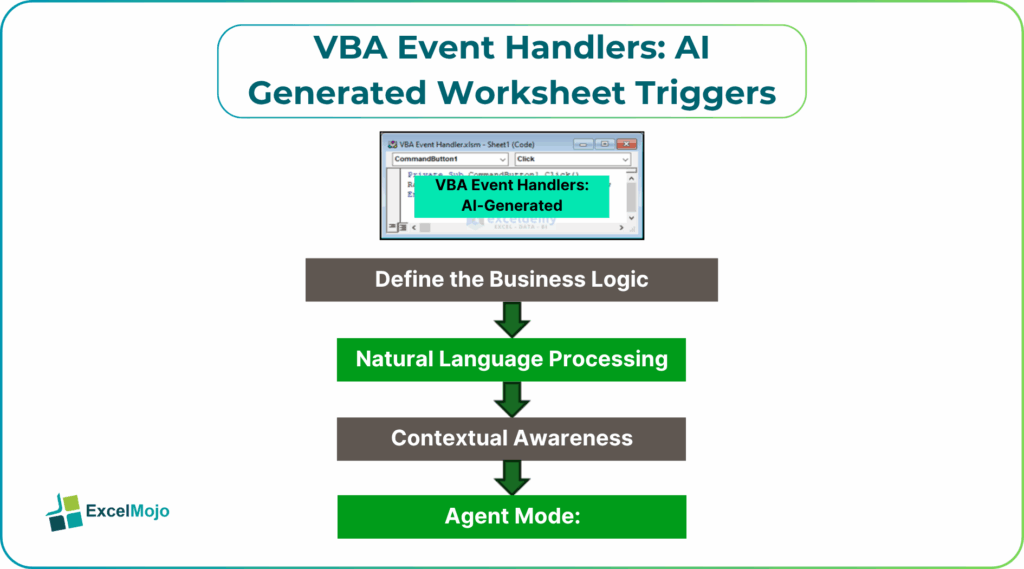
Here, we explain how to design AI generated Excel worksheet triggers that capture common business logic while remaining auditable and safe. We show you how VBA worksheet triggers with AI can reduce manual steps in budget templates, data‑entry forms, and model validation, and how to avoid common pitfalls such as infinite loops or unintended side effects. Event‑driven automation can cut manual tracking time by 30–40% for controlled workflows.
How Worksheet Events Power Automation
Excel exposes several worksheet‑level events that fire when a user interacts with a sheet. Among the most useful for business workflows are:
- Worksheet_Change: Runs every time a cell value changes.
- Worksheet_SelectionChange: Runs every time the user clicks a new cell or range.
- Worksheet_BeforeDoubleClick / BeforeRightClick: Runs when the user double‑clicks or right‑clicks on the sheet.
- Worksheet_Calculate: Runs after a calculation.
These worksheet‑level events turn a passive sheet into an interactive control surface. For example, a budget workbook can use Worksheet_Change to validate that budget entries do not exceed approved limits, or to auto‑fill supporting columns whenever a key input changes.
AI can accelerate the development of AI generated worksheet event handlers by translating natural‑language descriptions such as “Whenever a cell in column B changes, format the row if the value is above 100” into a working Worksheet_Change routine.
How to Generate AI‑Assisted Worksheet Event Handlers
Creating VBA event handlers AI generated worksheet triggers follows a simple pattern: decide the event, describe the logic, then paste the AI‑generated code into the worksheet module.
Step 1: Open the Worksheet Code Module
In Excel, right‑click the Sheet tab and choose View Code. This opens the SheetX module where worksheet events belong. From the dropdown at the top‑right, choose the event you want, such as Worksheet_Change. Excel auto‑generates the stub:
Private Sub Worksheet_Change(ByVal Target As Range)
End Sub
This is the core of VBA worksheet triggers with AI.
Step 2: Write a Clear AI Prompt
A strong prompt for AI generated worksheet event handlers includes:
- The event type (Worksheet_Change).
- The target range (e.g., “Column B” or “Range A1:E100”).
- The desired behavior (formatting, validation, copying data, etc.).
Example prompt:
“Write a VBA Worksheet_Change event handler that runs whenever a cell in column B changes. If the new value is greater than 100, highlight the entire row in yellow. If the value is blank or zero, clear the row. Assume the code is in the Sheet1 module.”
AI typically returns code such as:
Private Sub Worksheet_Change(ByVal Target As Range)
Dim ws As Worksheet
Set ws = Me
If Not Intersect(Target, ws.Columns(“B”)) Is Nothing Then
Application.EnableEvents = False
On Error GoTo Cleanup
Dim r As Long
r = Target.Row
If IsNumeric(Target.Value) Then
If Target.Value > 100 Then
With ws.Rows(r).Interior
.Color = RGB(255, 255, 0)
End With
ElseIf IsEmpty(Target.Value) Or Target.Value = 0 Then
ws.Rows(r).Clear
End If
End If
Cleanup:
Application.EnableEvents = True
End If
End Sub
This pattern is a practical example of AI generated Excel worksheet triggers and shows how an AI‑assisted VBA can encapsulate conditional logic directly inside an event handler.
Step 3: Add Error‑Handling and Performance Checks
Event handlers can run frequently, so adding Application.EnableEvents = False during the procedure and On Error GoTo cleanup blocks prevents recursion and keeps the workbook stable. Analysts should also test the handler on a small range first and consider restricting it to specific columns or cells to avoid unnecessary overhead.
Practical Example: A Validation‑Driven Budget Sheet
Suppose a finance team uses a budget sheet where column C tracks allocated amounts and column D shows a simple rule‑based approval flag. The requirement is:
- Whenever the budget in column C changes, validate that it is positive and numeric.
- If it is valid, show “Approved” in column D; otherwise, show “Invalid.”
Using VBA event handlers AI generated worksheet triggers, the workflow is as follows:
- Ask an AI assistant to generate a Worksheet_Change handler for this logic.
- Place the code in the appropriate sheet module, ensuring it checks only column C.
- Test it by entering valid and invalid values and verifying that the flag updates automatically.
This example demonstrates how AI generated worksheet event handlers can enforce data‑quality rules at the worksheet level, reducing the need for manual review.
Pitfalls and Best Practices
VBA worksheet triggers with AI offer powerful automation but come with common pitfalls.
Infinite loops: If a handler changes other cells in the same sheet, it can trigger itself again. To avoid this, analysts should enclose any internal changes with Application.EnableEvents = False and restore it at the end.
Over‑triggering: Placing a handler that runs on every cell change in a large table can slow down the workbook. Teams should restrict handlers to key columns or ranges, and avoid heavy calculations or external calls inside the event routine.
Loss of visibility: AI‑generated handlers may look opaque or overly complex. Analysts should keep logic modular, add comments such as “Validates budget entries in column C,” and limit each event routine to a single, clear responsibility. This approach keeps VBA event handlers AI Excel triggers maintainable and audit‑ready.
Conclusion
VBA event handlers AI generated worksheet triggers make it easier to automate real‑time responses such as validation, formatting, and data audits directly inside the workbook. By combining AI‑assisted code with clean event‑handling patterns, analysts can build interactive templates that reduce manual checks and enforce data quality. VBA users should start with a simple Worksheet_Change rule, test it on a small range, and then expand the logic across their core models.
Frequently Asked Questions (FAQs)
Yes, beginners can use VBA event handlers AI generated worksheet triggers by describing the desired behavior in plain language and letting an AI assistant generate the code. They still need to understand basic concepts such as modules, ranges, and events, but they do not have to write event‑handler logic from scratch.
AI generated worksheet event handlers can be safe for production if tested on a copy of the data, wrapped with proper error‑handling, and constrained to specific ranges. Blindly accepting AI‑generated code without review can introduce performance issues or unintended side effects.
VBA worksheet triggers with AI speed up the creation of event‑driven logic by turning natural‑language prompts into working code, while manual event handling allows more granular control over optimization and debugging. The two approaches complement each other.
No, AI generated Excel worksheet triggers should not replace Power Query or formula‑based validation. They are best used for interactive, real‑time behaviors at the worksheet level, while ETL and core logic should still live in queries and measures.
Recommended Articles
Continue with these related resources when you want the next practical step in this topic.
Explore the full VBA Worksheets & Workbooks guide or browse VBA Resources.