


Introduction
Many finance and operations teams rely on Excel workbooks that must be in a specific state every time they open: certain sheets active, named ranges refreshed, external data reloaded, or dashboards prepared for the day’s review. The challenge is that manual setup is prone to skipping steps or applying the wrong sequence, especially when the same file is used by multiple people. VBA Workbook Open events AI startup automation helps by using the builtin Workbook_Open event in Excel to run automated routines that prepare the workbook and, optionally, interact with AI tools to fetch or format data. When combined with VBA Workbook_Open AI automation patterns, the result is a smoother start‑of‑session experience where the workbook behaves more like a tailored application than a static spreadsheet.
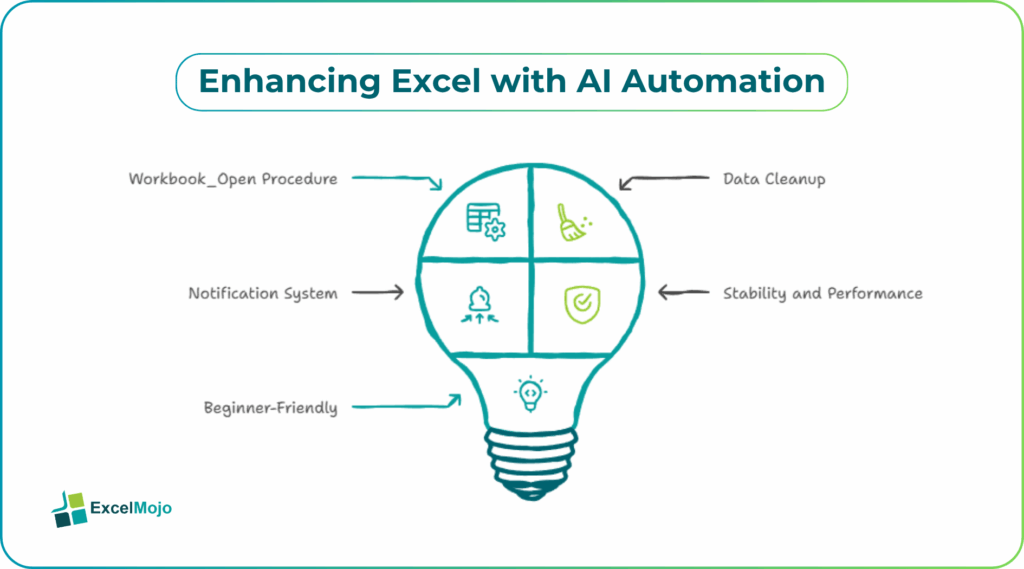
This article explains how to write a simple Workbook_Open procedure, how to use such events to trigger AI‑driven tasks such as data‑cleanup or notification, and how to avoid common stability and performance issues. The Open event runs automatically when a workbook is opened, which makes it a natural place to place initialization logic, such as recalculating key ranges, refreshing connections, or updating timestamps . For analysts, that means AI startup automation Excel VBA Workbook Open can sit on top of this existing event model without changing the core Excel behavior.
How the Workbook Open Event Works in Excel
Stepas for VBA Workbook Open Events AI Startup Automation
The Workbook Open event in Excel fires whenever the workbook is opened by a user, either for the first time or reopened from a saved file.
In VBA, the handler is written as:
Private Sub Workbook_Open()
‘ Startup logic goes here
End Sub
Typical patterns include:
- Calling macros that refresh external data connections (for example, Power Query or database links).
- Activating a specific sheet and selecting a designated cell so the user lands on the right dashboard tab.
- Updating timestamp or audit cells that log when the file was last opened.
This behavior is part of Excel’s event‑programming model, and is widely used in finance and reporting workbooks . For VBA Workbook Open events, that means the code runs silently in the background unless the user explicitly disables macros or the file is opened in read‑only mode.
How to Write a Simple Startup Routine
A basic automated Excel startup with VBA and AI pattern starts with a small Workbook_Open procedure that orchestrates the steps.
A typical example:
Private Sub Workbook_Open()
Application.ScreenUpdating = False
‘ Refresh all data
ThisWorkbook.RefreshAll
‘ Go to the main dashboard
Sheets(“Dashboard”).Activate
Range(“A1”).Select
‘ Run a helper that may trigger AI‑style checks
Call RunStartupChecks
Application.ScreenUpdating = True
End Sub
Sub RunStartupChecks()
Dim msg As String
msg = “Workbook opened. Data refreshed for ” & Format(Now, “dd‑mmm‑yyyy hh:mm”)
MsgBox msg, vbInformation, “Startup Complete”
End Sub
This snippet shows how VBA Workbook Open events AI startup automation can be structuredThe Workbook_Open event calls helper routines that handle the heavy work, while the bookkeeping and notifications are kept in separate subs. Analysts can extend RunStartupChecks to interact with external scripts, APIs, or AI tools depending on the environment.
How AI Can Enhance the Startup Logic
Excel VBA Workbook Open with automation becomes more powerful when the startup routine triggers AI‑driven checks or data‑transformations instead of only basic refreshes.
A few common patterns include:
- Calling an external script or API that analyzes the latest data and returns a short summary or flag (for example, “Revenue is down in Region X compared to last month”).
- Writing that summary into a status cell or log sheet so it is visible when the workbook opens.
- Using AI‑driven formatting suggestions to highlight key rows or ranges that need attention.
Because Excel VBA cannot run generative AI models directly, most VBA Workbook_Open AI automation workflows rely on:
- External tools (such as command‑line scripts or web APIs) that process the data and update a shared file or log.
- Automation platforms that watch the file and write back results into the workbook.
This separation lets the Workbook_Open event handle the “when,” while the AI‑related work happens outside Excel and feeds results back into the sheet.
Practical Example: A Morning Reporting Workbook
A typical use case is a finance workbook that must be ready for the morning review. Using VBA Workbook Open events AI startup automation, the pattern becomes:
- The Workbook_Open procedure runs when the file is opened.
- It refreshes all data sources, recalculates key metrics, and activates the main dashboard.
- It calls a helper routine that either:
- Reads a separate log file updated by an AI‑driven script overnight.
- Or sends a small payload to an external service that annotates the data.
- The result is shown in a small banner area on the dashboard (for example, “Top variance: Sales in Region A fell 12%”).
Pitfalls and Best Practices
Using the Workbook_Open event in Excel can simplify daily workflows but also introduces a few risks.
One common issue is slow startup: long‑running VBA procedures or slow external connections can make the workbook feel unresponsive when it first opens. Best practice is to keep the Workbook_Open logic lightweight and move heavy operations into background tasks or scheduled scripts.
Another risk is macro security and compatibility: some users open files with macros disabled or on different machines, which can break the startup logic. Teams should provide clear instructions and, where possible, fall back to a manual mode if the automation is not available.
A third pitfall is over‑reliance on external AI tools: if the startup behavior depends on an external service that is offline or rate‑limited, the workbook may fail to behave as expected. Analysts should design the startup logic so that the core Excel functionality still works even if the AI‑related hooks are unavailable.
Frequently Asked Questions (FAQs)
VBA Workbook Open events can replace many manual setup steps, such as data refreshes and sheet activation, but it should not fully replace user judgment. The event is best used to handle routine, repeatable tasks so that users can focus on interpreting the data.
VBA Workbook_Open AI automation uses the same Workbook_Open event that Excel already exposes; the AI‑related logic usually sits in helper routines or external tools called from that event. This keeps the integration clean and avoids changing Excel’s event model.
Automated Excel VBA Workbook Open patterns can be safe if they are tested thoroughly and constrained to non‑critical operations. Teams should log changes, validate any external outputs, and ensure that the workbook remains usable even if the AI‑driven parts fail.
Yes, VBA Workbook Open events at startup can trigger data exports or email notifications by calling macros that write files or use the CDO.Message or Outlook automation objects. However, this should be done cautiously to avoid sending unintended messages or overwriting important files.
Recommended Articles
Continue with these related resources when you want the next practical step in this topic.
Explore the full VBA Worksheets & Workbooks guide or browse VBA Resources.