


Introduction
Many finance teams store data in Google Sheets, but as the tables grow, ad‑hoc filtering and manual sorting become too slow to answer precise questions. A powerful tool is the QUERY function, which lets users filter, sort, and aggregate data using SQL‑style syntax inside a single cell. Writing the right QUERY string can feel like a small coding exercise, especially when the user is not familiar with SQL‑like patterns. Google Sheets QUERY Gemini SQL helps bridge that gap by letting analysts describe what they want in plain language and then using Gemini to generate the correct QUERY formula. When combined with Google Sheets QUERY with Gemini plain language prompts, the result is a more intuitive way to explore data without memorizing the syntax.
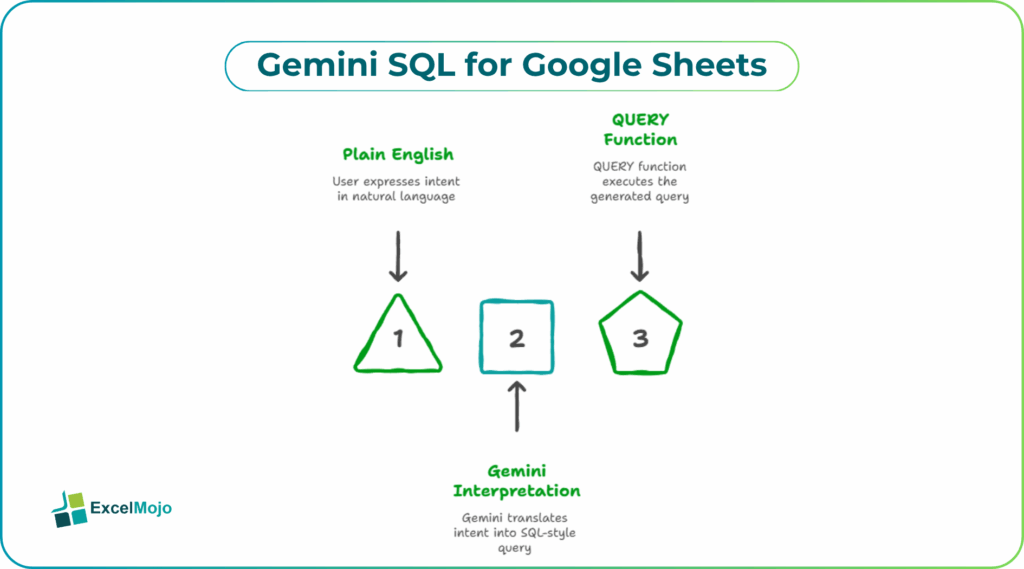
This article explains how to use the QUERY function correctly, how to phrase prompts so Gemini can turn them into valid SQL‑style statements, and how to avoid common formula errors. Google’s documentation on visualization‑API queries describes the QUERY syntax as =QUERY(data, query, [headers]), where the query string reuses SQL‑style clauses such as SELECT, WHERE, ORDER BY, and GROUP BY, even though the underlying language is slightly different from standard SQL. For beginners to mid‑level users, that means Gemini SQL from plain English Google Sheets can act as a real‑time “SQL‑to‑formula” translator that sits between the user’s intent and the spreadsheet.
How the QUERY Function Works in Google Sheets
The Google Sheets QUERY function retrieves data from a range and applies SQL‑like logic to filter, select, and sort it into a new table starting at the formula cell.
Key components include:
- The data parameter, which is the range containing the source table, such as A1:D100.
- The query parameter, which is a text string written in SQL‑style syntax, enclosed in quotes, such as “SELECT A, B WHERE C > 100”.
- The optional headers parameter, which tells QUERY how many header rows to skip if the automatic detection does not work correctly.
Sources that teach the QUERY function note that the query string is written in the Google Visualization API Query Language, which is similar to SQL but uses column letters (A, B, C) instead of named columns. This is why the plain‑language request must be mapped carefully: the user still needs to think in terms of ranges and columns, not just high‑level business questions.
How to Phrase Prompts for Gemini
A solid Google Sheets QUERY with Gemini plain language workflow starts with a clear description of the data layout and the desired outcome.
Typical elements of a good prompt are:
- The range or sheet name (for example, “Sheet1!A1:E1000”).
- The business logic (for example, “Show all orders where the status is ‘Shipped’ and the value is greater than 1500”).
- The output format (for example, “Return the Customer, Date, and Amount columns, sorted by Date in descending order”).
A strong example prompt is:
“In Google Sheets, I have a table in Sheet1!A1:E1000 with columns: A = Customer, B = Date, C = Product, D = Quantity, E = Amount.
Write a QUERY formula that:
- Shows only rows where the Amount is greater than 1000.
- Returns the Customer, Product, and Amount columns.
- Sorts the result by Amount in descending order.
Place the formula in cell G1.”
Gemini usually returns something like:
=QUERY(
Sheet1!A1:E1000,
“SELECT A, C, E WHERE E > 1000 ORDER BY E DESC”
)
This is the core of text to SQL Google Sheets QUERY Gemini and shows how a plain‑language request can be compressed into a valid QUERY expression.
How to Place and Test the QUERY Formula
Once Gemini generates the QUERY string, placing it correctly and validating it is usually straightforward.
A typical workflow is:
- In a new Google Sheet or a blank area of the current sheet, select the cell where the output table should start (for example, G1).
- Type =QUERY( and paste the range and query string that Gemini produced.
- Press Enter and check that the result table matches the expected rows and columns.
If the formula returns an error such as #VALUE! or Parse error, the user should check:
- The range reference (for example, Sheet1!A1:E1000 should exactly match the source table).
- The column letters inside the SELECT and WHERE clauses, which must correspond to the actual layout in the sheet.
- The data types (for example, using WHERE E > 1000 for a numeric column and WHERE B CONTAINS ‘2025’ for a date‑formatted column).
These checks are part of standard Google Sheets QUERY guidance, which notes that the function processes the query at runtime and that any syntax or column‑reference mistake breaks the formula.
Practical Example: Filtering a Sales Table
A common use case is a monthly sales sheet where the user wants to see only high‑value or problematic transactions. Using Google Sheets QUERY Gemini SQL from plain English, the pattern becomes:
- Describe the table layout and the question, such as “Show all sales where the region is ‘West’ and the amount is greater than 1000, sorted by date.”
- Ask Gemini to generate the QUERY formula that matches the current column layout.
- Paste the formula into the sheet and verify that the filtered table appears without errors.
This workflow is a concrete example of Gemini SQL from plain English Google Sheets and demonstrates how AI‑assisted plain‑language prompts can speed up the creation of complex filter‑and‑sort logic that would otherwise require manual formula construction.
Pitfalls and Best Practices
Google Sheets QUERY Gemini SQL from plain English can accelerate analysis but also introduces a few common issues.
One common problem is misaligned columns. If the user changes the source table layout (for example, by inserting a new column) but does not adjust the column letters in the QUERY string, the output will be wrong. Best practice is to either keep the layout stable or use named ranges that refer to fixed columns.
Another risk is over‑complex queries in a single cell. Nesting many conditions, aggregations, and joins in one QUERY can make the formula hard to read and debug. Users are generally better off breaking such logic into smaller intermediate steps or using separate QUERY formulas for each major filter condition.
A third issue is misinterpreting the query language. The Visualization API Query Language is close to SQL but not identical, so concepts such as joins, subqueries, or certain aggregate functions may not work as expected. Analysts should treat Gemini‑generated QUERY formulas as starting points and verify that the business logic matches the output.
Frequently Asked Questions (FAQs)
Google Sheets QUERY Gemini SQL from plain English can significantly reduce the need to write SQL‑style syntax manually, but it should not replace understanding the underlying logic. Users still need to validate the generated formulas and ensure the column references match the current layout.
Google Sheets QUERY with Gemini turns plain‑language questions into formulas that run directly in the sheet, while Apps Script or BigQuery SQL are better suited for heavier transformations and data from external systems. The QUERY function fits small‑to‑medium, in‑spreadsheet workloads, and the other tools are better for large‑scale or cross‑system processing.
Gemini SQL from plain English Google Sheets queries can be safe if they are tested with real data and the formulas are reviewed for correctness. Teams should avoid relying solely on AI‑generated queries in critical financial reports without cross‑checking a subset of results.
Yes, text to SQL Google Sheets QUERY Gemini can work with formulas and calculated columns as long as the QUERY function references the correct range. Users can describe the calculated columns in the prompt (for example, “Show only rows where the calculated margin is greater than 0.2”) and let Gemini map that to the appropriate column letter.
Recommended Articles
Continue with these related resources when you want the next practical step in this topic.
- LOOKUP in Google Sheets
- HLOOKUP In Google Sheets
- VLOOKUP Table Array In Google Sheets
- VLOOKUP True In Google Sheets
- INDEX MATCH Function In Google Sheets
Explore the full Google Sheets Lookup Functions guide or browse Google Sheets Resources.