


Introduction
For finance professionals and analysts, Excel often revolves around the same decisions like how to stop manually copying ranges, how to make model runs faster, and how to turn repetitive reporting into one‑click processes. AI‑powered Excel VBA automation is not just a buzzword; it is the practical next step for teams that have already moved beyond basic formulas and pivot tables. By blending traditional VBA for Excel logic with modern AI tools, users can build macro‑driven workflows. These workflows can self‑tune, validate assumptions, and scale across large datasets without rewriting every line from scratch.
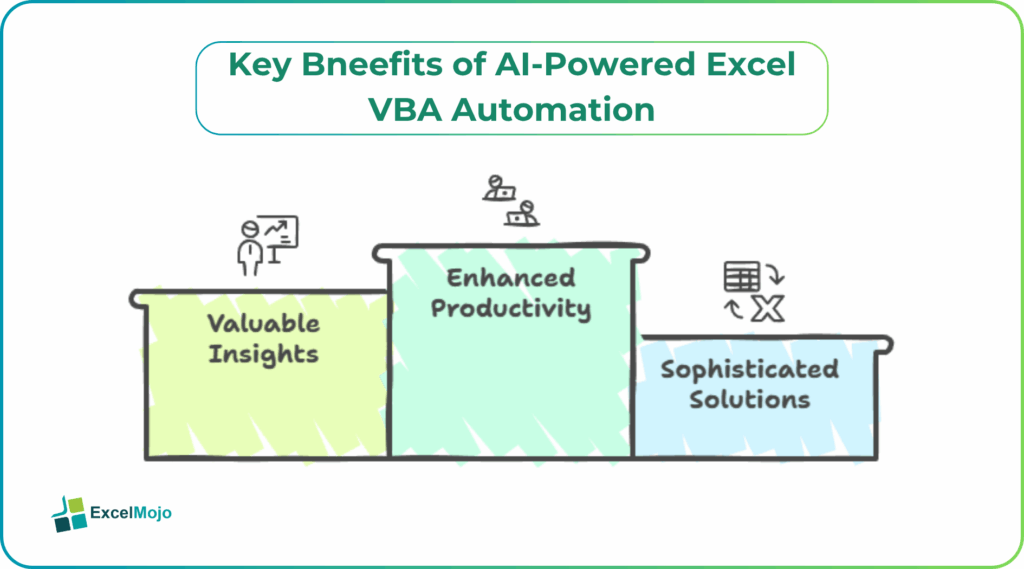
Why AI‑Powered VBA Matters in Excel
Most Excel workflows in finance still rely on recorded macros, manual copy‑paste, and fragile formula chains. A simple VBA macro can save a few minutes once, but those gains rarely scale across multiple books or changing source structures. AI‑powered VBA for Excel changes that by helping analysts:
- Generate and refactor VBA code based on natural‑language prompts.
- Auto‑detect and correct common errors in loops, ranges, and workbook references.
- Suggest reusable patterns for data‑cleaning, roll‑forward logic, and sensitivity runs.
For example, a practitioner asking an AI assistant to “write a VBA macro that pulls all monthly P&L data from separate sheets, applies consistent formatting, and outputs a summary tab” can often get a working module in minutes. Then, it can be refined through iterative testing. This is the core of advanced Excel automation with AI.
Building the Foundation: VBA and AI Together
Before diving into AI‑assisted coding, it helps to understand what stays the same and what changes. VBA remains the engine: the loops, ranges, and WorksheetFunction calls are still written in Visual Basic for Applications. The AI layer sits on top, acting as a design assistant rather than a black‑box replacement.
A typical workflow for an Excel VBA AI automation tutorial might look like:
- Define the task in plain language (for example, “merge 12 monthly files into one rolling sheet”).
- Ask an AI code generator to draft a VBA Sub that opens workbooks, reads ranges, and appends them.
- Insert checks such as If Not IsEmpty(cell) or On Error Resume Next to keep the automation robust.
- Test across a small sample set, then batch‑run on the full dataset.
Crafting Reusable AI VBA Macros
Once a proof‑of‑concept macro works, the next step is to shape it into a reusable asset. AI VBA macros Excel styles typically follow a few common patterns:
- Wrap logic in parameterized procedures that accept targetWorkbook As Workbook or dataRange As Range instead of hard‑coded sheet names.
- Use dynamic ranges derived from CurrentRegion or End(xlDown) to avoid brittle .Range(“A1:A1000”) calls.
- Store configurations in a “Settings” sheet, so the same macro can adapt to different layouts without code edits.
An AI assistant can help convert one‑off macros into these patterns by responding to prompts like “refactor this macro to accept a dynamic range and workbook parameter.” The result is a cleaner, more maintainable module that can be reused across different reporting cycles.
Avoiding Common Pitfalls in AI–VBA Workflows
Even with AI guidance, AI‑powered Excel VBA automation inherits many of the classic traps of manual VBA. For example, an AI‑generated macro might work perfectly on a sample file but fail when encountering blank rows, merged cells, or inconsistent data‑type conventions.
Some ways to avoid these pitfalls include::
- Always validating input ranges before running long loops.
- Using Application.ScreenUpdating = False and Application.EnableEvents = False in production macros to avoid interface flicker and unintended event triggers.
- Logging key steps to a “Debug” sheet or the Immediate window so errors can be traced back to specific rows or files.
A quick comparison exercise can help: run the same macro on a manually‑built sample book and then on a raw export file. If the AI‑assisted script fails on the export, the user should adjust the range logic and error handling rather than rewriting everything from scratch.
Integrating AI Output into Financial Models
For finance users, the real test of advanced Excel automation with AI is whether it integrates cleanly into existing models and dashboards. A macro that recalculates a sensitivity grid, updates charts, or exports a PDF‑style output should behave like any other model component. It should be stable, documented, and version‑controlled.
One practical approach is to:
- Keep AI‑generated modules in a dedicated “Macros” workbook and link them to the main model via Application.Run calls.
- Use a simple user interface, such as a button on the ribbon or a shapes‑based control, to expose the automation without exposing the underlying code.
- Add a small status log on the screen that reports progress, such as “Processing file 3 of 12…” so users can monitor long‑running processes.
This pattern mirrors how many firms manage reusable VBA libraries across teams, but now with AI‑assisted development reducing the initial coding overhead.
Getting Started with an AI‑Assisted Excel VBA Session
For a finance professional new to Excel VBA AI automation tutorial‑style development, a structured first session can make a big difference. Start with a concrete, repeatable task such as:
- Preparing a monthly report that consolidates data from several source files.
- Updating a set of named ranges and dependent formulas after a roll‑forward.
- Formatting a standardized output sheet used for management packs.
Describe the task in plain language to an AI‑code assistant, then let it generate the skeleton macro. From there, focus on:
- Testing the macro on a small dataset.
- Adding error‑handling and validation.
- Refactoring repeated logic into reusable functions.
This approach keeps the learning curve manageable while still delivering tangible time savings on real‑world work.
How to Master AI‑Powered Excel VBA for Advanced Automation
AI‑powered Excel VBA automation is no longer a niche skill reserved for power users. It is becoming a core competency for finance professionals who want to reduce manual work, improve model reliability, and scale their reporting across larger datasets. By treating AI as a design collaborator and VBA as the execution engine, users can build robust, reusable macros that automate complex workflows without sacrificing control. To deepen your skills, try replicating at least one AI‑assisted macro in your next model update and track the time saved versus the manual approach.
Frequently Asked Questions (FAQs)
AI‑powered Excel VBA automation combines traditional VBA with generative‑AI tools that help write, debug, and refactor macros. This approach accelerates development and reduces manual coding errors in Excel workflows.
AI VBA macros Excel can automate data consolidation, formatting, and reporting tasks commonly found in financial models, dashboards, and management packs. They allow finance professionals to execute repetitive steps with a single click, improving speed and consistency.
No advanced programming background is required to start using AI‑enhanced VBA. Basic familiarity with Excel and VBA recording is enough to begin; AI tools can then help translate natural‑language instructions into working code.
AI‑generated VBA may contain hard‑coded assumptions or fragile logic that fail on unexpected data. Users should always validate inputs, add error‑handling, and test macros on sample data before running them on production files.
Recommended Articles
Continue with these related resources when you want the next practical step in this topic.
Explore the full VBA Basics and Macros guide or browse VBA Resources.