


Introduction
Many finance professionals still spend hours untangling messy data, debugging convoluted formulas, and ticking boxes on model reviews rather than focusing on the business story behind the numbers. A poorly structured layout, inconsistent formulas, and undocumented logic make even simple What‑If tests feel like a forensic exercise. Claude in Excel 2026 guide addresses this by embedding an AI‑assisted helper directly inside the workbook, where users can ask for formula explanations, request data‑cleaning steps, and get structure‑level feedback on model design. Instead of flipping between Excel and a general‑purpose AI chat, analysts can keep the context, references, and cell logic in one place, which speeds up formula help, data‑cleansing, and model‑review workflows.
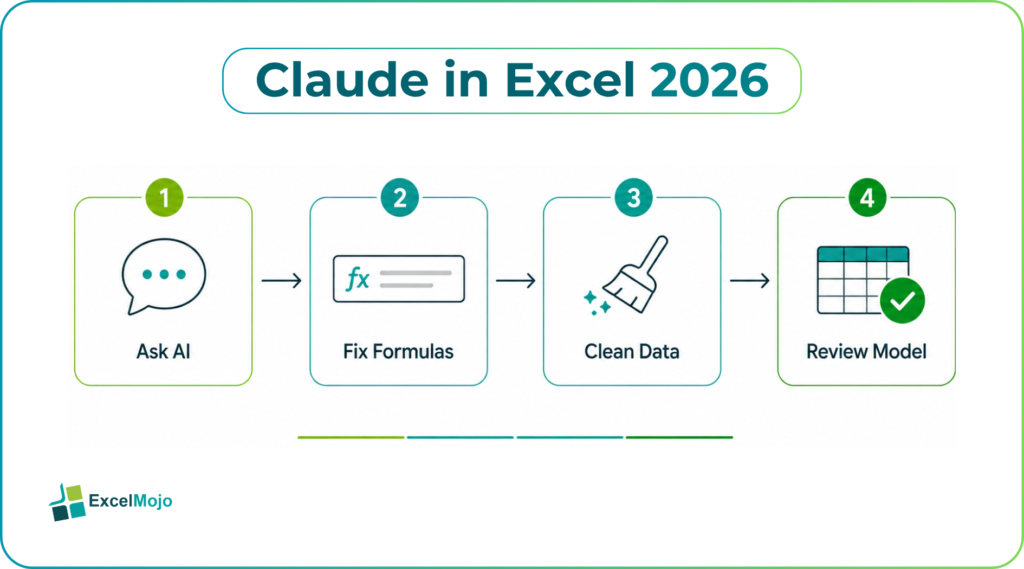
This article walks through how to use Claude for Excel effectively in 2026, with practical examples for formula assistance, data‑cleansing patterns, and structured model‑review questions that deliver actionable insights rather than vague suggestions.
How Claude in Excel Works in 2026
Claude in Excel 2026 operates as an add‑in or integrated assistant that lets users select a range, highlight a table, or reference a sheet and then ask for specific actions. The assistant can read the structure, the data, and the existing formulas, and respond with targeted suggestions such as rewrite options, error‑handling improvements, or data‑cleansing steps. For example, selecting a column with mixed text‑number formats and asking “Clean this column to be numeric with a clear error label” typically returns a concrete formula or set of steps rather than a generic explanation.
Claude’s behavior is optimized for formula help, data‑cleansing, and model‑review logic rather than heavy computational work. It excels at converting manual, cell‑by‑cell fixes into reusable patterns, suggesting equivalent LET, LAMBDA, or XLOOKUP expressions, and proposing layout‑level improvements such as natural breaks between inputs, calculations, and outputs. Analysts remain in control of the final implementation, but the AI‑assisted workflow compresses what would be exploratory Google searches and manual trials into a guided, in‑worksheet dialogue.
Using Claude for AI‑Assisted Formulas (Formula Help)
Claude AI formula help in Excel 2026 is most valuable when the user frames the question around a concrete cell range and a clear objective. A prompt such as “Explain this formula in cell D10 and suggest a cleaner version that avoids volatile references” lets Claude parse the formula, identify functions such as INDIRECT or OFFSET, and propose alternatives like INDEX‑based constructions that are easier to audit.
For how to use Claude in Excel for formula help 2026, a practical pattern is:
- Highlight the cell or range that contains the formula and any dependent inputs.
- Ask something specific: “Rewrite this using XLOOKUP and handle missing values with a default flag,” or “Convert this nested IF chain into a IFS‑based formula with clear comments.”
- Review the suggested formula, test it on a sample subset, and document the logic in a cell comment or a hidden sheet.
This approach is especially useful for converting legacy VLOOKUP‑heavy reports into XLOOKUP or FILTER‑based structures, simplifying SUMIFS‑style summaries, and adding robust error handling with IFERROR or IFNA tailored to the specific dataset.
Claude for Excel Data Cleaning and Modeling Workflows
Claude for Excel data cleaning and modeling shines when the user describes not just the “what” but also the “why” behind the cleaning step. For example, a prompt like “Standardize the ‘country’ column so all entries are uppercase, remove extra spaces, and flag entries that are not in the list on Sheet2[ValidCountries]” can produce a clear sequence of formula‑based or menu‑driven steps.
In a typical workflow:
- A raw transaction table might have inconsistent product codes, extra spaces, or mixed date formats.
- The analyst asks Claude to propose a cleaning pipeline: trimming, standardizing the case, replacing common typos, and flagging outliers.
- Claude returns a set of TRIM, UPPER, SUBSTITUTE, IF, and MATCH‑style expressions that can be applied as helper columns, then later removed after the table is standardized.
Once the data is cleaned, Claude can help structure the model: suggesting a clear separation between input assumptions, calculation logic, and presentation outputs, and proposing summary tables that roll up the cleaned data into KPIs without cluttering the original source sheet. This keeps the model organized and easier to hand off during reviews or audits.
How to use Claude for Model Review and Governance
Claude AI assistance for Excel helps teams move from informal “spot‑checks” to structured, repeatable review patterns. Instead of manually tracing formulas across sheets, analysts can ask questions such as “List all indirect references in this workbook,” “Identify any hard‑coded assumptions in the calculation sheet,” or “Check for circular references in the valuation sheet.” Claude can then return a structured list of cells, ranges, and formula patterns that match the query, which the reviewer can then mark, test, or refactor.
For a model‑review session, a useful prompt pattern is:
- “Review the valuation tab and highlight any assumptions hard‑coded in the formula rather than referencing an assumption cell.”
- “Check if the debt schedule formulas correctly handle exit conditions and flag any rows where the principal balance does not amortize to zero.”
- “Summarize the key inputs and outputs of this model and propose a standard layout for future reviews.”
This generates a text‑based audit trail that can be pasted into a separate “Model Review” sheet, alongside any manual checks performed by the human reviewer.
Pitfalls and Best Practices with Claude in Excel
Even though Claude in Excel makes data‑cleansing, and model‑review tasks faster, several pitfalls can undermine reliability and governance if not managed.
- Over‑trusting AI suggestions is the biggest risk. Claude can propose correct‑looking formulas or cleaning steps that behave differently on edge cases, such as null values, merged cells, or legacy compatibility formats. The analyst must test the suggested logic on a sample, compare it with a manual baseline, and document the assumptions.
- Mutable references and context drift can occur if the user asks broad questions without clearly defining the range. For example, asking “Fix all formulas in this workbook” may lead to inconsistent outcomes across sheets. Best practice is to scope the request to specific ranges, sheets, or tables, and to keep the prompts focused on narrow, testable tasks.
- Governance and licensing boundaries also matter. Some teams have strict rules around AI‑assisted code and model logic, so the analyst should align Claude usage with internal policies, ensure that the generated formulas do not expose sensitive data, and keep a clear record of AI‑assisted changes.
- Performance and maintenance are secondary concerns; Claude‑proposed formulas may be elegant but heavy on computation if they introduce large array‑style checks or repeated lookups. The analyst should balance readability and performance, and refactor complex chains into simpler helper columns when necessary.
By combining thoughtful prompting with disciplined testing and documentation, analysts can treat Claude as a co‑analyst rather than a black‑box oracle, which keeps the model compliant, traceable, and production‑ready.
Conclusion
Claude in Excel 2026 guide turns tedious formula‑debugging, manual data‑cleansing, and informal model‑reviews into structured, AI‑assisted workflows that stay tightly coupled to the workbook itself. By using Claude AI formula help in Excel 2026 for clean, auditable formulas, orchestrating Claude for Excel data cleaning and modeling pipelines, and embedding Claude AI assistance for Excel model review 2026 into governance checklists, finance and analytics teams can reduce cycle time while strengthening model quality. For data‑driven professionals, this represents a practical step up from ad‑hoc spreadsheet triage to coordinated, AI‑enhanced model hygiene.
Frequently Asked Questions (FAQs)
How does Claude in Excel 2026 help with formula writing?
Claude in Excel 2026 can interpret natural‑language prompts such as “Rewrite this formula to avoid volatile references” and propose cleaner, more maintainable versions using XLOOKUP, FILTER, LAMBDA, or LET. The analyst tests the suggested formulas on a sample range and documents any changes, which keeps the logic auditable while speeding up the drafting process.
Can Claude automate data cleaning in Excel?
Yes. Claude can guide the user through a cleaning pipeline by suggesting specific functions such as TRIM, UPPER, SUBSTITUTE, and IF‑based flags to standardize text, remove duplicates, and handle null values. The analyst implements the steps in helper columns, validates the output, and then consolidates the cleaned data into a structured table, which can be reused downstream.
Is Claude suitable for model‑review tasks in Excel?
Claude can assist by listing indirect references, identifying hard‑coded assumptions, and flagging potential circular formulas or structural issues. The analyst must still validate the findings manually, but Claude’s output can serve as a first‑pass checklist that accelerates the review and reduces the risk of overlooking subtle model flaws.
How should teams govern Claude‑assisted work in Excel models?
Teams should establish clear rules around which tasks Claude can handle, require manual validation of all AI‑suggested formulas or structural changes, and keep a log of Claude prompts and outputs in a hidden sheet or annex. This governance layer ensures that the model remains compliant, auditable, and aligned with the organization’s risk and compliance standards.