


What Is MODE.MULT Function in Google Sheets?
The MODE.MULT function in Google Sheets returns an array that is vertical and contains the most frequently occurring values in a given dataset. It also includes all values that account for the highest frequency—the MODE.MULT function is a statistical function that returns a vertical array of the most frequently occurring values where multiple values occur with the same highest frequency in a range.
As it returns an array of values, we must combine it with the ARRAYFORMULA function. For instance, in the dataset below, we have applied the MODE.MULT function and it returns the values 4 and 5 in a vertical array as both these values occur the maximum number of times.
Use this MODE.MULT in Google Sheets Template to follow along with the examples in this article.
Download Excel Template
Key Takeaways
- MODE.MULT in Google Sheets returns the most frequently occurring numbers or modes in a dataset. The output is in the form of a vertical array.
- Its syntax is as follows:
=MODE.MULT(range)
range: the range or array to analyze in numeric form.
- It is used in places where you have to identify multiple modes in large datasets. Such cases include test scores, sales, weights, etc.
- It can be used to compare trends across multiple data sets.
- The function does not work on non-numeric data.
- It gives the #N/A error when there are no repeating values (no mode).
Syntax
The MODE.MULT formula in Google Sheets is as follows:
=MODE.MULT((number1,[number2],…)
Parameters
- number1 (required) – The number for which we want to calculate the mode.
- number2 (optional) – Numbers which can be supplied between 2 to 254 arguments for which we must calculate the mode.
We can also use an array or an array reference separated by commas instead of the above arguments. We must enter the function as an array formula.
How To use MODE.MULT Function in Google Sheets?
The MODE.MMULT formula returns the values that account for the highest frequency in an array or range. There are two ways that the function can be used in Google Sheets.
- Manually enter MODE.MULT
- Through the Google Menu Bar
Let us look at how to enter the MODE.MULT function with this step-by-step example.
Step 1: We have some student IDs of those students who have entered a library. They are entered in Google Sheets as shown below.

Step 2: Click on the cell where you want the result to appear. Let’s use B2 for this example. Type =MODE.MULT( into the cell.

Step 3: Next, select the range A1:A11. It can be done by clicking and dragging the mouse from A1 to A11. Close the parentheses and hit Enter.
=MODE.MULT(A1:A11)

Step 4: Once you press Enter, the result should appear in the cell B2. If there are multiple values, they are displayed as a vertical array.

Using the Google Menu Bar
- Choose the cell where you want to enter the formula.
- Go to the menu bar and click on “Insert” ➝ “Function” ➝”Statistical” ➝ “MODE.MULT.”
Once the function is entered in Google Sheets, enter the required arguments, which are the matrix cell ranges, and press Enter.
Examples
The MODE.MULT in Google Sheets returns a vertical array of the most frequently occurring values in a dataset. It’s useful when multiple modes exist in your data. Let us look at some practical scenarios where we can use this function.
Example #1 – Find the Most Common Values in a Dataset
Let us study a practical example where a store wants to identify when its products are sold the most to optimize its inventory. A brief look at how to use the function here will help you understand the same.
Step 1: Enter the data as shown below in a sheet.

Step 2: Enter the formula: =MODE.MULT(. Select the vertical range from B2 to B9. Close the parenthesis and press Enter.
=MODE.MULT(B2:B9).
Result: We get the most frequent quantities sold from the above example.

Example #2 – Handle Multiple Modes
Where there are multiple modes in a dataset, we can use MODE.MULT in Google Sheets to retrieve multiple values. Let us look at an example. We have a list of students in a class and their test scores. The teacher wants to retrieve the most common score of the students to understand for research purposes.
Step 1: Enter the data in columns A and B, as shown below.

Step 2: Enter the following formula in cell C2. Here, the output of this function is an array and in Google Sheets, you just press Enter after typing the formula whereas in Excel you should press Ctrl + Shift + Enter.
In the cell C2, type: =MODE.MULT(B2:B16). Press Enter.
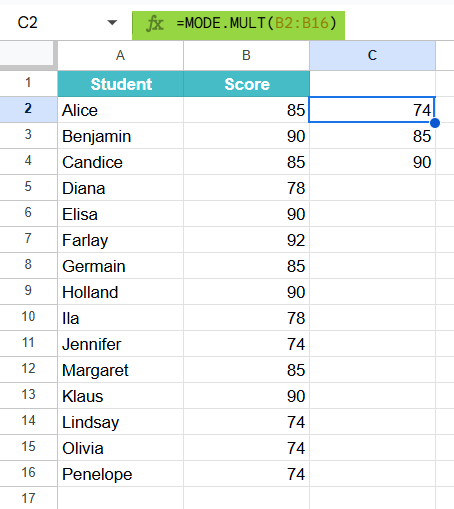
The cells will display all modes, that is, 74,85, and 90, in the ascending order.
Thus, you observe that when there’s more than one most common value, MODE.MULT helps retrieve all the values, unlike MODE.SNGL, which shows only one mode.
Example #3 – Compare Data Sets
So far, we have been using only single arrays or ranges. When we use MODE.MULT on multiple datasets, we can compare the most common values between them, thereby identifying similarities and differences.
In this example, we have the weights in kilograms of some members of three different gyms. Let us compare them to find the most common weights in the three gyms to analyze trends. You can now use MODE.MULT on each column to find the most common weight per gym.
Step 1: Enter the data in columns A, B, and C as shown below.

Step 2: Enter the following formula in cell A10. Here, we are going to find the most commonly occurring weight in Gym A. Press Enter after typing the formula to get the result.
=MODE.MULT(A2:A9).

Step 3: Next, type the following formulas in B10 and C10 to get similar results for Gym B and Gym C.
=MODE.MULT(B2:B9).
=MODE.MULT(C2:C9).

Thus, you can use MODE.MULT on each column to find the most common weight per gym.
Important Things to Note
- You get the #N/A error when there are no duplicates in the dataset.
- If an array contains text, logical values, or empty cells, it ignores the values.
- Arguments can either be numbers or names, arrays, or references that contain numbers.
- If the dataset includes many modes, the MODE.MULT function will return a vertical array containing the different values.
Frequently Asked Questions (FAQs)
The function is very useful in the following scenarios.
1. Surveys: We use it to analyze survey responses to find the most common answers.
2. Sales: We can determine the best-selling product as in the examples above.
3. Class performance: We can find the most frequent grades in a class for performance analysis.
It is mainly used because it allows one to easily identify the most commonly occurring values in large datasets. It is very helpful to make data-driven decisions or understand patterns from the given data.
The MODE.SNGL function returns only one mode even if multiple mode exists. It returns only the first mode in the dataset, based on the order of the data, and not the value.
The MODE.MULT function returns all modes with the highest frequency in the form of a vertical array.
If all values are unique, MODE.MULT returns a #N/A error.
The MODE formula returns the most frequently occurring value in a dataset. We use the function in statistical analysis to identify the value that is most repeated in a dataset.
MODE.SNGL returns a single mode, and we use it when we need to find only one mode and not multiple.
The MEDIAN function returns the median value of a data set. We use it commonly to find the middle value in a range or array.
Use this MODE.MULT in Google Sheets Template to follow along with the examples in this article.
Download Excel TemplateRecommended Articles
Continue with these related resources when you want the next practical step in this topic.
- Descriptive Statistics in Google Sheets
- Standard Deviation in Google Sheets
- MEDIAN Google Sheets Function
- MODE Google Sheets Function
- Frequency Distribution In Google Sheets
Explore the full Google Sheets Statistical Functions guide or browse Google Sheets Resources.