


Introduction
Quarter-end rushes hit finance teams hard, with analysts spending most of their time chasing formula errors in complicated workbooks. A VLOOKUP that seemed perfect in testing suddenly returns zeros when live data hits. Data professionals in finance hubs deal with this grind week in and week out. AI Excel tricks shift the balance, letting plain language prompts generate complex logic that works for the first time itself.
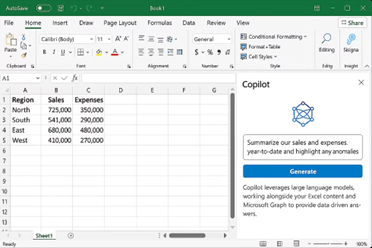
Finance modelers now build full cash flow projections through simple descriptions and are able to devote hours for actual analysis. This article covers Excel Copilot tricks that integrate seamlessly into daily workflows and ways to automate Excel with AI for repetitive tasks, Moreover, it discusses reliable AI Excel formula generators that handle edge cases. It focuses on practical value for those building DCF valuations or variance bridges under tight deadlines.
Excel Copilot Tricks for Instant Formulas
Microsoft Copilot embeds directly into Excel 365. SO you can give descriptions which are turned into ready code without leaving the sheet. Finance analysts give prompts with specifics like “calculate year-to-date revenue growth excluding negative values across these columns.”
The tool responds with a precise formula like =SUMPRODUCT((A2:A1000>0)*(B2:B1000/C2:C2-1)), complete with absolute references and error handling. Teams using Copilot report finishing month-end packs much faster after adopting this approach.
Those working on financial models find it particularly powerful in chaining prompts for linked calculations. Start with a basic sales sum, then follow up by asking Copilot to add margin thresholds or date filters. This builds out AI in Excel 2026 capabilities layer by layer. In some scenarios of investment banking, it is used to link IRR outputs directly to changing discount rates, adjusting scenarios in real time during client calls.
Automate Excel with AI Across Workbooks
Bulk automation transforms raw ERP dumps into clean reports through automate Excel with AI methods. Copilot scans selected ranges and suggests pivots or charts based on patterns it detects, such as “group expenses by category and flag those over budget.” It generates =PIVOTBY or dynamic named range setups that update automatically as new rows arrive. VBA integration takes it further; a prompt for “script to loop through variances and highlight cells above 15 percent” delivers code ready to run.
Real estate underwriters apply this to portfolio trackers spanning hundreds of properties. They describe the logic once in plain language, and Copilot crafts macros that calculate cap rates, NOI growth, and debt service coverage in sequence. The result cuts manual iteration from days to under an hour, freeing time for sensitivity testing on interest rate shifts.
Top AI Excel Tools Compared
Specialized generators complement Copilot for niche needs.
- GPTExcel handles intricate nests like multi-condition SUMIFS combined with XLOOKUP for fallback matches, offering a free tier for quick tests.
- Numerous.ai works cell by cell, where typing =AI(“extract month from date”) processes entire columns instantly, ideal for cleaning transaction logs before Power BI imports.
- Formula Bot excels at dragging formulas across sheets for forecasting arrays, while SheetGod adapts the same tricks to Google Sheets environments. Finance teams mix these based on the tasks they are performing.
| Tool | Key Strength | Best Finance Task | 2026 Cost |
|---|---|---|---|
| Copilot | Workbook context | Full model builds | $20–$30/month |
| GPTExcel | Nested logic | Reconciliation | $7/mo |
| Numerous.ai | Per-cell ops | Data prep | $10/mo on an average |
| Formula Bot | Array drags | Pipeline forecasts | $7–$15/month |
GPTExcel demonstrates superior performance for VBA-intensive audit workflows, as evidenced by professional benchmarks.
Step-by-Step Dynamic Model Build
Creating a rolling forecast starts with tabling historical data, then prompting Copilot for “12-month projection using linear trend on sales with 5 percent seasonality factor.”
It outputs =FORECAST.LINEAR extended across columns, tied to input toggles for base, optimistic, and downside cases.
Next, refine the model by adding “error bars using standard deviation and Monte Carlo samples.” The tool layers in =NORM.INV(RAND(), Mean, StDev) for probabilistic outputs.
FP&A groups in mid-market firms use this sequence to deliver board-ready visuals. Next, they validate the model by evaluating parts with F9, ensuring dynamic ranges hold up when datasets grow. Specifying currency like USD or absolute references upfront prevents most rework.
Common Pitfalls and Finance Pro Tips
AI outputs occasionally overlook dataset issues, such as text in numeric fields that break a formula like AVERAGEIFS. This can be countered by prompting for =IFERROR wrappers explicitly and testing on samples first. Version limits pose another hurdle; Copilot requires Excel 365, though web versions offer partial access.
Experienced users chain tools strategically: Copilot for structure, GPTExcel for code depth, and so on. They also leverage Python in Excel previews, asking AI to convert stats logic into =PY scripts for advanced regressions. Data security matters too and one can opt for on-premise M365 processing with sensitive client books.
Real Finance Applications and Benchmarks
Investment banks now route a huge portion of routine tasks to AI tools. A 2026 analyst survey indicates professionals regain 14 hours weekly for strategic tasks such as peer comparable analysis and M&A scenario planning. In practice, tools generate complete LBO bridges: entry multiples to exit EBITDA, with waterfall charts linked via =REPT for visuals.
Copilot delivers responses in less than 15 seconds on an average, and outpacesGPTExcel’s 25 seconds for equivalent VBA coding. The winning strategy is to blend both, using AI drafts as starting points for compliant, auditable financial models.
Conclusion
AI Excel tricks deliver immediate leverage for finance professionals who struggle with complicated spreadsheet tasks. Copilot handles core workflows with speed, while generators like GPTExcel add specialized depth for complex builds. Apply just one of these Excel tricks in your next financial report; the resulting time savings accumulate rapidly, enabling deeper analysis and faster deliverables.
Frequently Asked Questions (FAQs)
Copilot reads full workbook context to generate linked formulas for models like DCF or variance analysis. It integrates charts and VBA directly, speeding up end-to-end reporting for teams under deadline pressure.
GPTExcel provides four free daily generations for basic formulas and VBA stubs. Copilot trials in Excel 365 web offer limited access, enough to test core AI Excel formula generator functions on sample data.
These tools effectively process datasets of up to one million rows, though experienced practitioners divide large files into manageable segments and perform targeted validation checks. Incorporating dynamic array formulas such as =SPILL into prompts guarantees scalability for forecasting models and pivot operations.
Copilot scales via shared M365 licenses, maintaining consistency across shared workbooks. It supports collaborative prompting, making it ideal for FP&A groups building standardized templates.
Recommended Articles
Continue with these related resources when you want the next practical step in this topic.
- Excel Copilot: What It Is and How to Get Started In 2026
- Top 10 AI Tools For Excel Data Analysis
- The Best Excel AI Plugins You Should Try This Year
- Excel Copilot vs. ChatGPT: What’s Better for Your Spreadsheets?
- How to Integrate Gemini AI Directly in Excel Workbooks
Explore the full Excel AI Tools and Copilot guide or browse Excel Resources.