


Introduction
Finance professionals and data analysts who rely on Excel often build or maintain VBA macros that contain subtle bugs. A missing End If, an off‑by‑one loop, or an unqualified Range can crash a monthly report or corrupt data. Traditional debugging involves stepping through code with F8, Stop statements, and Debug.Print, which is time‑consuming and error‑prone. AI powered VBA error detection changes this by letting AI tools scan the code, suggest fixes, and explain the cause of a runtime error in plain language.
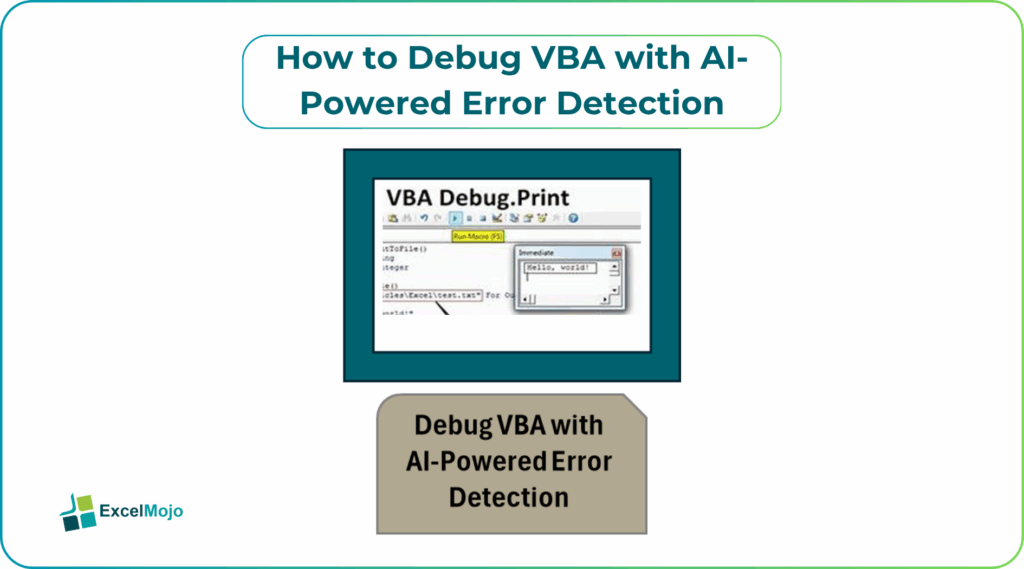
Here, we show you how to debug VBA with AI using common tools such as ChatGPT, Copilot, or specialized add‑ins to turn confusing VBA errors into clear, actionable corrections.You will see practical patterns for Excel VBA AI debugging, from isolated syntax issues to complex logic flow problems. The approach works for small macros and larger financial‑modeling modules, and pairs well with good VBA hygiene practices like modular functions and error‑handling blocks.
Why AI Powered VBA Error Detection Matters
Traditional VBA debugging is manual and symbolic: the user reads the error number, traces the call stack, and inspects variables one by one. This skill is valuable, but repetitive. Excel VBA AI debugging adds a layer where the AI can:
- Suggest the most likely source of a given error, such as “Object variable not set” or “Subscript out of range.”
- Propose corrections to variable declarations, With blocks, or ReDim statements.
- Verify logic consistency, such as checking that every If has a matching End If.
For example, a simple macro that reads:
Sub BadLoop()
Dim i As Long
For i = 1 To Cells(Rows.Count, 1).End(xlUp).Row
Cells(i, 2) = Cells(i, 1) * 1.1
Next i
End Sub
might trigger a “Run‑time error ‘1004’” if Rows is not qualified to ThisWorkbook.ActiveSheet. An AI VBA code debugger can highlight the unqualified reference, explain that Rows and Cells should be tied to a specific worksheet, and offer a corrected version.
AI‑based debugging is most effective when combined with clear, modular code rather than long, monolithic subs.
How to Debug VBA with AI
A practical workflow for AI powered VBA error detection has three phases: isolate the error, share the code with AI, and refine the fix. The pattern is the same whether using ChatGPT, Copilot, or a dedicated add‑in.
Phase 1: Isolate the Error
When a macro stops, note the error number, description, and line from the VBA editor. Open the module and:
- Comment out unrelated sections using apostrophes or REM.
- Add Debug.Print statements to trace variable values just before the crash.
- Reduce the data volume to a small sample if the error appears only on large datasets.
This step keeps the AI‑prompt focused and makes the issue easier to reproduce.
Phase 2: Prepare and Share the Code
Copy the problematic function or sub into a new text block, removing sensitive data such as account numbers or proprietary logic. A good prompt for Excel VBA AI debugging includes:
- The exact error message.
- The relevant code snippet.
- The context: “This macro runs on a revenue sheet with columns A and B” or “It loops through rows in Sheet1.”
Example prompt:
“VBA function below throws ‘Run‑time error 1004’ at the line with Cells(i, 2). The workbook has one sheet, revenue in column A, and I want to apply a 10% markup in column B. Explain the error and fix the code.”
AI usually responds with a revised snippet, highlighting the unqualified object and suggesting a With block or explicit worksheet reference such as:
Sub GoodLoop()
Dim ws As Worksheet, i As Long, lastRow As Long
Set ws = ThisWorkbook.Sheets(“Sheet1”)
lastRow = ws.Cells(ws.Rows.Count, “A”).End(xlUp).Row
For i = 1 To lastRow
ws.Cells(i, 2).Value = ws.Cells(i, 1).Value * 1.1
Next i
End Sub
Phase 3: Test and Refine the Fix
Paste the AI‑suggested code back into the editor and test it on a small dataset. Use F8 to step through and verify that:
- Variables are correctly declared and scoped.
- Loops terminate at the right row or record.
- Ranges use explicit worksheet references.
If the error persists, refine the prompt with new information, such as “Now it crashes at For i = 1 To lastRow” and repeat the process. This iterative loop is the core of AI assisted VBA error handling and typically shortens debugging time compared with manual trial‑and‑error.
Practical Example: Handling a Common Error
Consider a macro that attempts to sort a table by revenue:
Sub SortByRevenue()
With ActiveSheet
.Range(“A1:B100”).Sort _
Key1:=.Range(“B1”), _
Order1:=xlAscending
End With
End Sub
If column B is empty or the range is mismatched, the user sees a vague sorting error. A prompt such as “This VBA sort macro returns an error when the revenue column is blank or partially filled. Fix it and add safe range detection” can yield a corrected version that first checks for data and adjusts the range:
Sub SortByRevenueSafe()
Dim ws As Worksheet, LastRow As Long
Set ws = ThisWorkbook.Sheets(“Sheet1”)
LastRow = ws.Cells(ws.Rows.Count, “B”).End(xlUp).Row
If LastRow < 2 Then Exit Sub
With ws
.Range(“A1:B” & LastRow).Sort _
Key1:=.Range(“B1”), _
Order1:=xlAscending
End With
End Sub
This example shows how AI powered VBA error detection can turn a brittle macro into a robust one by adding simple validation and dynamic range logic.
Pitfalls and Best Practices
Using Excel VBA AI debugging is powerful, but it introduces common pitfalls.
One is over‑reliance on AI suggestions without understanding the underlying cause. For example, AI may correct a syntax issue but miss a deeper logic flaw, such as a macro that fails when new columns are inserted. Analysts should always test the fix against edge cases and document the original bug and the chosen solution.
Another risk is security. Pasting proprietary financial logic into an external AI chat can expose sensitive business rules. Teams should strip identifiers, use generic examples, and prefer internal or enterprise‑hosted AI tools where possible.
A third issue is clarity degradation. AI‑generated code is not always readable. Analysts should clean up comments, add clear variable names, and break long subs into smaller functions to keep the project maintainable. This approach keeps AI assisted VBA error fixing transparent and auditable.
Frequently Asked Questions (FAQs)
Yes, beginners can use AI powered VBA error detection by describing the error message and sharing the relevant code with an AI assistant. They still need to understand basic concepts such as variables, ranges, and macros, but they do not have to debug the issue from scratch.
AI assisted VBA error fixes can be safe if the user tests the corrected code on a copy of the data, verifies logic, and documents the change. Blindly accepting AI‑generated code without review can introduce new bugs or unintended side effects.
AI powered VBA error detection is faster for spotting syntax issues and common pitfalls, while traditional debugging with F8, Stop, and Debug.Print is better for understanding complex logic flow. The two approaches are complementary rather than competing.
No, AI VBA code debugger tools should not replace human‑written unit tests. They can accelerate debugging, but automated test cases and modular design are still essential for robust, long‑term macro maintenance.
Recommended Articles
Continue with these related resources when you want the next practical step in this topic.
Explore the full VBA Errors and Debugging guide or browse VBA Resources.