


What Is DMIN In Google Sheets?
The Database Minimum or the DMIN in Google Sheets checks the cell range or database for the smallest or the lowest value, that satisfies the given criteria, and retrieves that value as the output. The DMIN function in Google Sheets easily extracts and projects the lowest value in a large dataset with multiple digit values, such as population data, a company’s profit and loss data, etc.
For example, we have the population details of 10 cities which is a large data and not so easy to find the least populated city. Let us find the least populated city that satisfies the given criteria, in the criteria table in cells E1:E2, using the Google Sheets DMIN function.
Use this DMIN In Google Sheets Template to follow along with the examples in this article.
Download Excel Template
Select cell F2, enter the formula =DMIN(A1:C11,C1,E1:E2) and press “Enter”, as shown below.

The output is shown above, where the values that are less than the set criteria are ignored. And the minimum value from the rest of the values is retrieved as the least populated city.
Key Takeaways
- The DMIN in Google Sheets is a Database function that helps us find the minimum value from a list of values, such as numbers in any format whether integers (positive or negative), decimals, fractions, or dates in any valid format, etc.
- We have three arguments for the function where all three are mandatory arguments. We will get an error or the formula will not execute if even one of the arguments is not provided.
- Itis an alternative formula for the MIN, MINA and MINIF functions except that DMIN is database and supports queries too.
- A separate table, known as the criteria table or helper table, must be created apart from the dataset which helps us select the cell range and get right results.
- The function returns an error, when the arguments refer to a blank or an empty database.
Syntax
The syntax of the DMIN formula in Google Sheets is,

The three mandatory arguments of the DMIN formula in Google Sheets are,
- database: It is the selected cell range or database, where the first row must be headers, to find the lowest number.
- field: It is the column from which it retrieves and extracts the data.
- criteria: The values must satisfy or fulfil this given criterion or condition that will be referenced to a separate criteria table.
How To Use DMIN Function In Google Sheets?
We can use the DMIN in Google Sheets in two ways, as follows:
- Access from the Google Sheets menubar.
- Enter the formula in the worksheet manually.
Method #1 – Access from the Google Sheets menubar –
Step 1: Choose an empty cell for the output – select the “Insert” tab – click the “Function” option right arrow – click the “Database” option right arrow – select the “DMIN” function, as shown below.

Step 2: The “DMIN” formula appears, as shown below. Enter the argument as cell reference.

Method #2 – Enter the formula in the worksheet manually –
Step 1: Select an empty cell for the output.
Step 2: Type =DMIN( in the cell, as shown below. [Alternatively, type =D or =DM and double-click the DMIN from the Google Sheets suggestions.]

Step 3: Enter the arguments as cell values or cell references and close the brackets.
Step 4: Press Enter to view the outcome.
Examples
Let us consider some DMIN in Google Sheets examples with date and number as a criteria and check for minimum inventory items available and for the minimum sales.
Example #1 – DMIN Function and Date Criteria
Consider a company’s important events and their respective dates. Let us use the DMIN Function and Date criteria to find the minimum date value that satisfies the given criteria in the criteria table, A8:A9.

The procedure to use the DMIN in Google Sheets with the date criteria is,
Select cell B9, enter the formula =DMIN(A1:B6,B1,A8:A9) and press “Enter”, as shown below.

We see the output as above, i.e. 4 date values satisfy the criteria and the lowest of them is retrieved in cell B9.
[Special Note: Sometime we might get the date in a different format or the preset serial number. In such scenarios, we can change the date format as follows:
Select the result cell – select the “Format” tab – click the “Number” option right-arrow – click the “Date” option, as shown below (if the required format is available or select the required format using the custom dates option).

Example #2 – DMIN Function and Number criteria
The dataset consists of some random numeric values, both positive and negative values, in different formats, such as whole numbers, fractions, decimals, etc. Let us use the DMIN Function and Number criteria to find the minimum numeric value that satisfies the given criteria in the criteria table, D1:D2.

The procedure to use DMIN in Google Sheets with number criteria is,
Select cell E2, enter the formula =DMIN(A1:B9,A1,D1:D2) and press “Enter”, as shown below.

Example #3 – Determine the minimum sales figure based on specific criteria
Consider the dataset consists of smartphones and their respective sales. We will determine the minimum sales figure based on specific criteria in the criteria table, D1:D2.

The procedure to determine the minimum sales figure using the DMIN in Google Sheets is,
Select cell E2, enter the formula =DMIN(A1:B7,B1,D1:D2) and press “Enter”, as shown below.

Example #4 – Find the minimum quantity available for a particular inventory item
The dataset consists of laptop brands and the available units. Let us find the minimum quantity available for a particular inventory item according to the criteria table, A11:B12.

The procedure to find the minimum quantity available for a particular inventory item using the DMIN in Google Sheets is,
Select cell C12, enter the formula =DMIN(A1:C9,C1,A11:B12) and press “Enter”, as shown below.

To lookup for other inventory items, we can just update the criteria table.
Important Things To Note
- The DMIN in Google Sheets ignores the cell references of empty cells, logical values and text strings.
- If the criteria range is placed below the list ensure not to add information to the list, as it will push the cells down and return error as the cell references change. To avoid such situations, it’s better to add it at the right of the dataset, unless we do not add extra columns.
- The criteria range should not overlap the list. Ensure to leave a row or a column in-between the dataset and the criteria table, if we are creating the table below or beside the dataset, respectively.
- It also ignores the logical values, but counts those that we supply to it directly. It counts the values “true” and “false” as 1 and 0, respectively.
Frequently Asked Questions (FAQs)
A few reasons the DMIN function in Google Sheets may not work are,
a. The argument values or cell reference are not organized properly.
b. The cell range selected or the database is modified or deleted.
c. We have inserted the criteria table below or beside the dataset and new data is added in the dataset, which has moved the criteria table and hence the reference.
d. The cell value for the arguments given directly are inserted with double-quotes. If we enter numeric values within quotes, it will be considered as a textual value.
e. When we combine DMIN function with other functions, if the result of the formula, that must serve as an argument is not numeric, then we will get an error.
f. The format of the result cells is different from the selected cell range data format.
We often forget in which category a function falls, here, the “DMIN” function. Then, we can insert the function as follows:
Choose an empty cell – select the “Insert” tab – click the “Function” option right arrow – click the “All” option right arrow – select the “DMIN” function, as shown below.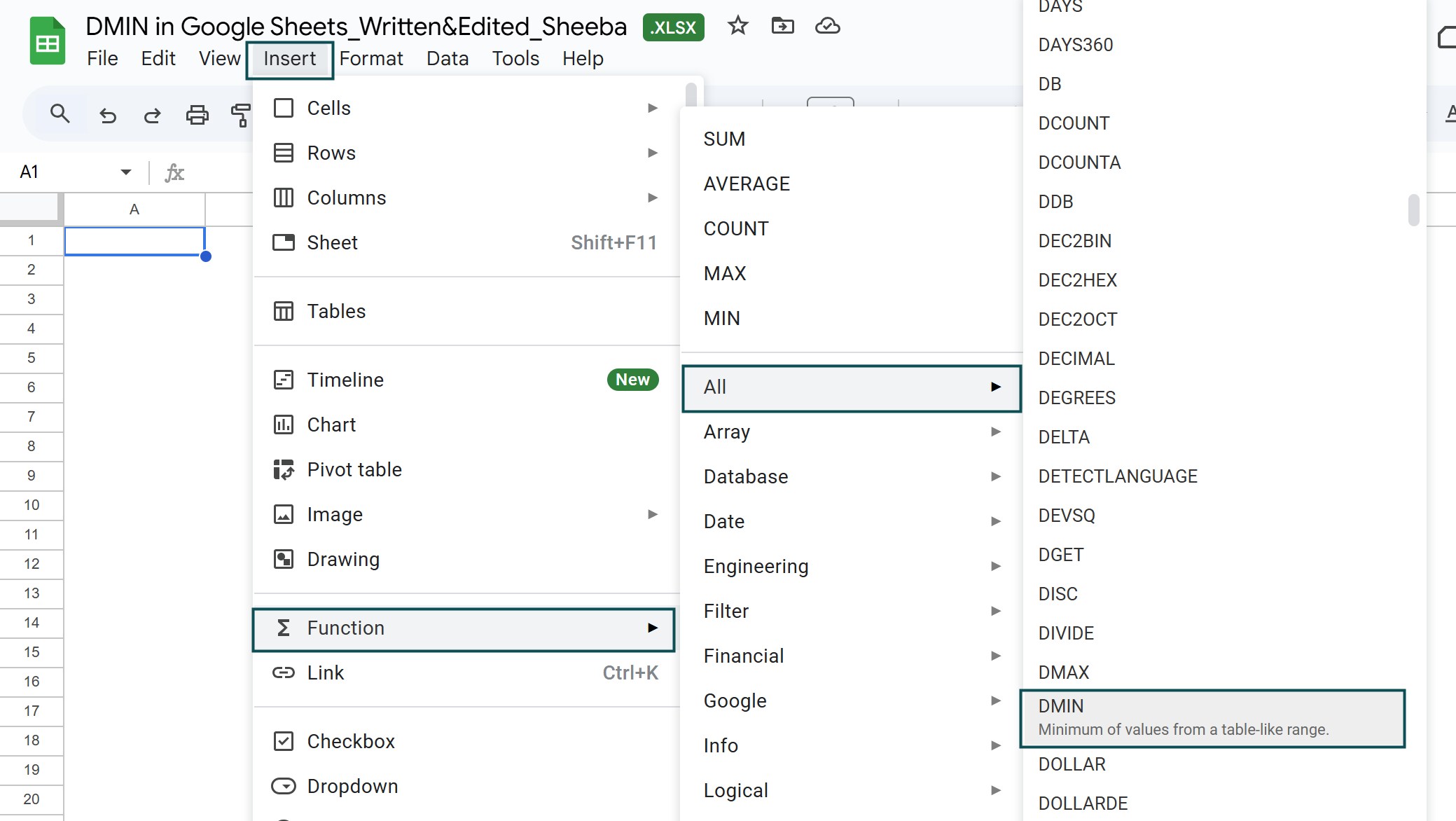
However, as always, entering the function manually is the best way to avoid confusion.
Alternatively, we can find the Functions icon to insert the DMIN Google Sheets Function by following the path shown below.
Choose an empty cell – click the “More” option represented by the three vertical dots at the end of the toolbar, as shown below.
A list of icons appears when we click the “More” option. Here, click the “Functions” icon, as shown below.
Here, click the “Functions” option – click the “All” option right arrow – select the “DMIN” function, as shown below.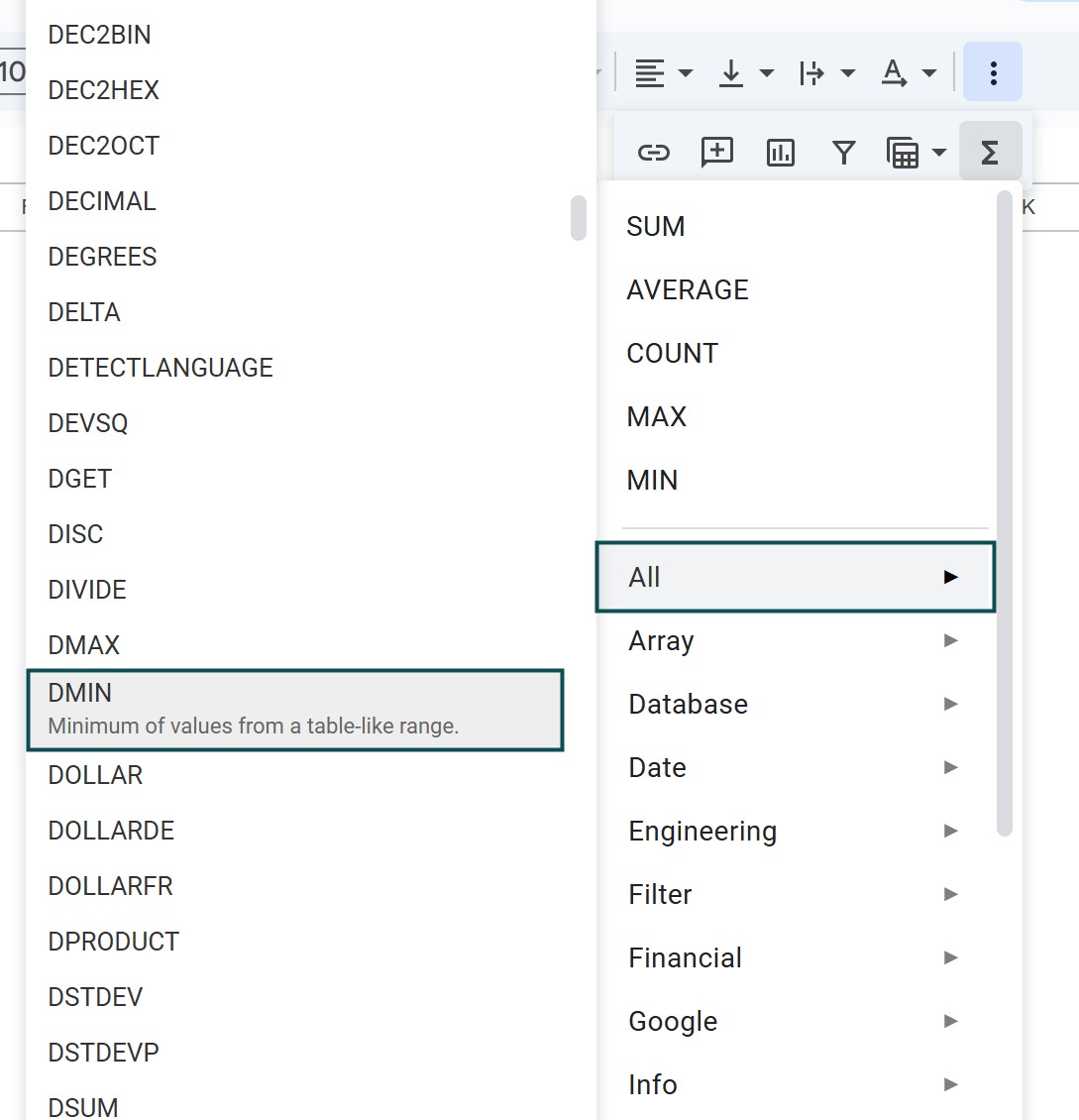
We can insert the Google Sheets IF function as follows:
Choose an empty cell for the output – select the “Insert” tab – click the “Function” option right arrow – click the “Logical” option right arrow – select the “IF” function, as shown below.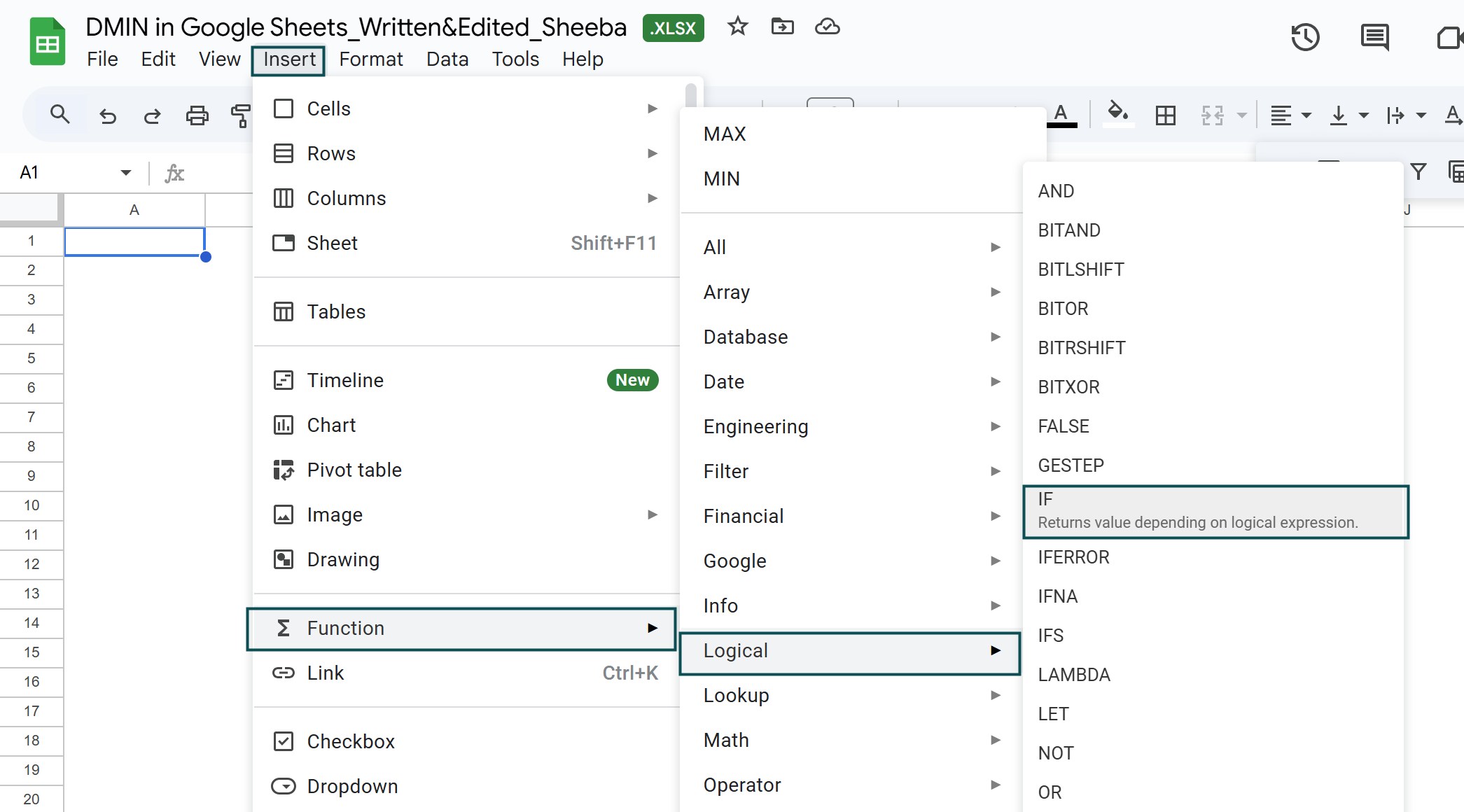
Use this DMIN In Google Sheets Template to follow along with the examples in this article.
Download Excel TemplateRecommended Articles
Continue with these related resources when you want the next practical step in this topic.
- MATH Functions In Google Sheets
- SUM Google Sheets Function
- AUTOSUM In Google Sheets
- COUNT FUNCTION IN GOOGLE SHEETS
- AVERAGE In Google Sheets
Explore the full Google Sheets Math Functions guide or browse Google Sheets Resources.