


Why Better Templates Matter
Excel templates save time only when they are built well. A weak template creates confusion, forces users to fix the same problems repeatedly, and often becomes harder to maintain than a blank worksheet. That is where better Excel templates with Claude become useful. Claude can help turn a rough spreadsheet idea into a cleaner, more reusable structure that is easier to share, update, and trust.
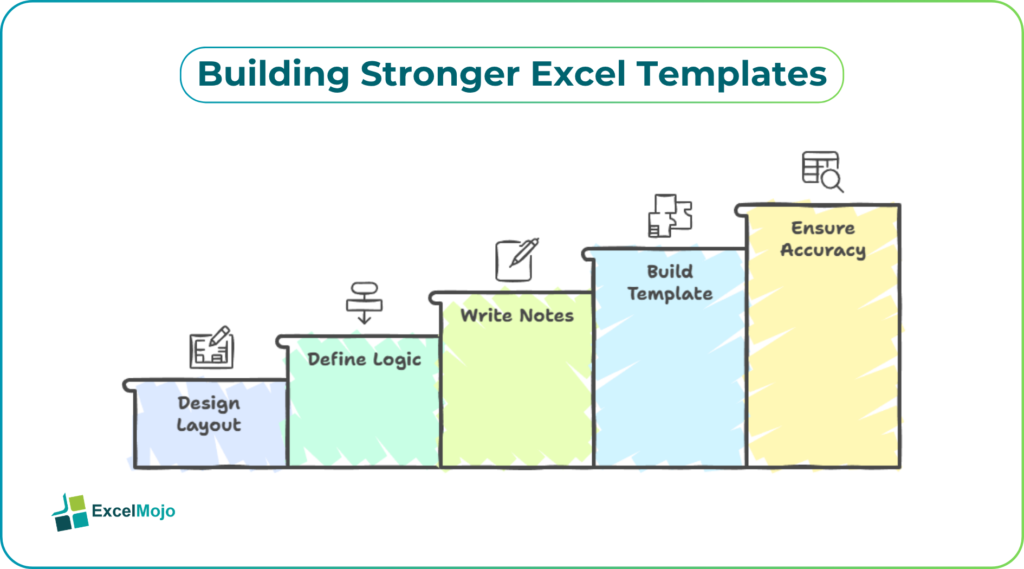
This matters for finance, operations, and reporting teams because templates usually live for a long time. A budget tracker, forecast file, or monthly reporting sheet may be used again and again by different people. If the structure is messy, every future update becomes slower and riskier. Claude can help design the layout, define the logic, and write the first draft of supporting notes. That does not replace Excel skill, but it does make the template easier to build correctly from the start. This article explains how to use Claude to create stronger Excel templates and what good template design should look like.
How Claude Helps Template Design
Claude is useful because it can think through structure before the sheet is built. Instead of starting with cells and formulas right away, the user can describe the template’s purpose and ask Claude to suggest the layout. That may include input sections, calculation blocks, output areas, and notes. In many cases, that early planning step saves more time than formula help alone.
It is especially helpful when the template is meant for repeat use. A monthly sales tracker, cash flow template, or budget model all need structure that is easy to follow. Claude can help define which fields belong in the input section, which formulas should be protected, and which outputs should be highlighted. That gives the user a cleaner starting point and reduces the chance of redesign later. In practice, the template becomes more useful because it is easier for others to understand.
This article explains how Claude can help design clearer, more reusable Excel templates by improving structure, logic, and overall spreadsheet layout.
Building the Right Template Structure
A strong Excel template usually starts with clear sections. Claude can help map those sections before the user writes the first formula. The most effective templates often separate inputs, calculations, and outputs so that the logic is easy to follow. That makes the workbook simpler to maintain and less likely to break when data changes.
A practical workflow looks like this:
- Define the template purpose.
Decide whether the file is for reporting, forecasting, tracking, or analysis. - Ask Claude for the structure.
Request sections for inputs, calculations, outputs, and notes. - Review the layout.
Check whether the structure matches the way the template will actually be used. - Add formulas carefully.
Keep calculations separate from raw inputs whenever possible. - Test the template.
Use sample data to confirm that the output behaves as expected.
This workflow is helpful because many template problems start with poor layout, not poor formulas. If the structure is clear, the workbook becomes easier to build and easier to reuse.
Better Excel Template Design with Claude
Claude can also help identify good design habits for reusable Excel templates. One of the most important is consistency. If labels, date formats, and formulas change from one section to another without a reason, the template becomes harder to trust. A clean design uses the same logic across similar rows and tabs.
Another important habit is separation of roles. Input cells should be easy to find, and formula cells should be protected or clearly marked. That way, users know where to type and where not to touch. Claude can help suggest this division before the template is built. It can also help write short notes that explain how the template should be used. That is especially valuable when the file will be passed to another analyst or manager later.
Where Claude Saves Time
The biggest advantage of Claude is speed during the setup stage. Instead of manually deciding every section and label, the user can ask Claude to draft the structure first. That reduces the blank-page problem that often slows down template creation. It also helps users think through edge cases before they become problems.
Claude is also useful for formulas that repeat across the template. If a workbook needs summary calculations, conditional logic, or section totals, Claude can help draft the first version. The user still needs to check the references and test the output, but the starting point is faster. For teams that create similar templates often, that time savings can be significant. The more repeatable the file, the more valuable Claude becomes.
Common Excel Template Mistakes to Avoid
The most common mistake is overcomplicating the design. A template should be reusable and easy to understand, not packed with extra logic that no one will maintain. Claude can help simplify the structure, but the user still needs to decide what really belongs in the file. If the template has too many sections or too many formulas, it becomes harder to use over time.
Another mistake is not separating inputs from calculations. When users type over formulas or hardcode values in the wrong place, the template loses its reliability. A good template protects the important parts and makes the editable parts obvious. Claude can help plan that structure, but the final setup still needs careful review. A third issue is skipping testing. Even a well-designed template should be checked with sample data before it is shared.
Why Analysts Benefit from Better Templates
For analysts, the main value of Claude is not just faster writing. It is better template planning. When the workbook is designed clearly from the start, the final file is easier to update, easier to hand off, and easier to trust. That matters in finance and reporting work, where the same template may be used many times by different people.
Claude also helps create consistency across files. If a team uses the same design logic for multiple templates, review time goes down and errors become easier to catch. That makes the workbook more useful in real work, not just in theory. In practice, better templates reduce confusion, improve handoffs, and make recurring tasks more efficient. That is where Claude adds value for people who spend a lot of time in Excel.
Conclusion
How to build better Excel templates with Claude comes down to structure, clarity, and repeatability. Claude helps users plan the layout, separate inputs from outputs, and draft a cleaner first version of the workbook. That makes the template easier to use and easier to maintain over time.
The best results come when the user treats Claude as a design partner, not a replacement for Excel judgment. It can reduce setup time, improve consistency, and make the workbook easier for others to understand. For finance and analytics teams, that combination creates templates that are more practical and more reliable. A better template saves time every time it is reused.
Frequently Asked Questions (FAQs)
Can Claude design an Excel template from scratch?
Claude can help plan the structure, sections, and logic of a template before it is built. It is best used as a design assistant that speeds up the first draft. The final workbook still needs to be built and checked in Excel.
What makes an Excel template reusable?
A reusable template has clear inputs, clean calculations, and easy-to-follow outputs. It should be simple enough for another user to understand without rewriting the whole file.
Is Claude useful for financial templates?
Yes. It is especially useful for budget models, forecast sheets, reporting templates, and trackers that repeat every month. Those files benefit most from better structure and consistent logic.
Should templates be complicated if they use AI?
No. Good templates should still be clear and easy to maintain. AI should help improve the design, not add unnecessary complexity.