


Working with tabular data is a part of daily workflows for many people. But the problem starts when the tabular data is in image format. It can be a scanned report, a screenshot of tabular data, etc. Editing such data requires manually retyping the entire dataset.
Fortunately, there are ways you can reduce this manual typing and convert the tabular images into an editable Excel sheet while keeping the formatting intact. This way, you can edit the tabular data easily.
Let’s learn a few easy ways to convert tabular data into an Excel file.
Methods to Turn Image Tables into Formatted Excel Sheets
The following are the simple yet practical approaches to convert tabular images into a formatted Excel dataset.
Method 1: Use Microsoft 365 Excel’s Built-in “Data from Picture” Feature
You may already know about Microsoft 365 Excel. It is a subscription-based service that provides access to Excel and other Microsoft applications, both online and through downloadable desktop apps.
If you have an active Microsoft 365 account, you can access Excel’s built-in “Data from Picture” feature. This allows you to extract tabular data from images. It first scans the entered image, recognizes the text and numbers, and then inserts them into your worksheet.
However, the availability of this feature depends on your Excel version and platform. It is supported in Microsoft 365 Excel and certain other Excel versions, including Excel 2021 and Excel 2024 on supported platforms.
The following is a demonstration of how you can use it:
- Open Microsoft 365 Excel and create an account if you haven’t signed in.
- Select a new worksheet where you can insert your data.
- Once you are inside the Excel sheet, go to the “Data” tab in the ribbon.
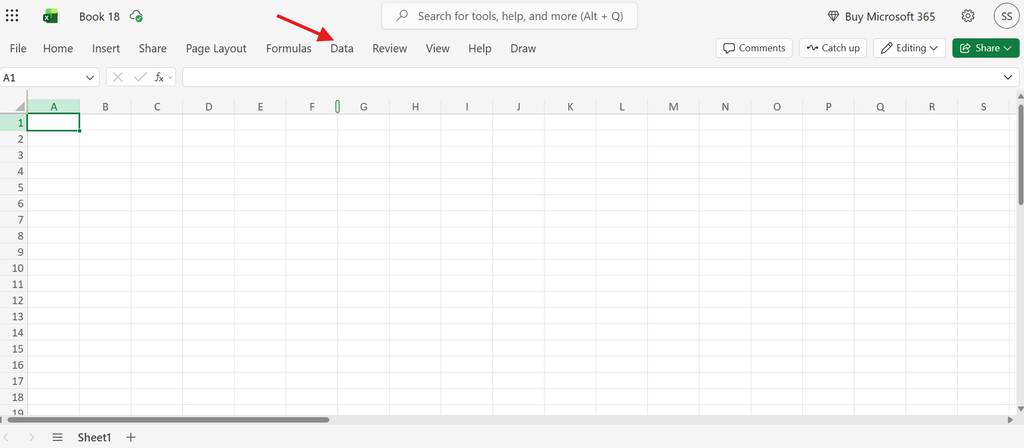
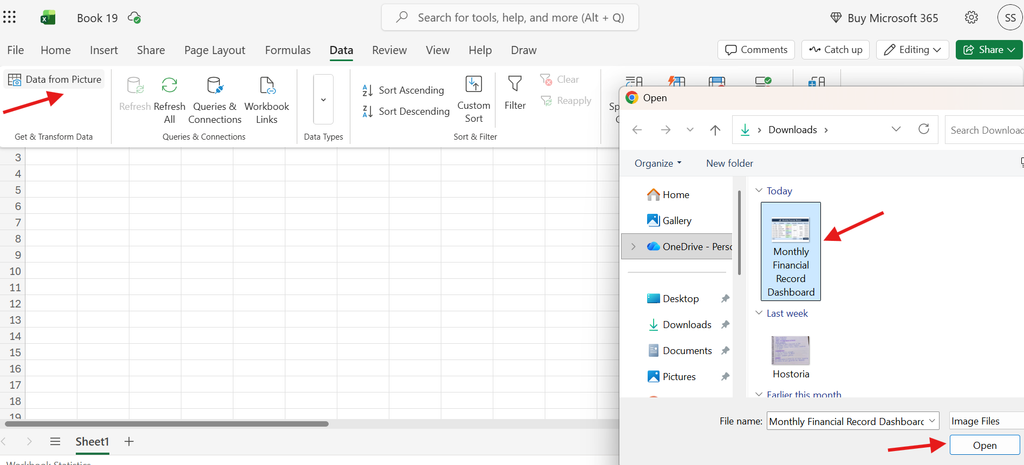
- After opening the “Data” tab, you’ll see the “Data from Picture” option in the ribbon. Click on it. You’ll get the option to select your image, as you can see in the screenshot below:
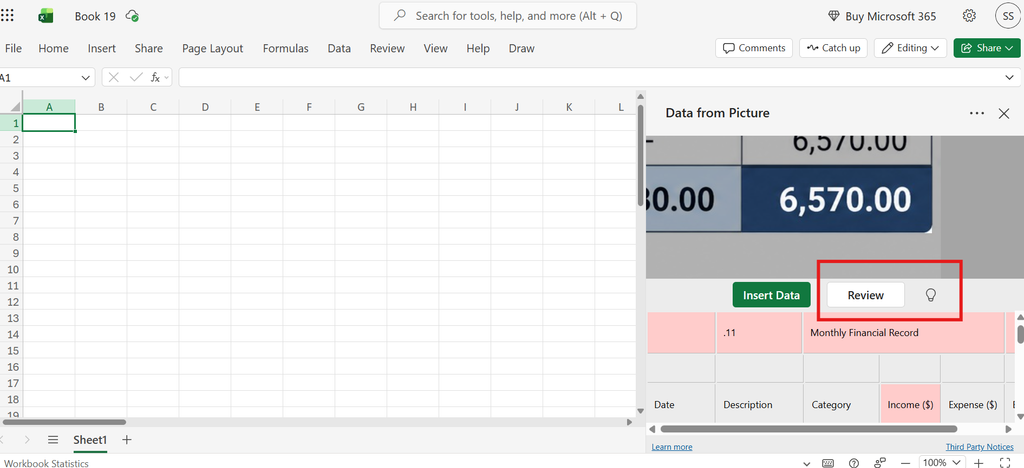
- When uploading your image, you’ll get the option to review the data. You can check for any inconsistencies and correct them.
- Once you are sure that the details are correct, you can click on “Insert Data” to add your tabular data into the Excel worksheet.
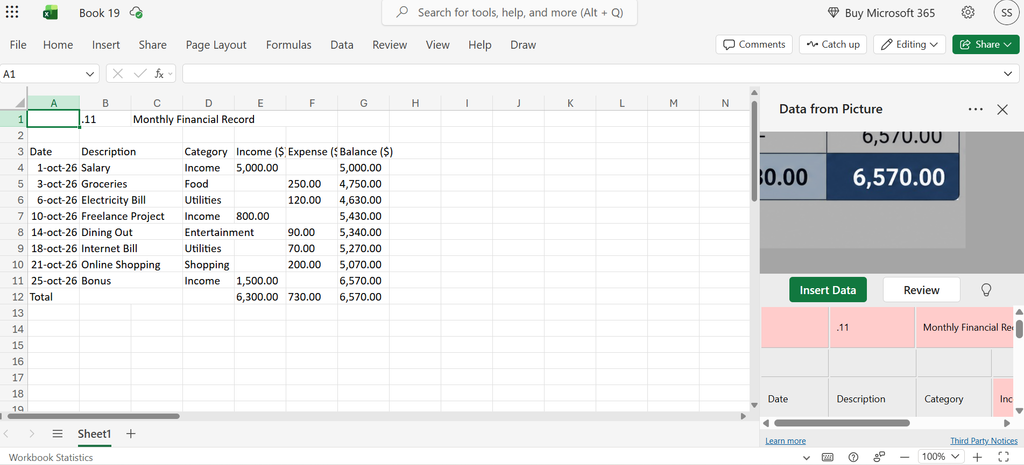
This is how you can use the Microsoft 365 Excel version to convert a tabular image into an Excel dataset. This is good for those who already have a Microsoft 365 account.
Method 2: Convert Images to Excel Using an OCR Tool
There are various OCR (optical character recognition) tools online that can convert tabular images into well-formatted Excel sheets. This method involves using one such tool.
To demonstrate the process, we also selected JPG to Excel converter, which we found quick and consistent during our testing. Below are the steps to use such converters.
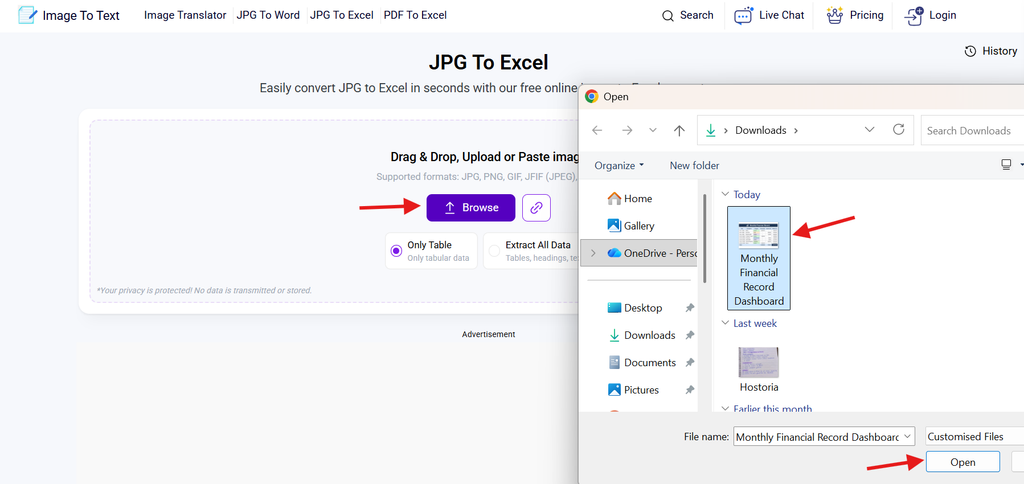
Open the image-to-Excel converter and navigate to its “Browse” or upload button and click it. Select your image and upload it to the tool.
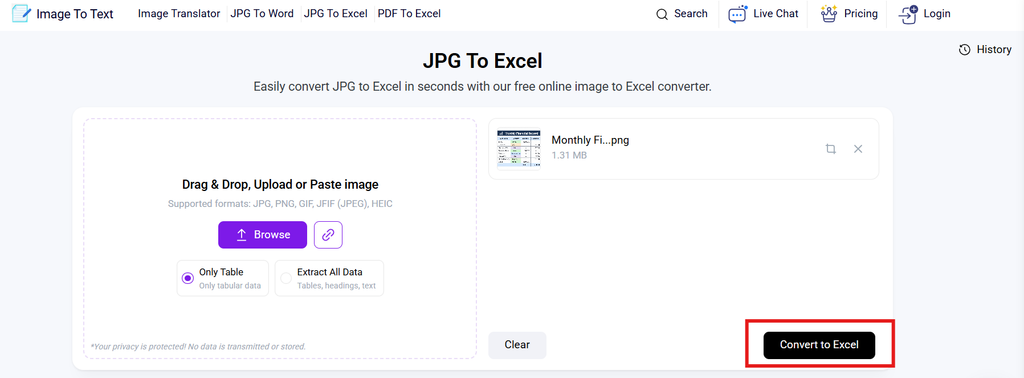
Once you upload your image, all you need to do is click on the “Convert to Excel” button, as you can see in the image below.
After clicking the Convert button, the tool will offer you a preview mode where you can edit the details (if required). When you are sure that the data is correct, you can copy or download the dataset in Excel format.
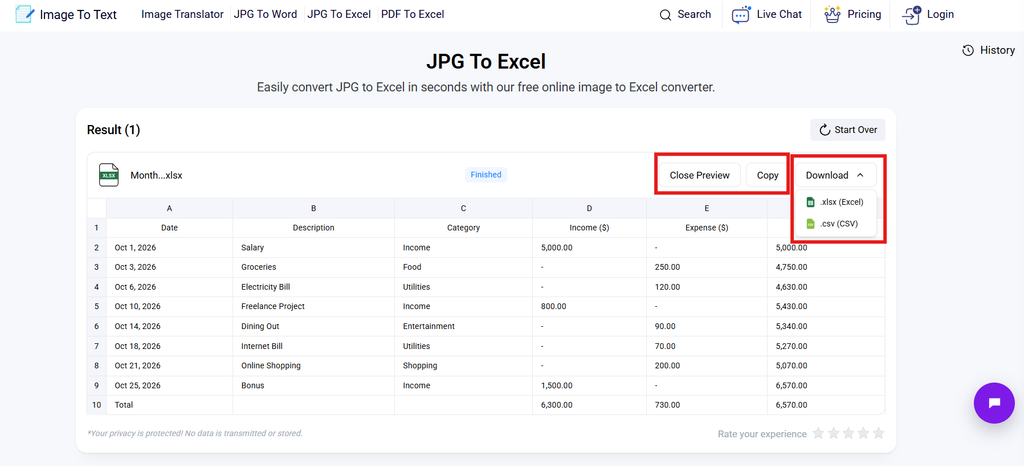
This is how you can use an online OCR tool to convert your images containing tabular data into Excel spreadsheets. This is a quick method that doesn’t require going through multiple steps or creating an account before using the tool.
Final Thoughts
Many people work with tabular data as part of their daily workflows. However, it becomes a hectic task when the tabular data is in image format, and you need to edit some details.
You can convert images directly into an editable Excel sheet to avoid manual typing. You can use the Microsoft 365 Excel method after creating an account.
You can also use an online OCR tool to convert your tabular images into Excel sheets. We’ve explained both of the methods above. You can use any of them that better fit your workflows.
Is it possible to transfer the table data from the JPG image into Excel without entering the information manually?
Yes, you can do that either using the built-in Excel feature called “Data from Picture” or an online OCR tool.
Is the Data from Picture feature available for all versions of Excel?
No, the feature is only available in the Microsoft 365 Excel version. It is not available in perpetual versions of Excel.
Will OCR keep the original formatting of the table?
It can preserve the formatting. But the results can depend on the selection of the tool and the clarity of your image.
How to make the image-to-Excel conversion more accurate?
Use a high-quality image with readable text. Avoid any shadows and ensure that the table is straight. Always check the extracted data once you get the output.