


Why Spreadsheet Notes Matter
Introduction to Claude for Excel Documentation – Spreadsheets often hold the numbers, but they do not always explain the story behind them. That becomes a problem when models, trackers, and reports move from one person to another. Claude for Excel documentation helps bridge that gap by turning formulas, tables, and workbook logic into clearer notes that other people can actually read.
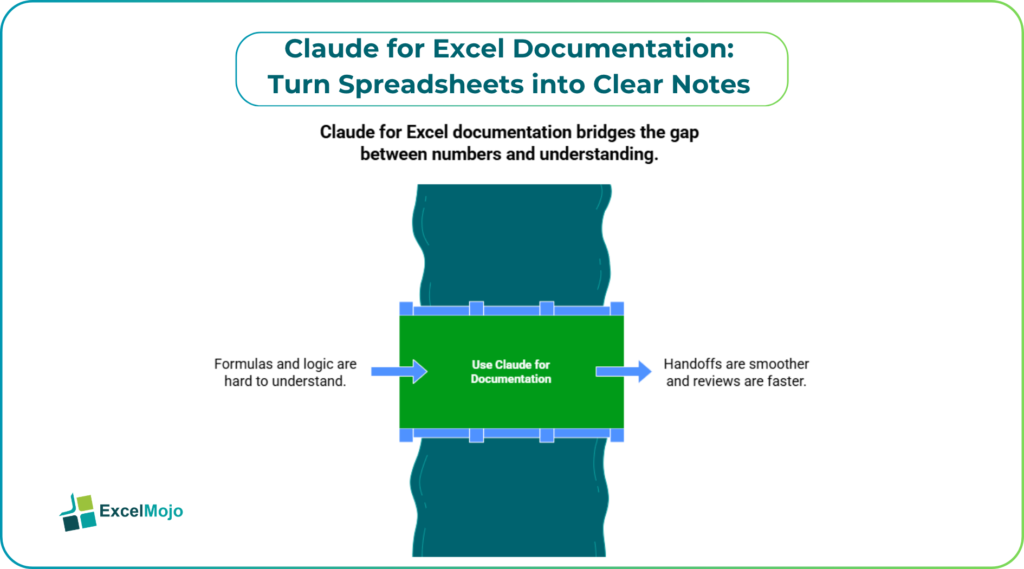
This matters in finance, operations, and analytics because a spreadsheet is rarely used only by the person who built it. Managers need a summary, reviewers need context, and teammates need a fast way to understand what the sheet is doing. Claude can help convert technical workbook content into readable notes, making handoffs smoother and reviews faster. This article shows how to turn spreadsheets into clear notes with Claude, where it helps most, and how to keep the final documentation accurate.
How Claude Reads Spreadsheet Context
Claude for Excel Documentation is useful because it can interpret structure and meaning, not just individual cells. When a user shares workbook content or describes the sheet, Claude can identify patterns such as headers, row logic, summary areas, and repeated formulas. That makes it helpful for creating documentation that explains what the workbook does instead of just repeating the numbers.
The best results come when the spreadsheet is organized. Clear labels, consistent formulas, and separate input and output areas give Claude more to work with. When the workbook has a clean structure, the notes it generates are usually easier to read and more accurate.
For example, if a workbook contains:
- A revenue tab.
- A margin tab.
- A summary tab.
Claude can help explain how these pieces relate and what each one contributes to the final output. That reduces the time needed to write notes manually and makes the documentation easier to follow.
Turning Spreadsheets Into Notes
The practical use case of Claude for Excel Documentation is simple. A finance analyst opens a workbook, identifies the key tab logic, and asks Claude to write a short explanation of what each section does. Claude can help draft notes for assumptions, calculation blocks, output summaries, and exception rows. Those notes can then be added to the sheet, copied into a report, or reused in a handoff document.
A strong workflow looks like this:
- Identify the workbook purpose.
Decide whether the file is for reporting, forecasting, budgeting, or analysis. - Highlight the key tabs.
Focus on input sheets, calculation sheets, and output summaries. - Ask Claude for plain-English notes.
Request a short explanation of each tab and the main formulas or logic. - Review the draft carefully.
Make sure the notes match the actual workbook behavior. - Add the notes to the file or a companion document.
Use the output to improve handoffs and reporting clarity.
This process is especially useful when the workbook is large or maintained by multiple people. Documentation often gets delayed because nobody wants to write it manually. Claude can make that part much faster.
Best Use Cases for Documentation
Claude for Excel Documentation works particularly well in recurring finance and analytics workflows. One strong use case is model documentation. If a workbook contains a forecast model or valuation sheet, Claude can help explain the assumption block, calculation flow, and output section in a way that is easier to share with stakeholders.
It is also useful for monthly reporting files. These usually contain repeated tabs, summary blocks, and a set of formulas that do the same thing every cycle. Claude can help write notes that describe the reporting logic, which makes the file easier to review the next time it is opened. Another useful case is training or onboarding. New team members can understand a workbook faster when the key sections already have clear notes attached to them.
Better Ways to Use Claude
Claude is most effective when used as a documentation assistant rather than a replacement for review. The user should provide enough context to explain what the workbook is for, which tabs matter most, and what kind of notes are needed. A prompt that says “summarize this workbook” is usually too vague. A prompt that asks for notes on the purpose of each sheet, the key formulas, and the reporting flow produces a much better result.
It also helps to keep the documentation short and practical. Spreadsheet notes should explain what a section does, why it matters, and what the reader should check first. They do not need to repeat every number in the sheet. In finance and reporting work, concise notes are more useful than long explanations that bury the important points.
Common Documentation Mistakes when using Claude
The biggest mistake is letting the notes drift away from the workbook logic. If the sheet changes and the notes are not updated, the documentation becomes misleading. That is why the final notes should always be checked against the actual workbook before they are shared.
Another mistake is writing notes that are too technical for the audience. A manager or client usually needs a short explanation, not a formula breakdown. Claude can help simplify the language, but the user still needs to decide how much detail the audience really needs. A final issue is over-documenting simple sheets. Not every workbook needs a long explanation. The best documentation is the kind people will actually read.
Why Analysts Benefit from Spreadsheet Documentation with Claude
For analysts, the value of Claude is speed with clarity. It helps turn spreadsheet logic into notes that others can understand, which saves time during reporting, handoff, and review. That is especially helpful when the workbook is part of a larger process and the story behind the numbers matters as much as the numbers themselves.
It also helps improve consistency. When the same kind of workbook is documented the same way every time, reviewers know where to look and what to expect. That makes finance and analytics workflows smoother and reduces unnecessary back-and-forth. In that sense, Claude does not just help write notes. It helps make spreadsheets easier to use across a team.
Conclusion
Claude for Excel documentation helps turn spreadsheets into clear notes that are easier to read, share, and review. It is useful for model documentation, reporting summaries, onboarding notes, and handoff files. The main benefit is not just faster writing. It is clearer communication around what the workbook is doing and why it matters.
The best results come when Claude is used with structured sheets and a clear prompt. The user still needs to verify the notes against the workbook, but Claude can save time and reduce friction in the documentation process. For analysts and finance teams, that makes spreadsheet work easier to maintain and easier to explain.
Frequently Asked Questions (FAQs)
What does Claude do for Excel documentation?
Claude helps turn spreadsheet logic, formulas, and workbook sections into clear notes. It can explain what each part of the sheet does in plain language, which makes the file easier to understand. That is especially useful when a workbook needs to be handed off to someone who did not build it.
Is Claude useful for finance model notes?
Yes. It is especially useful for documenting assumptions, calculation blocks, and output sections in financial models. That makes reviews and handoffs smoother because the reader can follow the logic without tracing every formula manually. It also helps keep recurring model notes more consistent.
Should the notes be added directly into Excel?
They can be added directly into the workbook or placed in a companion document. The best choice depends on how the team reviews and shares the file. If the model changes often, a separate notes file can sometimes be easier to maintain.
Can Claude replace manual documentation?
Not fully. It can draft the notes much faster, but the user still needs to review them and make sure they match the workbook logic. In practice, it works best as a drafting assistant rather than a full replacement for human documentation.