


Introduction
AI and Excel with their host of features, are moving towards becoming an unbeatable combination. The extensive functionality of Excel and combined with the futuristic AI and ML, can make it a powerhouse to beacon with for any organization.
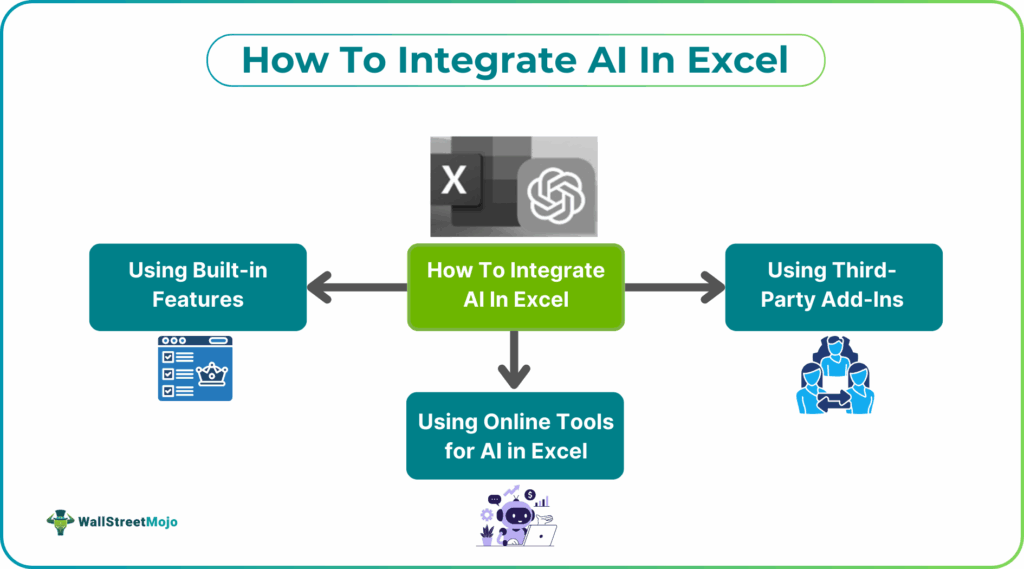
However, one must first integrate the two to tap into their full potential. Integrating AI into Excel can be done through different ways. It can be done thorugh its built-in features, third-party add-ins, or online tools. Microsoft 365 Copilot is a key built-in feature, while add-ins like those from GPT for Work or tools like Goodlookup provide advanced functionality for formula creation and data lookup. Online services and add-ins allow users to perform complex tasks, such as data extraction and automated analysis, by connecting Excel to powerful external AI models.
How To Integrate AI in Excel
Let us look at the different ways to integrate AI in Excel.
#1 – Using third-party add-ins
Third-party add-ins can largely extend Excel’s capabilities. They directly integrate advanced AI models into the spreadsheet. For example, a ChatGPT add-in can help you write complex formulas or generate text based on your data. All this can be done within your sheet.
Installing them is very simple. You just go to the Microsoft Office Add-ins store and do it. They allow you to interact with AI models directly through custom functions or buttons in the ribbon.
#2 – Using online tools for AI in Excel
Online AI tools help one to integrate AI without installing add-ins. Some platforms allow you to upload an Excel file, and then use a user-friendly interface to define what data you want to extract or analyze. You can define the fields you need, and the tool uses AI to process the data and generate the results, which can then be integrated back into Excel. This is particularly useful for tasks that require external processing power or are too complex to handle directly in the spreadsheet.
#3 – Using built-in features
Excel has several built-in features that leverage AI to simplify common tasks. Features like “Analyze Data” (formerly “Ideas”) can automatically analyze your data and suggest charts and pivot tables, while “Flash Fill” uses pattern recognition to automatically populate columns with data as you type. Other built-in tools, such as Power Query and Forecast Sheet, also use AI or machine learning principles to automate data cleaning, transformation, and predictive modeling.
#4 – Built-In AI Features in Excel
Excel’s built-in AI features are designed to streamline workflows and provide intelligent insights without external tools. The “Analyze Data” tool uses machine learning to scan your data and automatically create charts, pivot tables, and pivot charts that highlight key trends, saving you time on manual data exploration. “Flash Fill” is a highly intuitive feature that recognizes patterns in how you’re manipulating data and automatically completes the rest of the column, making repetitive data entry much faster. Other features like “Data Types” can convert text into interactive data types, while the “Forecast Sheet” automatically generates future sales trends based on historical data.
Top 5 Excel AI Tools
#1 – FormulaBot
Description:
FormulaBot is a conversational AI assistant that turns your plain-English instructions into Excel formulas, charts, automated data clean-up, and even data models. You can talk to it like a chat — asking for insights, summary tables, or data reshaping — and it instantly gives you actionable results. It handles not just Excel or Sheets formulas, but also SQL queries, PDF-to-Excel conversion, and visualizations. For users who don’t want to write formulas manually, this is a powerful helper that lives both in your browser and in your spreadsheets.
Features:
Natural-language to Excel / Google Sheets formula generation.
- Data analyzer: ask questions about your data and get charts, tables, and insights.
- Automation: reshape, clean, or enrich data; convert PDFs to spreadsheets; generate SQL/VBA/Apps Script.
Use Cases:
A business analyst can ask for “monthly revenue trend” and get a chart plus summary without writing any formula.
A product manager cleans up messy survey or CSV data with a few prompts.
A data scientist generates SQL queries from Excel to run backend analysis.
Pricing:
FormulaBot offers a free tier, plus paid plans: Starter is US$ 18/month, Pro is $29/month, and Max is $55/month.
formulabot.com
+2
formulabot.com
+2
#2 – ExcelAI-Bot
Description:
ExcelAI-Bot is an Excel add-in that helps you generate and explain formulas using AI. You can type in what you want (for example, “sum all sales greater than 1000”) and the bot writes the correct formula. It also helps you understand complex or confusing formulas by explaining them in simple English. It’s a great assistant if you’re not completely comfortable writing spreadsheet functions.
Features:
Generate Excel formulas from natural language prompts.
Explain existing formulas in plain English, helping with debugging or learning.
Chat with your spreadsheet — ask questions, restructure data, or automate tasks.
Use Cases:
New Excel users can learn how to build formulas without memorizing function syntax.
Financial modelers can quickly check and correct complex formulas.
Anyone working with repetitive tasks can speed up formula writing.
Pricing:
ExcelAI-Bot’s plans start at US$ 9.99/month (Starter) and go up to US$ 29.99/month (Pro) for more advanced features like data-analysis queries and chat with Excel files.
excelaibot.pro
#3 – Datarails (Genius AI)
Description:
Datarails is an FP&A (Financial Planning & Analysis) platform that links directly with Excel to bring AI-driven financial reporting and forecasting. Its “Genius AI” suite consolidates data from Excel, CRMs, ERPs, and other sources to create intelligent, board-ready reports. With Datarails, finance teams can scale their Excel workflows using cloud-driven planning, variance analysis, and predictive analytics.
Features:
Consolidates and reconciles financial data across multiple sources.
AI-powered forecasting, variance analysis, and scenario modeling (“what-if”).
Live Excel add-in plus a web-based interface for dashboards, reports, and planning.
Use Cases:
A finance team building monthly variance reports without manually aggregating Excel files.
FP&A professionals creating forecasts and budget scenarios with predictive modeling.
Executives receiving live, updated dashboards generated from Excel-connected data.
Pricing:
Datarails uses custom pricing — you need to request a quote depending on the number of users and integrations.
Datarails
#4 – Arcwise AI
Description:
Arcwise AI is a GPT-based add-in for Excel (and Google Sheets) that analyzes your data and provides contextual insights, explanations, and data storytelling. You type questions like “why did sales drop this quarter” or “show me the biggest outliers,” and it responds with narrative explanations, charts, and flagged anomalies. It’s designed for business analysts who want to explore and explain their data in natural language — without building complex pivot tables.
Features:
Natural-language insight generation (stories, explanations, narrative).
Data anomaly detection and trend highlighting.
Formula explanation — it helps explain what’s going on in your cells and ranges.
Use Cases:
Business analysts preparing board presentations with narrative insight, not just numbers.
Managers reviewing sales or expense data and spotting unexpected trends.
Anyone who wants AI to explain spreadsheet data in plain English.
Pricing:
Arcwise AI provides free beta access according to recent add-in lists.
#5 – Microsoft Copilot for Excel
Description:
Microsoft Copilot for Excel integrates generative AI right inside Excel, letting you ask questions, generate pivot tables, and build formulas using natural language. It greatly speeds up tasks like summarizing large worksheets, cleaning data, and creating charts — all without manually writing complex formulas. Because it is part of the Microsoft 365 ecosystem, it leverages your existing documents and context to give smarter suggestions. Copilot makes Excel feel like a collaborative AI assistant rather than just a spreadsheet tool.
Features:
Chat-based natural language interface to ask questions about your data.
Automatic formula creation, pivot tables, summaries, and charts from prompts.
Integration with other Microsoft 365 apps (Word, PowerPoint) and your workbook context.
Use Cases:
Quickly building a monthly sales summary or trend analysis without manual pivot creation.
Cleaning or reshaping data by asking Copilot to group, summarize, or filter rows.
Generating “what-if” models by asking Copilot to simulate scenarios within Excel.
Pricing:
Microsoft Copilot for Excel is available under certain Microsoft 365 business plans — typically around US$ 30 per user/month, but pricing can vary based on your license.
Conclusion
Integrating AI into Excel helps you work faster, reduce manual effort, and make better decisions using your data. Whether you rely on built-in features or third-party tools, choose the AI solution that fits your skills and the complexity of your work. Even simple AI features can make a big difference in accuracy and productivity.
Frequently Asked Questions (FAQs)
No. Most AI features, including Copilot, Analyze Data, and add-ins, work with natural language or simple functions.
Basic AI features like Analyze Data and Flash Fill are free. Advanced tools like Copilot or external add-ins may require paid plans.
Yes. AI tools can fix formatting, remove duplicates, extract text, and organize large datasets quickly.
Microsoft Copilot and built-in Analyze Data are the easiest options for new users because they require no installation.
Recommended Articles
Continue with these related resources when you want the next practical step in this topic.
- How To Use AI With Excel
- How AI Is Transforming Data Analysis In Excel (2026 Complete Guide)
- Excel AI And Machine Learning: Beginner’s Guide For 2026
- The Most Useful AI Features in Excel: Unlock Smarter Spreadsheets in 2026
- Top Skills for AI-Enabled Excel in 2026 (Must-Master List)
Explore the full Excel AI Automation and Analysis guide or browse Excel Resources.